The Modes Claude Can Run In.
Five modes for how much your agent does without checking with you first, from asking before every action to running with no prompts at all. Each one trades a little oversight for a little speed, and you pick where you sit on the ladder. The exact labels shift a little between VS Code and the desktop app; the modes are the same underneath.
- A clear mental model for each mode and what it lets the agent do or not do.
- A default to start with and a sense of when (and when not) to climb the ladder.
- The one slash command that snaps you back to the default the moment something feels off.
How this fits in the OS.
Claude Code installed and a workshop folder where the agent has something useful to do.
The permissions section of your Claude Code settings file, plus a small set of slash commands.
The confidence to let the agent run longer tasks without watching every keystroke, when (and only when) you are ready.
The problem this solves.
The first time an agent on your computer asks "can I run this command?" you tap yes. The tenth time, you tap yes a little faster. The hundredth time, you start wondering whether you actually read it.
That is the real safety problem with an agent that can do things. It is not whether it will go rogue. It is whether you will keep paying attention to the prompts that protect you. Modes are how Claude Code solves this. Instead of one always-on permission dialog, you get five working stances, and you pick the one that matches the level of trust you have built so far.
Pick low. Climb on purpose. Drop back to the default the moment something feels off.
The modes you can pick.
Same agent. Same tools. Different agreements about what it can do without checking with you first. You switch between them with Shift+Tab in the terminal and in VS Code, or from the mode selector in the desktop app. One thing to know up front: the exact wording shifts a little depending on where you run Claude. They are the same modes underneath.
| Where you run Claude | What the first two modes are called | How you switch |
|---|---|---|
| VS Code | "Ask before edits", then "Edit automatically" | Shift+Tab |
| Desktop app | "Ask permissions", then "Accept edits" | Mode selector (Shift+Ctrl+M) |
| Terminal | default, then acceptEdits | Shift+Tab |
Plan mode, Auto mode, and Bypass permissions are named the same in all three. And every surface can reach every mode: Shift+Tab (or the menu) cycles the everyday ones, while Auto and Bypass are turned on the same way wherever you run Claude (covered just below). The terminal is not limited to the basic three; start it with a flag and it runs Bypass or Auto too.
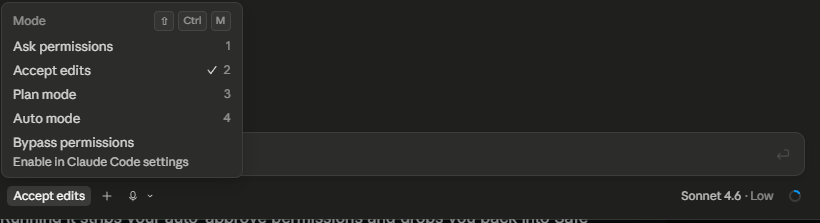
/safe command snaps you back here.
mkdir, touch, mv, cp), but still asks before other commands. Good for iterating when you would rather review the changes with git diff afterward. Labeled Edit automatically in VS Code and Accept edits in the desktop app.
Auto mode and Bypass permissions both take a deliberate step to enable, by design. Picking Auto mode the first time in a folder pops a one-time confirmation ("Claude will decide which actions are safe to run without asking"), and it remembers that workspace afterward. It also has requirements: a recent model (Opus 4.6 or Sonnet 4.6) on the Anthropic API, so if you do not see Auto in your menu, that is usually why. Bypass goes further: it stays switched off until you enable it in settings (or launch with a flag), so you cannot reach the most autonomous setting by accident. The first three modes need no setup.
Crawl, walk, run.
The modes are a ladder, not a menu. The way you climb it matters as much as where you end up. (Plan mode sits off to the side: reach for it any time you want a plan first.)
- Crawl. Live in the default, asking before everything, while you learn what your agent actually tries to do. Read every prompt. The pattern of what it asks for is the curriculum. Auto-accept edits is a small, safe step up once approving every file save gets tedious.
- Walk. Move to Auto mode once you can predict the answer to most of the permission prompts before you read them. That predictability is the signal you are ready, not the calendar.
- Run. Reserve Bypass permissions for narrow, well-rehearsed jobs in a contained environment. Overnight cleanup on a sandbox folder, yes. Anything that touches your inbox, your billing system, or a client deliverable, no.
The workshop pattern is to flag you if you try to skip straight to Bypass before your setup is ready to support it. That guardrail exists because the failure mode of an over-trusted agent is not dramatic. It is small, fast, and quiet. A file deleted in the wrong directory. A message sent to the wrong person. You will not notice until later. The rest of that setup, credentials locked away, version control as an undo button, and a kill switch, is the broader safety net in Running Claude Safely.
The one command to remember.
You do not need to memorize how each mode is configured. You need to remember the way back down.
/safe drops the agent back to the default by clearing out every auto-approve permission in your Claude Code settings. Other settings (your environment variables, your MCP connections) are left alone. The next action the agent takes will ask for permission, because there are no longer any standing permissions to lean on.
Use it the moment you feel the agent moving faster than you can follow. Use it before any task you have not run before. Use it whenever you sit down at someone else's computer. The cost of running in the default for an extra session is a few more prompts. The cost of running in Bypass when you should not be is a lot worse than that.
What changes for you.
The modes themselves are simple. The shift they create in how you work is not:
- You stop arguing with permission prompts. Once you understand the ladder, the prompts are not friction. They are the agent honoring an agreement you set. You either approved the tool or you did not, and the answer is the same every time.
- You start matching the mode to the job. A research task gets Plan mode. A long refactor on code you know gets Auto. An exploration in someone else's repo stays in the default. The choice becomes part of how you frame the work.
- You earn the higher modes instead of defaulting to them. The team members running long overnight jobs in Bypass got there by spending weeks in the default and Auto first. Trust is built. It is not configured.
Where to go next.
Modes are one piece of the safety picture. Three natural next moves: