Why this exists
Claude can put keys in the vault.
It can't read them back out — yet.
Default setup (CLI + login)
- Infisical is a storage vault
- Claude can set keys into it
- But nothing reads them back at runtime
- Your local tools still can't see the values
After /upgrade-8d-secrets
- Installs the Infisical Agent
- Uses a machine identity as Claude's keycard
- Renders your secrets to a local file, kept fresh
- Claude pulls them in securely and uses them
This is the advanced path. You only need it when a local tool, MCP server, or scheduled job needs real environment variables. Deployed apps read their keys from Vercel — they don't need this.
Read this first
You don't do this alone.
YOU RUN
One command
In Claude, in your
agent-native-os project, you run /upgrade-8d-secrets. That's your only real action to start.CLAUDE DRIVES
It guides you
Claude sends you into the Infisical web app to create a Machine Identity, collects a few values, and wires up the Agent for you.
THIS DECK
Is your map
The slides ahead show what Claude will ask for and where each value lives — so nothing catches you off guard.
It runs in the Claude Desktop Code surface. Claude runs the local commands for you and tells you exactly when to act — including when to type your secret. You're not working alone in a bare terminal.
Step 1 / Start the command
In your agent-native-os project, run it.
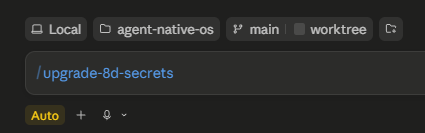
Make sure your Claude session is pointed at the agent-native-os project — see it in the context bar, that's where the setup script lives. Type
/upgrade-8d-secrets and send it. Claude confirms you actually need 8D, then guides the Infisical setup on the next slides.Step 2 / The six values
Claude will ask you for six things.
01
Project ID
Project Settings → General
02
Domain
Your Infisical region (app.infisical.com, or eu.infisical.com)
03
Env slug
The environment your secrets live in (usually dev)
04
Secret path
Usually the root of your project (/)
05
Client ID
From the identity's Universal Auth. NOT the Identity ID at the top.
06
Client Secret
Created once. You type it at the prompt when asked — never into chat.
Shortcut for 01–04: you don't have to collect these by hand. While you're in your Infisical project, copy the browser URL and paste it to Claude — it can pull the project ID, domain, and environment straight from it. That URL isn't a secret, so it's safe to give Claude. The next slides create values 05 and 06.
In Infisical / Organization level
Open Org → Access Control.
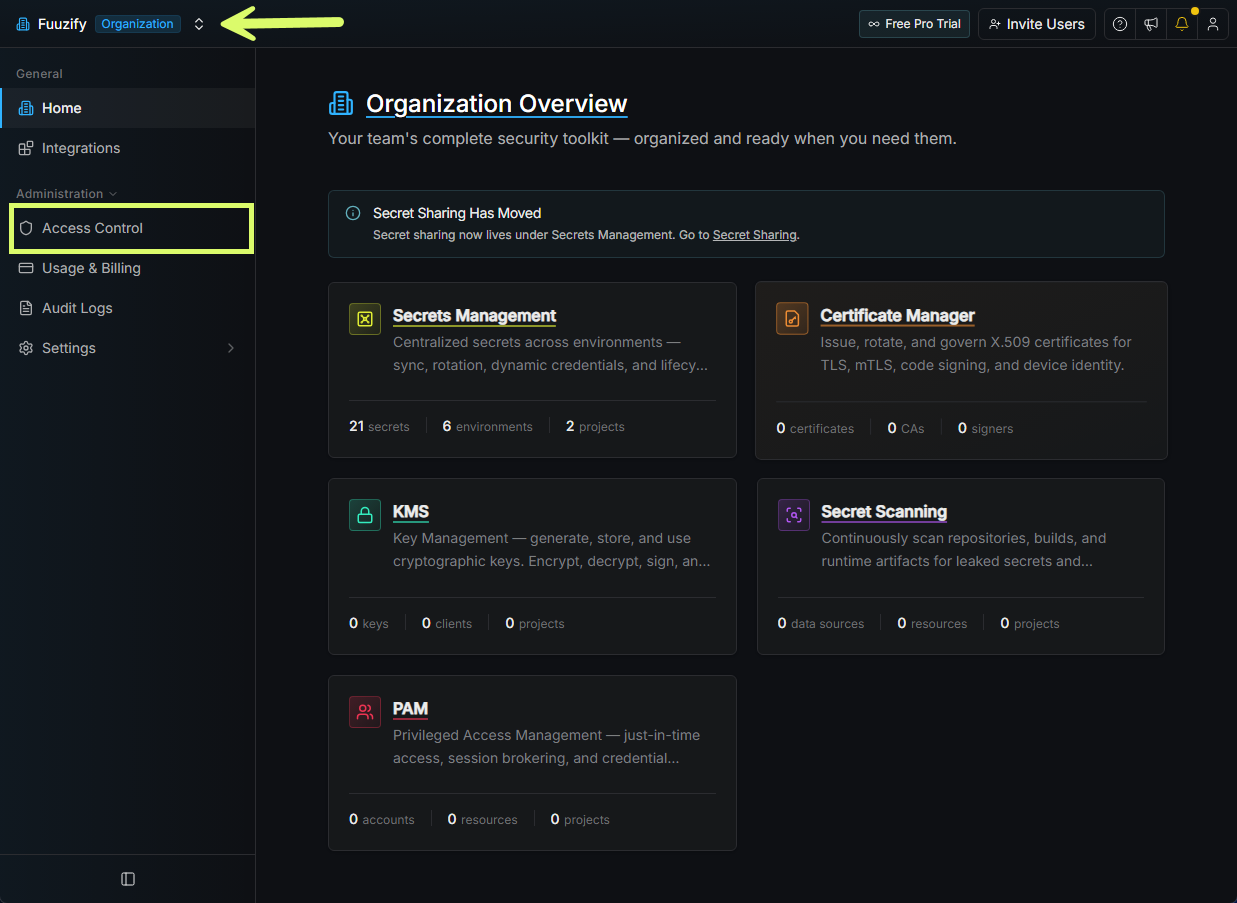
In the left sidebar, open Administration → Access Control. This is the organization menu — not a project. The neon box marks where to click.
In Infisical / Create an identity
Machine Identities → Create.
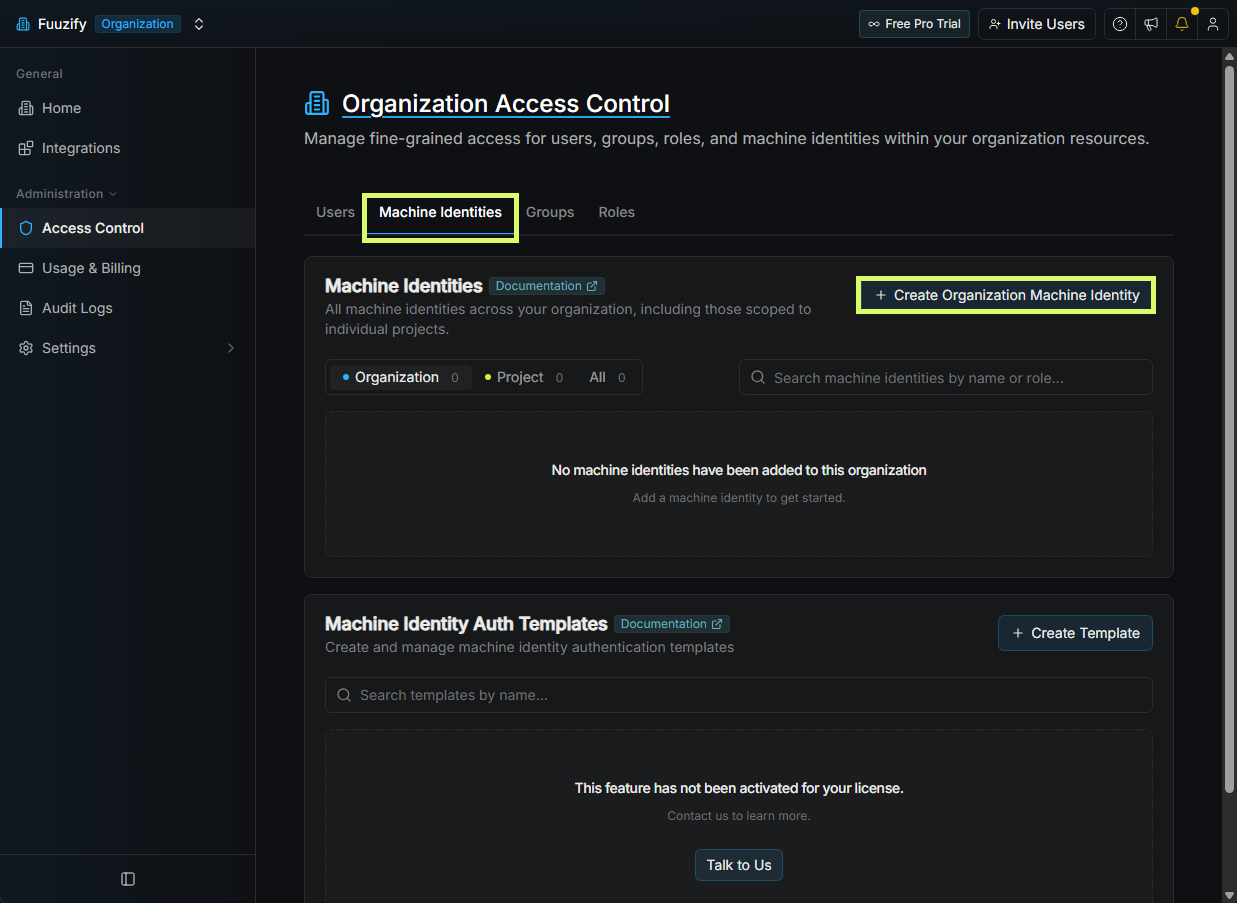
Click the Machine Identities tab, then + Create Organization Machine Identity in the top right.
In Infisical / Name + role
Name it agent-secrets. Click Create.
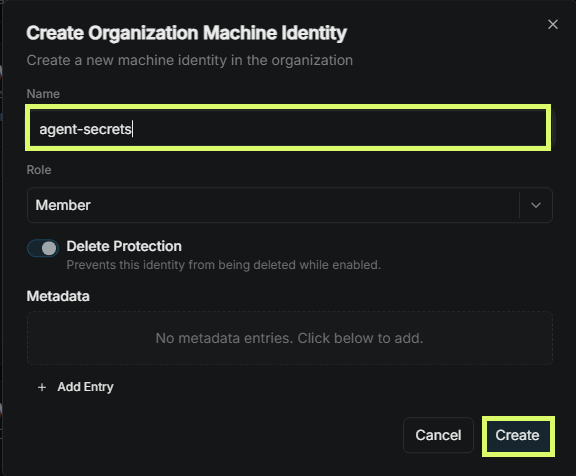
Give it a recognizable name. Set Role to Member, leave Delete Protection on, and click Create. The org role barely matters — real access is granted when you add this identity to your project in a few steps.
In Infisical / Open Universal Auth
Click ··· → View Auth Method.
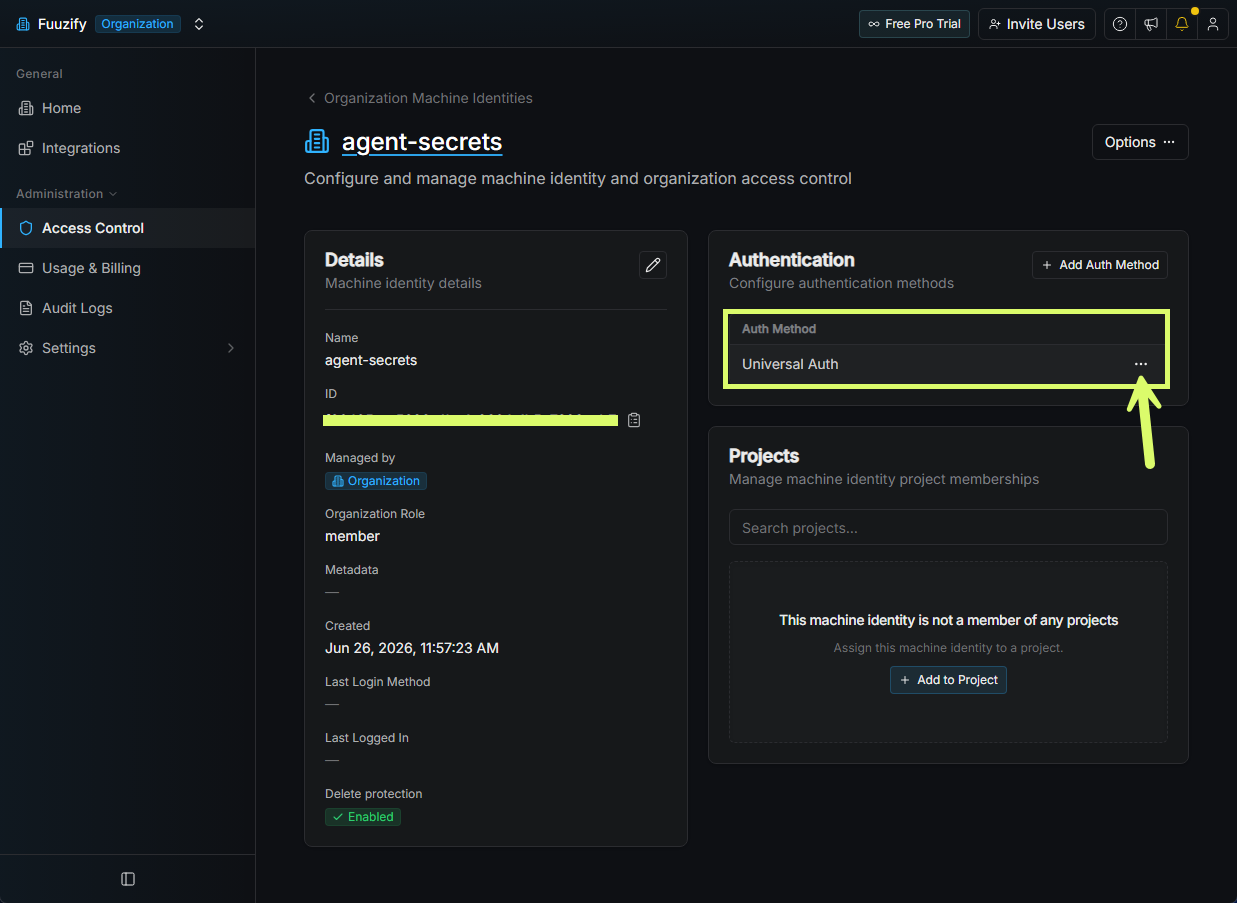
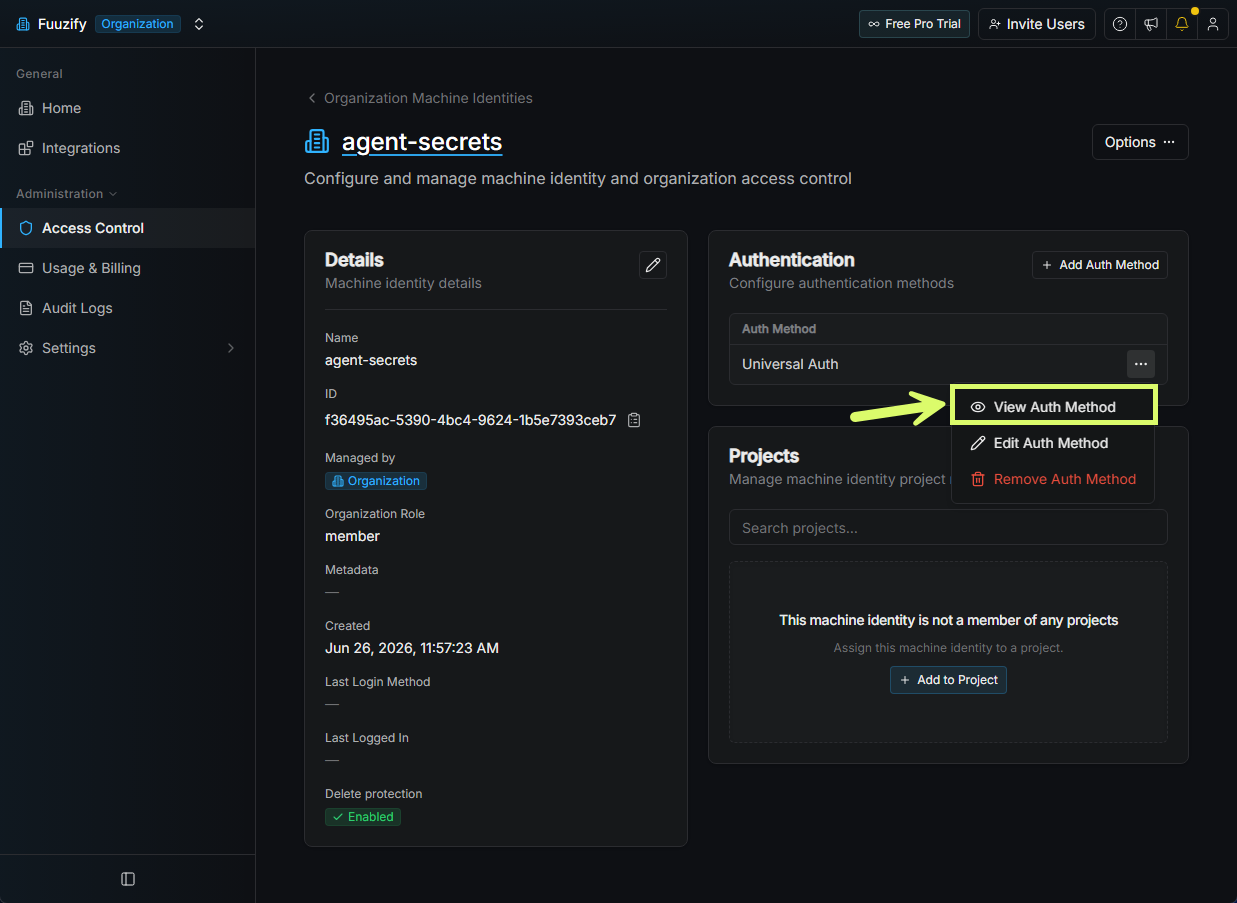
On the identity page, find the Authentication section and click the three-dot menu next to Universal Auth, then View Auth Method. This opens the panel that holds your Client ID and where you create the client secret.
In Infisical / Two things on this screen
Copy the Client ID. Then add a client secret.
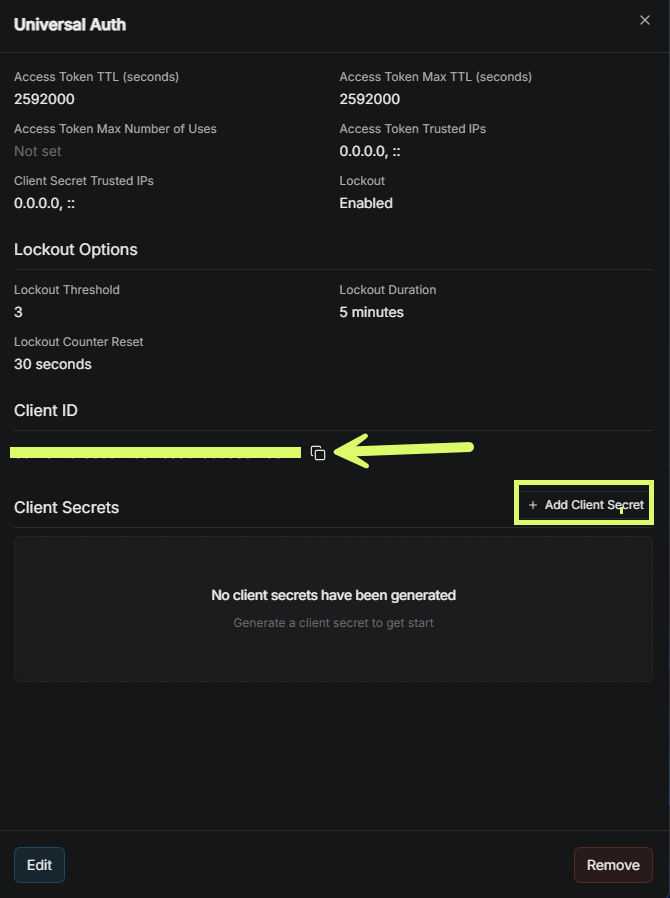
1. Copy the Client ID (the green bar points at it) and keep it somewhere safe — Claude asks for it later. 2. Click
+ Add Client Secret to create the matching secret on the next screen. You need both: the Client ID identifies the keycard, the secret unlocks it.Don't grab the Identity ID. The "Identity ID" on the previous page is a different UUID — the identity's record ID, not the credential. Students mix these up constantly. The one you want is the Client ID inside this Universal Auth panel.
In Infisical / One-time reveal
Create the secret. Copy it now.
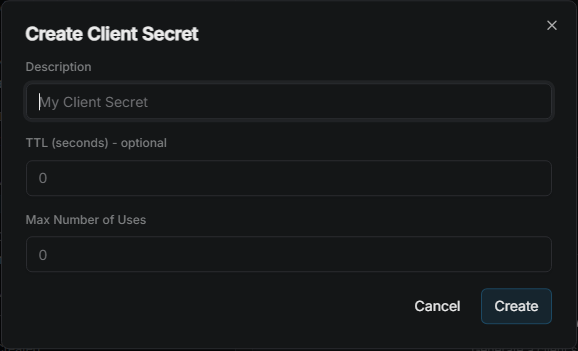
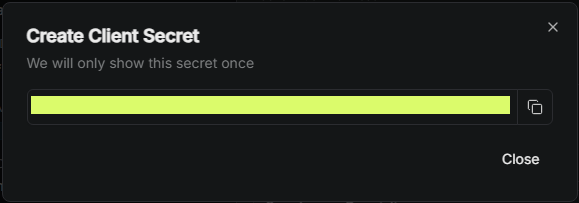
Leave TTL at
0 (no expiry) and click Create. The secret is shown exactly once — copy it and keep it safe. You'll enter it when Claude's setup asks for it, not in the chat.Closed it without copying? The secret can't be retrieved. Just delete it and create a new one.
In Infisical / Now your project
Secrets Management → your project.
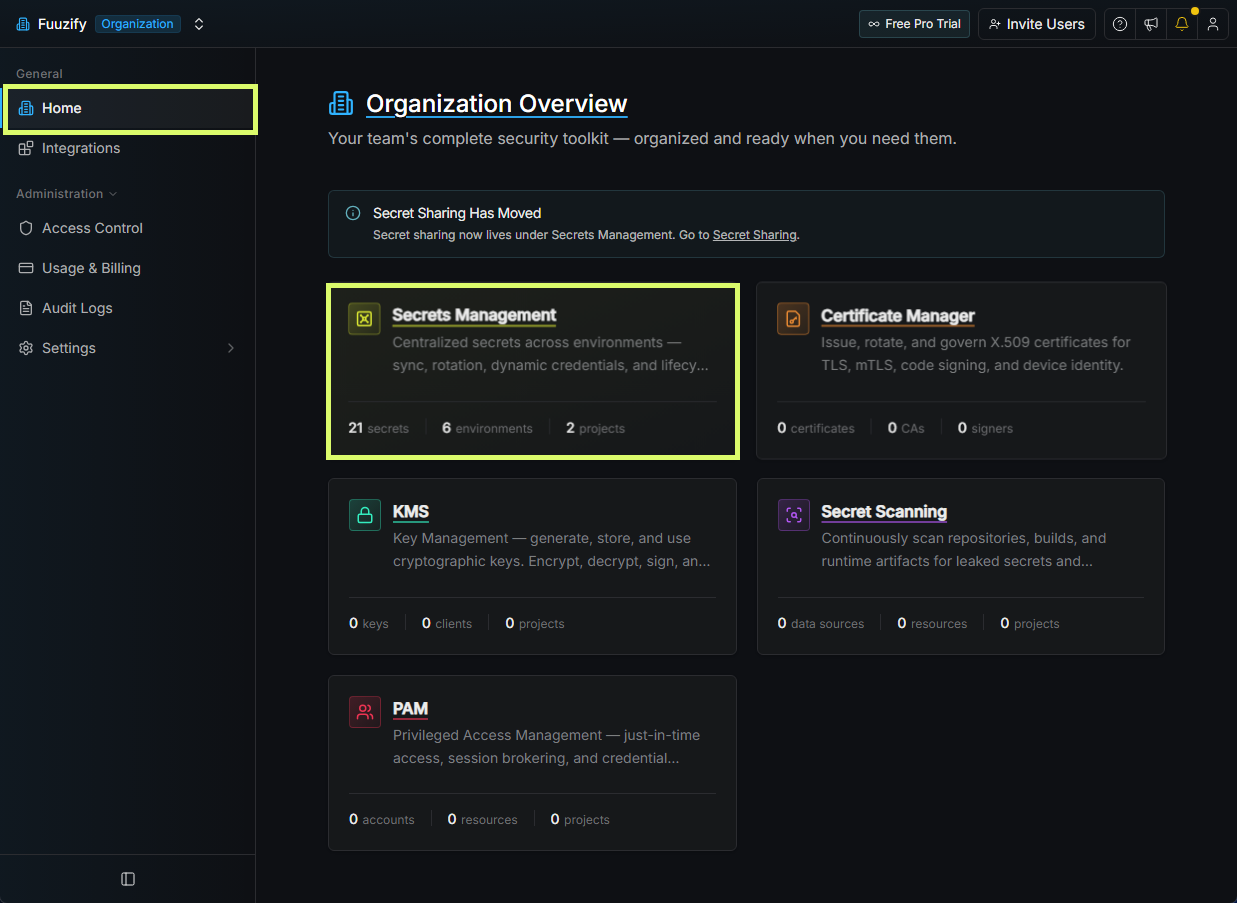
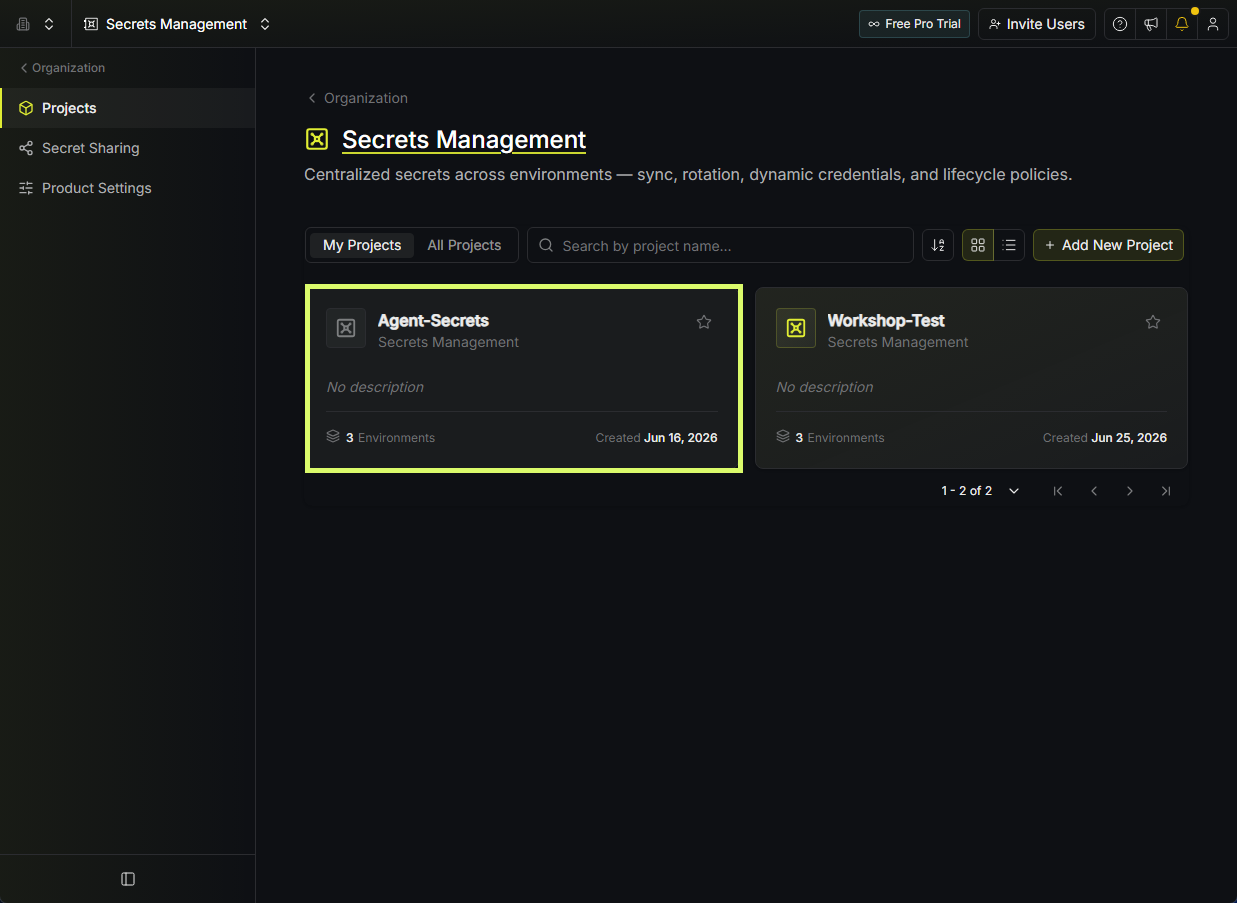
From the org home, click Secrets Management, then open the project where your secrets live — the one your tools will read from.
In Infisical / Grant read access
Add the identity. Set role to Viewer.
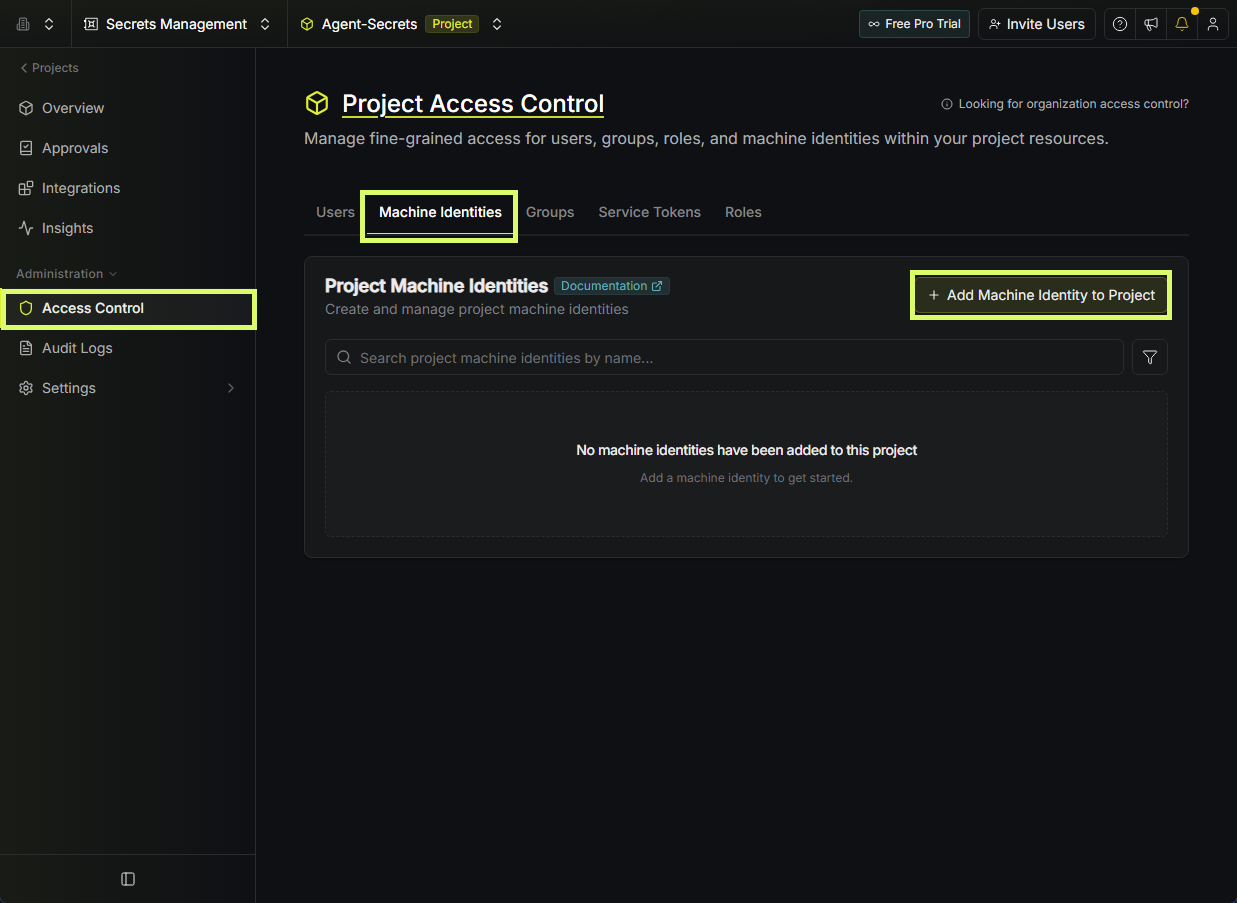
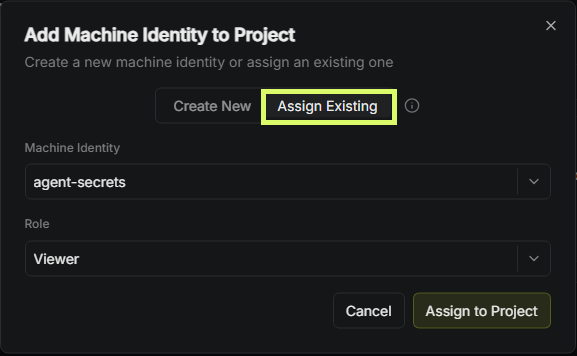
In your project: Access Control → Machine Identities → Add Machine Identity to Project. Choose Assign Existing, select
agent-secrets, set role to Viewer.Viewer = read-only. The identity only reads secrets, never writes them. Least privilege by design.
In Infisical / You should see this
Identity assigned, role Viewer.
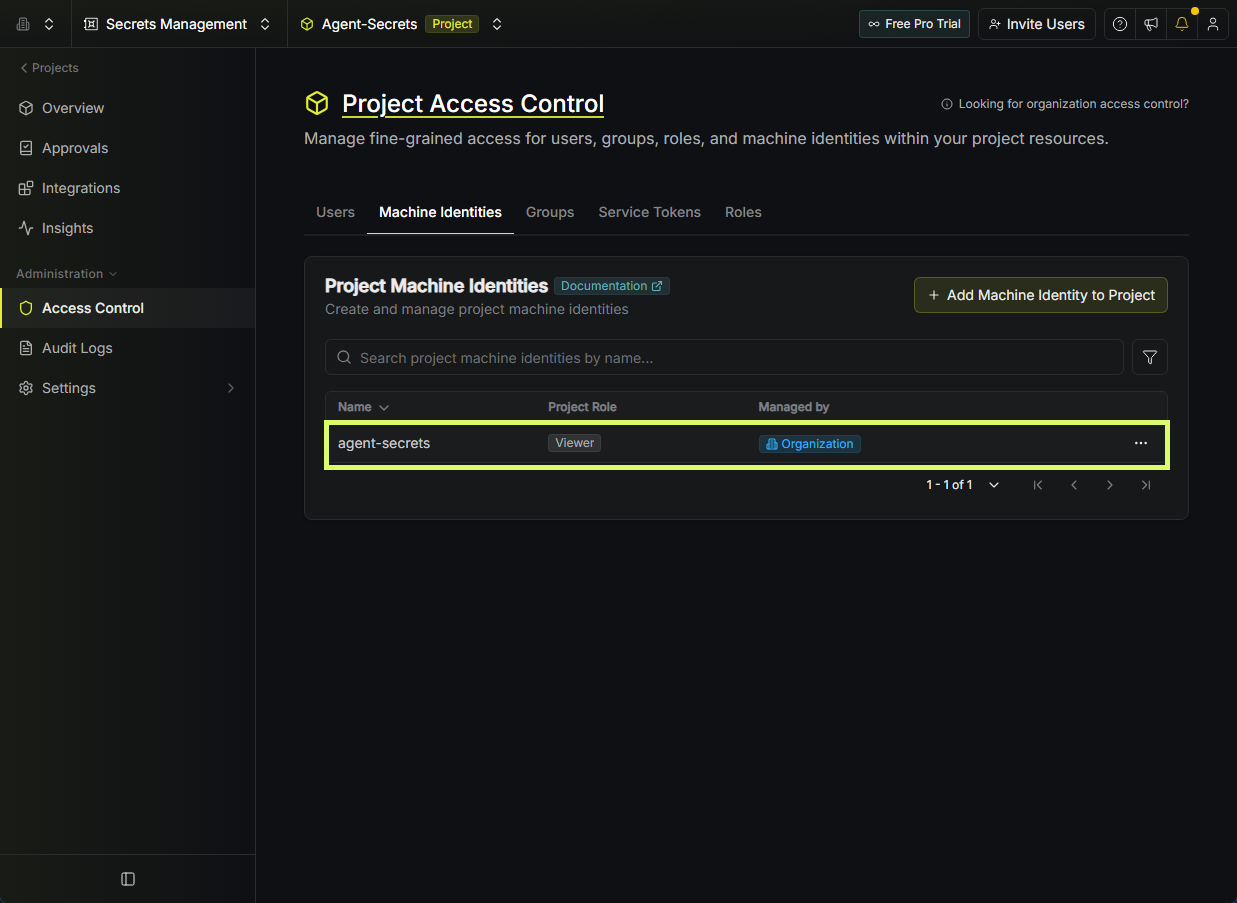
agent-secrets now appears in your project's Machine Identities with role Viewer. The identity exists, has a secret, and can read this project. You're ready to hand the values back to Claude.Step 3 / The one rule that matters
Never paste your secret into Claude.
✓ Safe to give Claude
- Project ID, domain, environment, secret path, Client ID
- Or just paste your Infisical project URL and let Claude read them off it
- These are identifiers, like a username. No secret here.
✗ Never give Claude
- The client secret. It is the password to your vault.
- You type it once, at the hidden terminal prompt.
- Pasting it into chat defeats the whole point.
Why it matters: the entire reason for a machine identity is that your secret lives only in a local file the agent reads, never in a chat log. Claude runs the setup script and the secret prompt stays hidden in the terminal. If the Code surface is not an interactive terminal, Claude has you run that command in your own terminal in the agent-native-os repo. Either way, the secret goes in the prompt, not the chat.
8D active
Now your agent can read your vault.
This is why it was worth the setup. From now on, any credential you add to this Infisical project, your agent can retrieve and use. You never repeat these steps. Vault a new API key and your local tools, MCP servers, and scheduled jobs can read it through one wrapper:
$ scripts/with-8d-env.sh -- <your command>

$ scripts/infisical/agent-health.sh
✓ Infisical Agent is running
✓ Token file present and non-empty
✓ Env file present and non-empty
Remember where we started: by default the vault was storage your agent could not read. 8D flipped it into a live source. Vault a secret once, and the agent pulls it in securely the moment a tool needs it. No browser login, no pasting secrets into chat.