Have these ready
Five env vars from Supabase.
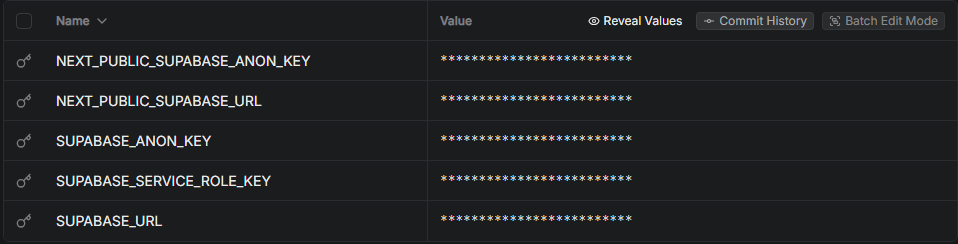
NEXT_PUBLIC_SUPABASE_URL
Project base URL. The NEXT_PUBLIC_ prefix exposes it to the browser.
NEXT_PUBLIC_SUPABASE_ANON_KEY
Anon/public key. Safe for client-side code with RLS on.
SUPABASE_URL
Same URL, server-side (no NEXT_PUBLIC_ prefix).
SUPABASE_ANON_KEY
Anon key again, server-side.
SUPABASE_SERVICE_ROLE_KEY
Server-side only. Bypasses RLS — handle carefully.
All five come from Supabase → Project Settings → API Keys (covered in Session 3).
Phase 1 / Create a project
Dashboard → Add New → Project.
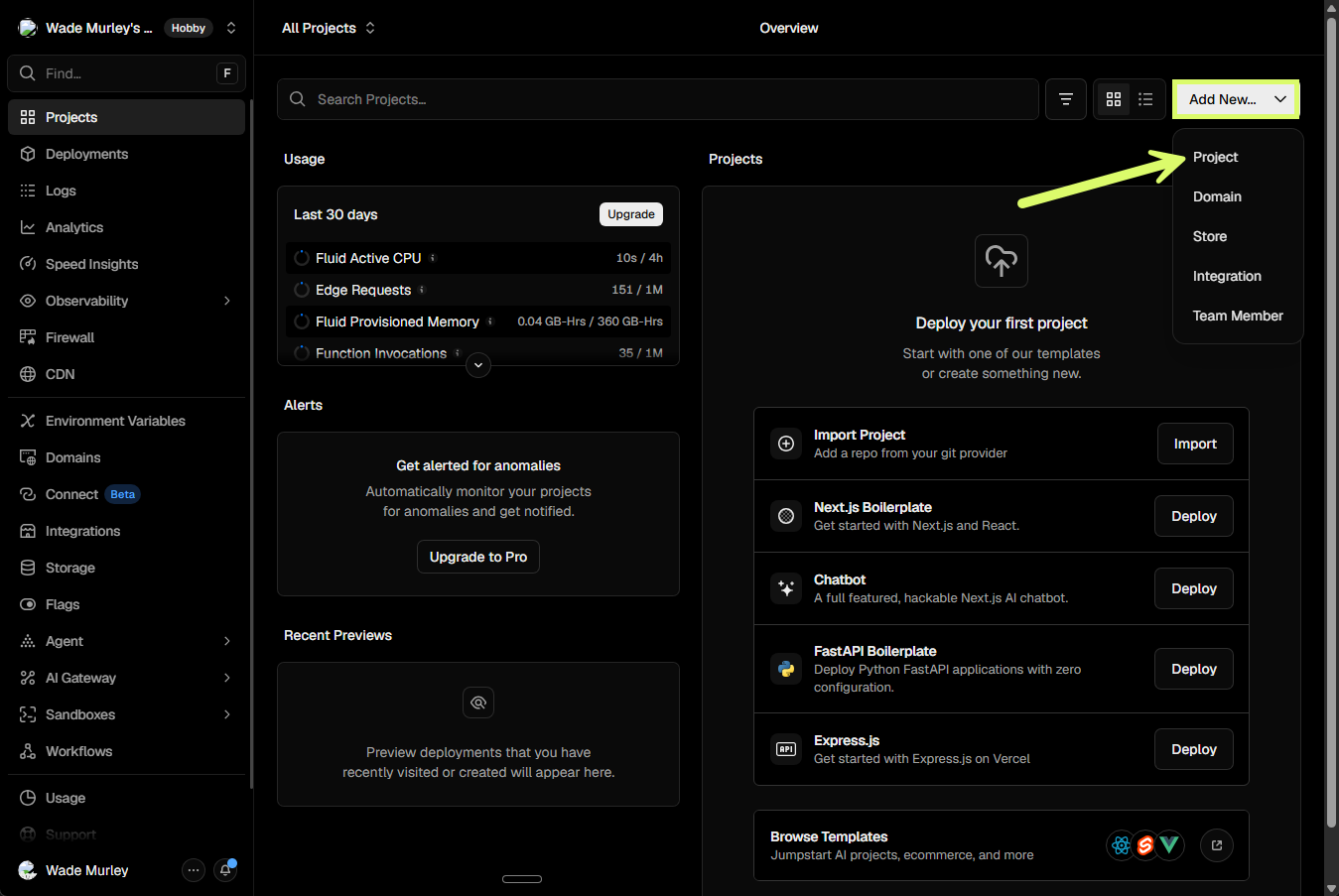
Top-right of your Vercel dashboard: click Add New... and choose Project. This opens the import page where you connect your GitHub repo.
Phase 1 / Connect your repo
Pick your account. Import the repo.
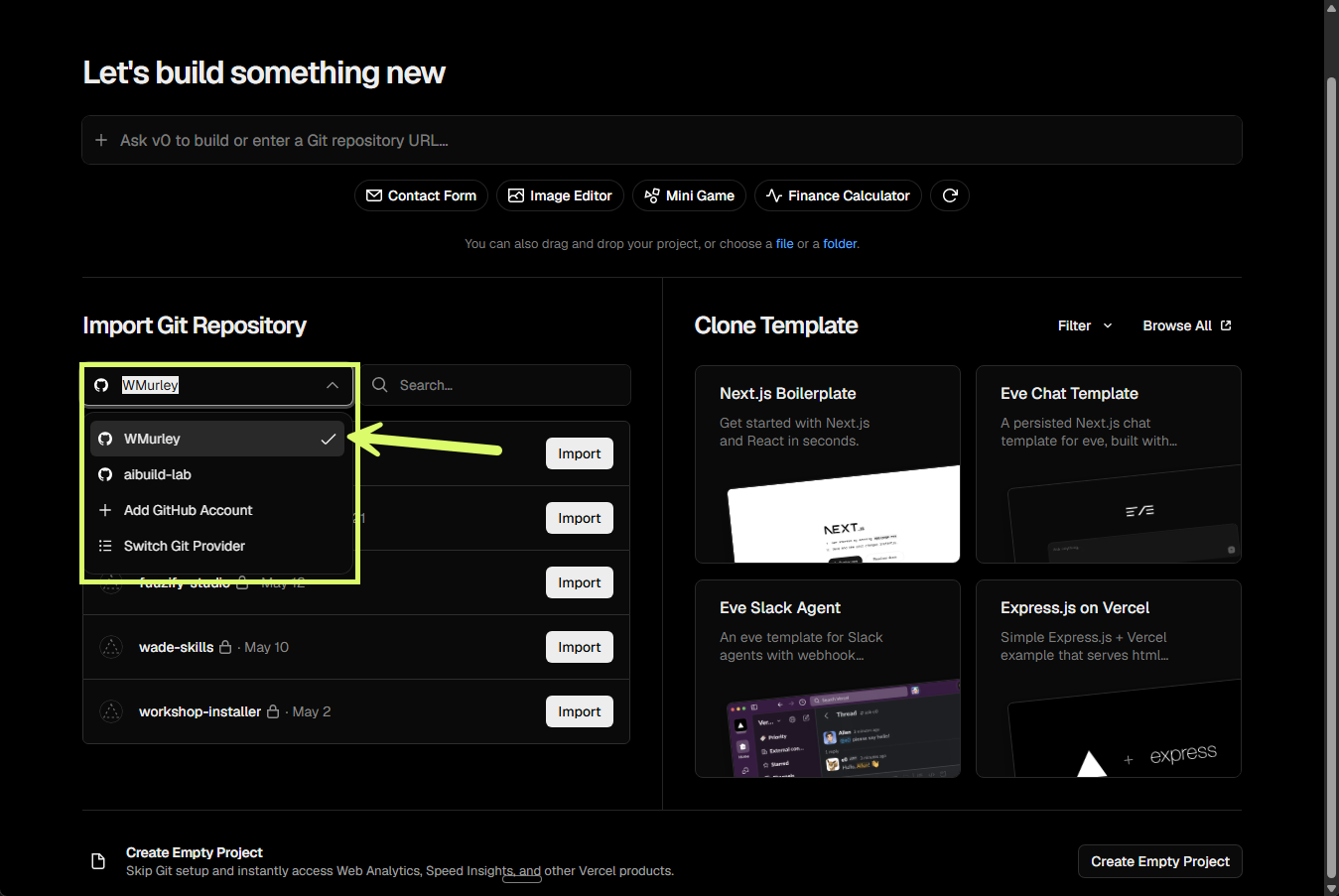
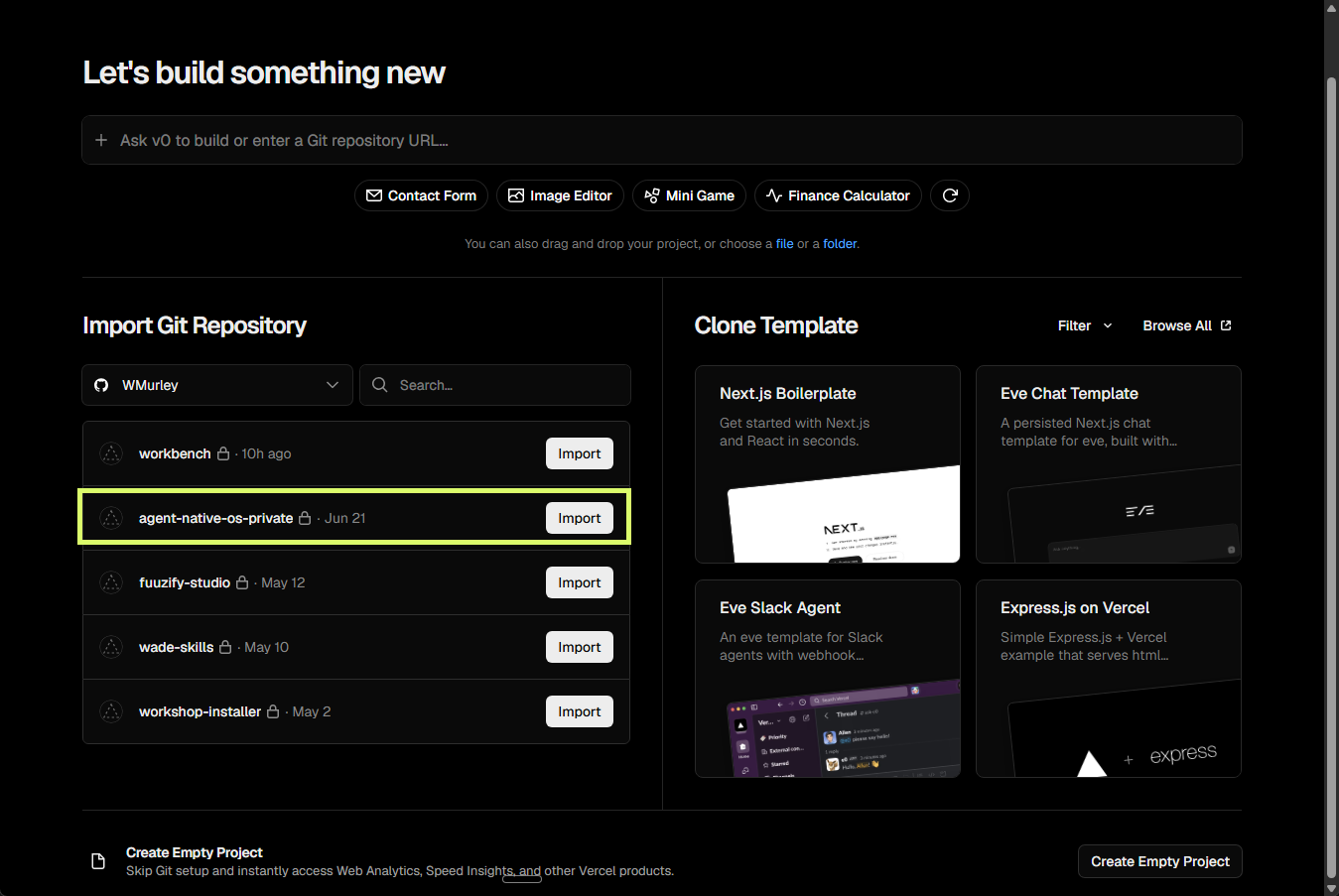
In Import Git Repository, select your personal GitHub account (not the org). Find
agent-native-os-private and click Import.Repo not showing? Grant Vercel access to it via GitHub → Settings → Applications.
Phase 2 / The monorepo gotcha
Set root to apps/morning-brief.
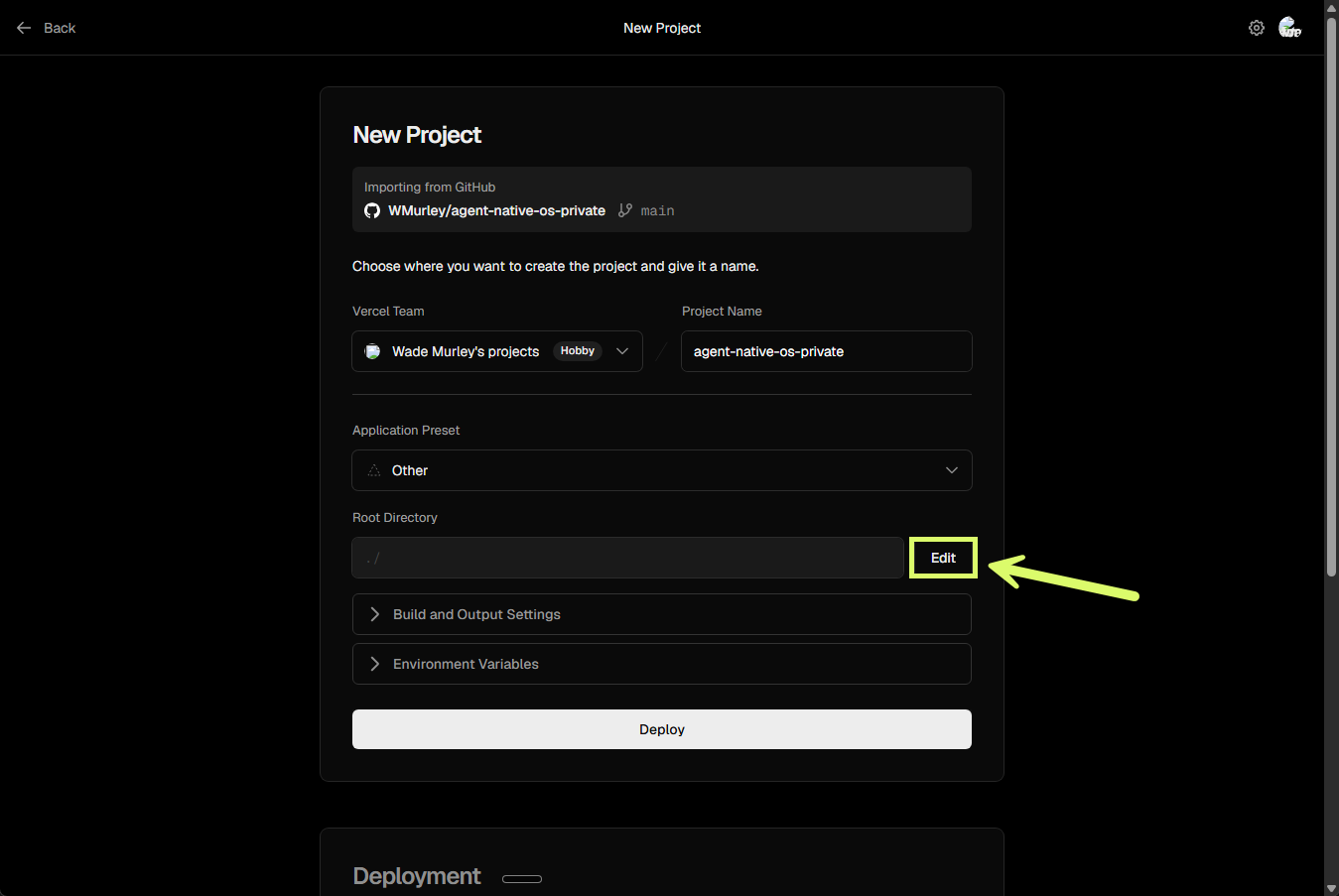
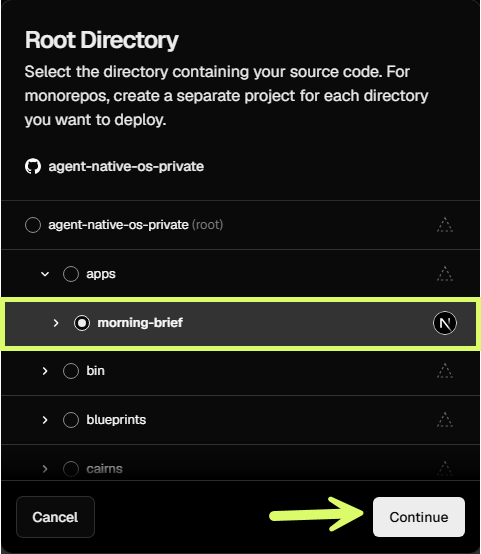
Root Directory defaults to
./ — the repo root, which is wrong for a monorepo. Click Edit, navigate to apps/morning-brief, and click Continue.Deploy from the root and the build fails — Vercel can't find the Next.js app. The root must be the app subfolder.
Phase 2 / Confirm the framework
Vercel detects Next.js automatically.
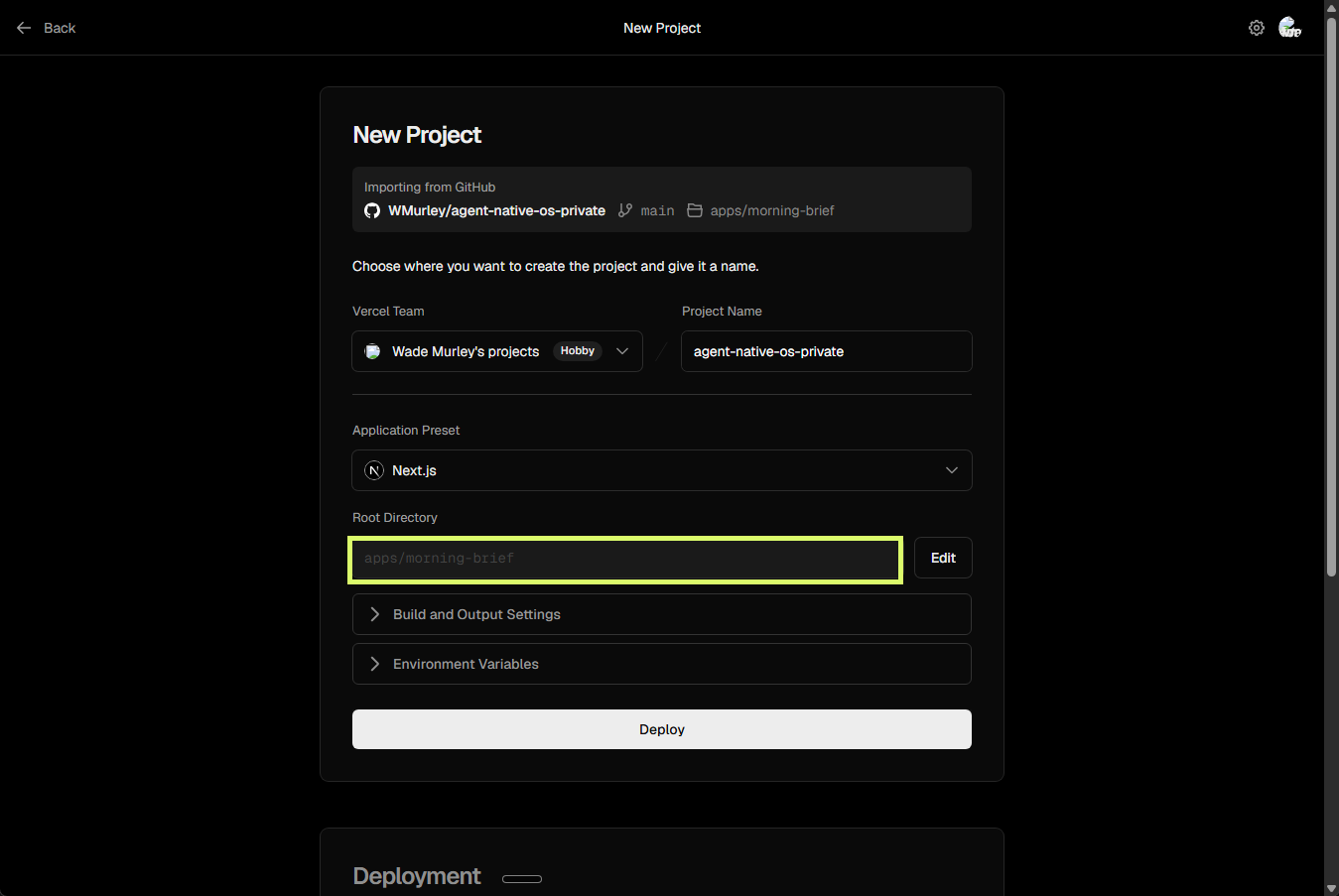
After picking the subfolder, Application Preset should read Next.js and Root Directory should read
apps/morning-brief — both highlighted here. Leave Build and Output Settings on the defaults.Phase 3 / Wire in secrets
Add the five Supabase variables.
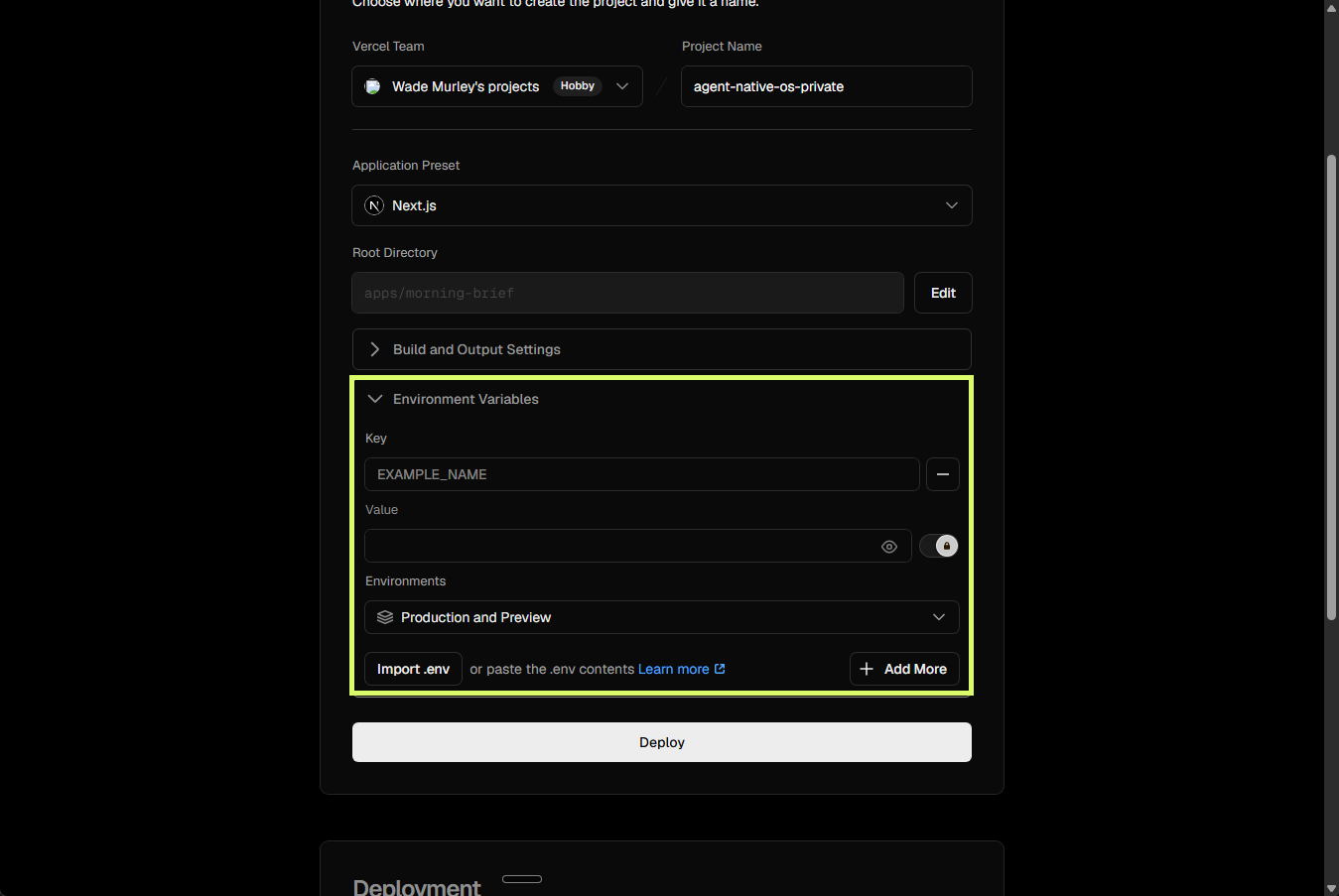
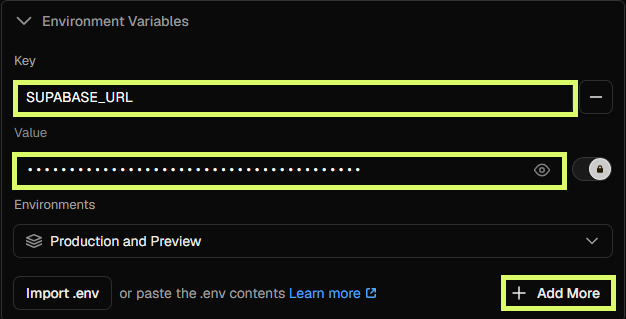
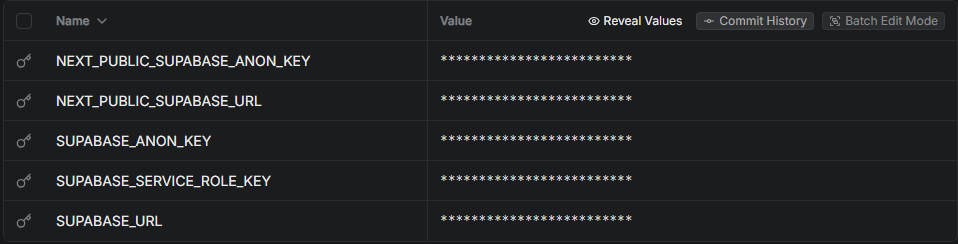
Expand the Environment Variables section (left), then add each one: type the name in Key, paste its value in Value, leave Environments on Production and Preview, and click + Add More (center). Repeat until all five are present (right).
Phase 4 / Ship it
Click Deploy.
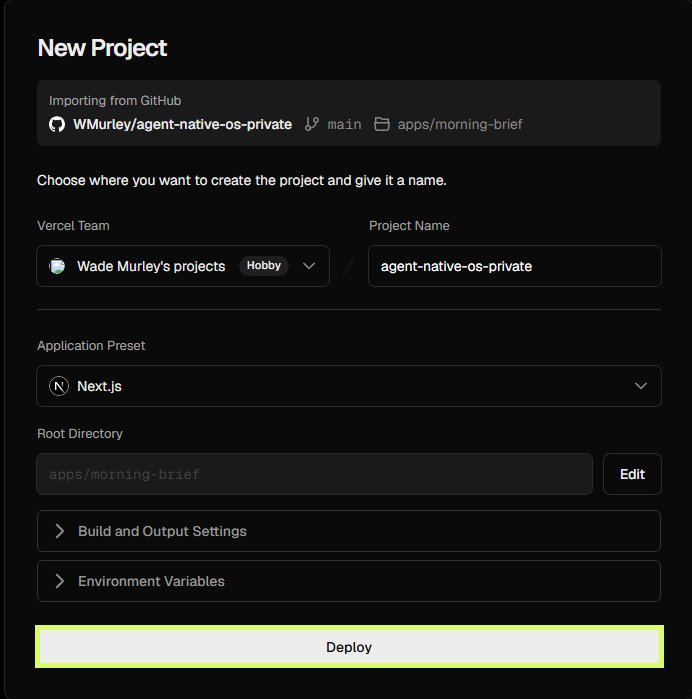
Once all five variables are in, click Deploy. Vercel clones the repo, builds from
apps/morning-brief, and injects your env vars. First deploy takes about a minute.Build failed? Check the logs — usually a missing env var, the wrong root directory, or a TypeScript error.
Session 5 complete
You're live.
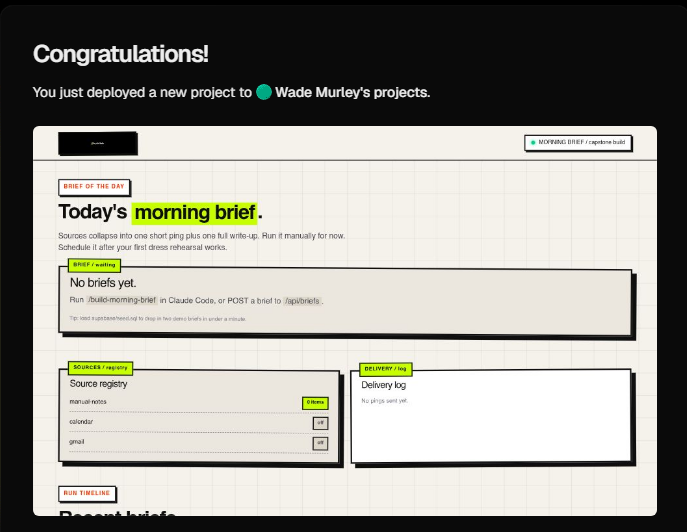
Your Morning Brief is deployed from
apps/morning-brief with all five Supabase keys wired in. Every push to main re-deploys automatically, so you only do this setup once. Open your live URL and run /build-morning-brief to fill it.AI Build Lab · Workshop Day