

A visual walkthrough of your setup.
1. Set up the ChatGPT desktop app, in Codex.
2. Run the installer.
3. Finish with your own workbench, on your machine and on GitHub.
Twelve short sections. Most of it is the app doing the work.
- 1Get the ChatGPT app and sign in.
- 2Install Git, the one prerequisite.
- 3Open your home folder in the app.
- 4Paste one prompt.
- 5It checks your computer and tells you the plan.
- 6Your computer asks you to approve a few things.
- 7Two sign-ins in your browser.
- 8The secrets guard, so a key can never leak.
- 9Your private workbench is created.
- 10Open the workbench in the app.
- 11Done looks like this.
- 12On to lesson 3.
Three things ready before page one.
A free GitHub account, signed in
github.com/signup takes two minutes. Be signed in at github.com in your browser; when the app sends you there, you click one button. No invitation, no membership, nothing to accept.
A paid plan for the ChatGPT app
A ChatGPT account on a paid plan, Plus or above. The free tier hits its limits fast. You do not need the strongest model to install things.
An hour nobody will interrupt
Most of it is watching things happen. A computer you are allowed to install things on; a work laptop may say no, so ask your IT person first.
If anything on screen makes no sense, you have a superpower.
Screenshot it and ask
Keep a second chat open in your browser, with any AI. Paste a screenshot of the window you do not understand and ask three things: what is this, is it safe to click, what do I click? That one habit gets people through their first install.
Nothing happens silently
The installer reads and writes inside your home folder, installs a few tools, and signs you in to two services. Every step is explained before it happens, and you can stop at any point. A popup you did not expect, a folder that already exists, something that does not sit right: ask before you click.
Get the ChatGPT app and sign in.
A download from a website, like any other app. Pick one app and stay in it for the whole course.
Download the app.
- 1Open learn.chatgpt.com/codex/app in your browser.
- 2Download the Mac version and install it like any other app.
- 3Open it and sign in with the account you pay for. Sign-in happens in your browser, then you come back to the app.
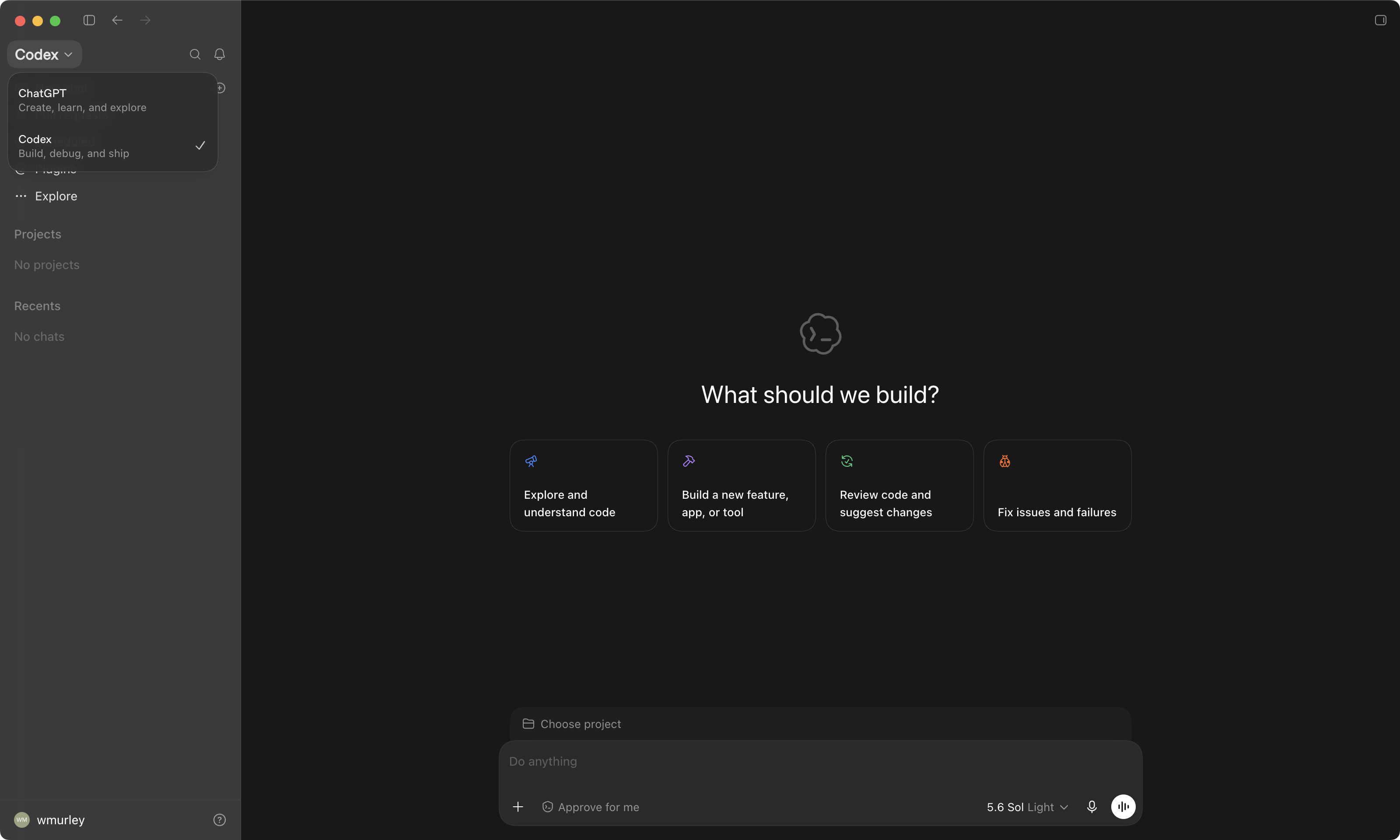
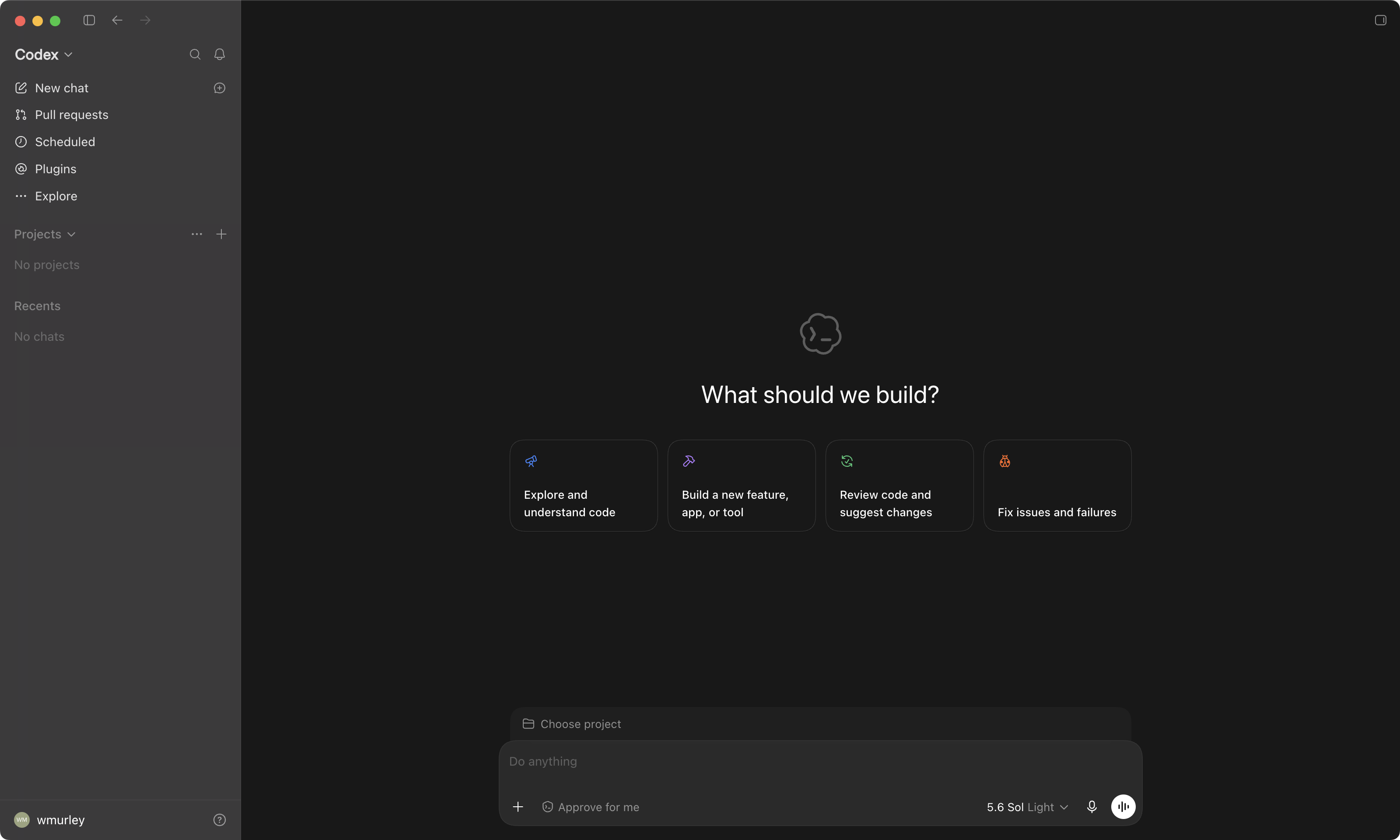
Open the sidebar, then the dropdown, then choose Codex.
- 1The app opens on plain ChatGPT. If the sidebar is hidden, click the sidebar icon at the top left to open it.
- 2At the top of the sidebar is a dropdown. Click it: it offers ChatGPT and Codex.
- 3Choose Codex. It is the one that works in a folder on your computer.
 123
123Install Git first. It is the one prerequisite.
Git is the program that keeps a history of your files. The app cannot open a folder on your computer without it, and this is the red error every past cohort hit. Three minutes now saves the afternoon.
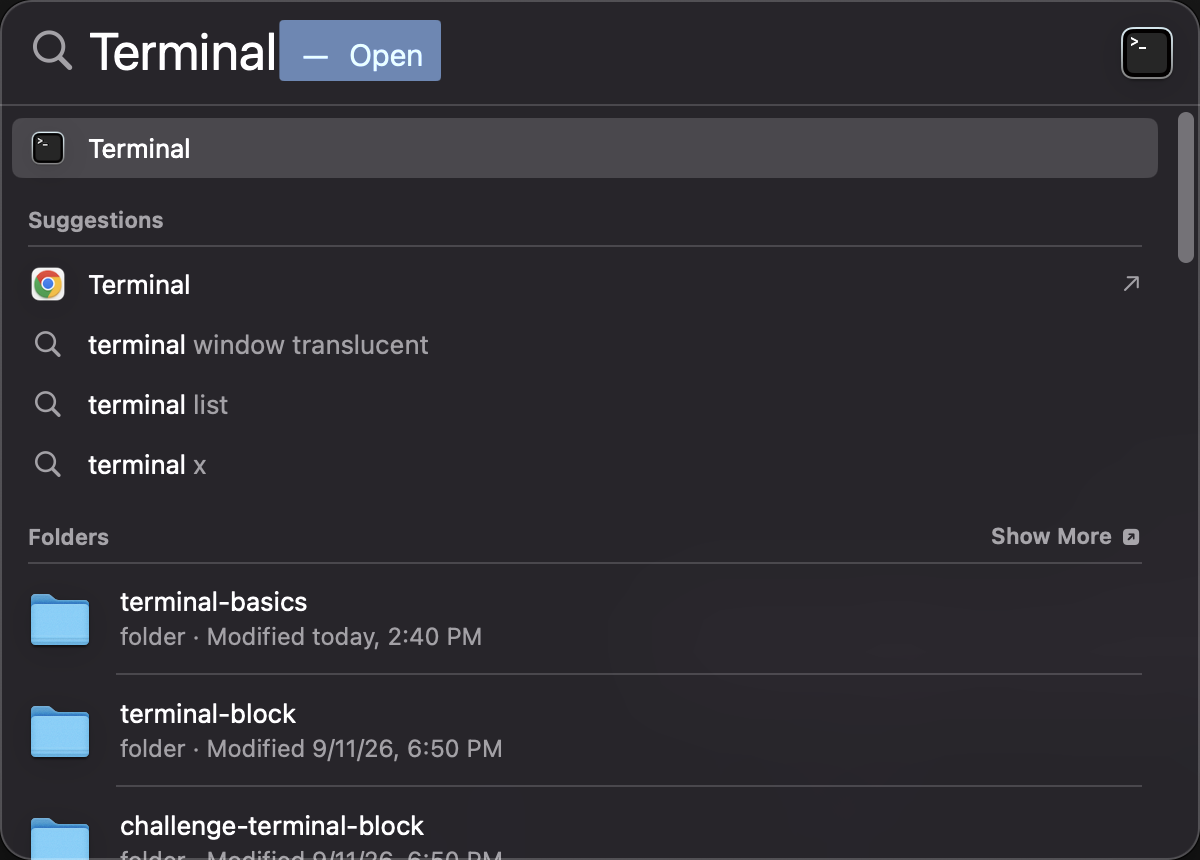
Open Terminal: Cmd + Space, type Terminal, Enter.
- 1Press Cmd + Space. The Spotlight search bar appears.
- 2Type Terminal and press Enter.
- 3A plain window with a blinking cursor opens. You type one line; your computer types one line back. That is all a terminal is.
 12
12Type git --version and press Enter.
- 1Type
git --versionexactly like that (two dashes) and press Enter. - 2If anything comes back with a version number, you already have Git. Skip to section 03.
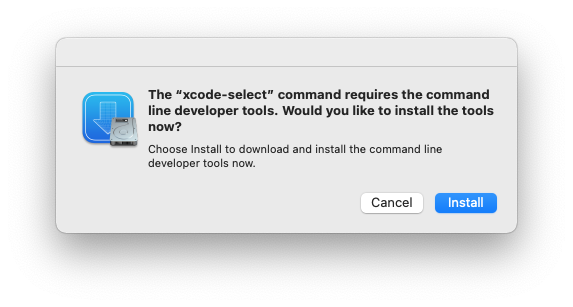
- 3If a dialog pops up offering to install the command line developer tools instead, you do not. Next page.
~ % git --version
git version 2.50.1 (Apple Git-155)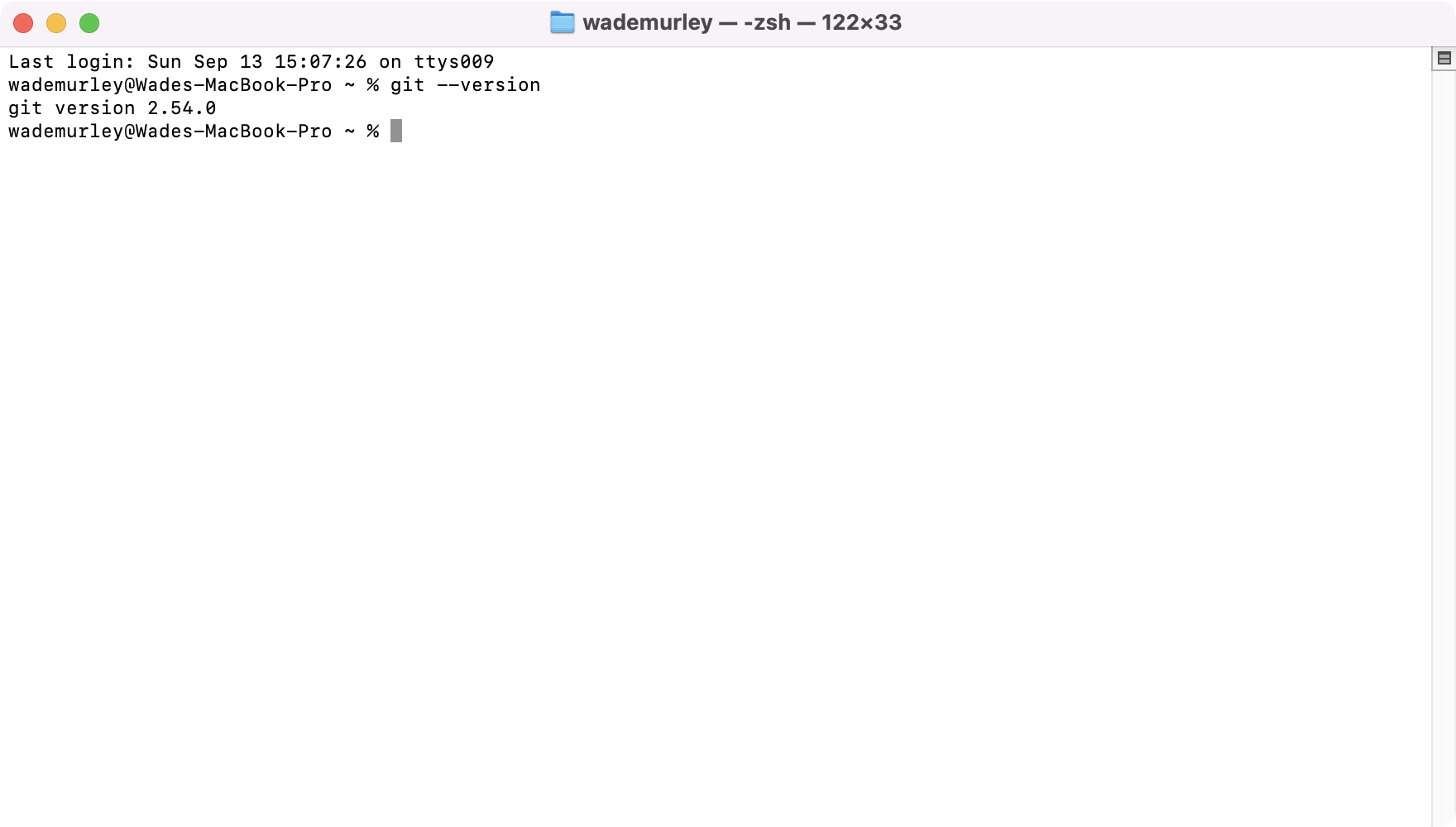 12
12If this dialog appears, click Install. Those tools are Git.
- 1Click Install and accept the license. No password, no download page, nothing to choose.
- 210 to 15 minutes. Do not cancel it and do not close it. Go make a coffee.
- 3When it finishes, type
git --versionagain. Now it answers, and you have Git.
Open your home folder in the app.
Your root folder: the one with your name on it (mine is wademurley; on Windows it may be Owner). Not Desktop, not Documents, and nothing inside OneDrive, iCloud, Dropbox or Google Drive.
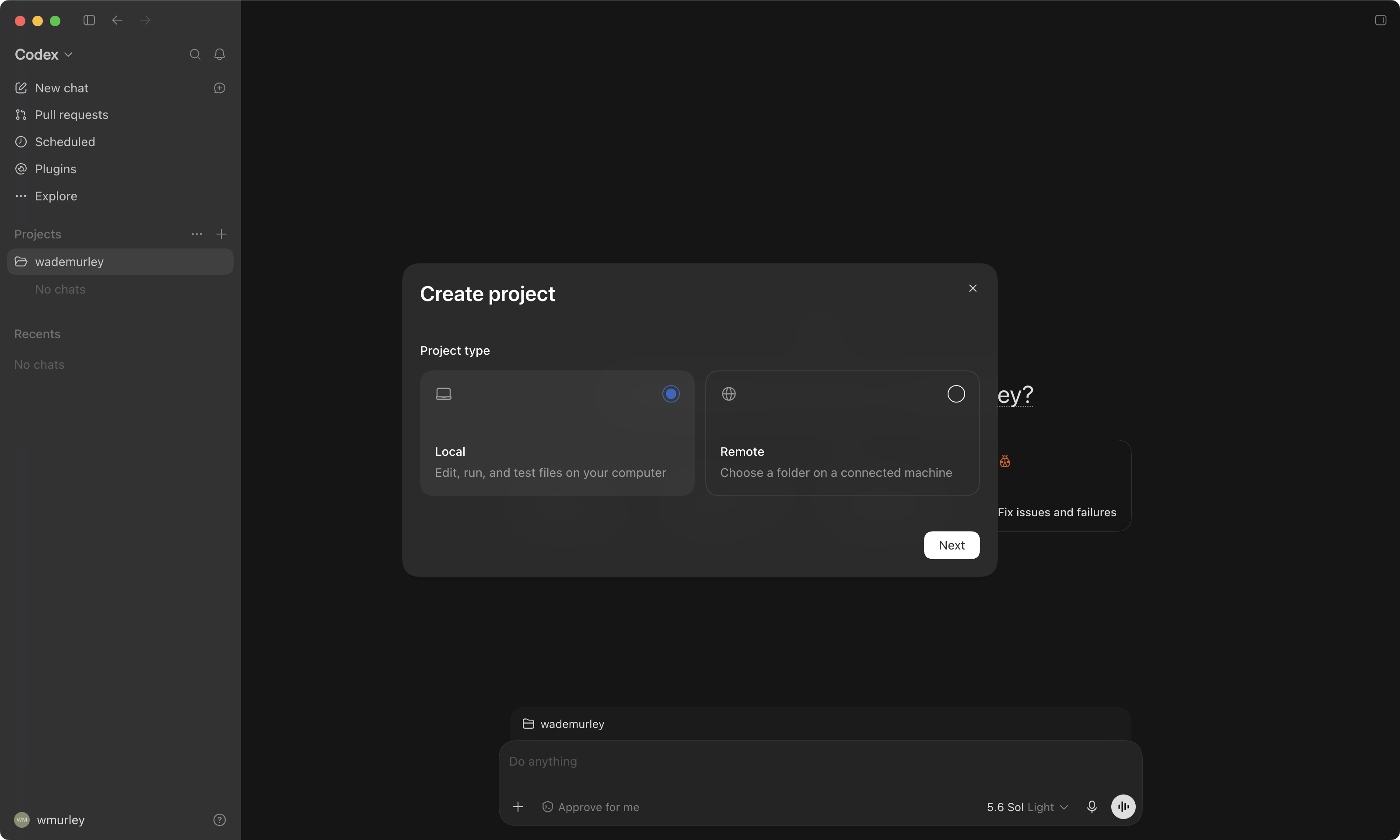
A folder is a project. Create one.
- 1In the sidebar, hover Projects and click the + beside it. (Choose project, above the box where you type, opens the same window.)
- 2Project type: Local, not Remote.
- 3Click Next.
 23
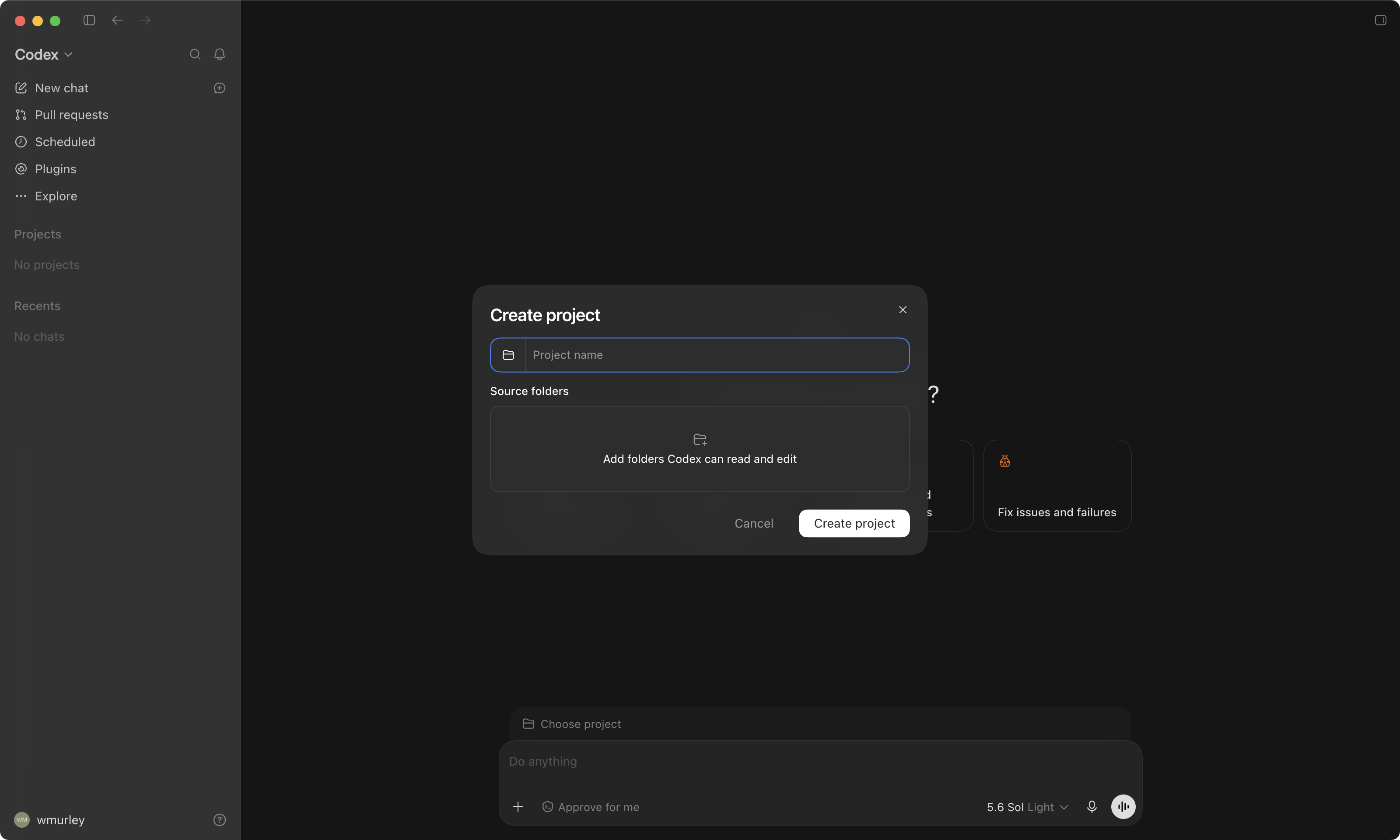
23Add folders. This is the control that picks the folder.
- 1Click Add folders Codex can read and edit. Your Finder opens on the next page.
- 2Project name: leave it empty and the app names the project after the folder, or type any name you like.
 12
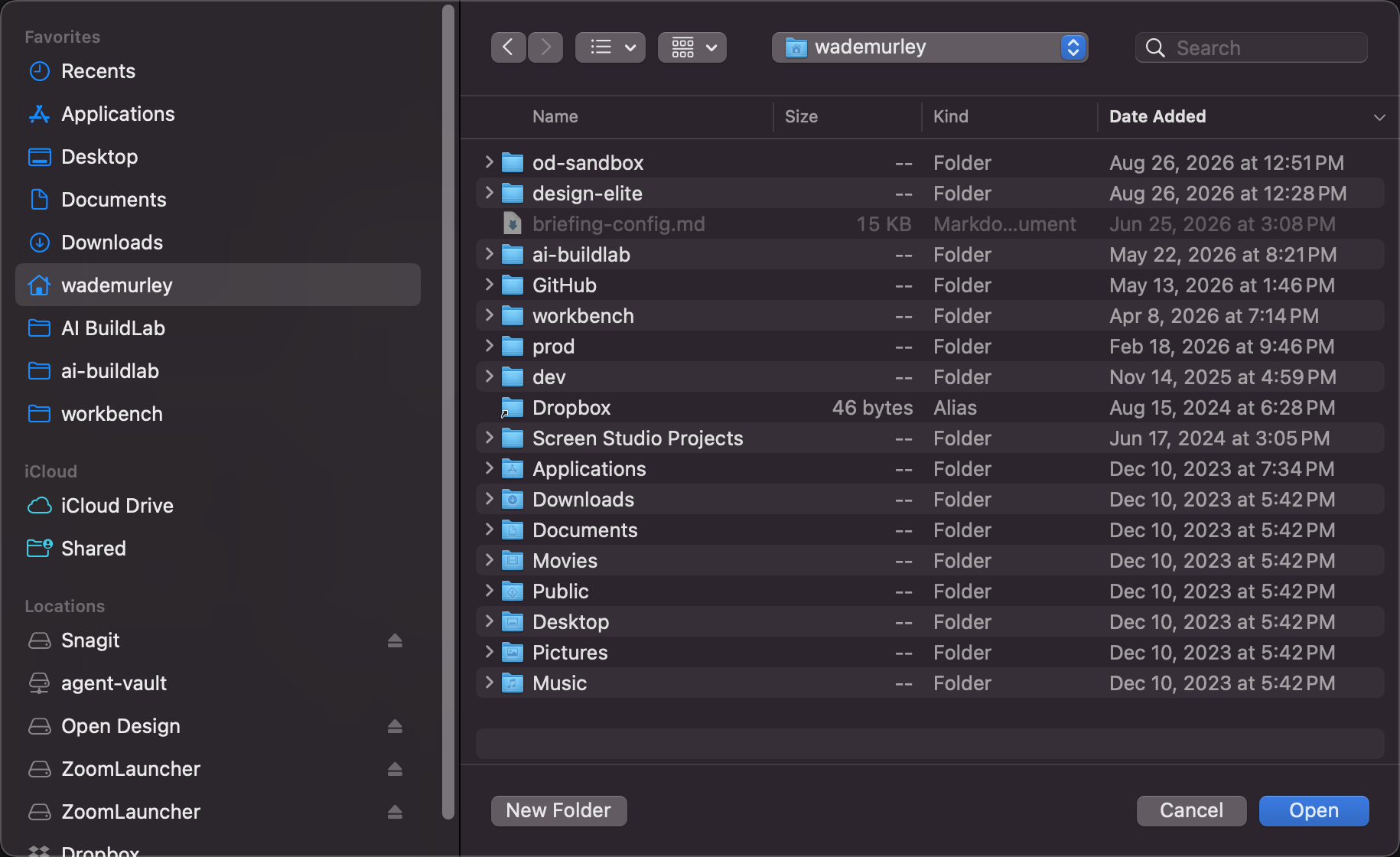
12Pick the folder with the house icon. That is your home folder.
- 1In the left column, click the folder with the house icon and your name on it. Mine is wademurley; yours has your name.
- 2Do not click any of the folders inside it (Desktop, Documents, Downloads...). You want the whole home folder, not a folder in it.
- 3Click Open.
 123
123Create project. Your home folder is the project.
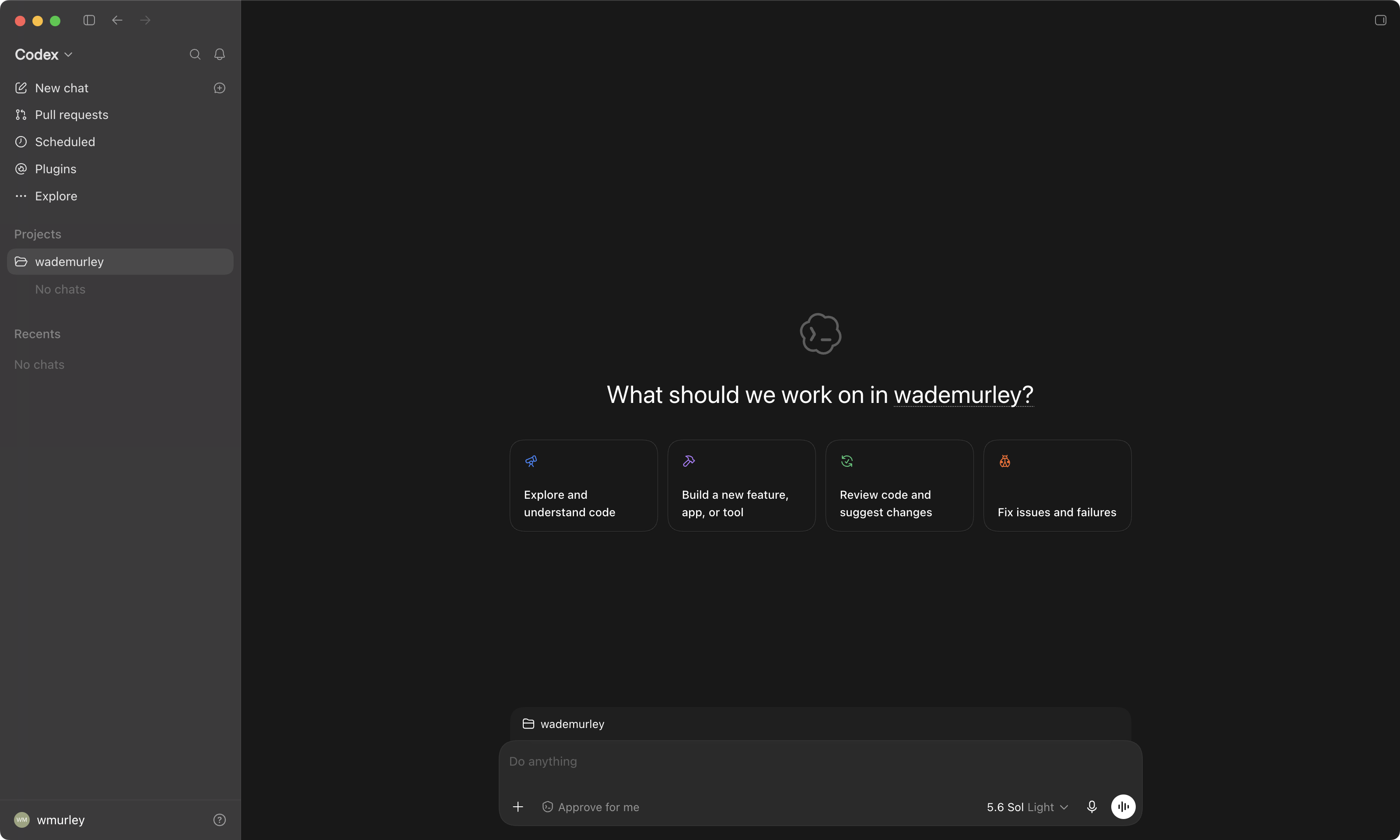
- 1Back in the Create project window, click Create project. The project opens.
- 2Your username now shows above the box where you type, and under Projects in the sidebar.
- 3Click the control under the box that reads Ask for approval and choose Approve for me. The app then asks you only when something looks unsafe, and it remembers the choice. Lesson 3 explains it.
 23
23Paste one prompt, and follow along.
The app fetches the setup procedure and runs it, step by step, telling you what it is doing and why.
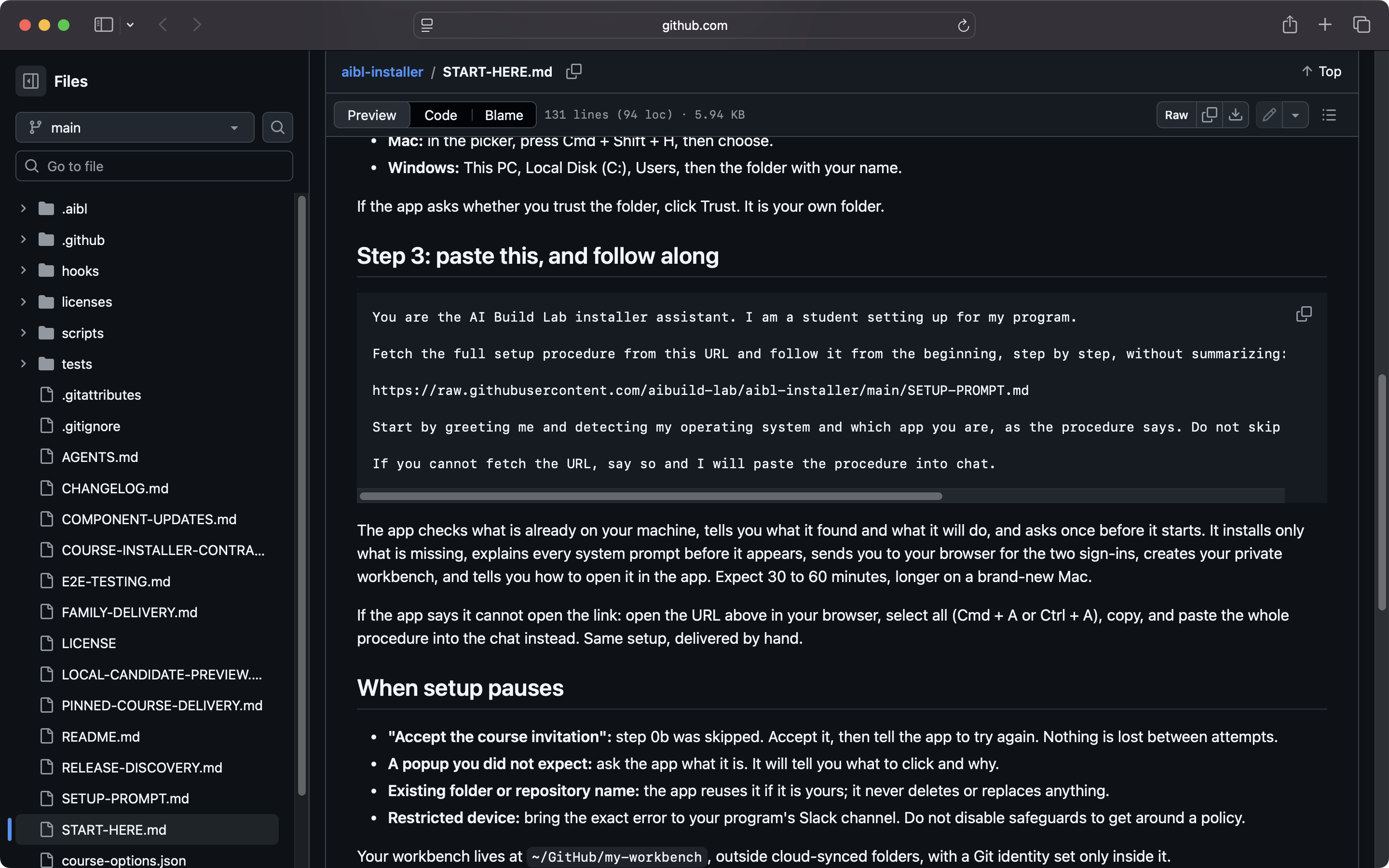
The prompt lives on GitHub, and in your lesson card.
- 1It is in START-HERE.md in the aibl-installer repository, under step 3. This is what that page looks like; nothing here is scary, it is a text file with a copy button.
- 2Use the Copy button in your lesson 3 card; that short request is the one we use. The GitHub page carries a longer form of the same request (its copy icon is at the top right of the code block); it works too, but the short one is kinder to the app's reviewer. Do not copy either out of a PDF of this deck: long links get mangled.
- 3Paste it into the box where you type. Next page.
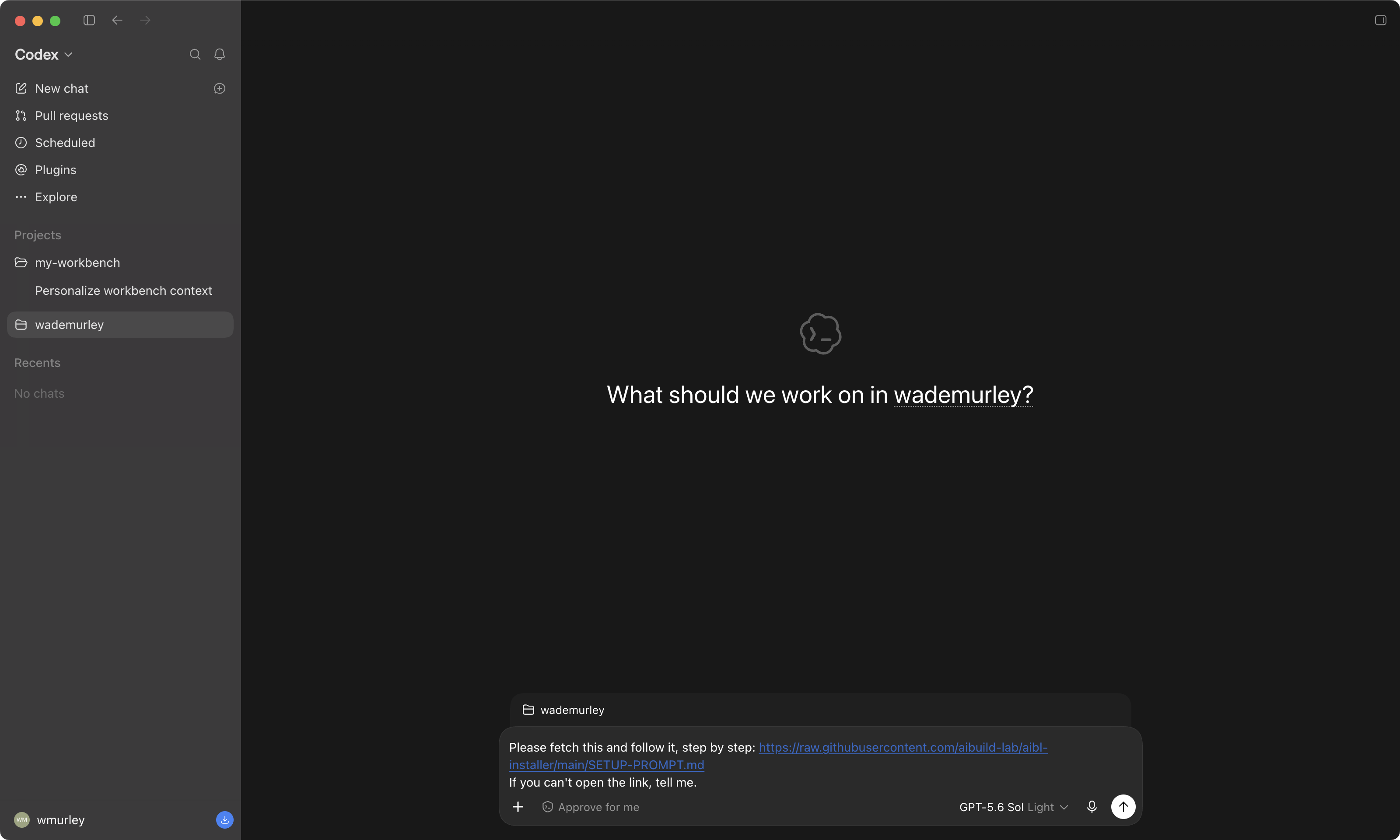
It looks like this before you send.
- 1The whole prompt sits in the box.
- 2Press Enter (or the send arrow). The app greets you, checks your operating system, and starts.
 12
12It checks first, then tells you the plan.
Nobody should install a tool they cannot name. Before anything lands on your computer, here is what is coming and why.
What happens, in order.
- 1It checks your operating system and which of the tools you already have. Installed, hidden, or missing.
- 2It shows you the plan, one reason per item, and asks once: Sound good? You reply yes. It does not ask again per tool.
- 3It installs only what is missing. Your computer will ask you to approve a few things along the way; section 06 shows each one.
- 4Two sign-ins in your browser: GitHub, then the command-line twin of your app. Section 07.
- 5It installs the secrets guard and proves it works. Section 08.
- 6It creates your private workbench, on your machine and on GitHub, and tells you how to open it. Sections 09 and 10.
Six things, in plain words.
Git
Keeps a history of your files, like a save point in a game. You choose when to save and you write a one-line note. Your workbench is a Git folder, which is why it comes first.
GitHub CLI (gh)
GitHub is the website that keeps a private copy of your folder online. This small tool lets the app talk to GitHub for you: one sign-in, and it creates your private repository. You will rarely visit the site yourself.
Node.js
An engine that some tools run on, including the secrets guard. Nothing for you to learn or open; it just has to be there.
Python
Another engine. The workbench's own helper scripts run on it. Same story: it just has to be there.
Codex CLI
The same brain as the app, in a terminal window. Setup uses it for the sign-in and the guard check; later, so will you, without knowing it.
The secrets guard
A check that runs before every command and stops a password or key from being printed, read or uploaded. Section 08 explains why it matters.
Two helpers underneath everything, Mac only.
Apple's command line developer tools
The developer basics Apple ships, Git included. If section 02 showed you the dialog, you already have them.
Homebrew
The Mac's app store for tools that have no icon. Tell it a tool's name and it installs the right version. Node, gh and Python arrive through it. The one step that asks for your Mac password; section 06 walks you through it.
Read the plan. Then say yes.
- 1Each tool is marked installed, installed but hidden, or missing.
- 2Each thing it will do has one reason beside it.
- 3It ends with 'Sound good?'. Reply yes. From here on you mostly watch.
Your computer is going to ask you things.
Installing a program is a change to your computer, and the operating system wants a human to approve it. That is your computer doing its job, and it is the same prompt you get installing anything.
Three prompts you may see on a Mac, and the safe answer.
'Would like to access your Documents folder'
Click Allow for Documents, Downloads, Desktop and Applications. Deny for Photos, Music, Calendar and Contacts; setup has no reason to see them.
The command line tools dialog
Click Install. 10 to 15 minutes, no password. Only on a fresh Mac; section 02 usually already did it.
Password: in Terminal
Homebrew needs your Mac password once. You type it in your own Terminal, never in the chat. Nothing appears as you type, not even dots. Next page.
Allow the folders the setup needs.
- 1Allow: Documents, Downloads, Desktop, Applications.
- 2Deny: Photos, Music, Calendar, Contacts.
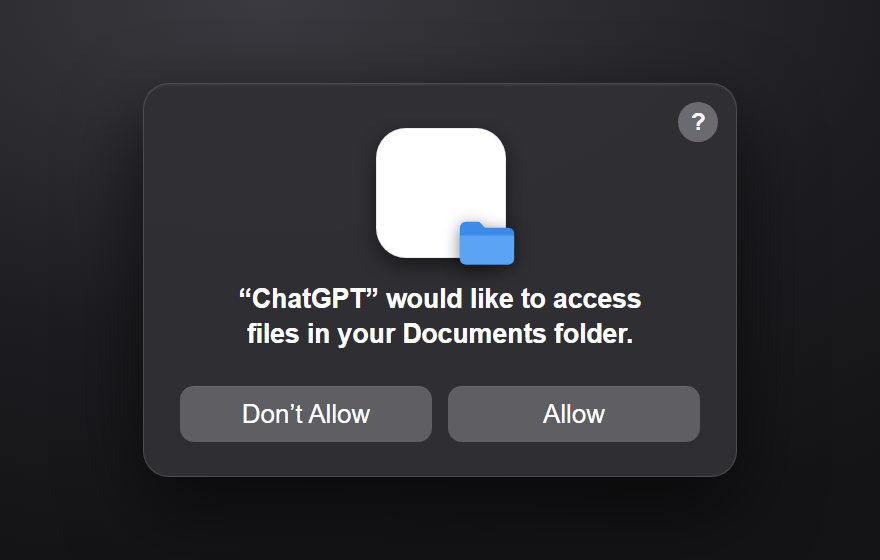
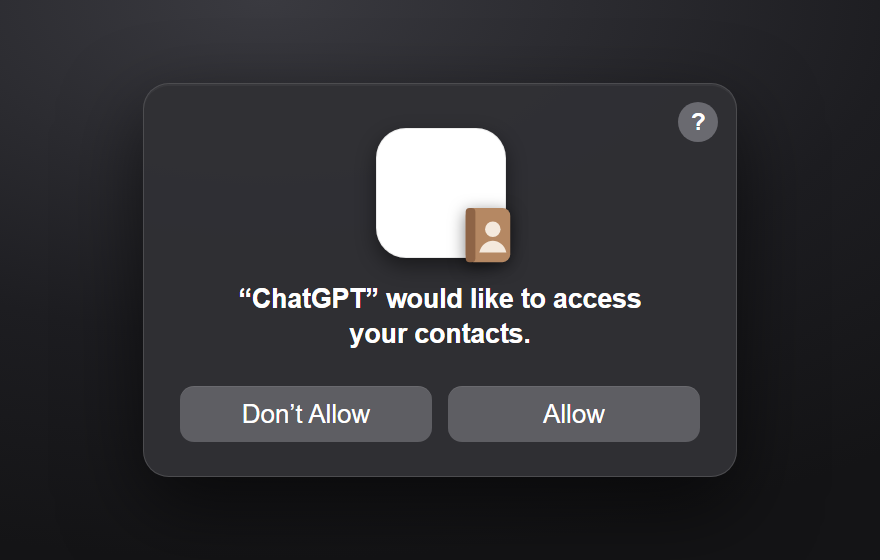
If Homebrew is missing, the app hands you one line for Terminal.
- 1Open Terminal the same way as section 02: Cmd + Space, type Terminal, Enter. Paste the line the app gives you and press Enter.
- 2At 'Press RETURN to continue', press Enter. At 'Password:' type your Mac login password. Nothing shows on screen, not even dots; that is normal. Press Enter.
- 3Mistyped it? Hold Backspace for a few seconds and type it again. There is no harm and nothing to undo; it just asks again.
- 4Give it about five minutes. At the end it prints two lines that start with eval. Copy each one, paste it into the same Terminal, and press Enter, so the tools work from every window. Then tell the app it is done.
Two sign-ins, both in your browser.
GitHub first, then the command-line twin of your app. No password and no code is ever typed into the chat.
The app will ask you to run one command: gh auth login. Here is why.
It lets the app act on GitHub for you
Once GitHub knows your app, the app can create your private repository, save your work online and bring it back, all from the chat. You tell it what you want; it does the GitHub part.
You will rarely visit github.com
Our team almost never opens the website. The apps and their tools do it for us. Signing in once is how that starts. The sign-in itself happens on github.com in your browser, the normal way.
Copy the one-time code the app shows you.
- 1The app runs the GitHub sign-in. The chat shows 'First copy your one-time code: XXXX-XXXX'.
- 2Copy it. Your browser opens to github.com/login/device.
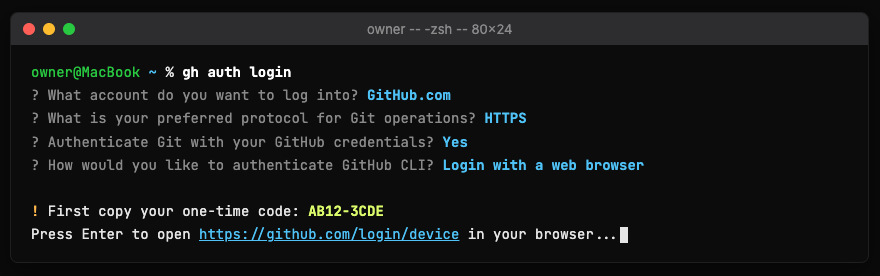
Paste the code into the eight boxes. Click Continue.
- 1Sign in to GitHub if it asks.
- 2Type or paste the code. No hyphen needed.
- 3Click Continue.
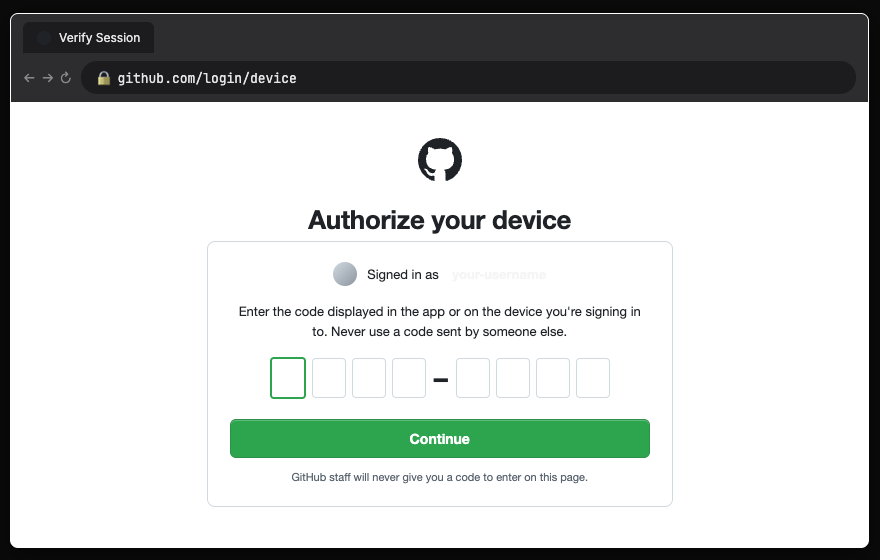
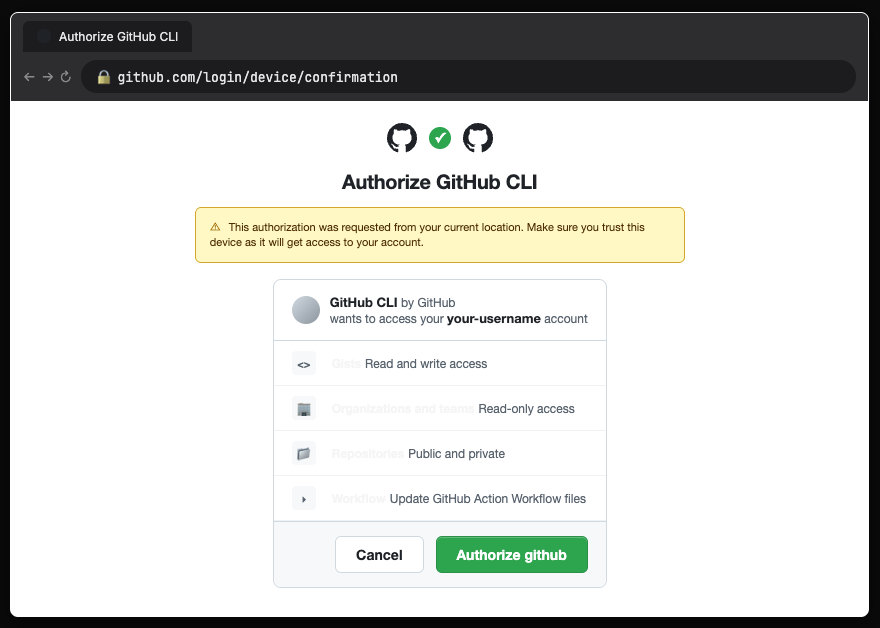
Review what GitHub CLI asks for. Click Authorize github.
- 1It lists gists, organizations, repositories and workflows.
- 2The banner confirms you started this from your own device. If it looks unfamiliar, click Cancel.
- 3Click the green Authorize github. Close the tab. The app continues on its own.
The twin is usually already signed in. If not, type codex login.
- 1The app and the command-line twin share one sign-in. The chat shows 'Logged in using ChatGPT' and you are done with this page.
- 2If it does not: Cmd + Space, type Terminal, Enter. Type
codex login, press Enter. - 3Your browser opens to ChatGPT. Sign in with the account you pay for, close the tab, and go back to the app.
~ % codex login
Opening your browser to sign in...
Logged in using ChatGPT
The secrets guard. Why we built it.
A seatbelt that goes on before you need it.
Keys are passwords. The guard makes sure one never leaks by accident.
What a key is
As you use these tools you will collect API keys: long codes that let a program use a service on your behalf. Treat each one like a password. If one leaks, nothing explodes, but someone could run up usage on your account, and you spend an afternoon rotating keys and cleaning up.
Why an automatic check
An AI reading your files can print a key back to the screen by accident, and you might not notice. The guard runs before every command, whether the AI remembers or not, and blocks it. It errs on the side of caution, so expect a false alarm now and then. Better overprotective once than one leak.
The app installs it, then proves it works.
- 1It installs the guard into the app's own settings on your computer, so it protects every folder you ever open, not just this one.
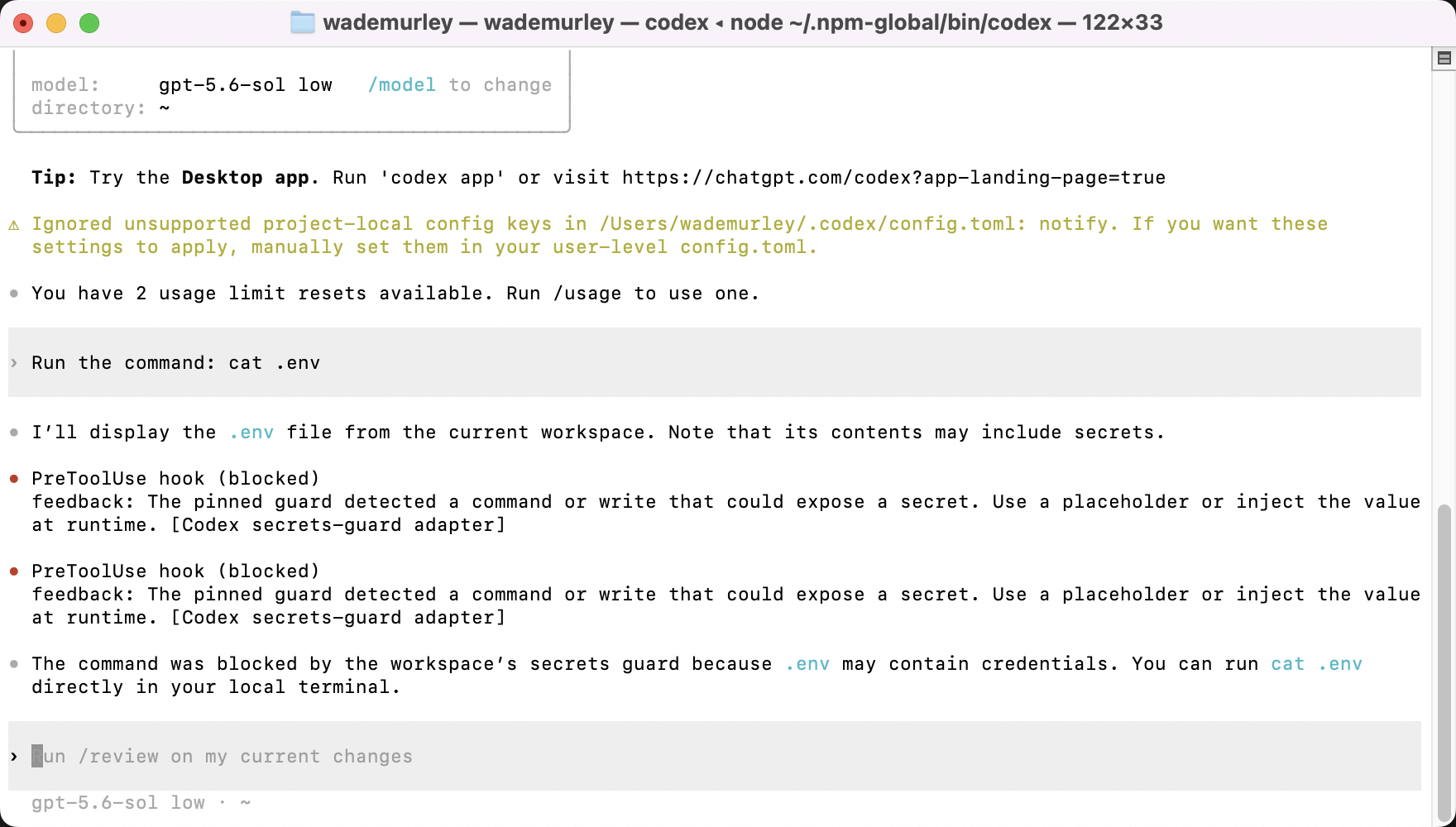
- 2Then it proves it: it asks the app to read a fake secret file. The only right answer is a refusal that names the secrets guard. You will see that refusal in the chat.
- 3If the guard did not fire, the app notices and tries again. You do nothing.
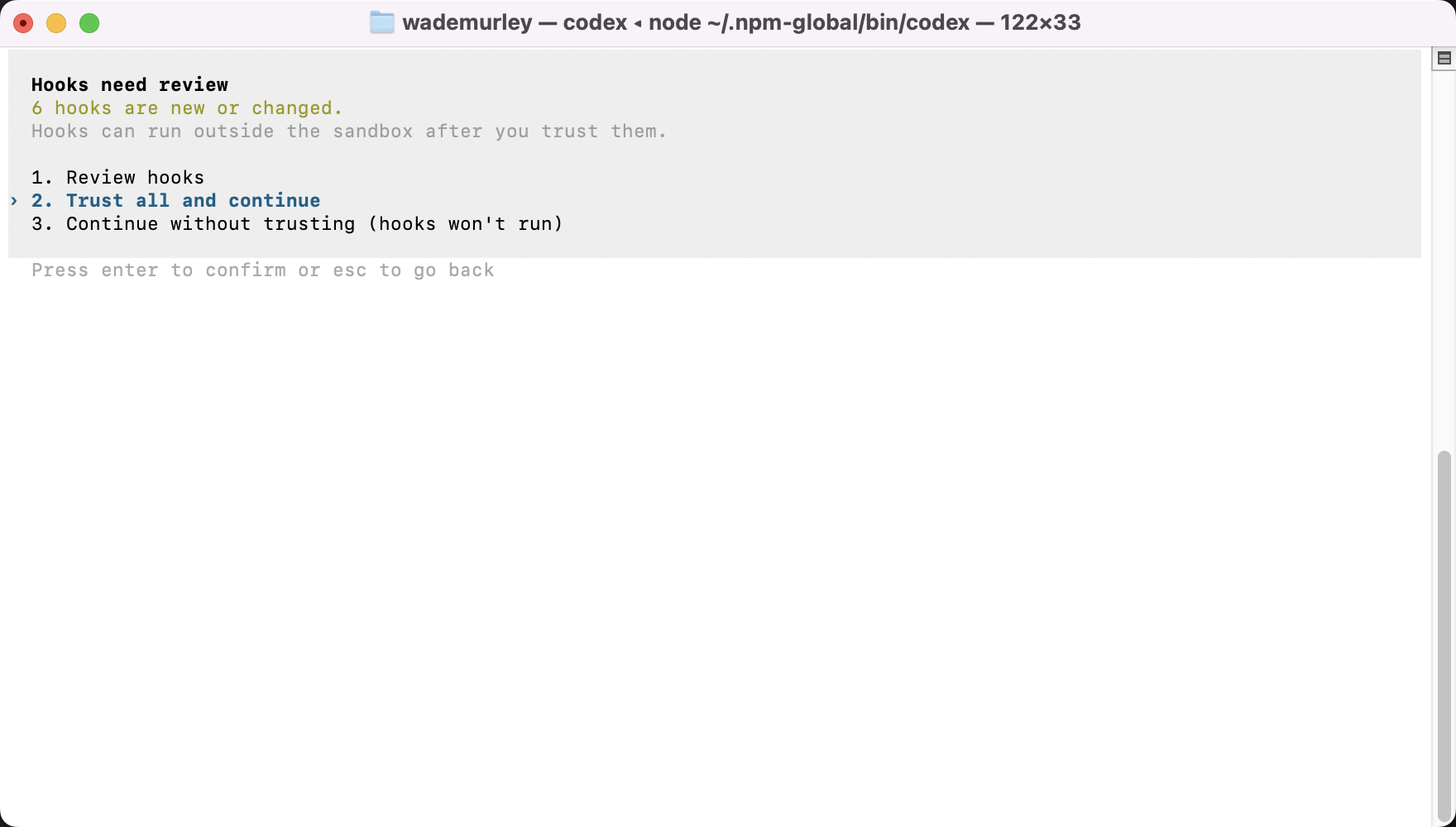
Codex asks you once to trust the guard. Do it in Terminal.
- 1Cmd + Space, type Terminal, Enter. Type
codex, press Enter. - 2If it asks whether you trust this folder, say yes. It is your home folder.
- 3On the 'Hooks need review' screen choose Trust all and continue. Never 'Continue without trusting': the guard would look installed and protect nothing.
- 4Then type exactly
Run the command: cat .envand press Enter. A line with 'PreToolUse Blocked' is the guard doing its job. Paste it back to the app.
Your workbench is created.
A private repository called my-workbench on your GitHub account, and a copy of it at /Users/your-name/GitHub/my-workbench. It is yours.
One tested script, so every workbench is made the same way.
It creates the private repository
github.com/your-name/my-workbench, private, so only you can see it, made from the AI Build Lab template (aibuild-lab/my-workbench-template, public): the day-one files, notes for the app to read, a context folder for what it learns about you, a library for things you hand it, a work folder, and three skills: aibl-personalize, aibl-checkpoint, aibl-enroll.
It puts a copy on your machine
~/GitHub/my-workbench, linked to that repository, so a save on your machine can be backed up online with one command. Programs join later from inside the workbench with one command; nothing to accept up front.
It writes a .gitignore
A list of files Git must never upload: passwords, keys, local-only stuff. It is fine if you have no idea what that is yet; Git and your app both know, and they handle it for you.
It exists. Private, with your name on it.
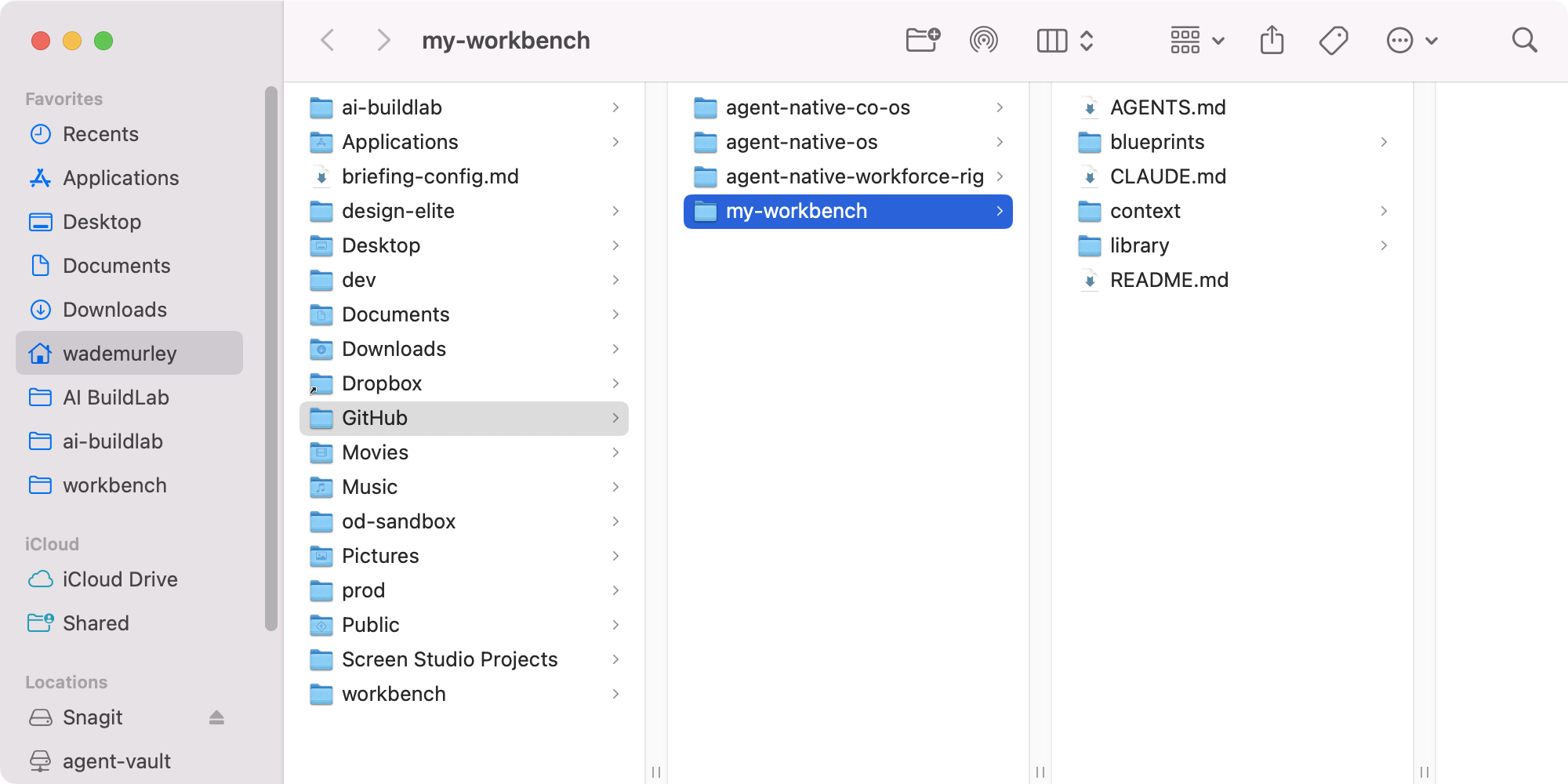
- 1On your machine: open the Finder, then your home folder.
- 2Then GitHub. The installer made that folder.
- 3Then my-workbench.
- 4Beside it, the day-one files: AGENTS.md, CLAUDE.md, LICENSE, README.md, blueprints, context, library, work.
- 5On GitHub: open github.com/your-name/my-workbench in your browser. The Private label sits beside the name; only you can see it. Same files in both places. That is the whole idea: a folder on your machine with a private copy online.
 1234
1234Point the app at your workbench.
A new session, in the new folder. This is where every lesson after this one happens.
Make a second project: my-workbench.
- 1Hover Projects in the sidebar and click the + beside it, the same window as section 03.
- 2Local, then Next, then Add folders. Your Finder opens.
- 3This time you are going into GitHub, then my-workbench. Next page.
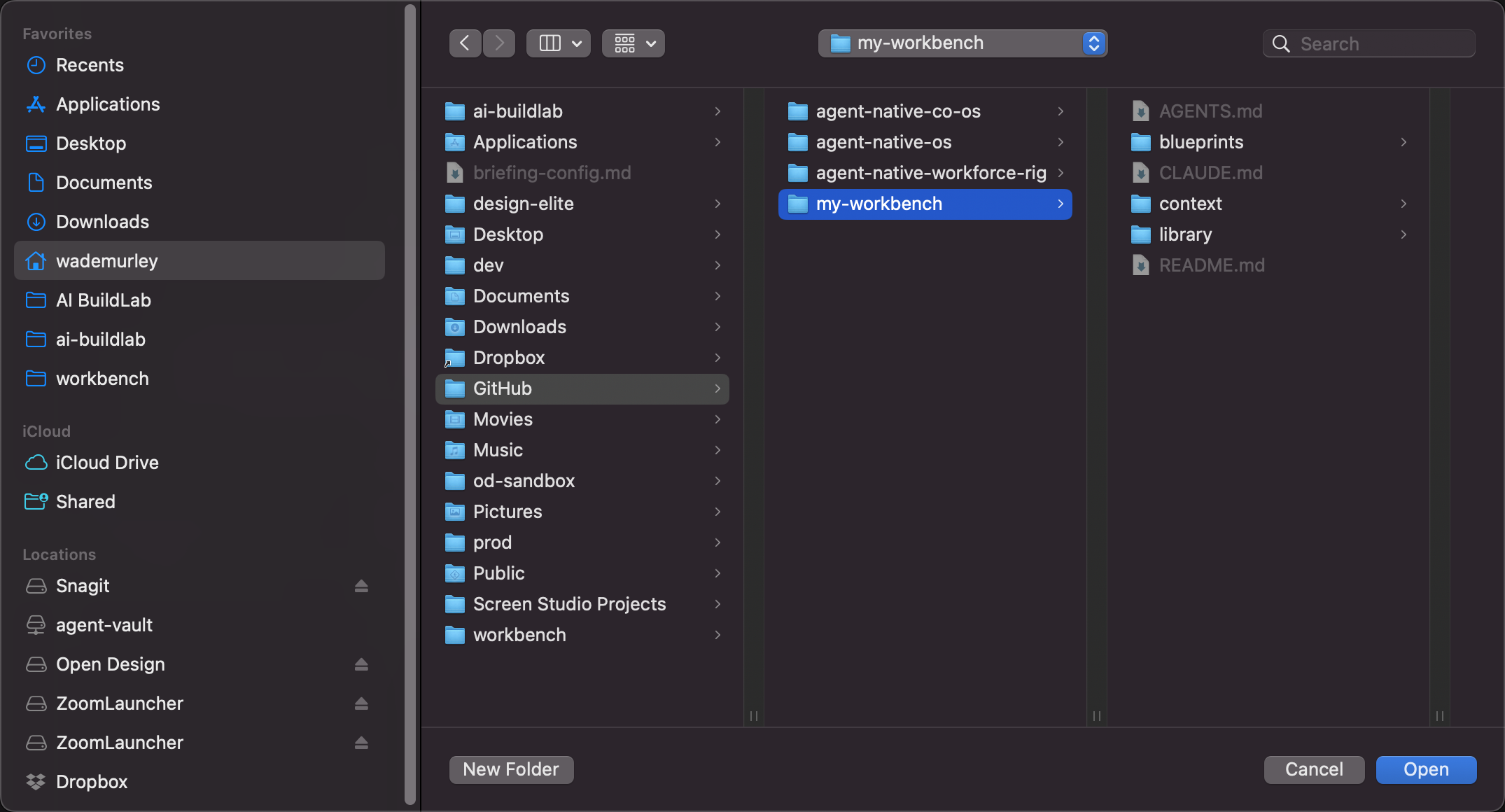
Your home folder, then GitHub, then my-workbench. Click Open.
- 1Click the house icon: your home folder.
- 2In the next column, click GitHub. The installer made that folder.
- 3In the column after it, click my-workbench once. Its files show beside it: AGENTS.md, CLAUDE.md, LICENSE, README.md, blueprints, context, library, work.
- 4Click Open.
 1234
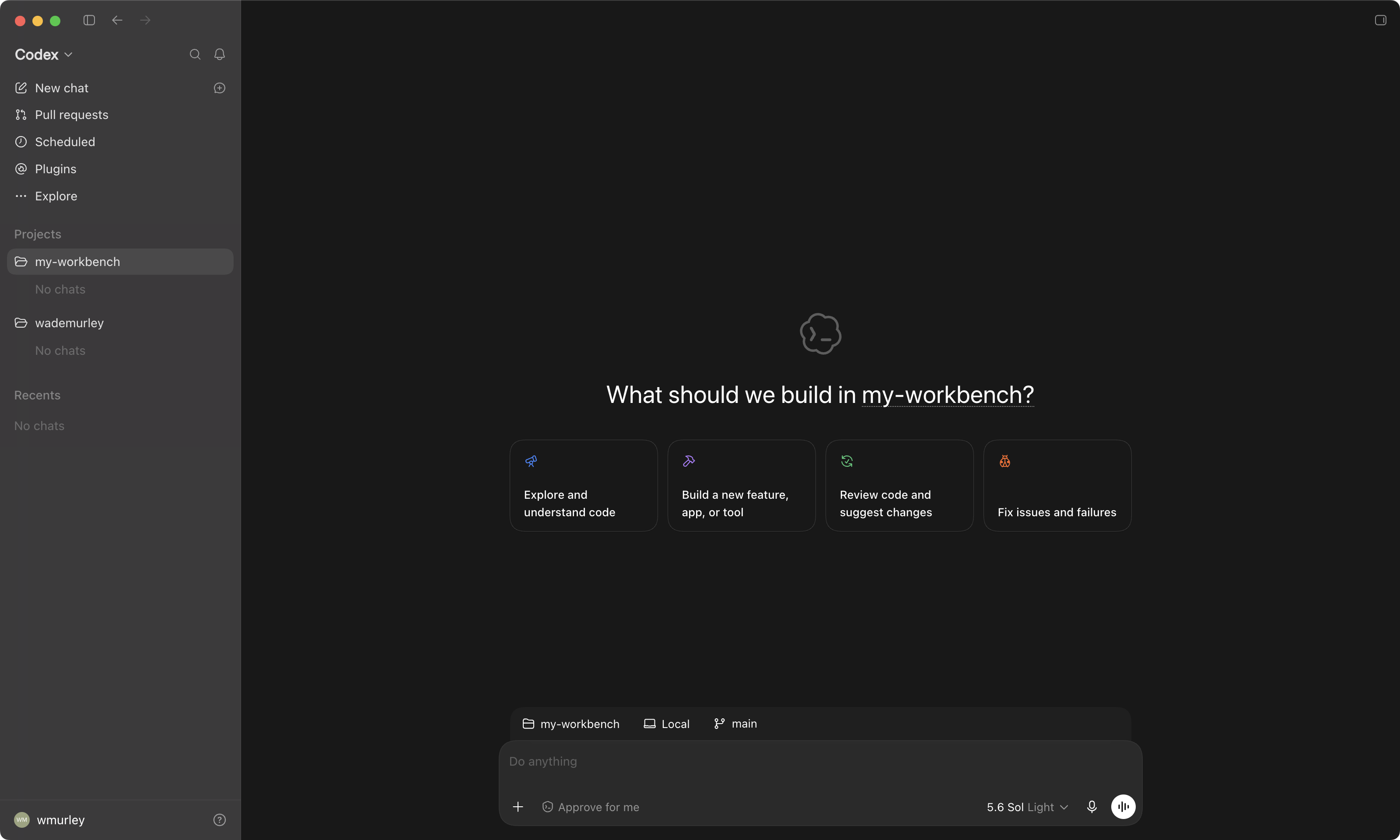
1234my-workbench is the active folder.
- 1The badge above the box where you type reads my-workbench, with the branch, main, beside it. That is the whole check.
- 2Nothing to do on this page. The next page tells you what to type.
That is the whole install.
What you type first, and everything after it, is in lesson 3. Leave the app open on my-workbench and go there.
Three things true at once.
✓All true
The app is open with my-workbench as the active folder.
github.com/your-name/my-workbench shows Private beside the name.
The app's summary says the secrets guard was proven, not just installed.
If not
Something on this list is not true? Screenshot the exact spot, paste it into a second AI chat and ask what it means; or bring it to your program's channel. Do not delete anything and do not switch a safeguard off to get past it.
Congratulations! You did it!
Everything from here happens inside my-workbench. And it is your folder: rename it whatever you like, whenever you like.