What Is Claude Code?
Claude Code is the agent that runs inside your agent-native OS. It comes in three doors: the desktop app, an IDE, the terminal. All three open the same agent, with the same CLAUDE.md, the same MCPs, the same skills, the same sub-agents. Knowing which door to walk through and when is the whole job of this card.
- The three-doors picture Desktop, IDE, terminal. What each one is best at and how to tell them apart.
- A working default for which door to walk through first based on the kind of work in front of you today.
- The same-agent insight for why your tools, settings, and context follow you across all three doors with no extra setup.

How this fits in the OS.
The What Is an Agent-Native OS? card. That card tells you what you are building. This card tells you about the agent that does the building.
Three surfaces. The desktop app, an IDE, the terminal. All three open the same agent. Pick the one that fits the moment.
Every later card. Your brain file, your skills, your sub-agents, your fleets. All of them ride the same agent you meet here.
The agent at the center.
The OS card describes the structure: the eight components, the layers, the workspace you are building. Claude Code is the agent that runs inside that structure. An agent is an AI that can take actions on your computer (reading files, running commands, calling tools, editing documents), not just chat about them. Same Claude you have used in a browser tab before, with hands. The plain English glossary has the long version.
So what is Claude Code, exactly? The Claude you have chatted with before (the model) is the brain. It reasons, writes, and decides. Claude Code is the harness around that brain: the software that lets it actually act on your computer. It runs the loop (think, take an action, read the result, think again), gives the model real tools instead of just a text box, loads your context at the start of every session, and stays inside the permissions you set. Same brain you already know. New hands, and a workspace to use them in.
Because it is a harness and not a single chat window, it does something a plain chat cannot: it can run more than one agent at once. You can send a sub-agent (a separate Claude session you spin up for a focused task) off to research while another drafts, or leave a background agent working while you do something else. You meet one agent in this card. Later you will direct a small team of them.
What is unusual about Claude Code is that this one harness comes in three doors. All three are the same agent underneath. The door you reach for changes with the work, not with the power you need.
You do not write the code. Claude does.
The name trips people up. "Claude Code" does not mean you write code. Sara likes to frame it as Claude codes for you. It writes the code, runs the commands, and edits the files; you describe what you want in plain English, and Claude does the technical part, then shows you what it did. Plenty of the people who run this every day have never written a line of code in their life. The skill you are building is directing an agent, not programming.
In practice, once it is running Claude Code can:
- Read and write the files in a folder you point it at
- Run commands in your terminal for you (installing a tool, moving files, starting something up)
- Search and read the web
- Reach your connected apps (Gmail, Calendar, Slack, and more) once you wire them up through an MCP (a connector that gives Claude permission to talk to one specific outside service)
It only ever touches what you give it access to, and it checks with you before anything risky. How much it does on its own is a dial you set, covered in The Modes Claude Can Run In and Running Claude Safely.
Three doors, same agent.
You can use "Claude Code" in three different ways during the workshop, and they all point at the same underlying thing. Three doors into the same room. Ordered here by how familiar each one feels on day one:
1. The desktop app.
The friendliest surface. It looks like a chat window. Markdown renders nicely, code blocks are formatted, tables are readable. You drag and drop files into the conversation. You authorize MCPs (which Claude Desktop calls "connectors") in a settings screen with a button. Recent versions of the desktop app are organized into tabs across the top of the window: Chat (the conversational surface most people start with), Cowork (the guided outcome-first tab covered in the aside below), and Code (an embedded Claude Code session, which is what most workshop work happens in). All three tabs run on the same Claude underneath.
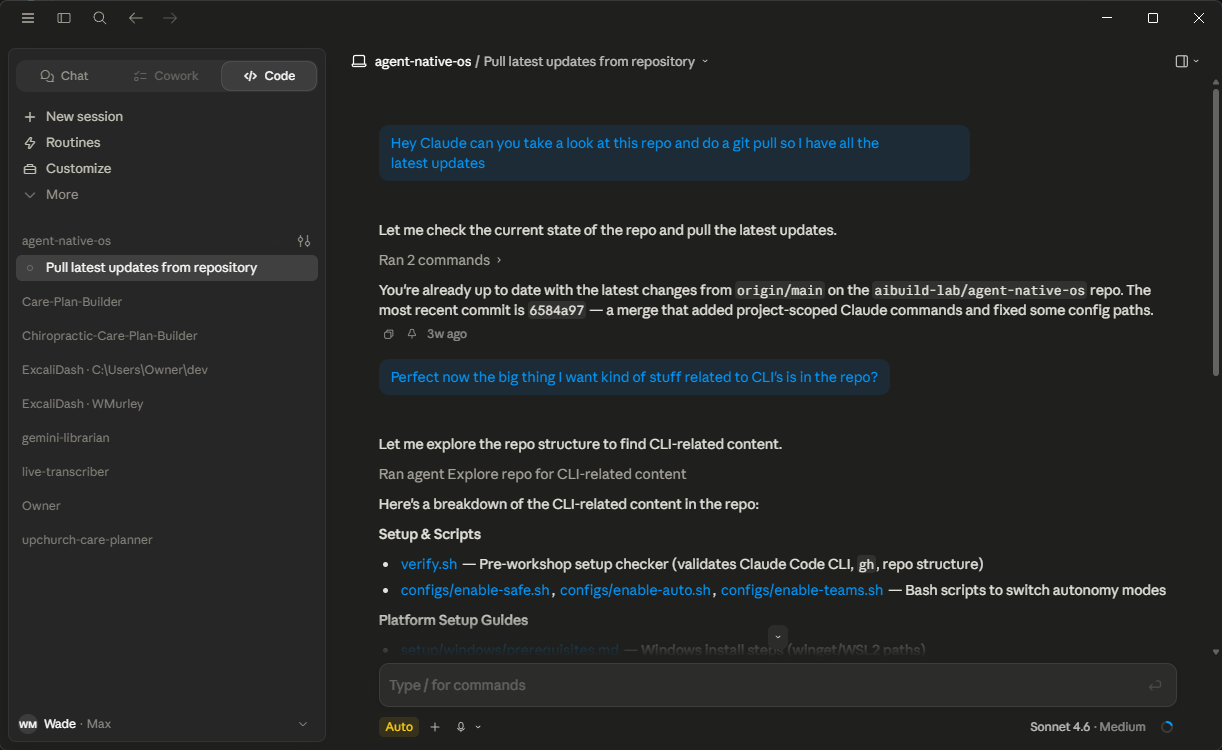
What people use it for: long research threads where the formatting matters, brainstorming where you want to scroll back through the conversation, and project workspaces where Claude groups related chats together so you do not lose context jumping between them. Most students start here on day one.
2. The IDE.
Originally an IDE (short for "integrated development environment") was the editor where developers wrote code. AI tools changed who walks through this door. The file-tree-on-the-left, editor-in-the-middle layout turns out to be exactly what knowledge workers want when they are working on long-form documents, organized folders of notes, or anything where seeing the structure of what you are working on matters as much as the words. Same shift that happened to GitHub (covered in GitHub for Knowledge Work): built for coders, now used by anyone who wants their thinking versioned and structured.
The most common IDE is VS Code, free from Microsoft. Cursor is another popular option built on the same bones with a different default feel. Claude Code installs into either as an extension that lives in the sidebar.
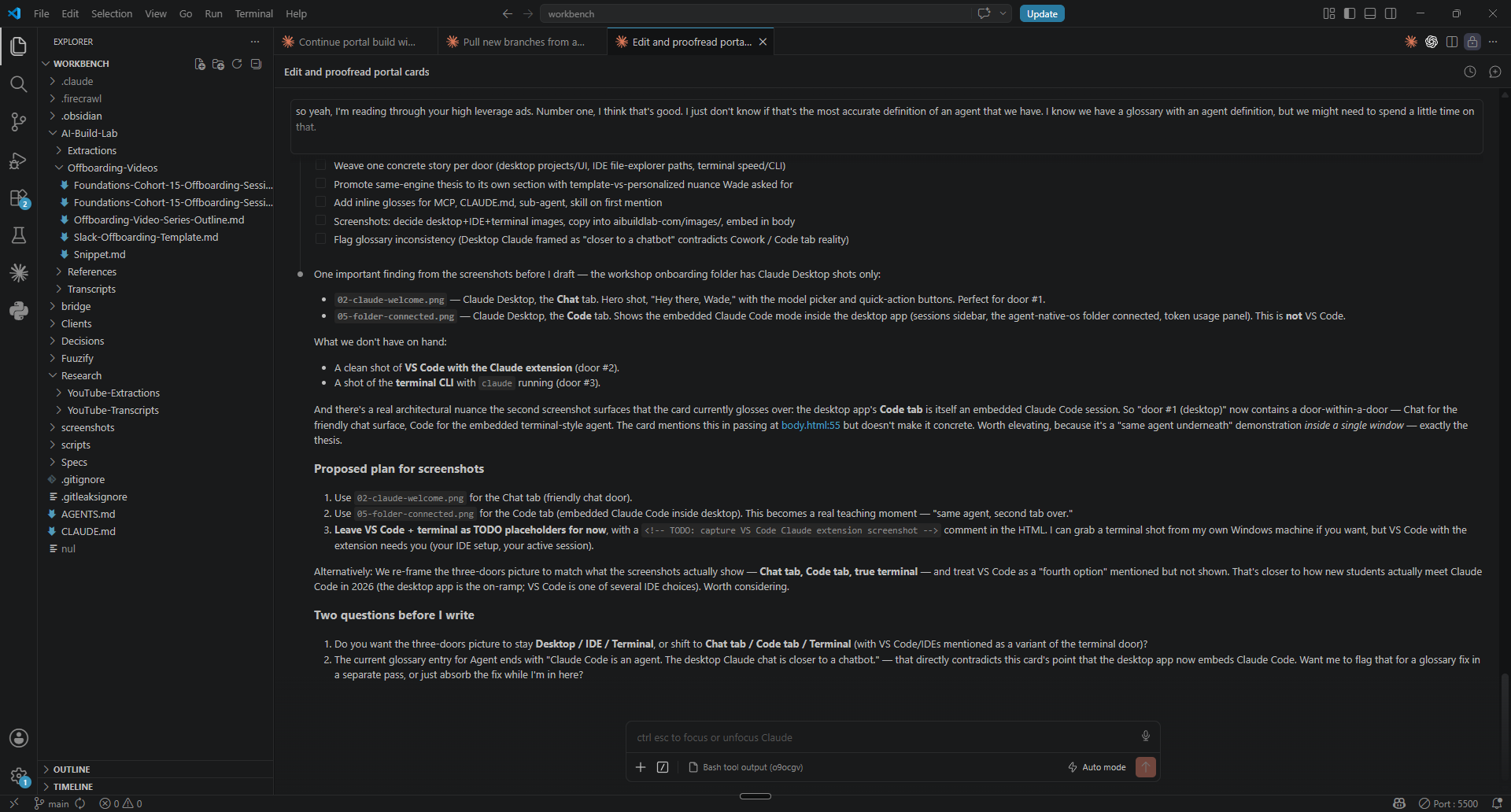
What makes this door great for knowledge work specifically: the file tree on the left stays visible the whole time. When you want to point Claude at a specific file or folder, right-click it, copy the path, paste it into the Claude sidebar, and Claude knows exactly where to look. You can highlight a section of a document, ask Claude to rewrite just that piece, and watch the file change in front of you. It is the most "show your work" of the three doors.
Reach for it when you are editing a specific document, organizing a folder of notes, or want to watch the agent work file by file.
3. The terminal (CLI).
You open a terminal, type claude, and a session opens with a > prompt. That is it.
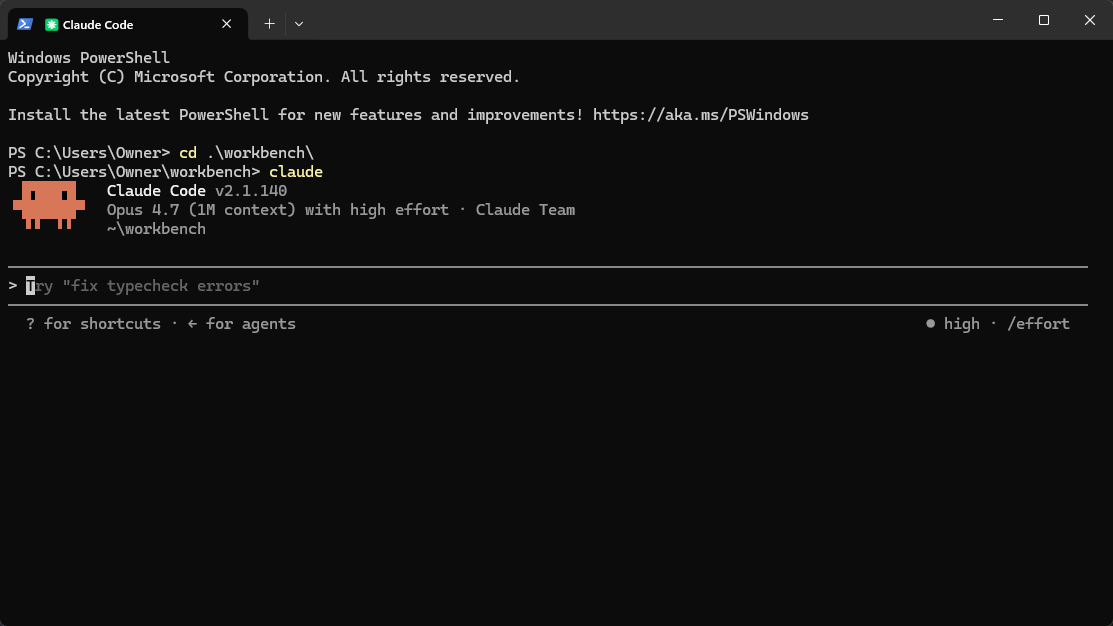
claude) opens a session in the folder you are in. The smallest window between you and the agent.The terminal looks the scariest on day one. Most people are comfortable here within a week. The intimidation is the entry, not the day-to-day; the day-to-day is just typing in plain English the same way you would in a chat.
What people end up loving about it: it is the smallest window between you and the agent. No tabs, no panels, no scrollbars. You type, it responds. You can pipe in output from other tools, hand its output to other tools, and chain it all together with one-line custom commands you can write yourself (covered in Build Your First CLI). And because it is just a window into a folder, the same setup works on any computer you can reach: your laptop, a Mac Mini in the closet, a remote server. Same agent.
It is also the door that runs while you sleep. Scheduled jobs, overnight research, a morning brief sitting in your inbox when you wake up: all of that is easier from the terminal than from either of the other two doors. Reach for it when you want the agent working without you watching.
If even the three doors feel like a lot, there is now a gentler on-ramp. Claude Cowork (launched early 2026) is the same engine as Claude Code in a guided tab inside the Claude Desktop app, built for people who do not write code. You hand it an outcome ("turn this folder of receipts into an expense report") and it does the work and hands back the finished file. It has been described as "Claude Code without the code." This workshop still teaches Claude Code, because you are not only running tasks, you are learning to build and customize your own OS, and that takes the fuller surface. Once that is in place, Cowork is a friendly place to hand off the everyday outcome work.
Same engine underneath.
Three doors, one engine. Whichever door you walk through, the agent on the other side is the same Claude Code installation on your computer. Your CLAUDE.md (the brain file Claude reads at the start of every session), your MCPs, your skills, your slash commands (shortcuts that fire saved workflows on demand), your sub-agents. All in one place. The door is preference and context, not power.
 Desktop app
One thing worth being honest about: a fresh install is a template. Capable, but generic. The personalization comes from what you wire in. Your CLAUDE.md is the file that turns a generic Claude into your Claude. The MCPs you authorize, the skills you write, the slash commands you save, the sub-agents you define, all of it accumulates over time and rides with you through every door. You set it up once, you reach it from any of the three. That setup-once-reach-anywhere pattern is the whole point of the OS.
And it is all one subscription. Your Claude plan powers every door, so you are not signing up or paying three times.
It is normal for this to feel intimidating on day one. One of the fastest ways to get comfortable, and the way Tyler learned it himself, is to keep a second Claude open in a browser tab as a tutor on the side. Do the real work in your Claude Code thread. When something confuses you (an error you do not understand, a screen you do not recognize, a concept that did not land), paste a screenshot into the browser chat and ask. Your working thread stays clean and focused, and your questions get answered in a separate, throwaway thread. You learn the tool by using it with a teacher one tab over.
What changes for you.
Once you see the three doors as different ways into the same agent, three things shift:
- You stop asking "which interface should I use?" You start picking the door that fits the work in front of you. Brainstorming, file editing, scheduled jobs each have a natural door.
- You stop expecting to lose context when switching doors. Your brain file, your MCPs, your settings, your sub-agents all follow you across all three. Set them up once, reach them anywhere.
- You start using all three on the same day. Without thinking about which one is "right." The agent is the same. The door is whichever one is closest to the work.
Where to go next.
You have the picture of the agent. Three natural next moves: