Agent Native Essentials
A setup that knows your stuff, on your computer, and grows with you every time you come back.
A setup that knows your stuff, on your computer, and grows with you every time you come back.
Keeping up with AI has turned into a full-time job. A new tool every morning, a four-hour tutorial for each one, and a video about every "life-changing" feature the day it ships. It is hard to know where to jump in, and you do not need to master it. Nobody can master something that changes this fast, and most of it you will never need. We are all figuring it out together, which is exactly why we cut it down to the essentials. One short plan, in the right order, that gets you set up and doing real work on your own stuff. Wherever you are starting from, this is the right place.
Eight lessons. Two you read, six you do. Whether you use Claude Code or Codex, on a Mac or on Windows, we have you covered, and every lesson shows both wherever they differ. Nothing here assumes you have written code, and nothing asks you to. Buckle up. When you finish, you will have a setup that works today and a place to build on for everything that comes next.
The Git part is lesson 5. Give lesson 4 fifteen minutes first; lesson 5 builds on the note you write there.
- An AI app on your own computer, working in a folder that is yours.
- A note about you and your work that it reads every time you open it.
- Your work saved in two places, so one bad click cannot lose it.
- One connection to your real stuff, and one habit it runs for you.
- Proof it picks up where you left off, the next time you come back.
Skim the parts you know, skip around, or go straight to the install. We ask one thing of everyone, new or returning: run the new installer, even if you ran the old one. It sets your computer up differently this time. Your old folder stays right where it is, and nothing in it gets touched.
Before you startWhat you need, and what you do not. Two short lists.
- A computer you are allowed to install things on. A locked-down work laptop may say no; ask before you fight it.
- A paid plan for the app you picked. Free tiers run out fast. The vendor's page has the current tiers; we do not print prices because they move.
- A free GitHub account, signed in on github.com in your browser. Lesson 3 uses it; lesson 5 explains it.
- Two minutes to switch off one privacy setting, so your chats are not used to train the AI. Lesson 3 shows you where it is.
- About an hour for the install that nobody will interrupt. Everything else is fifteen to twenty-five minutes a lesson.
- To have written code. Nothing here asks you to.
- To know what a terminal, a repository, or a skill is. Each one gets explained the first time you meet it.
- The most expensive plan. The least expensive paid plan is enough for this course.
- To finish in one sitting. Every lesson ends at a place you can stop and come back to.
Eight lessons, in the order you meet them
Open a lesson from the map or from its card. Lessons you mark done get a check.What this is, and what you will have
The app, the folder, and the note, in plain words. You pick your app. Nothing to install yet.
A walkthrough of Claude Code and Codex
Every button, tab, and pane you will click in lesson 3, shown at the moment it lights up, in both apps.
Install the app, Git, and GitHub
The guided installer, start to finish, on Mac or Windows. You end with your own workbench open.
Write your context note
The app interviews you and writes a note about you and your work. You correct it, and it starts using it.
Git and GitHub, in plain words
Checkpoints, a private copy on GitHub, and undo. You delete a paragraph on purpose and get it back.
Connect one service
Your calendar, email, or notes. What it can see, what it cannot, and where the off switch is.
Write your first skill
One task it runs the same way every time, without you retyping it. You read what you made.
Build a library, then restart cold
Fetch a video transcript into your library, close everything, come back, and watch it pick up where you left off.
What this is, and what you will have
What is this thing, and what will I have when I am done?
You are going to sit and read for fifteen minutes. Nothing to install, nothing to click. I am going to tell you what you are about to put on your computer, in plain words, and what you will have when all eight lessons are done: a setup that knows your stuff, on your computer, and grows with you every time you come back. You pick one of two apps, and you learn ten words. You can use both apps eventually. Do one first. That is the whole lesson.
The words for what you are about to install, a picture of what it is for, and one app chosen. Nothing on your screen yet.
Lesson 3 is the install, and it is the heavy one. Every scary thing in it has a name. You learn the names here, so when they show up on your screen, nothing is a stranger.
Eight lessons. Two you read, six you do. The install is lesson 3. Everything after it is fifteen to twenty-five minutes on your own machine.
Read this page once. Click one of the two apps below. That is all. The app does nothing today, because you have not installed it yet.
A year ago I was watching people do things with Claude Code that I wanted to do. Build things. Run their business off it. Hand it work at night and read the result in the morning. And I sat on the sidelines for months. Not because I was busy. Because I was scared of it: the terminal, the passwords, the feeling that one wrong line would break something I could not fix. When I finally got in, the scary part took a few days and the useful part started the same week. So here is the thing I wish somebody had told me. The fear is the only expensive part. The faster you get in, the faster you have it.
There is too much out there. Here is the shortest path in.
You read the promise on the front page. Here is the whole plan in one line. A setup that knows your stuff, on your computer, and grows with you every time you come back. Eight lessons get you there. Two you read. Six you do, on your own machine, with your own files.
This program is not built to make you a wizard of the AI arts. It is built to get you in the game and make you a little dangerous. Mad-scientist dangerous, not Terminator dangerous. Most people put this off because it is intimidating, and that is fair. Here is the thing. The sooner you get in, the sooner you start building the muscle. So if the word "terminal" makes your stomach drop a little, keep reading. By the end of lesson 3 it is a window you have opened, typed one line into, and closed.
Done one of our programs before, and you open one of these apps every day? Skim this lesson and lesson 2, then go to lesson 3. You still run the new installer. It sets you up differently, it does not touch your old folder, and lesson 3 says why.
Here is each lesson by name, and what is on your screen when it ends. The thing you will have, not the thing you will learn.
- What this is, and what you will have. The words, and one app chosen. Nothing on your screen yet, on purpose.
- A walkthrough of Claude Code and Codex. Every control lesson 3 will ask you to click, seen once, in both apps.
- Install the app, Git, and GitHub. The app open on my-workbench, in Auto. github.com says Private. The aibl- skills in the menu, and the app's own answer to "what do I have?"
- Write your context note. A note about you in your context folder, corrected in your words, and one real answer about your stuff.
- Git and GitHub, in plain words. Your note in two places, and a paragraph you deleted on purpose, back.
- Connect one service. One connection, an answer about you, and the off switch in sight.
- Write your first skill. One skill of your own, in your folder, that you can read.
- Build a library, then restart cold. A transcript in your library, three answers about it, and a cold session that picked up where you left off.
Most people use AI like a search engine. Here is what you are about to install instead.
Open a chat, type a question, copy the answer somewhere, close the tab. The work disappears with the conversation. Nothing carries forward. Tomorrow morning you open a new chat and start the same conversation again. That is the chat trap, and it is where most people stop.
The Claude or ChatGPT you have chatted with before is the model. It is the brain. It reasons, writes, and decides. What you are about to install is a harness around that brain. The harness is the part that lets the brain act on your computer. It reads your files, writes them, runs things, checks its own result, and tries again. Same brain you already know. New hands, and a place to use them.
Tab closed. Tomorrow:
Tab closed. Tomorrow:
Text alternative: left, a chat window where notes go in and a plan comes out, then the tab closes and tomorrow the same request starts from nothing; right, the same request, but the notes and the plan are files in a folder called my-workbench, so tomorrow the agent reads the plan and continues.
No. "Claude Code" does not mean you write code. We like to say Claude codes for you. You say what you want in plain English, and it does. Then it shows you what it did. Plenty of the people who run this every day have never written a line of code. The skill you are building is directing an agent, not programming. Same for Codex.
Here is what a harness can do that a chat window never could. You use the first one in lesson 4. The other three are words you will hear, and lessons 7 and 8 show you what each one looks like.
Two apps do this. Pick the one you already pay for.
There are two harnesses this course lives in, and they are more alike than different. Every lesson shows both wherever they differ, and the ideas never differ. Lesson 3 has the download links.
Choose your weapon
The pick rule: use the one you already pay for. If you pay for neither, flip a coin. They are that close. Then stay in it for the whole run. Learn one, get comfortable, and the other one takes an afternoon later, because you will already know what every control is for. Click your pick above. Every lesson remembers it, and you can flip it any time from the sidebar.
Yes, before lesson 3. The free plans run out fast, sometimes before the install is over, and they do not always include the features this course leans on. So start on the least expensive paid plan, on either app. It is enough for this whole course, and you do not need the strongest model. If you ever hit the limits, you can move up to the next plan the same day and pay only the difference. Start as cheap as possible until you actually need more. You have two lessons of reading before you need it.
When you are done, three things exist on your computer.
Here is what the install actually leaves on your computer. Three things.


Text alternative: three boxes in a row. The app, with the Claude and Codex marks; an arrow to your workbench, a folder (highlighted) with a note that it has a private copy on GitHub; an arrow to your files.
The middle one is your workbench. It is a starter folder we built to set you up, and you can rename it to whatever you like. It is one folder, and nothing you already have on this computer is inside it.
The app can only see the folder you open it on. That is the whole rule. In lesson 3 you open it on your workbench, and from then on that is the only place it looks. Your photos are not in the workbench, so as far as the app knows, your photos do not exist.
Here is the one sentence to keep from this whole lesson: a conversation and a file are two different things. Saying something in a chat does not make it a file. A file is something you asked for, that landed in your workbench, that you can open tomorrow. You will learn to ask for the file, look at it, and check where it went. That habit is most of the course.
And the third thing, your files, comes with something the chat window never had. Git takes a snapshot of your files when you say so, and writes one line about what changed. GitHub keeps a private copy of those snapshots on a website, under your name. You meet both properly in lesson 5. Today you only need to recognize them when the installer says them.
Close, and the difference is the good part. Google Drive keeps versions automatically, in the background, and you rarely look. With Git you choose the moment and write one line about what changed, so every change the agent makes is one you can read, accept, or throw away. Strip away the jargon and GitHub is one simple thing: a place on the internet that stores your files and remembers every version of them. A cloud drive with a perfect memory, under your name, marked Private.
If you have ever emailed a file to yourself so you would not lose it, you already understand GitHub. It is that, with a perfect memory, and the agent does the emailing.
Text alternative: on the left, a laptop labelled your computer, with three stacked snapshots of the same file, each with a short note; an arrow labelled "you say save, a copy goes up" points right to a cloud labelled GitHub, private, yours, holding the same three snapshots.
Why this matters before anything installs: version control is your time machine. "Undo the last thing the agent did" is one line you type. So is "undo everything since this morning." That is what lets it work boldly on your files, and what lets you stop being afraid of it.
Each app has two tabs, Chat and Code. This course lives in Code.
Open either app and near the top you find the switch. In the Claude app, two small icons at the top of the sidebar. A speech bubble for Chat, and a code mark for Code. If you used Cowork, it lives inside Chat now. In the ChatGPT app, a dropdown at the top left with two choices, ChatGPT and Codex. Two tabs into the same brain. Now that you know what a folder and a save are, the difference between them is easy to say.
| The tab | What it does | Where it falls short |
|---|---|---|
| Chat Claude app: Chat (Cowork lives here now) · ChatGPT app: ChatGPT | Answers you, does tasks for you, remembers things about you, and can connect to some services. It works from a conversation. | No folder on your computer. Its memory is a summary the app keeps about you, inside the app. No version history of your files. It cannot run programs on your machine. |
| Code Claude app: Code · ChatGPT app: Codex | Does the work in a folder on your computer, keeps every version, runs the tools on your machine, and can be handed more of them. | Nothing you need. This is the tab. |
Here is the objection you will feel at some point, so let's have it now. "I can already do most of this in Chat." You can do a lot of it. Chat answers you, does tasks, remembers things about you, and connects to services. So let's be precise about the difference, because it is not that Chat is weak. The difference is where the work and the memory live, and what it can reach.
In Chat, the memory is a summary the app keeps about you, inside the app. You can read it and edit it in Settings, but the app decides what is worth keeping, and it stays in that app. In Code, the memory is files in a folder you own. You write them, you correct them, every version is kept, and you can move them to another computer or another app. In Chat, a good session ends when the tab closes. In Code, a good session leaves something behind. A file in your folder. A save you can go back to. A skill you can run again by name. A note it reads tomorrow before you type a word. The first week, that is a convenience. By the second month, it is a setup that knows your work, and every session starts from there instead of from zero. That is the whole difference, and it compounds.
For an answer, yes, and you should. Chat is right there on the same account, and for a quick question it is the faster tool. For work you want to keep and build on, Code, for two reasons you can check for yourself. One, where the memory lives. Chat keeps a summary about you inside the app, and it picks what to keep. Code keeps files in a folder you own, on your computer, with every version saved, and you pick what goes in.
Two, what it can reach. Chat comes with the set of connectors the vendor offers. Code can use the tools on your computer, and you can keep handing it more. Anything with a command line, and most things with an account, it can be connected to: your calendar, your email, your notes, a spreadsheet, a website, a program somebody else wrote. It can run a job on a schedule while you sleep, run three helpers at once, and take a message from your phone. Every one of those plugs into the same folder, and they stack. That is where the leverage is. Chat answers questions. Code builds things, and the list of what it can be built into keeps getting longer. The limit is mostly what you think to ask for. Everything in this course starts with that folder, which is why we live in Code.
Nothing is on your screen yet. That is the point.
This is the only lesson whose result is in your head. You have the words. You know what the thing is for. You picked an app. Next, sit back one more time. Lesson 2 walks through both apps, one real task, and points at every control lesson 3 will ask you to click, so that when you get there, nothing on the screen is a stranger.
Keep a second chat open in a browser tab, the plain Claude or ChatGPT you already use. Paste a screenshot of whatever confused you and ask three things. What is this? Is it safe? What do I click? Your working session stays clean, and you get a tutor on the side. That one habit got me through my first install.
The technical definitions, for the curious
Model. The AI itself. The part that reads and writes text and decides what to do next. Claude, or the model behind ChatGPT.
Harness. The software wrapped around a model that turns it from a thing that writes text into an agent that can act. It runs the loop (think, act, read the result, repeat), gives the model real tools (your files, the terminal, the web, your connected apps), manages its context, and stays inside the permissions you set. Claude Code is a harness. So is Codex.
A walkthrough of Claude Code and Codex
What am I going to be looking at, and what does each part do?
Sit back. Nothing to click. This lesson walks through one small, real task in the app, in both apps, and every part of the screen gets a name at the moment it lights up. By the end you know where everything lives, and you walk into lesson 3 comfortable, because nothing on that screen is a stranger. Fifteen minutes.
One task, start to finish, in both apps, one still per stop. You see where you type, where the answer lands, where a file shows up, where a command runs, and the two controls that decide how much it does on its own.
The people who quit in lesson 3 quit because a window they had never seen opened. After this, every window in lesson 3 is one you have already seen do its job.
Six stops, in the order they happen on screen. Each one is a section below with the real screen at that moment, in Claude Code and in Codex. Read them once now, and come back to any stop from lesson 3 when a window looks new.
Read and look. This is a preview; you do not need a my-workbench folder yet. Lesson 3 creates your workbench and opens it in your app. For now, notice the mode and the ring in the corner.
The app opens on two tabs. This course lives in Code.
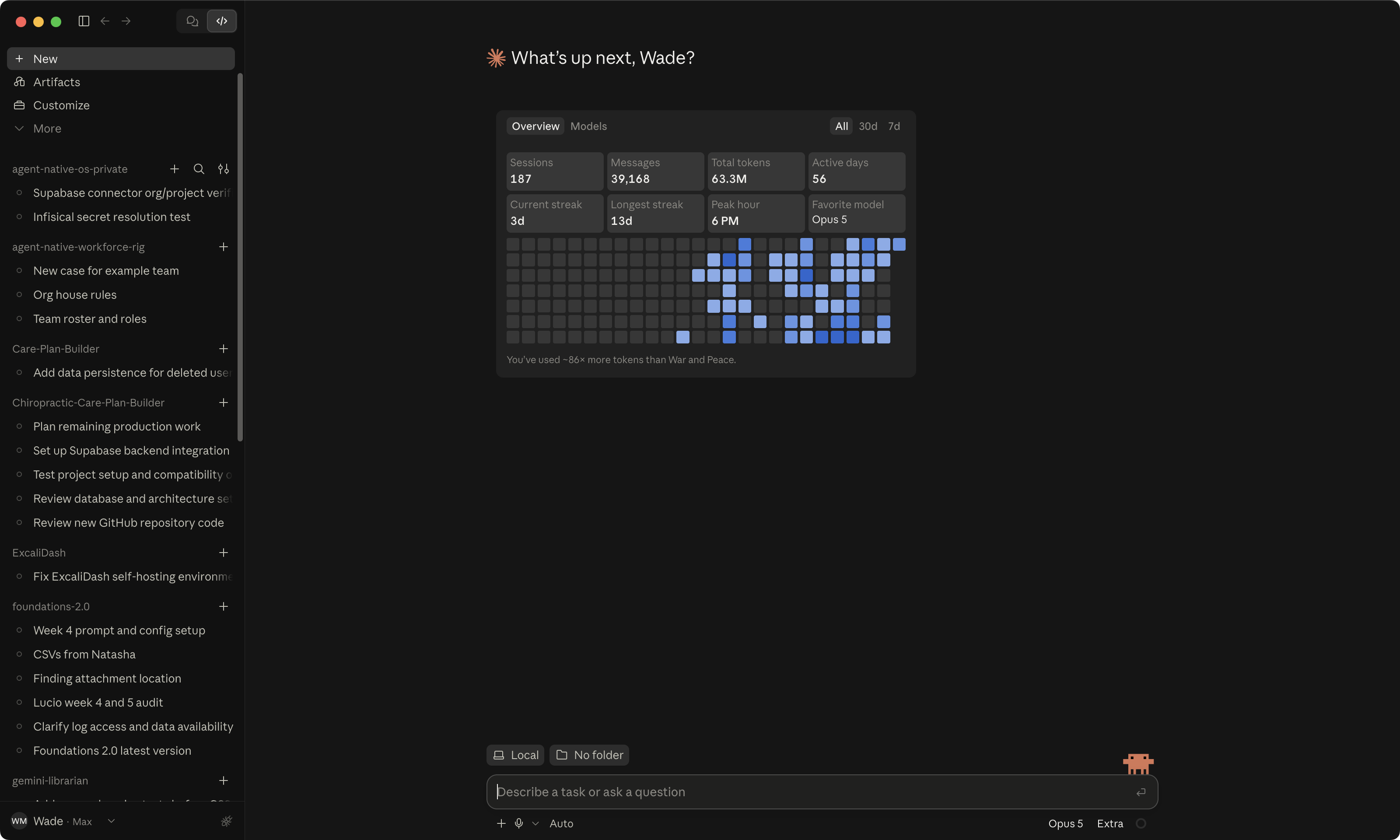
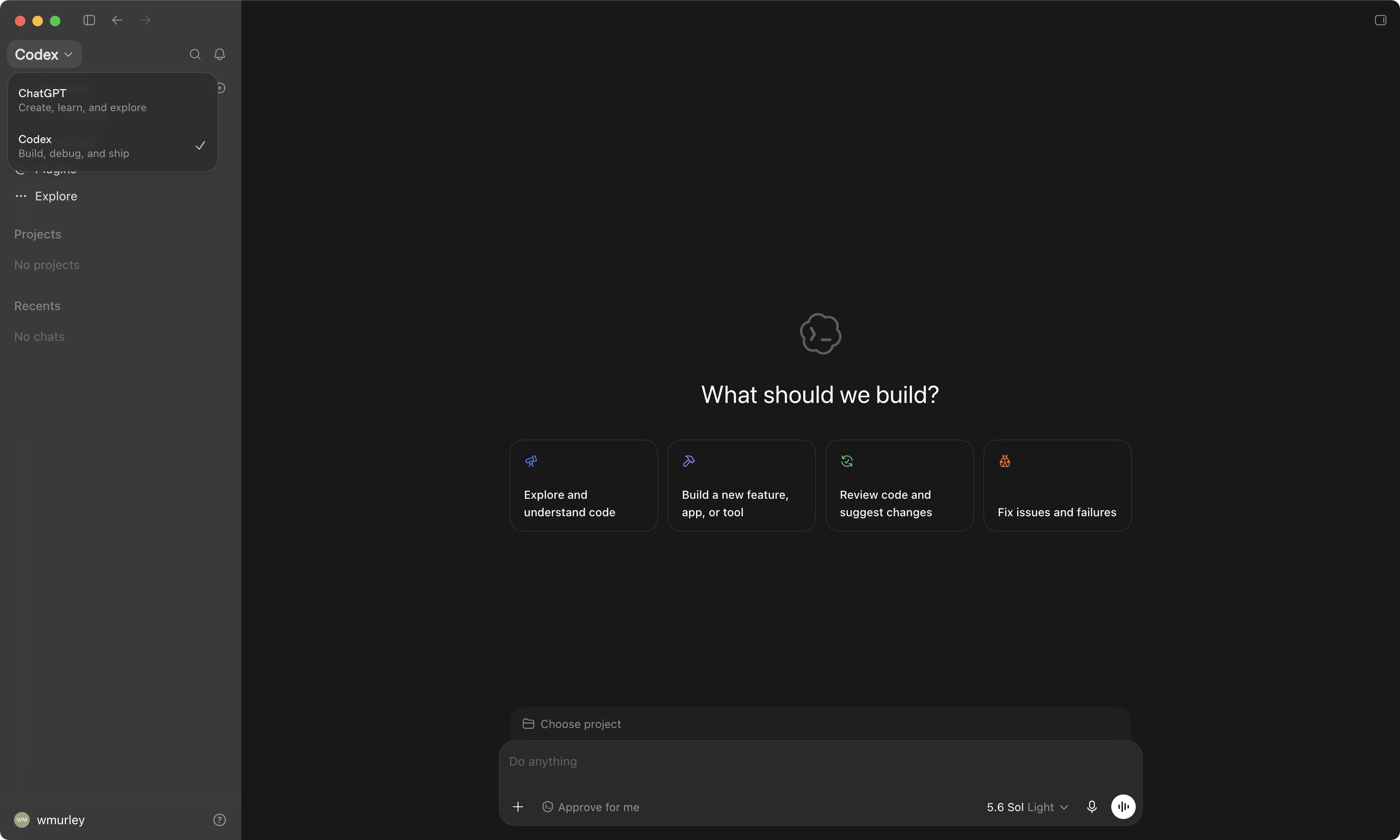
Lesson 1 said there are two tabs into the same brain. Here they are, on screen. In the Claude app, two small icons sit at the top of the sidebar. The speech bubble is Chat, and if you used Cowork, that lives inside Chat now. The code mark is Code, and that is the tab this whole course lives in. In the ChatGPT app, a dropdown at the top left reads either ChatGPT or Codex, and the course lives under Codex. Everything from here on happens inside that tab.
Claude app · the two icons, Code selected The two-icon toggle at the top of the sidebar, Code selected.
 12
12ChatGPT app · the dropdown, Codex checked The top-left dropdown open, Codex selected.
 12
12That is the whole first stop. Two clicks, and you are signed in with the account you pay for. Nothing has happened yet, because the app does not know where to work. That is the next stop.
Point it at a folder, because it can only see what it is pointed at.
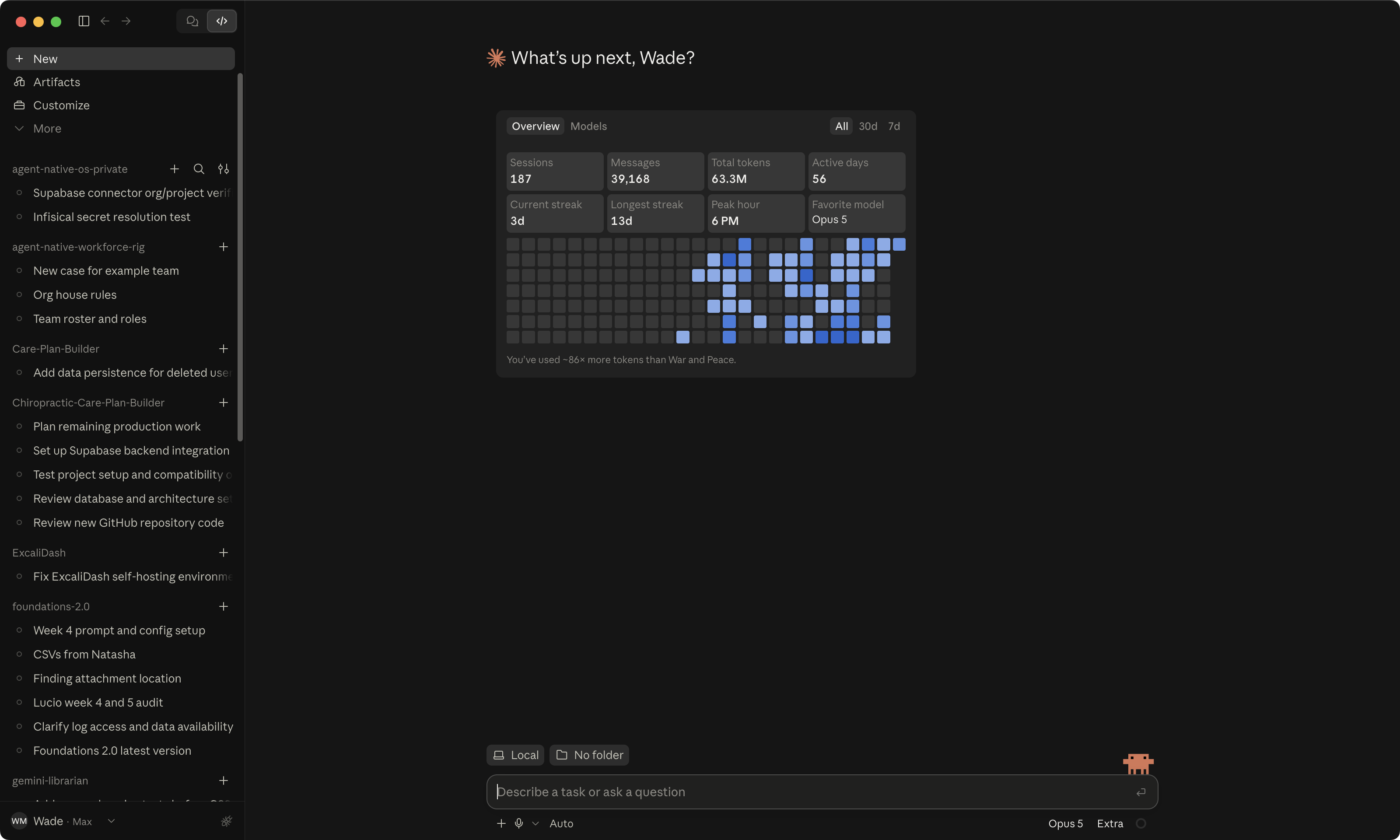
Before it can be asked anything, it needs a place to work. Four clicks, and they are the same four in lesson 3. A new session. Local, not Cloud, so it works on your computer, on your files. Then the folder. In the Claude app that is the little folder icon next to Local. In Codex a folder is called a project, and the first time there are none, so you click Projects, then New project, then pick the folder. Then the app asks "Trust this workspace?" It means this folder, this session, nothing else on the computer. Click Trust.
Now look at the bottom of the window. A badge shows the folder the app is in. In the picture it says my-workbench. That badge is the answer to the question everyone asks first, "what can it see?" It can see that folder. Not your photos, not your tax folder, not anything else. From lesson 4 on, that badge is the first thing you check every time you open the app.
Claude app · new session, Local, the folder icon, Trust The new-session control with Local selected and the folder icon pinned; the Trust prompt.
 1234
1234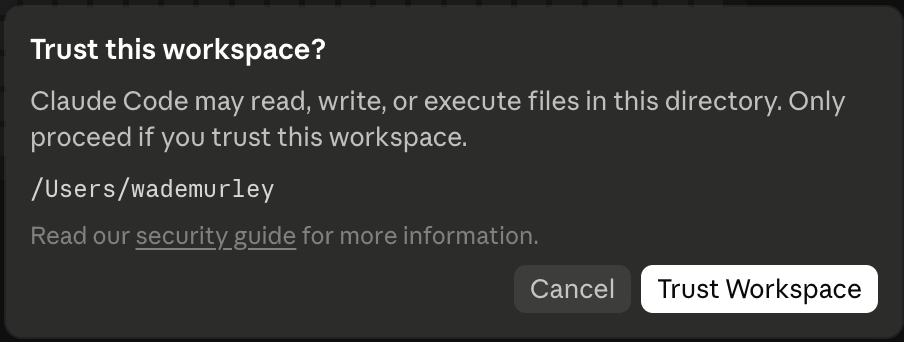
ChatGPT app · Projects with none yet, New project, the project created, then Local and the badge The first-time step a configured app skips, then the same controls as the Claude frame.
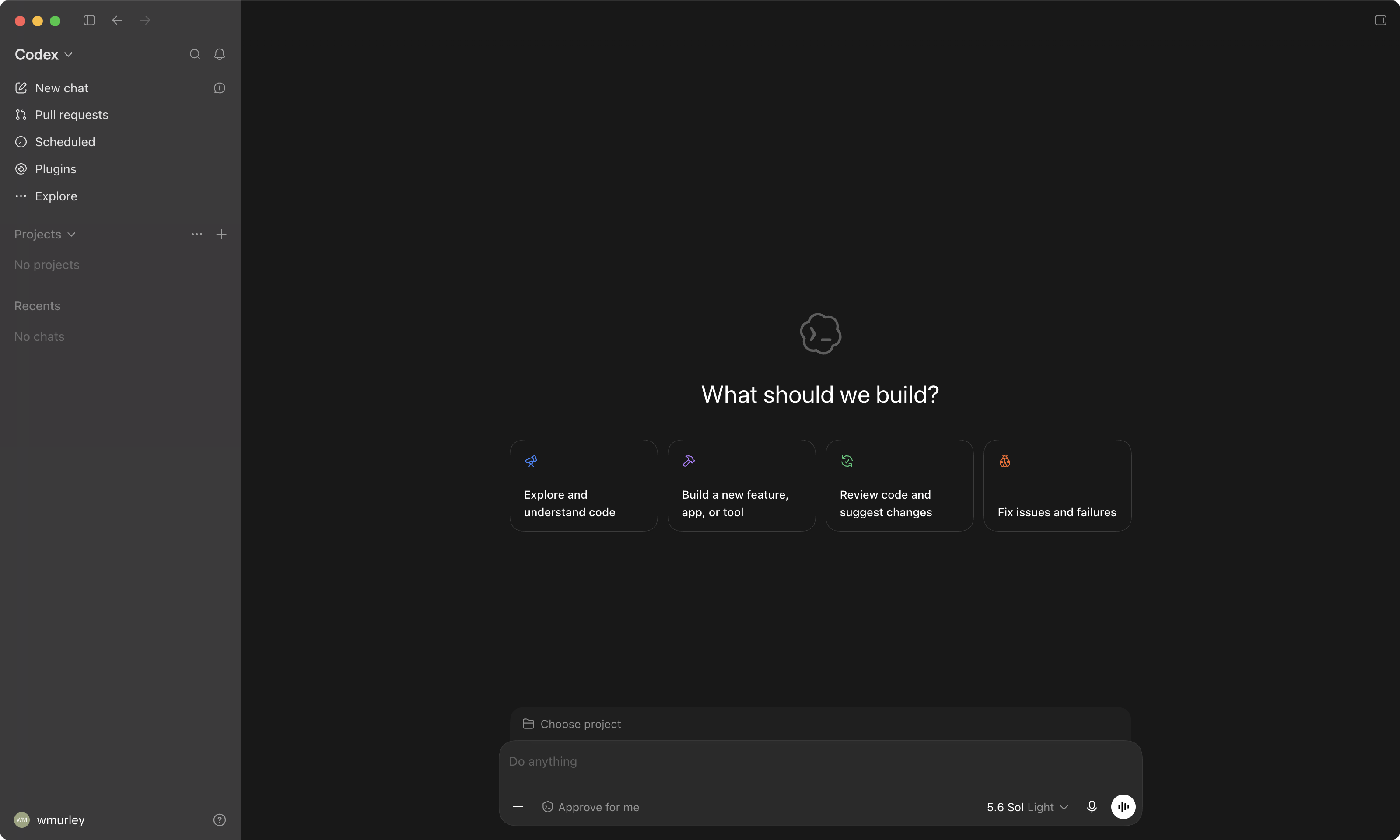 12
12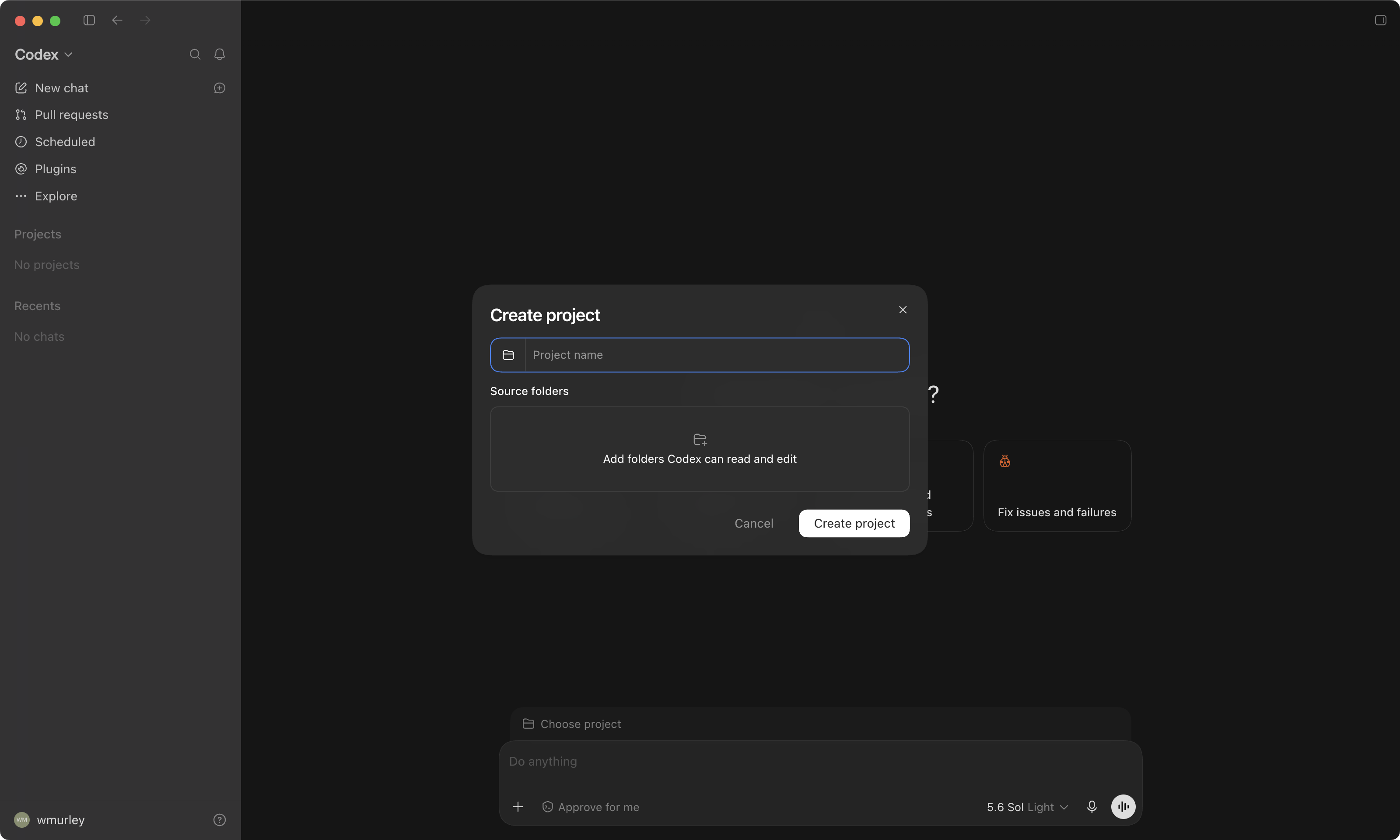 123
123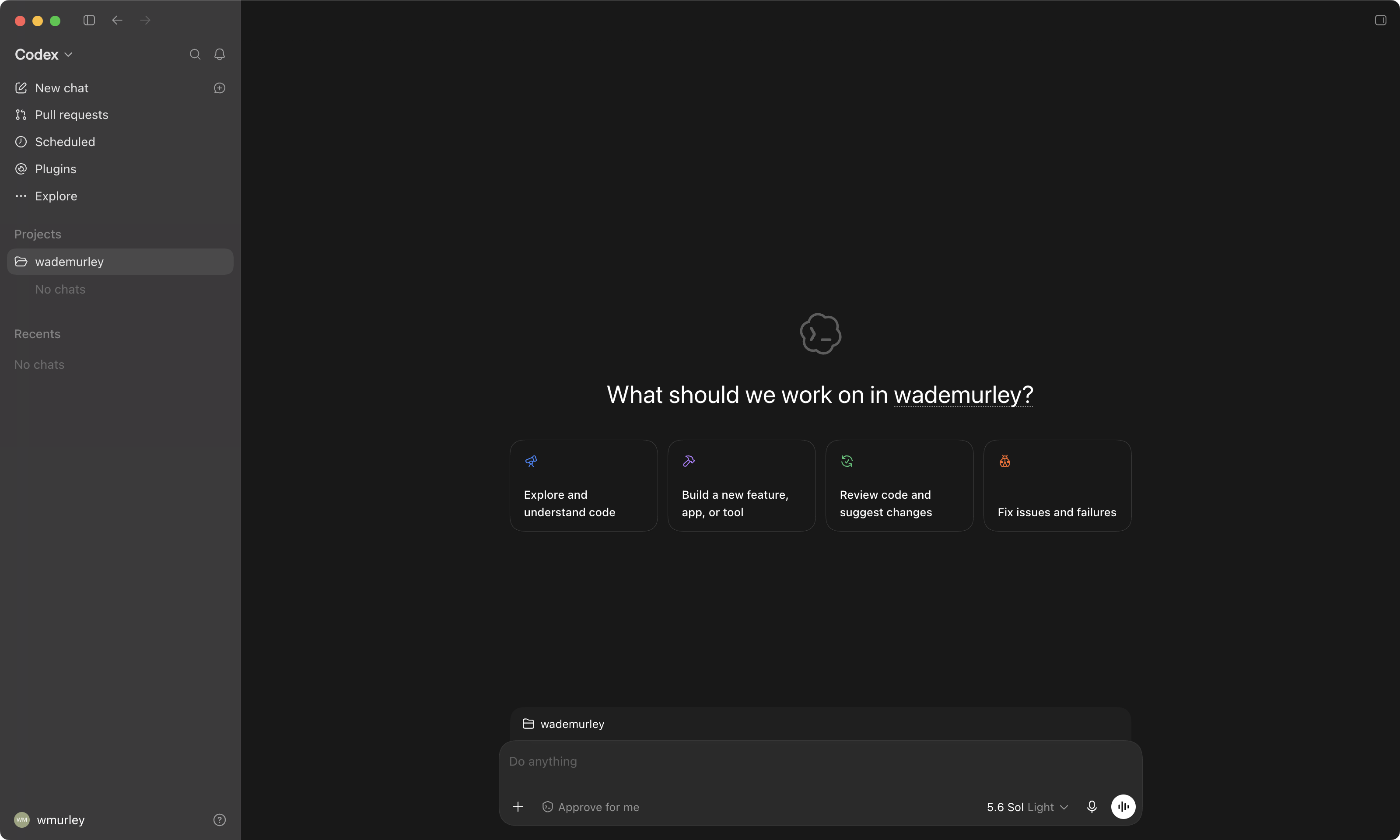 123
123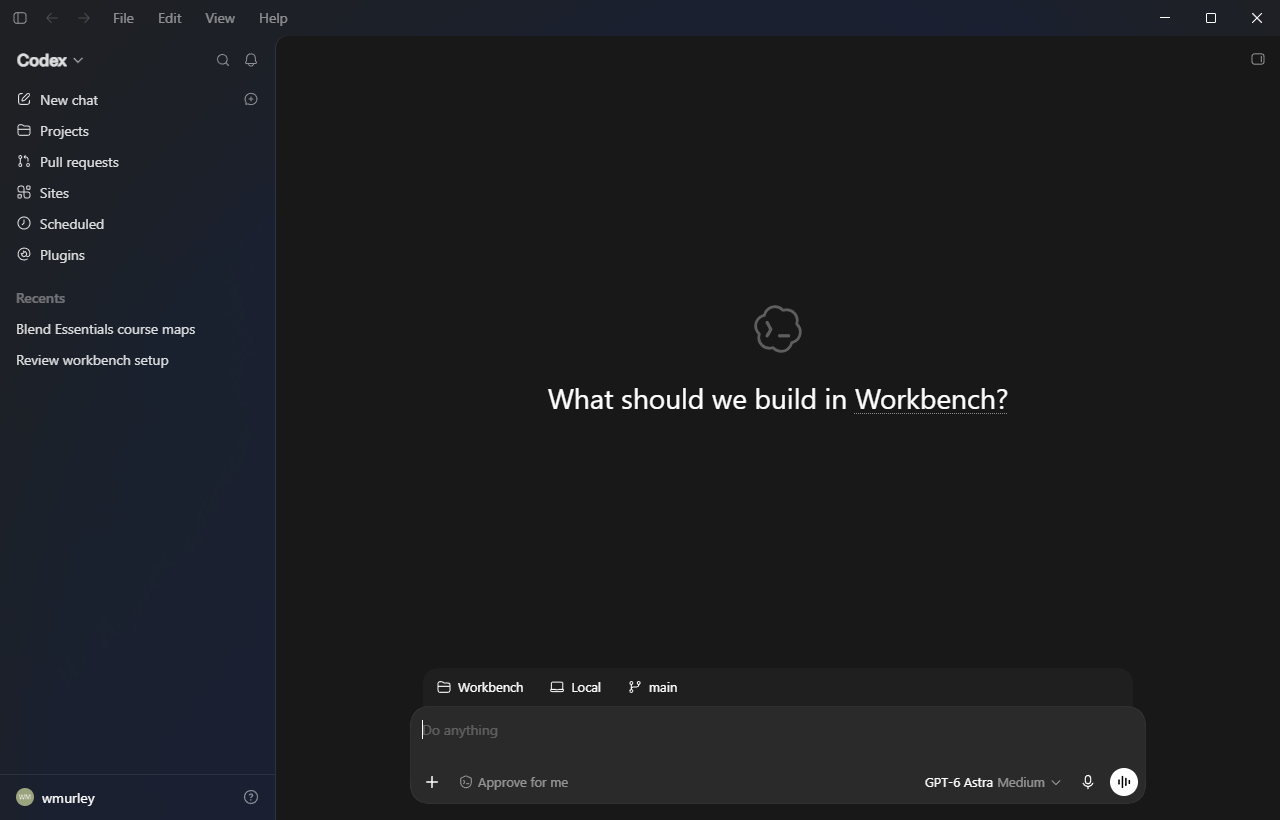 1234
1234Cloud means the work runs on the maker's computers, on a copy of your folder that lives there. Local means it runs on your computer, in your folder, and nothing leaves unless you send it. This whole course is Local, because the point is your stuff, on your machine. If the switch ever says Cloud, click it back.
Ask it one thing, and see the room light up.
In this preview, the workbench is already set up. The example task is typed into the box at the bottom: Read the README in this folder and tell me, in one sentence, what this workbench is for. You do not need to run it yet. If your current folder has no README, continue reading; lesson 3 creates your workbench. Now look at five places, in the order they move.
The composer, the box at the bottom where the task went in. Everything in this course starts there. The middle, where the answer comes back, and where a file opens when you click one. It thinks for a second, then writes. The terminal, bottom right. To read the file it ran a command there, and you can see the line go by. A terminal is a chat window for your computer. You will not type in it in this course, but you will see the agent do it. Changes, top right. Right now it says "no changes to show," because the task was to read, not to write. The moment the ask is "now save that sentence in a new file called what-this-is.md," that file appears here, and you can see exactly what it wrote. The sidebar, down the left, past sessions grouped by folder. Every conversation this workbench has ever had is there.
Claude app · the task on screen, five pins The session header with the folder badge, the sidebar of past sessions, Changes, the terminal, the composer.
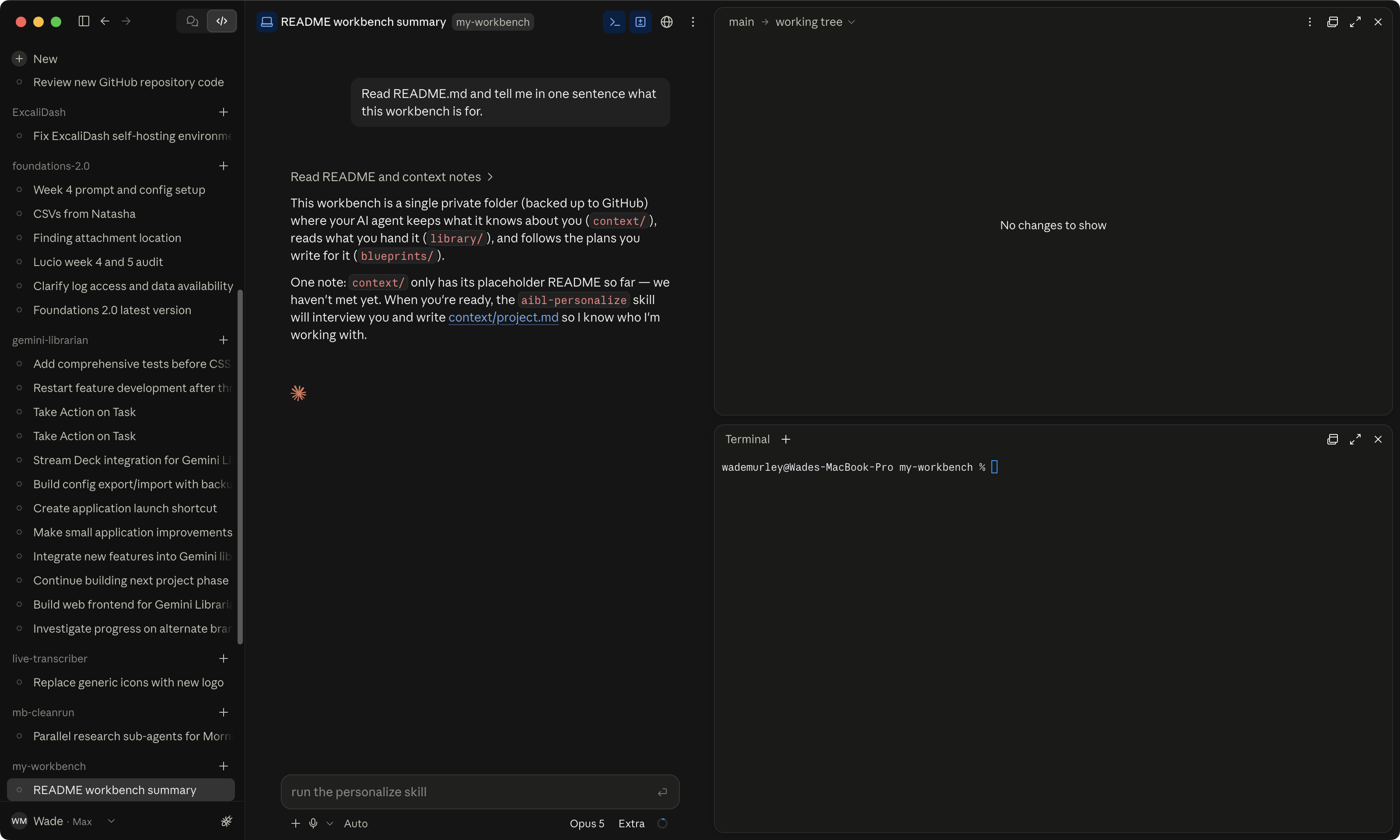 12345
12345ChatGPT app · the same task, five pins The same five, in Codex.
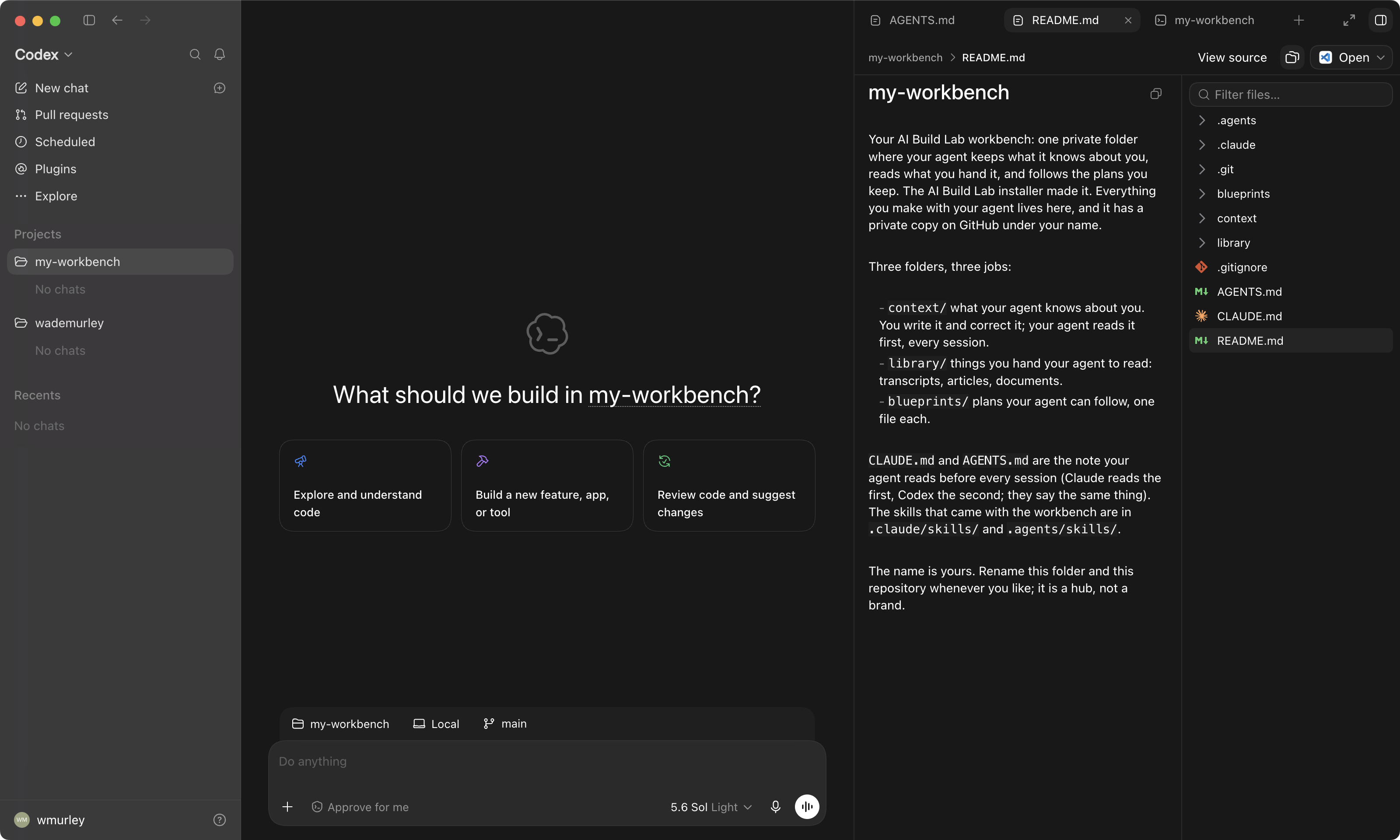 12345
12345One sentence in, one sentence out, and every part of the screen did its job once. That is the whole room. There is nothing else on it you need this course.
Once. In lesson 3, before the app is even installed, you open your own Terminal and type one short line to put Git on your computer. That is the whole of it. After that the app types in the terminal and you look on, the way you just saw it do here. Most people are terrified of that black window on day one and fine with it in a week, and you get to skip most of the week.
It did not ask before it ran that command. Here is why, and here is the control.
Did you notice? It ran a command in the terminal and it did not stop to ask. That is the moment most people feel the fear. The quiet worry that the agent will do something you cannot undo. Delete the wrong folder. Send the wrong message. That worry is reasonable, and it has a complete answer. You decide what it can do without asking, every change is reversible, and you can stop it cold. Lesson 5 is the "reversible" part. This is the "you decide" part.
Next to the composer there is a mode. In the Claude app it is called Auto. In Codex it is called Approve for me. Both mean the same thing. A reviewer checks the risky steps and clears the ordinary ones. Reading a file is ordinary, so it did not ask. Deleting a folder is not, so it would stop. That stop is the approval gate, and it looks the same in both apps. The step waits, a row of buttons appears under it, and nothing happens until you click one. In the Claude app the row reads Deny, Allow once, Always allow. In Codex it is an approval row under the command, with Approve on it. Click, and it goes on. A person clicking yes to a hundred things they cannot read is not a safety check, which is why this rung exists. The modes are a ladder, not a menu. Crawl, walk, run. This course lives on the middle rung, and you set it yourself in lesson 3, before anything runs.
Claude handles permission decisions.
Only ask for actions detected as potentially unsafe.A reviewer clears the ordinary steps and asks on the risky ones. This course lives here.
Automatically accept all file edits.It still asks before every command. Lesson 3 switches to this one if the reviewer refuses an install step.
Always ask before making changes.
Always ask to edit external files and use the internet.Every step is a question. Where day one used to live.
Text alternative: a four-rung ladder, most freedom at the top: Bypass permissions (Claude only, greyed), then Auto or Approve for me (highlighted; this course), then Accept edits (Claude only), then Manual or Ask for approval at the bottom. Each rung quotes the one-line description from the app's own menu. Plan is noted beside the ladder as the fourth item in the Claude menu.
In the same mode menu there is one more item, and it matters more than its size. Plan. In the Claude app it is the fourth item, "Create a plan before making changes." Pick it in the menu, or press Shift+Tab to step through the modes until the word by the composer reads Plan. In Plan it reads everything and writes out what it would do, step by step, and changes nothing until you say yes. Ask the same task again in Plan and you see the difference. It tells you what it would do, and waits. That is exactly what the installer does in lesson 3. It shows you the plan, and you say yes. The Codex menu has no Plan item. You ask for it in words, "show me the plan first and change nothing yet," and Codex does the same thing.
Claude app · the mode menu open, Auto checked, Plan pinned; the approval gate The mode menu with Auto checked and Plan as the fourth item; the Deny / Allow once / Always allow row on a step the reviewer flagged.
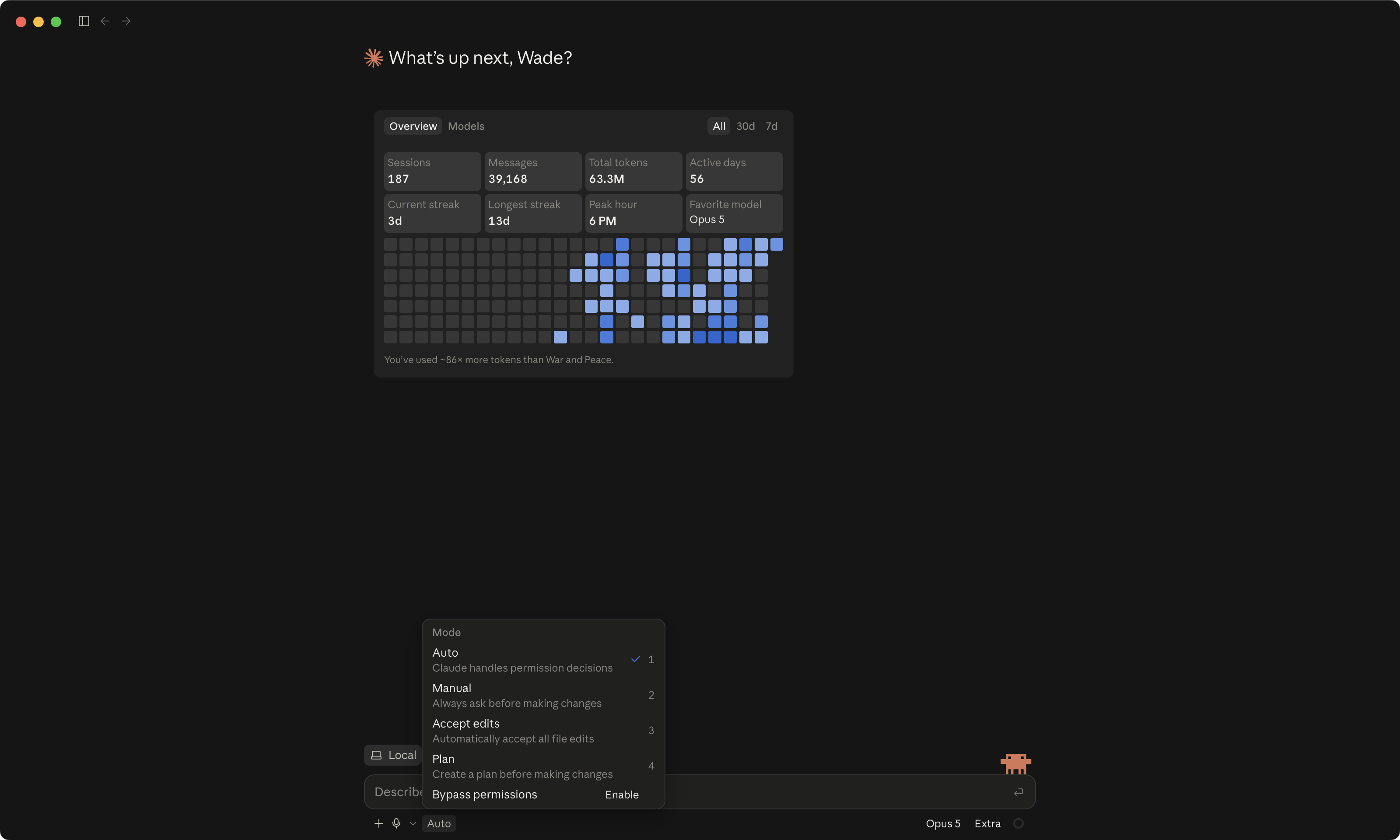 123
123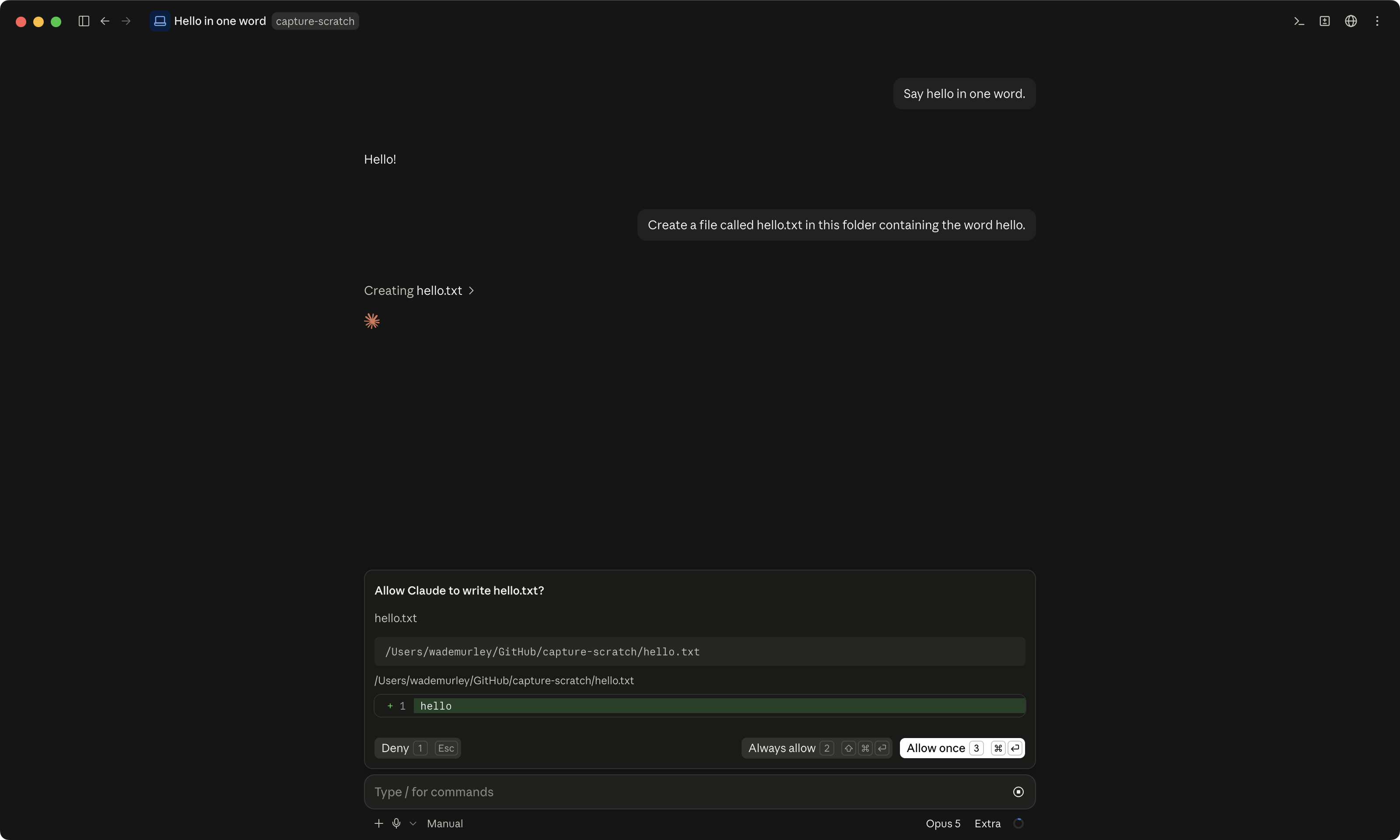 123
123ChatGPT app · the permissions menu, Approve for me checked; the approval row The two-item menu with Approve for me checked; the approval row under a command that leaves the computer.
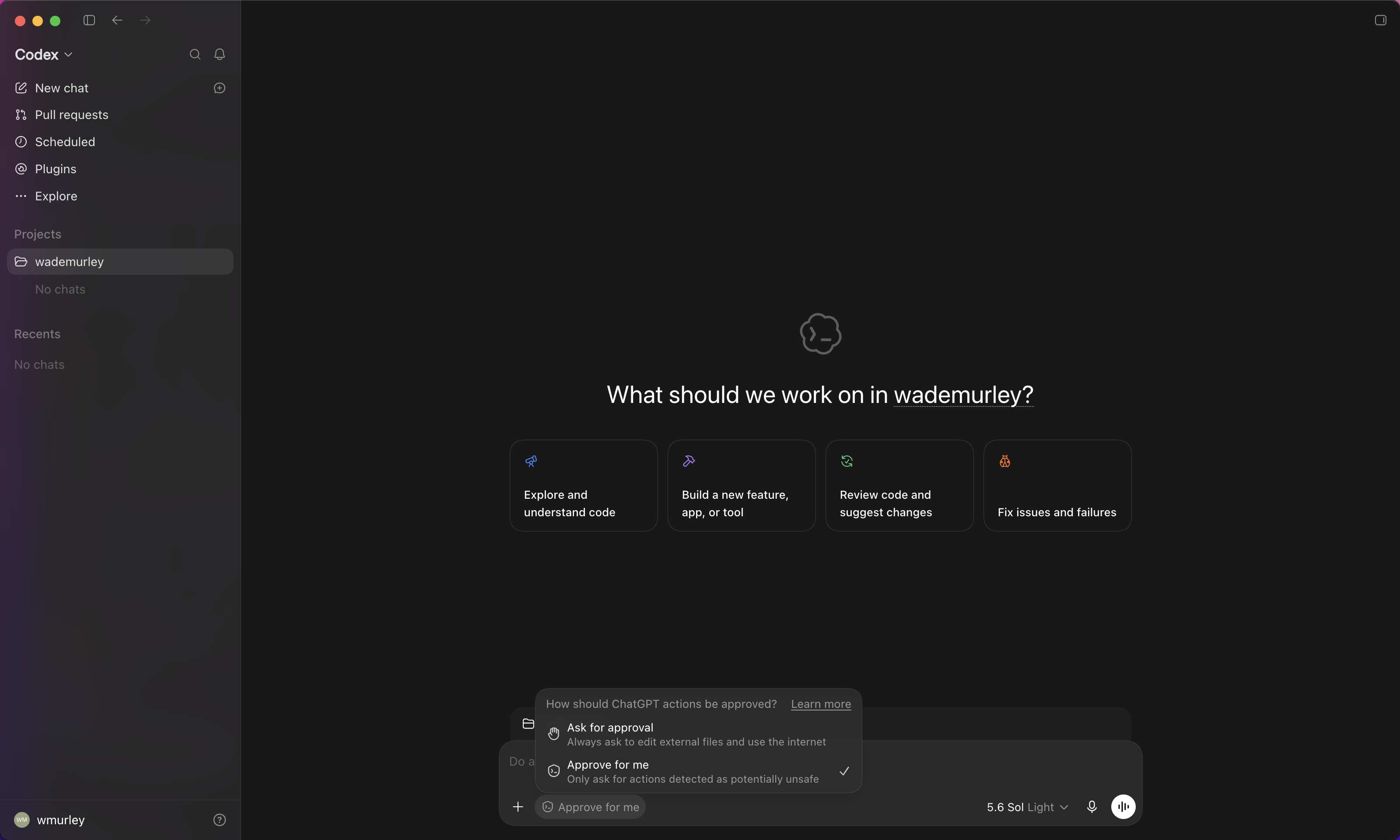 12
12Not without asking first. On the middle rung it stops and asks on anything the reviewer flags as risky, and you answer with a click. Every change it makes to your files is one you can put back, which is lesson 5. And while it is working, the Send button becomes a Stop button, so you can stop it mid-sentence. Three layers, and you will use all three by lesson 5.
Beside the mode there is one more picker, for the model and for how hard it thinks. In the Claude app it reads something like "Opus 5 · Extra." In the ChatGPT app it is the model name with a slider under it. Leave it alone. The default is right for this course, and the strongest model is one click away and it is not the one you want.
One thing in that picker gets its own paragraph, because it can cost you money. Fast mode. In the Claude app it is a switch at the bottom of the model list, "Enable fast mode." In the ChatGPT app it is the lightning bolt beside the model name. It does not make the answers better. Same model, same quality, the words arrive faster, and you pay extra for the speed. On Claude, fast mode is billed to usage credits, not to your plan, so it costs money even when your plan has usage left. On Codex it is a credits feature too, at about two and a half times the normal rate. Leave it off. If you ever turn it on by accident, a small lightning icon shows up by the box where you type. Click it off.
Claude app · the model and effort picker, and the fast mode switch Default selected: leave it. Model names change, so this lesson shows the control and does not name a model.
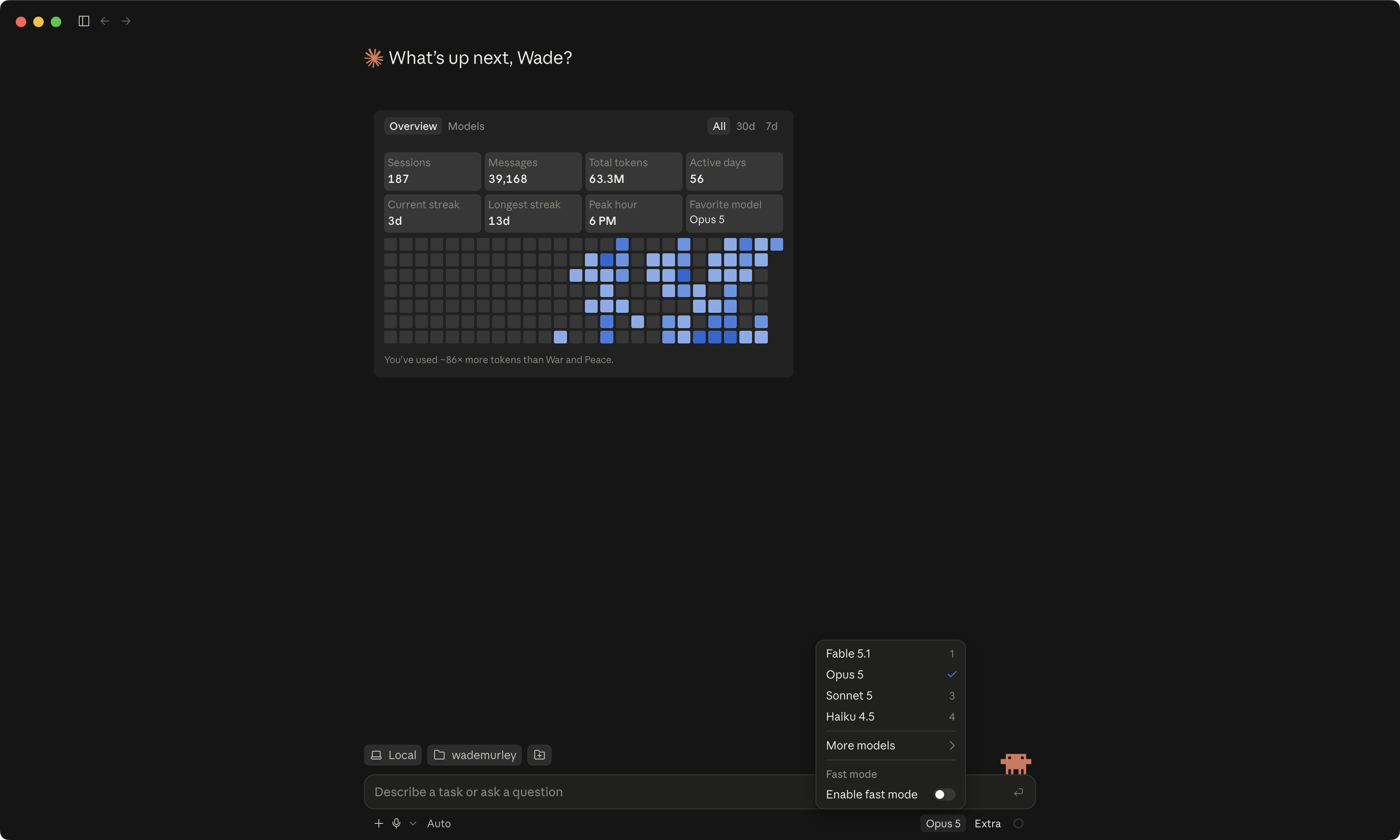 12
12ChatGPT app · the model name, the slider, the lightning bolt Default selected: leave it.
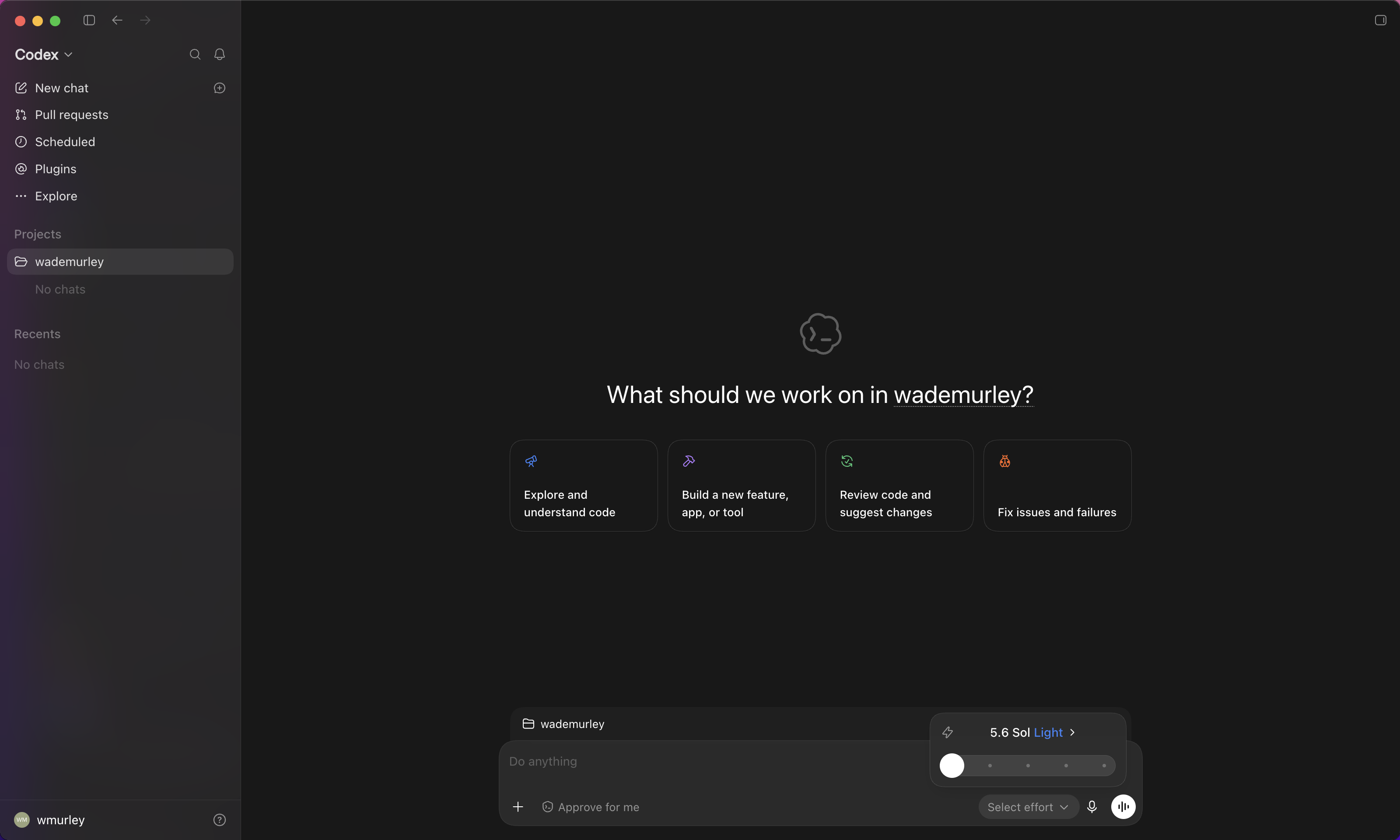
The ring in the corner moved. That is how much it is holding in its head.
Look at the corner of the composer after the answer came back. A small ring filled a little. That is the one idea in this lesson that only makes sense with the picture in front of you. The agent can only hold so much in its head at once. That amount is called the context window, and it is measured in tokens, which are roughly pieces of words. The question, the README it read, the sentence it wrote back, all of it is in that ring now.
And in your account there is a five-hour meter and a weekly one, because the app gives you an allowance and the ring is how fast you are spending it. No prices here, they move monthly. Know the meters exist and where they are. In the ChatGPT app the meters live in the usage view, and the rule is the same in both apps. When the answers start to drift, start a new chat.
Here is why this matters, and why files beat chats. The README it just read is not in its head. It is on the desk, in the folder, and it read the part it needed when it needed it. Next session, the ring starts empty and the README is still there. Lesson 8 pays this off with a ninety-minute transcript that would never fit in a chat and fits fine as a file.
Claude app · the ring in the composer corner; the usage meters The ring at about a third full; the account usage page with the five-hour and weekly meters, numbers blurred.
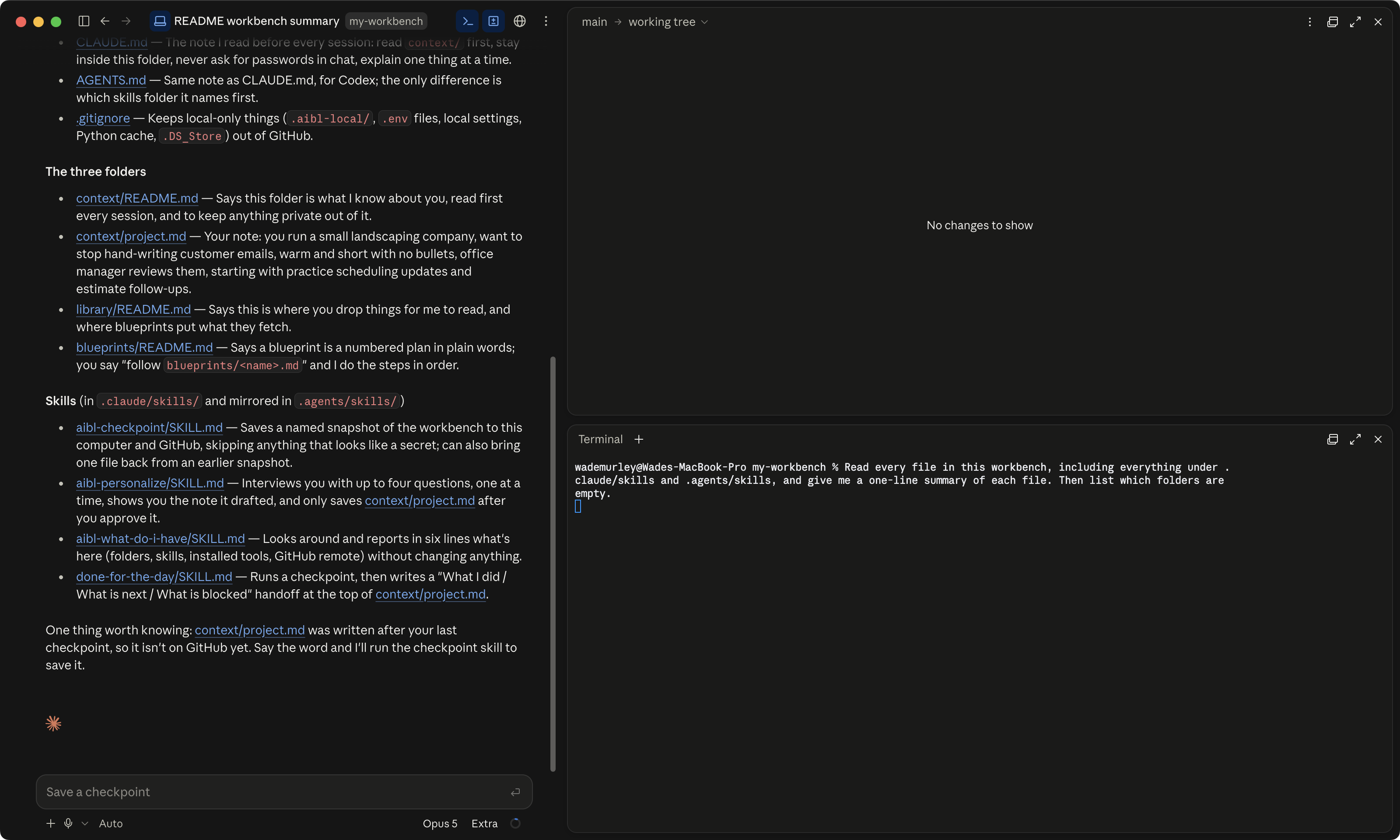
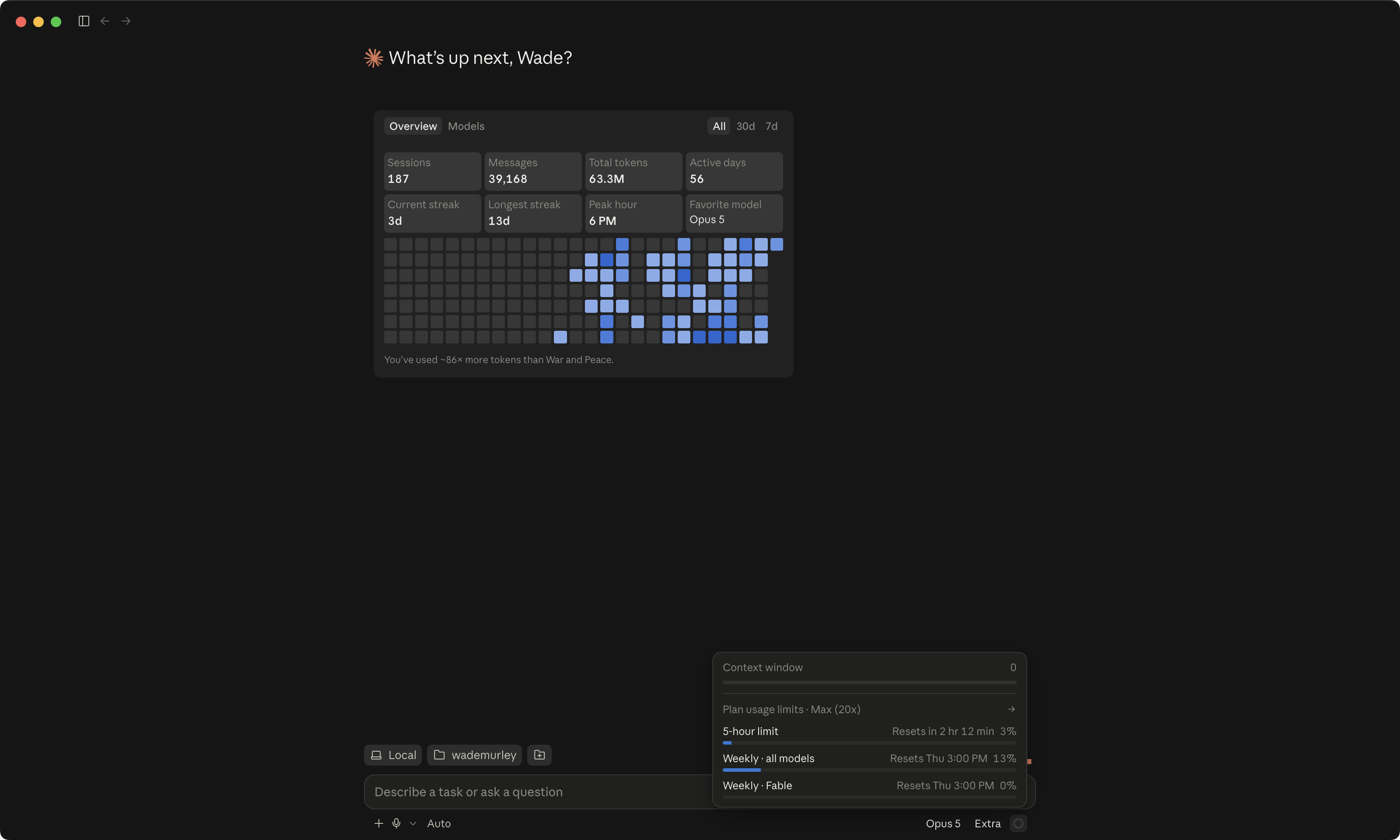 12
12ChatGPT app · the usage meters for Codex The weekly and five-hour meters.
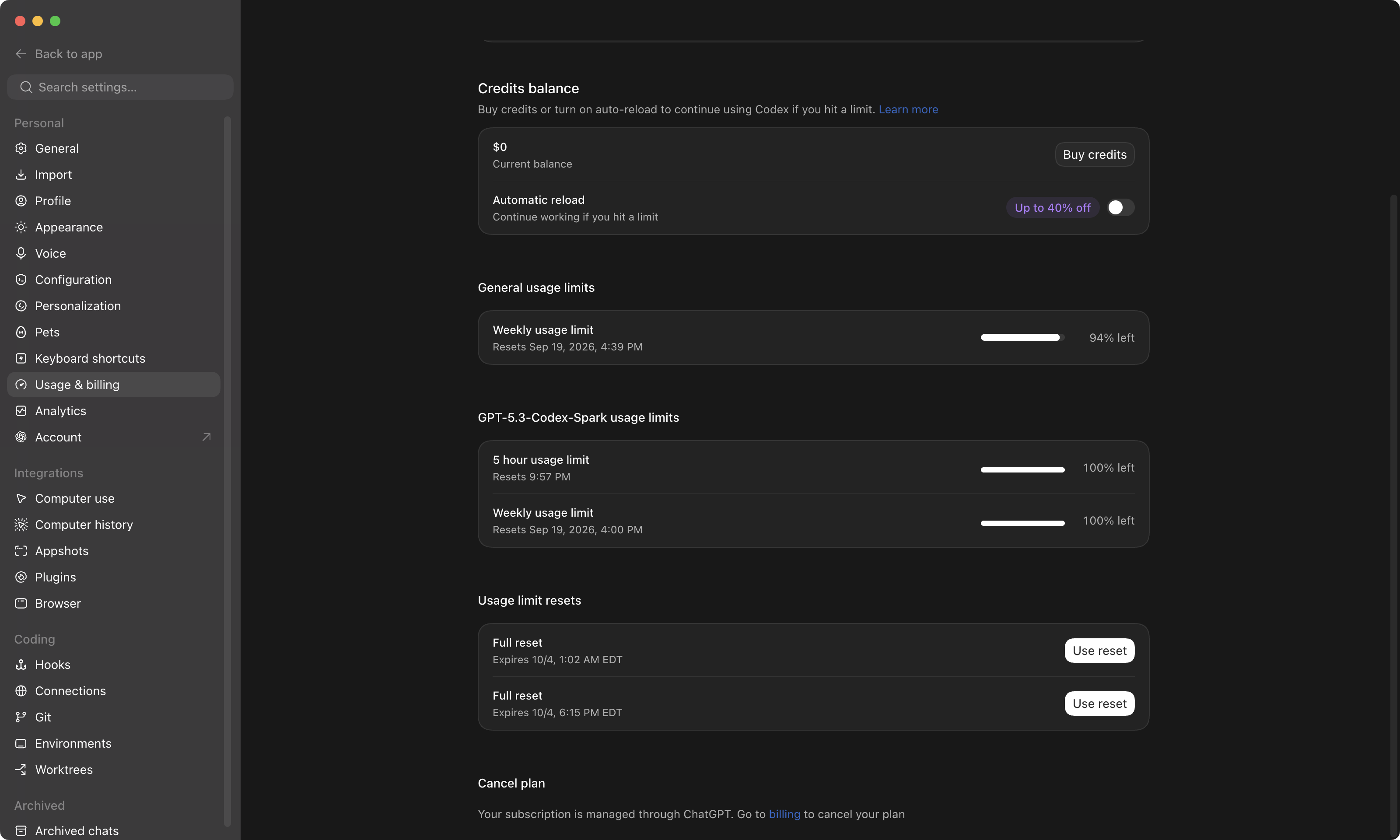 12
12The app squeezes the conversation to make room, and the early parts get fuzzy. Answers start to drift. That is your cue to start a new session, and it costs you nothing, because nothing in your folder is in its head. The files are on the desk. A new session opens the same folder and reads what it needs. People who live in Chat dread a full conversation. People who live in Code start a new one.
You have seen the room do its job once. Next, you build yours.
One task. Two clicks to get in, four to point it at a folder, one sentence typed, and every part of the screen moved once, and you saw where. Nothing is on your screen yet, and that is still the point. But now every window lesson 3 opens is one you have already seen do something, and the mode is a control you understand before you set it. Lesson 3 is the heavy one. It says "you saw this in lesson 2" at each step, and it means it.
Install the app, Git, and GitHub
How do I get from a bare computer to my own workbench?
You're going to put one small program called Git on your computer, which is one line typed or one download. Download the app. Paste one message into it and let the AI set up the rest for you. It takes about an hour, and most of that is watching. Your computer may ask for your password one or two times. That is normal, and this page tells you why before it happens. When it is done, you will have your own private folder, called my-workbench, and the app open on it.
A folder on your computer called my-workbench. It is private, it is yours, and it has a private copy on GitHub under your name.
Everything in this course happens inside that folder. Nothing you already have on this computer gets touched.
You paste one message. The app reads it, shows you a plan, and does the steps. You say yes and type your password when asked.
Install Git, download the app, sign in, pick a folder, paste, say yes, type your password, sign in twice in your browser. Eight things. The app does the other fifty.
I put off diving into Claude Code and Codex for a long time, and GitHub for even longer. Not because I was busy. Because it felt like you needed a computer science degree to open a terminal, and that one wrong line would turn my laptop into a very expensive paperweight. GitHub looked like hieroglyphics. When I finally did it, learning the ropes took me several weeks. I still remember taking a screenshot of every message that came back and asking about it in another thread, to make sure I was not making a false move. That was the whole trick, and it still is. Nobody handed me an installer back then. So we built you one, and it does the whole list in one sitting.
Before you start, have these three things ready.
A computer you are allowed to install things on. Your own laptop is fine. A work laptop might say no, and it is not worth fighting. Ask your IT person first.
A paid plan for the app you picked. The least expensive paid plan is enough for this whole course. You do not need the strongest model to install things. This is a checklist, not rocket science. The free plans run out fast, sometimes before this lesson is over, so do not start on one. If you ever hit the limits later, you can move up to the next plan the same day and pay only the difference, so start cheap.
A free GitHub account, signed in. GitHub is a website that keeps a private copy of your folder. Lesson 5 explains what it is. Today you only need to be signed in at github.com in your browser, so when the app sends you there, you can click one button. No invitation, no membership, nothing to accept.
An hour that nobody will interrupt. You will spend most of it watching things happen.
Any window you do not understand, at any point in this lesson: take a screenshot, paste it into the chat box, and ask three things. What is this? Is it safe to click? What do I click? The app will tell you. That one habit got me through my first install, and the installer is written to expect it. When it hits an error, it stops and asks you for a screenshot.
Now pick your route below. Mac or Windows, Claude Code or Codex. Four walkthroughs, one for each, with a screenshot at every click. Keep yours open next to the app. This page is the story. The walkthrough is the pictures.
Run this one anyway. It sets you up differently than the last one did, and it does not touch your old folder. Your old work stays exactly where it is. Moving anything across is a separate step for a later day.
Step 1. Put Git on your computer. One line in a black window, or one download.
Git is the program that takes snapshots of your files. Lesson 1 mentioned it. The app cannot open a folder without Git, so Git goes on first, before you even download the app. This is the step that kept my laptop closed for months. Here is all it is.
Press Cmd + Space, type Terminal, and press Enter. A black window opens with a blinking cursor. That is the Terminal. You type one line, your computer types one line back. Like texting your computer. Type this line and press Enter:
git --version
One of two things happens. Either the Terminal types back a version number, and you already have Git. Or a window pops up offering to install the "command line developer tools." Click Install, agree to the license, and go make a coffee. Ten to fifteen minutes, no password, and those tools are Git. Nothing else can happen until the window says it is done.
Every hacker in every movie types furiously into a black window. In real life you type one line, it says a version number back, and that is the whole show. I was sure this window was where people break their computers. It is where you ask your computer a question.
If you would rather skip the black window today, there is a plain download too: Git for Mac, from its own website. Either way gets you Git. The Terminal way is the one the app itself will offer you if you forget this step.
the Terminal after git --version; the command line tools dialog On the dialog, the Install button is pinned.
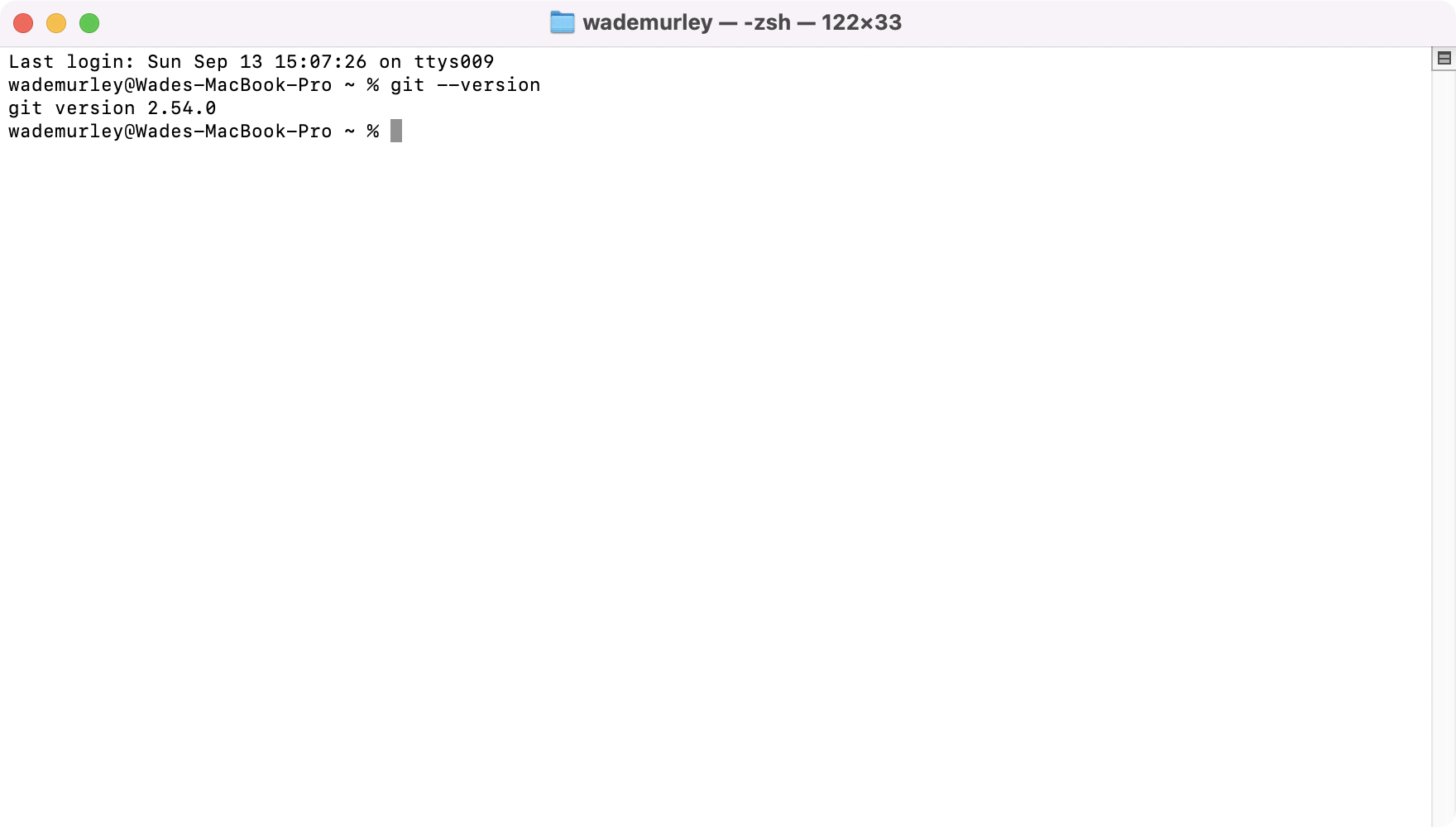 12
12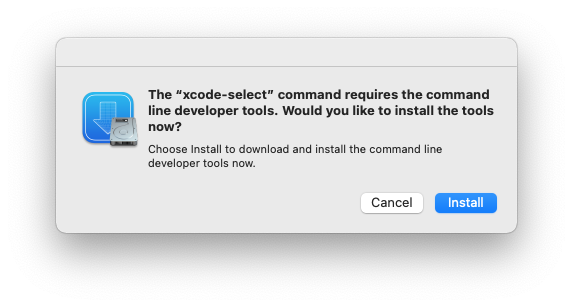
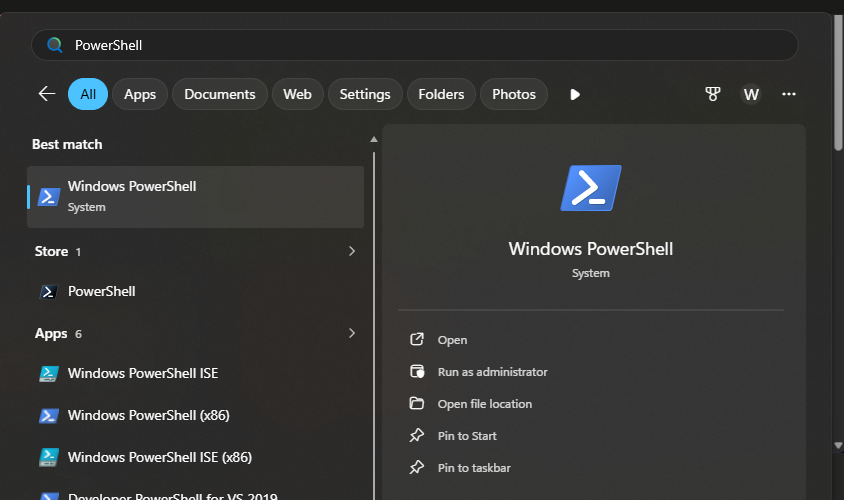
First, check whether Git is already there, the same way the Mac does. Press the Windows key, type PowerShell, and press Enter. A blue window opens with a blinking cursor. That is PowerShell, the Windows twin of the Mac's Terminal. You type one line, your computer types one line back. Type this line and press Enter:
git --version
One of two things happens. Either a version number comes back, and you already have Git, so skip the download. Or it says git is not recognized, which means it is not on yet. That is normal on a Windows computer, and the download below fixes it in two minutes.
Start with PowerShell typed; PowerShell after git --version The best match to press Enter on; the version line that means Git is on.
 12
12 12
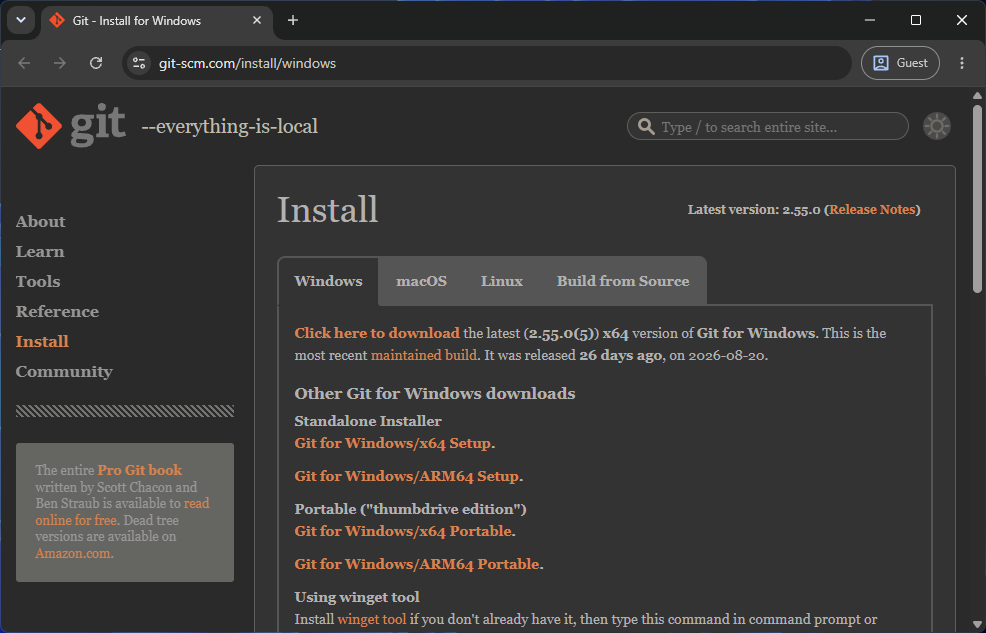
12If it was not there, download Git for Windows from its own website, and run it. Click Next on every screen and Finish on the last one. The choices it offers are already right. You change nothing. When it finishes, close PowerShell, open it again the same way, and type git --version once more. The version number is your proof.
the Git for Windows download page and installer The 64-bit installer link, then Next, Next, Finish.
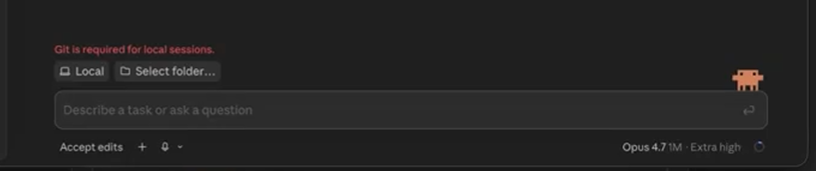
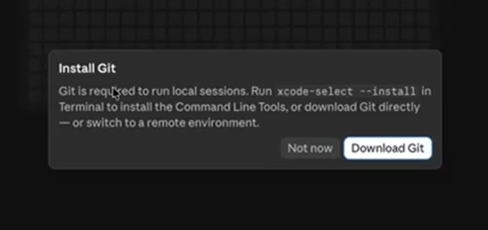
That is the message you see if you open the app before Git is on, or if the app started before Git finished installing. The folder button next to it is greyed out, so you cannot pick a folder yet. Two fixes, in order. If you have not done this step, do it. If you have, close the app all the way and open it again. It checked for Git when it started and it does not check twice. On a Mac the app may also show an "Install Git" window with a Download Git button; that button goes to the same download as the link above. If the red line is still there after a restart, screenshot it and ask.
the red line above the composer "Git is required for local sessions." with the folder button greyed. Same words on both computers.
 12
12the Install Git window on a Mac The Mac window that offers the download; Windows never shows it.
Step 2. Download the app and open it on your home folder.
You saw these clicks in lesson 2. Now you do them, one at a time, with the picture for each one right here. Six clicks. Use the numbered tabs, or Next.
Get the app from its own website, nowhere else: the Claude app, or the ChatGPT app, which has Codex inside it. Install it the way you install anything. Open it and sign in with the account you pay for. A fresh app looks empty. That is right; nothing is missing.
a fresh app, signed in, nothing in it yet Claude: the Code tab on a fresh profile. Codex: the sidebar with no projects yet.
12Pick the tab this course lives in. In the Claude app, click the small code mark at the top of the sidebar, which switches you from Chat to Code. In the ChatGPT app, open the dropdown at the top left and choose Codex.
the tab, both apps The two-icon toggle with Code selected; the dropdown with Codex checked.
12the tab, both apps The two-icon toggle with Code selected; the dropdown with Codex checked.
12Start a new session. In the Claude app, click + New. In the ChatGPT app, click New chat. Then make sure it says Local, not Cloud. In the Claude app that word sits next to the folder icon under the box where you type; in Codex it is under the box too. Local means it works on your computer, on your files, which is the whole point.
a new session, Local selected Claude: + New, then Local and the folder icon. Codex: a new chat with Local under the composer.
1234a new session, Local selected Claude: + New, then Local and the folder icon. Codex: a new chat with Local under the composer.
123Now point it at a folder. In the Claude app, click the little folder icon next to Local. In Codex a folder is called a project, and you will not have one yet: click Projects, then New project, and it asks you for the folder. Either way a picker opens. Pick your home folder, the folder with your name on it.
Inside the picker, press Cmd + Shift + H and it jumps to your home folder. Click Open.
Inside the picker, click This PC, then Local Disk (C:), then Users, then your name. Click Select Folder.
Not Documents. Not Desktop. And not anything inside Dropbox, OneDrive, iCloud, or Google Drive. The box below says why.
the folder picker on your home folder Codex: Projects, New project. Then the picker, on the home folder, Mac and Windows.
123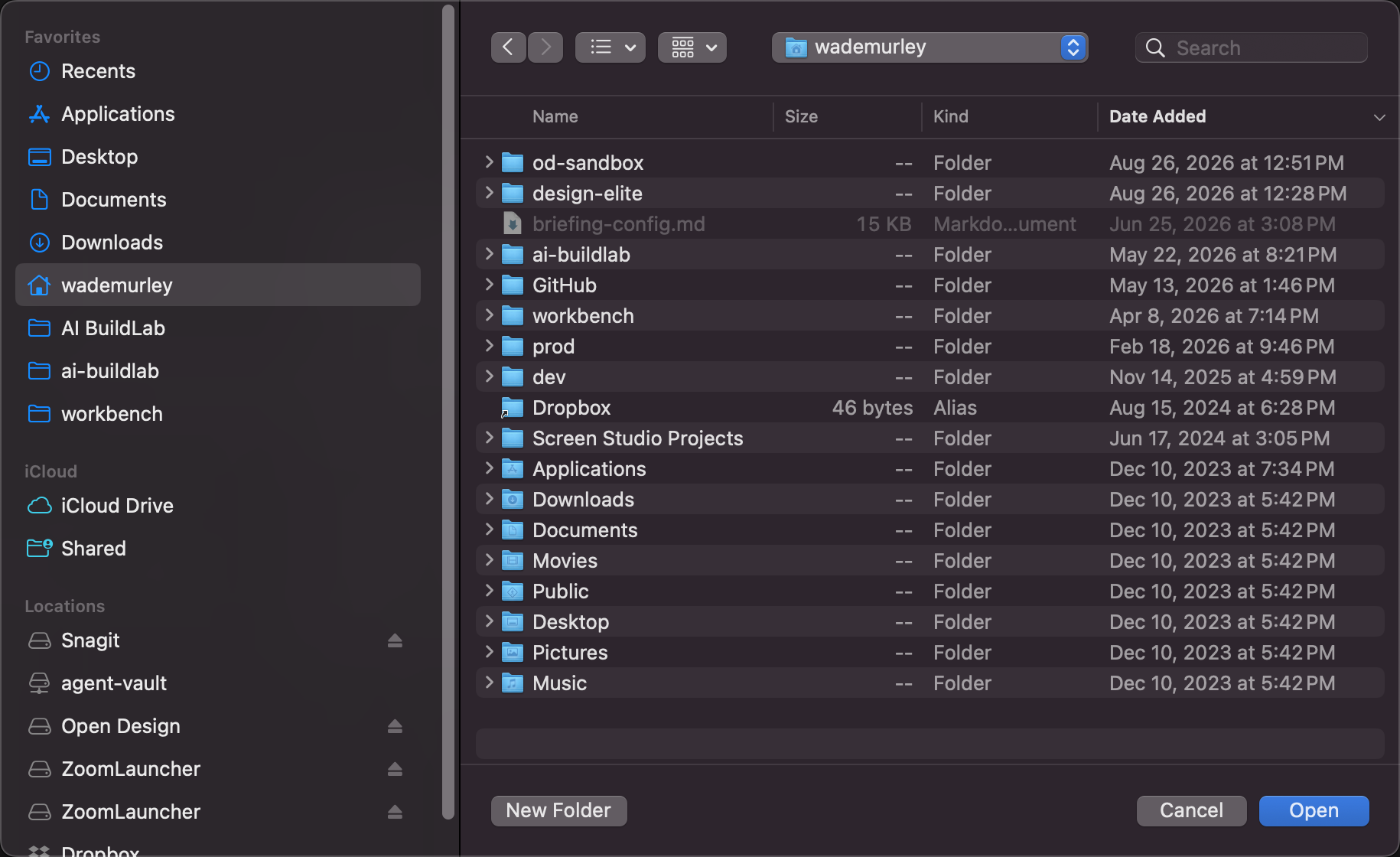 123
123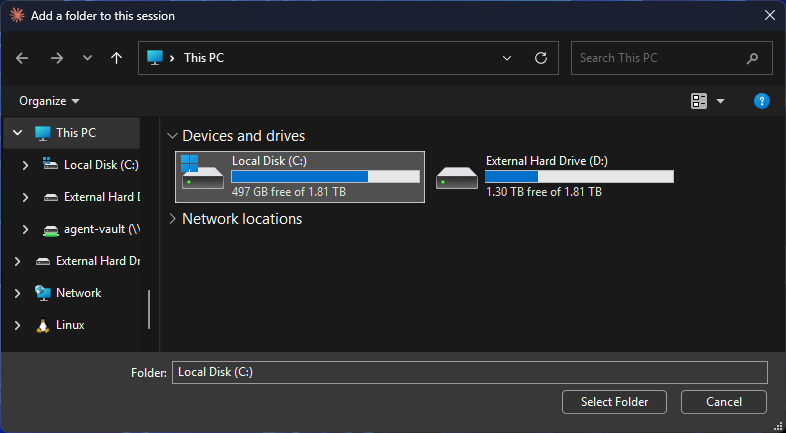 123
123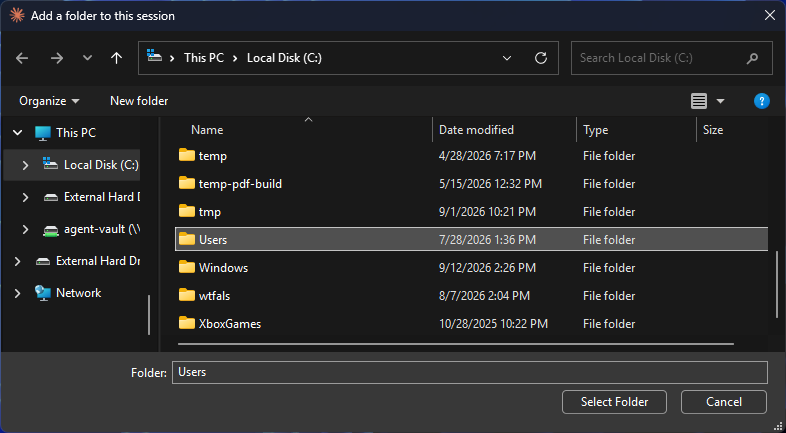 123
123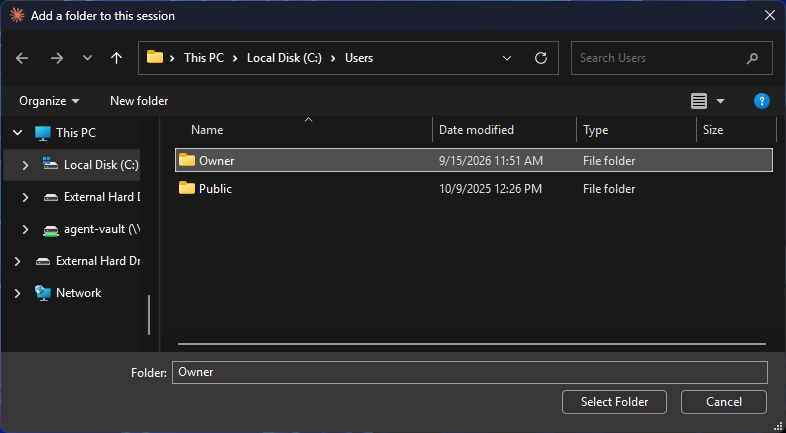 123
123The app asks: "Trust this workspace?" Click Trust. It means this one folder, and nothing else on your computer. Codex may ask the same question in its own words. Then look at the bottom of the window. A little badge shows which folder you are in. From now on, that badge is the first thing you check every time you open the app.
the Trust question, then the badge showing your home folder Claude: the Trust prompt, then the badge. Codex: the project created, its name in the sidebar and under the composer.
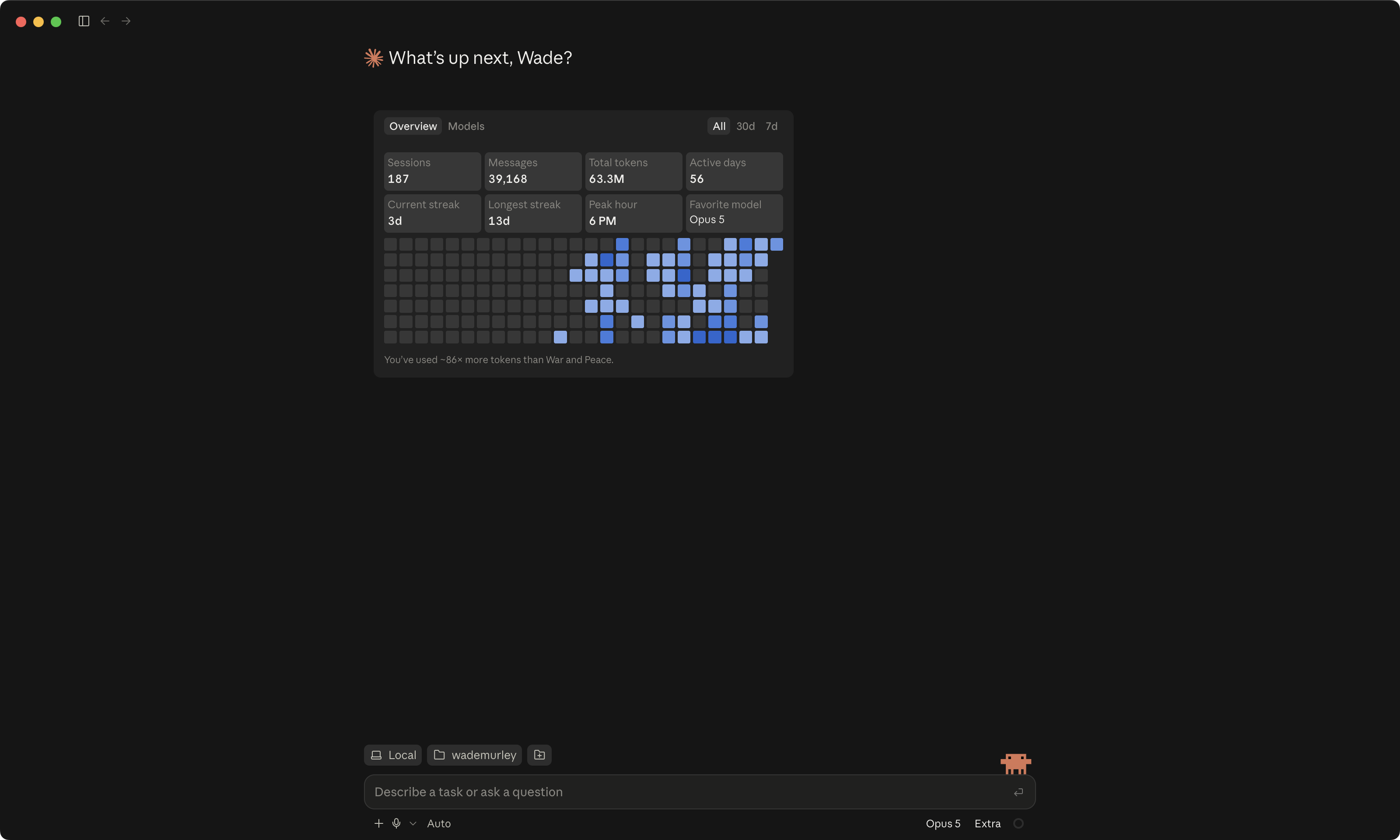 123
123the Trust question, then the badge showing your home folder Claude: the Trust prompt, then the badge. Codex: the project created, its name in the sidebar and under the composer.
123One more thing before anything runs. Near the box where you type, there is a mode. Lesson 2 showed you the ladder. Most paid plans already start on Auto (Claude) or Approve for me (Codex). If yours says that, you are set. If it says something else, click it and switch. In Codex, if Approve for me is not in that menu yet, turn it on once: Settings, then General, then Permissions. The picker next to it, for which model and how hard it thinks: leave it alone.
the mode, both apps Auto checked in the Claude menu; Approve for me checked in the Codex menu.
123the mode, both apps Auto checked in the Claude menu; Approve for me checked in the Codex menu.
12Here is why. Those sync services are always quietly rewriting your files in the background. The app is going to be writing your files in the foreground. When both of them grab the same file at the same time, you get missing changes and "permission denied" errors that look like the app is broken. It is not broken. It is fighting your sync. On Windows this is sneaky, because Documents is often secretly inside OneDrive. On a Mac, Desktop and Documents are often inside iCloud. Your home folder is the one safe place on both.
Stop here and notice something. The app is open. It is on your home folder. It says Local. The mode is right. And nothing has been installed yet except Git. There is nothing to break. Those four checks, the folder, Local, your mode, the model, are the habit for the rest of this course.
Before you paste, a two-minute check. Make sure your chats are not training the AI.
On a personal plan, Claude and ChatGPT each have a setting that lets the company use your chats to train its AI models. On ChatGPT's personal plans it starts switched on. The install runs through the chat, and every lesson after this one puts your own files in it. So check the setting now, before you paste anything. It is one switch. Use both apps? Do both.
- In the Claude app, click your name, then Settings.
- Click Privacy in the left list. In a browser, the same page is at claude.ai/settings/data-privacy-controls.
- Under Preferences, find Help improve our AI models and switch it off. Off is grey. On is blue.
Settings, Privacy, the training switch off Off is grey. The Location metadata switch above it is on, so it is blue.
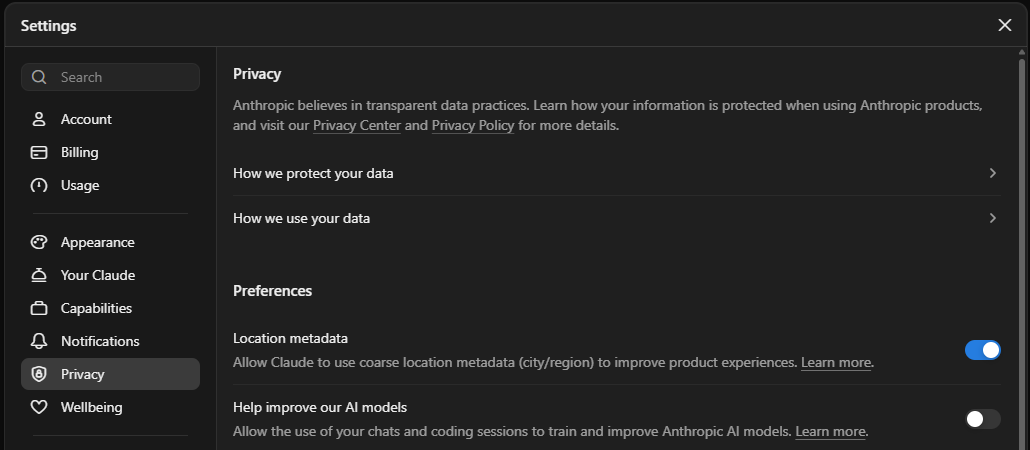 12
12The same switch covers Claude Code, because you sign in with the same account. On a Team or Enterprise plan, Anthropic does not train on your chats by default, so you can skip this.
- In the ChatGPT app, open your account menu, then click Settings.
- Click Data controls in the left list, under Personal.
- Find Improve the model for everyone and switch it off. Off is grey. On is blue.
Settings, Data controls, the training switch off Off is grey. The Work network access switch lower down is on, so it is blue.
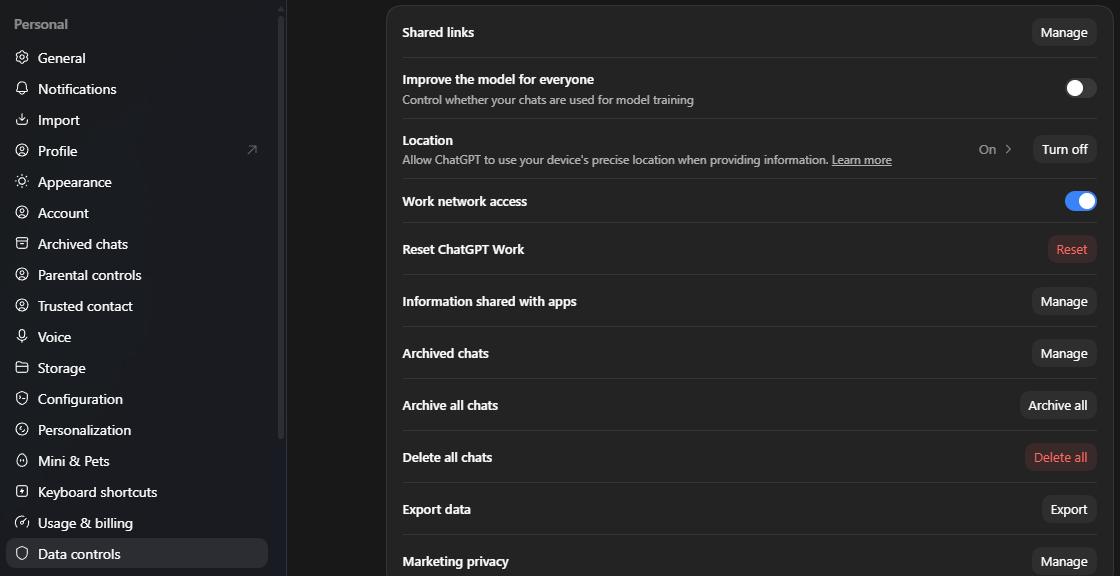 12
12The same switch covers Codex. Codex also has its own Include environments switch in Codex settings, and the ChatGPT switch does not change it. If you find it on, switch it off too. On ChatGPT Business, Enterprise, or Edu, OpenAI does not train on your chats by default, so you can skip this.
One more thing. If you click thumbs up or thumbs down on an answer, both companies say they may still use that whole chat, even with the switch off. Then go back to the app and on to Step 3.
Step 3. Paste one message, read the plan, and say yes.
Here is what is about to happen, so nothing surprises you. You paste one message. The app reads it, looks around your computer, and shows you a plan. You read the plan and say yes. Then it installs five things, your computer asks for your password a couple of times, a black window opens by itself, and you sign in twice in your browser. Twenty to forty minutes, start to finish.
And here is the order it goes in, so you always know where you are. It says hello and works out which computer and which app it is on. It checks that you are in your home folder. It looks at what is already installed and shows you the plan, and asks you once. It installs what is missing, which is where the password boxes are. It sends you to your browser for two sign-ins. It installs the secrets guard and proves it works. It makes your workbench. And it tells you how to open it.
Follow what the app says as you go. It was written to hold your hand: it tells you what it is about to do before it does it, it explains every pop-up before the pop-up appears, and it stops on any error and asks you for a screenshot. Talk to it the way you would talk to a patient friend sitting next to you. Ask it anything, at any point.
Copy the message from your walkthrough, or from the box below. Do not copy it out of a PDF, because PDFs break the long links inside it. Check the badge at the bottom says your home folder. Paste. Send. That is the one live minute of the whole install.
Please fetch this and follow it, step by step: https://raw.githubusercontent.com/aibuild-lab/aibl-installer/main/SETUP-PROMPT.md
If you can’t open the link, tell me.
the message pasted, not yet sent; then the hello The badge showing your home folder, the two-line message in the box, the send button.
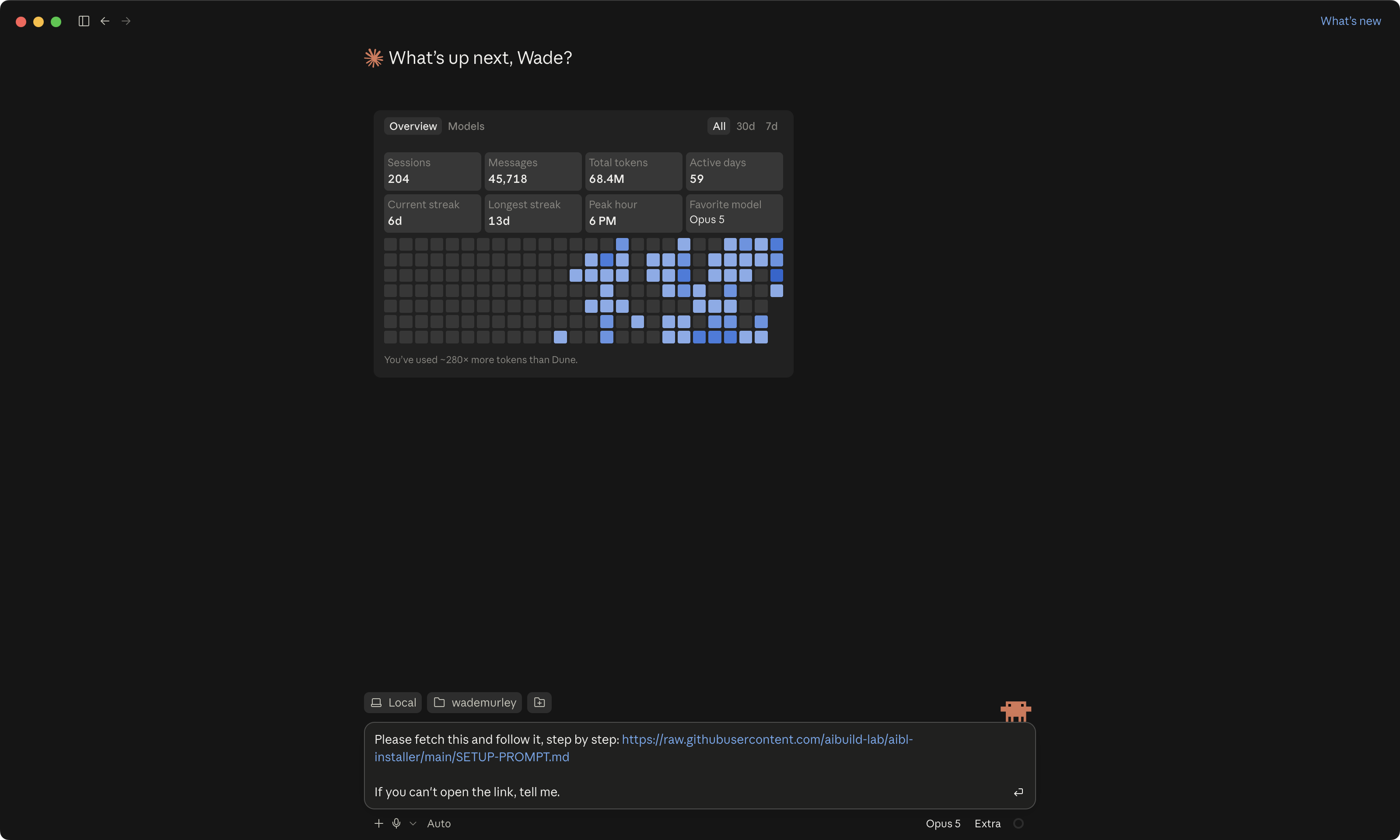 123
123the message pasted, not yet sent; then the hello The badge showing your home folder, the two-line message in the box, the send button.
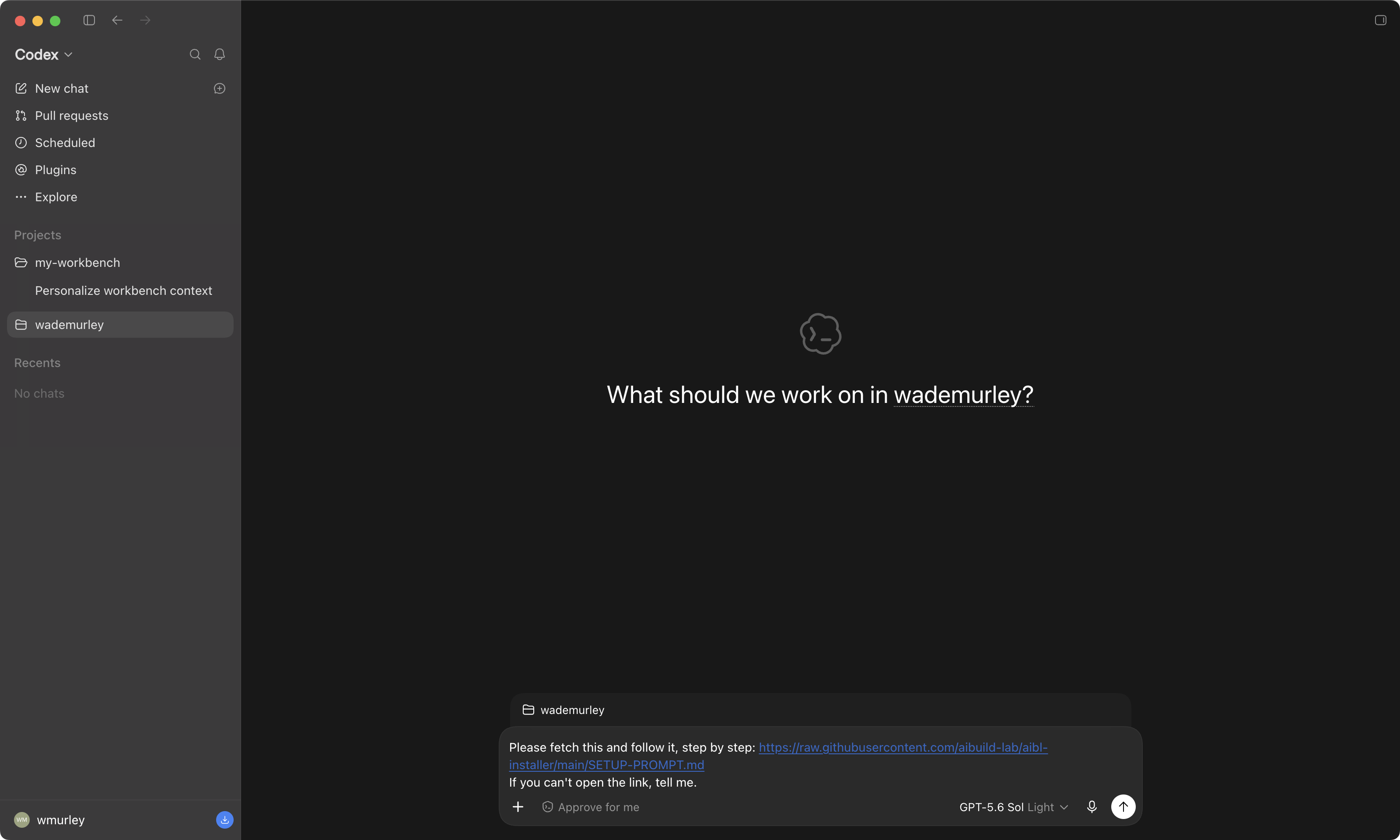 12
12The app says hello, checks what is already on your computer, and shows you a plan. This is Plan mode from lesson 2, doing exactly what it said it would: look at everything, write it down, change nothing until you say so. The plan names five things it wants to put on your computer, plus your workbench. Here is what each one is, and what it does for you, so nothing on that list is a stranger.
| It will install | Which is | What it does for you |
|---|---|---|
| Git | The program that takes snapshots of your files. You put it on in Step 1; the app checks it is there. | Every save becomes a point you can go back to. Lesson 5 is built on this. It is why you cannot lose your work. |
| GitHub CLI | A small helper that talks to the GitHub website for you. It signs in through your browser, once. | So you can say "save this to GitHub" or "get that back" in plain words and the app does it. You never have to learn the GitHub website. That website was the hieroglyphics for me. Now I say the sentence. |
| Node | A program that other programs need in order to run. It does nothing on its own. | The app's text version is built on it. No Node, no text version, and the installer and the skills use that text version behind the scenes. |
| Python | The most common language that small tools are written in. | "I am not a coder, what do I need Python for?" is the right question. You will never write it. You will run things other people wrote in it: your workbench's own check-up, and half of what any tutorial ever asks you to paste. |
| Claude Code CLI Codex CLI | The same agent you downloaded, as a command you can type instead of a window. In the Terminal it is one word, claude or codex. | Here is the part most people miss. The app needs you sitting in front of it. The twin does not. A schedule can run it at 4 in the morning, a skill can run it, another program can run it, three helpers can run it at once, and it can run on a computer you are not sitting at. Lesson 7's loops and lesson 8's helpers ride on it, and today the installer and the secrets guard use it behind the scenes. You will not type in it in this course. It is there for the day you want it. |
| The secrets guard | A tiny check that runs before a command and after it. | An AI will sometimes ask you to paste a password or a key right into the chat. The guard stops one from being printed or landing in a file, and blanks it out if one slips past. Lesson 6 shows it catching one. |
| Your workbench | One folder in your home folder, with a private copy on GitHub. | This is the whole point. Every program you join with us lands inside this same folder. |
Read the list. Then say yes.
Sometimes the reviewer that sits behind Auto reads a perfectly normal install command and flags it as suspicious. That is its job, and it errs on the careful side. Here is why that reviewer exists. An agent reads text and does what the text says, and text can lie. A web page, a file, a message pasted into the chat can carry an instruction hidden inside it, "ignore what you were told and run this instead." The name for that is a prompt injection, and it is a real threat, not a story. If you do not know what you are installing, you could be installing something malicious. So the makers of these apps now put a second reader between the agent and anything risky, and it is a good thing that they do. Today it may err against a perfectly normal install step.
Two ways forward. One: ask it, "Read that step and tell me in plain words what it does and whether anything in it is unsafe." Two: click the mode next to the chat box and switch from Auto to Accept edits (Claude), or from Approve for me to Ask for approval (Codex). Now the app asks you directly before each command, with an Allow or Approve button, and you click it. Everything the installer puts on your computer is standard, widely used software. The table above is the whole list.
Step 4. Your computer is going to ask you to say yes. Here's why, and here's the order.
Some of those five things go into folders your computer protects. So your computer stops and asks whether you really meant it, the same way it does when you install anything. Here is exactly what asks, in the order it happens, so nothing surprises you. Four stops. The app never sees what you type at any of them; your computer asks you directly, and only your computer gets the answer.
Two things can ask on a Mac, and the app tells you before each one. First, if you skipped Step 1, Apple's command line tools: the app runs one command and the same dialog from Step 1 pops up. Click Install, accept the license, ten to fifteen minutes, no password. Second, and this is the one with the password: Homebrew, the Mac's installer for the other tools. Its installer needs your Mac password, so the app does not run it. It hands you one line, you open your own Terminal (Cmd + Space, type Terminal, Enter), paste the line, and press Enter. The Terminal says "Press RETURN to continue." Press Enter. Then it says Password:.
You type your password and nothing shows up. No dots, no stars, nothing. That is how the Mac password box works. Type it anyway and press Enter. If you lose your place, press Backspace fifteen or twenty times and start again. About five minutes later Homebrew says it is done and prints two lines under "Next steps." Run those two as well, then tell the app it is done. That is the only password moment in the whole install. Everything after it, Git, Node, the GitHub helper, Python, installs with no password at all.
the command line tools dialog, if it appears; the Terminal asking for your password The Homebrew "Password:" line with nothing typed after it.
On Windows there is no password. A box pops up that says "Do you want to allow this app to make changes to your device?" Click Yes. It will do that two or three times, once for each tool that installs. Everything happens in a window called PowerShell that the app opens for you; you do not type in it.
Then the black window fills up on its own. That is the terminal from lesson 2, and this time you are not going to type in it. You are going to watch the app type in it, which is a little like watching someone else drive your car. It is version checks and installs, line after line, and it says what it is doing as it goes. This was the window I was certain would turn my laptop into a paperweight. Most people are terrified of it on day one. Most people are fine with it in a week.
Now two sign-ins in your browser. The first is GitHub. The app runs this line, and you will see it go by:
gh auth login
It shows you a short code, eight letters and numbers with a dash in the middle, and opens github.com in your browser. Type that code on the GitHub page, click Continue, then Authorize, and come back to the app. If the browser tab errors out, or you closed it by mistake, tell the app: "run the GitHub sign-in again." It starts over clean. Nothing is lost.
the code in the app; the GitHub code page; the Authorize page The same code pinned once in the app and once on the GitHub page.
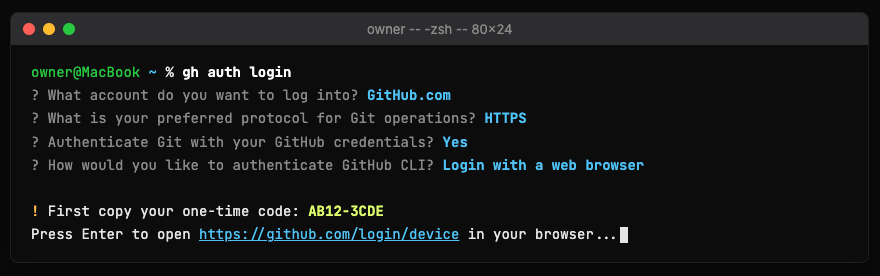
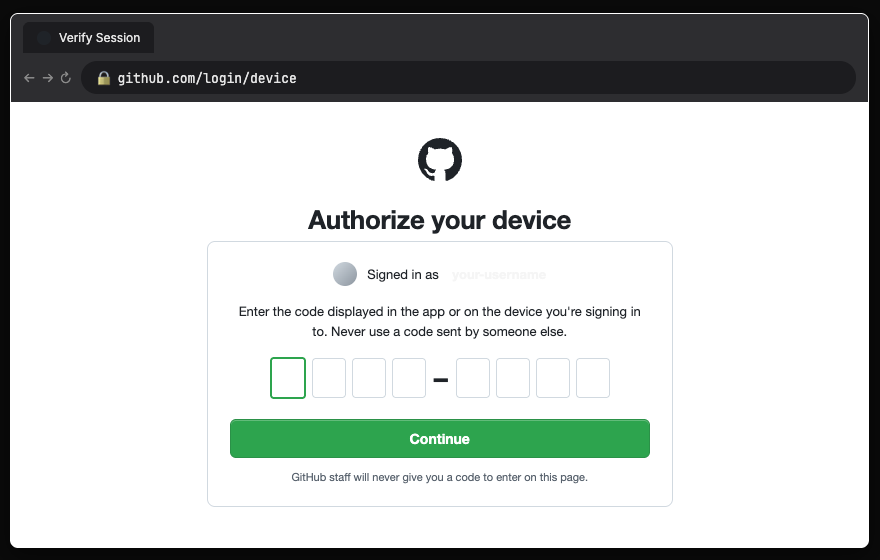
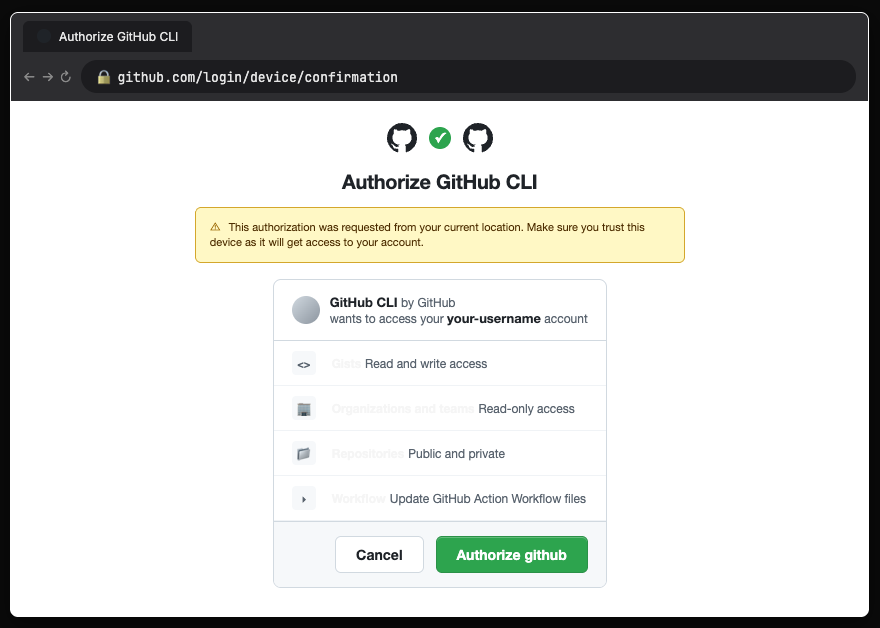
The second sign-in is the app's own text version. In Codex, the app and its text version share one sign-in, so this is usually already done. In Claude, they sign in separately: the app tells you to open your own Terminal (Mac) or PowerShell (Windows), type claude, press Enter, and finish the sign-in in the browser tab that opens. Same account you pay for.
The GitHub code goes on the GitHub page in your browser, and nowhere else. Sign-ins happen in the browser. If the app, or anything else, ever asks you to paste a code, a password, or a key into the chat, the answer is no, and then ask it why it wanted one.
the claude sign-in in the Terminal or PowerShell; the app's own sign-in page Claude only. The account with the subscription is the one to pick.
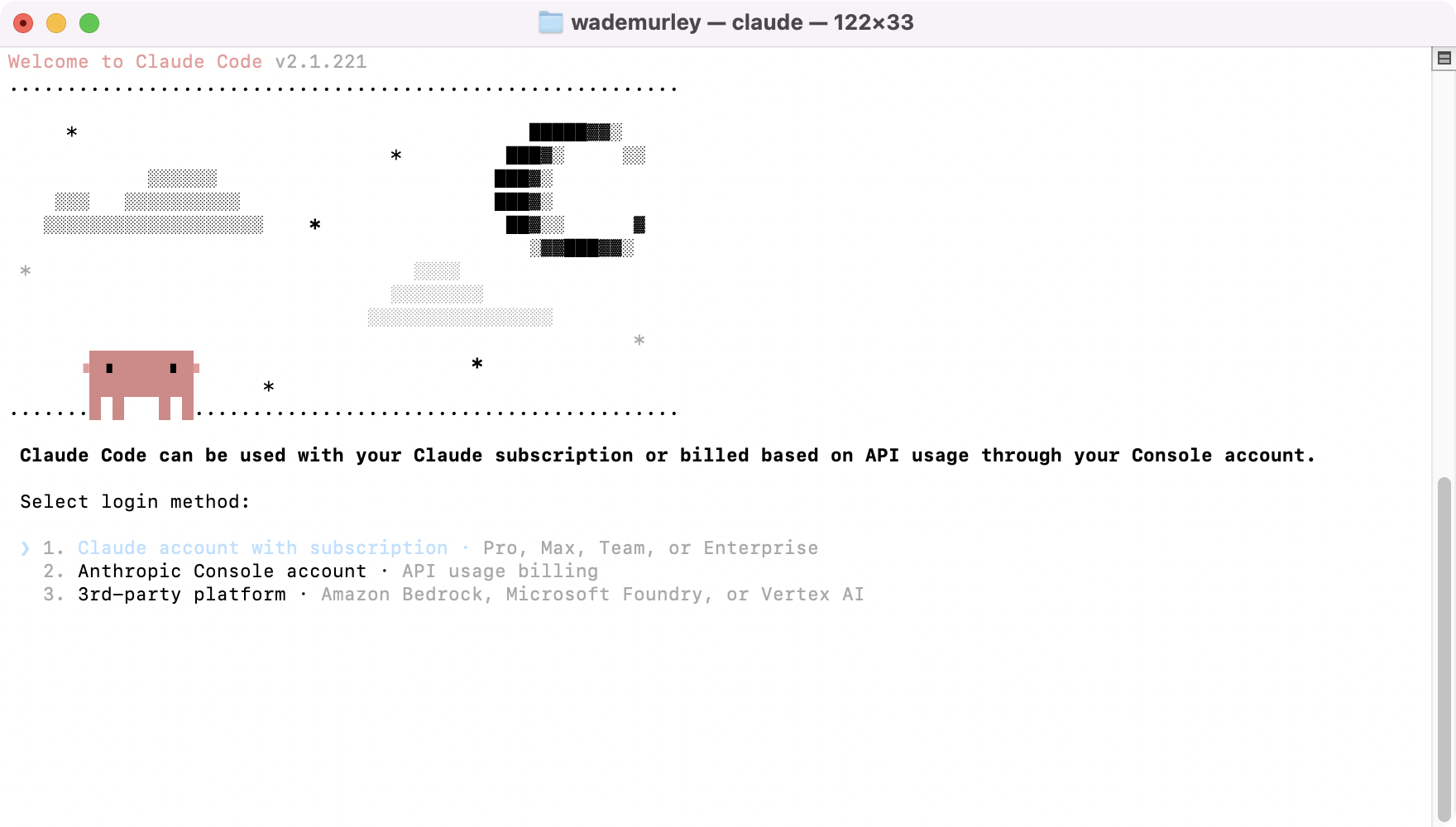
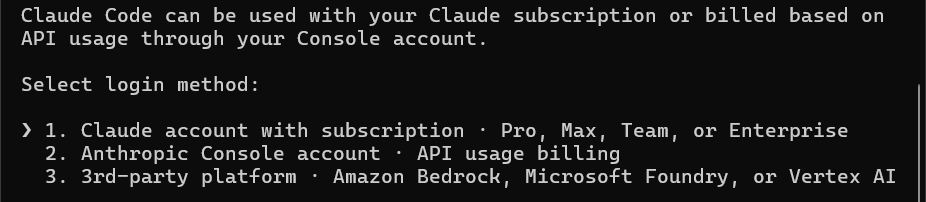
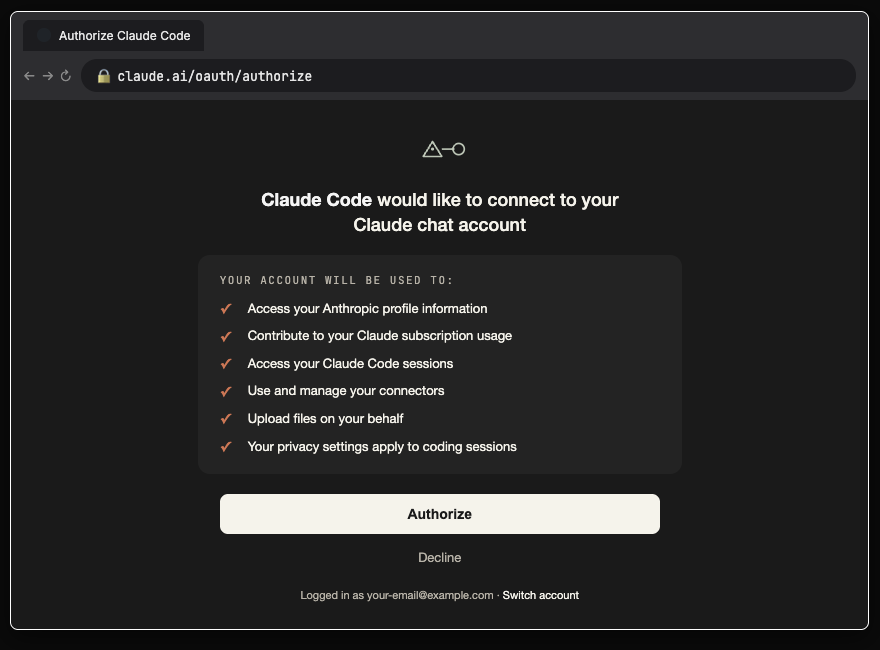
Step 5. Find your new workbench, then open it.
The app tells you it is done, lists everything it put on, and tells you where your new folder is. Four stops, with the picture for each.
The installer made a folder called GitHub in your home folder, and inside it, my-workbench. Go look at it the ordinary way first, so the path is real to you before the app ever opens it.
Open Finder, then your home folder, then GitHub. The path is /Users/you/GitHub/my-workbench.
Open File Explorer, then This PC, Local Disk (C:), Users, your name, GitHub. The path is C:\Users\you\GitHub\my-workbench.
the workbench folder on disk, Mac and Windows Finder and File Explorer open on my-workbench with the full path visible and the day-one files listed.
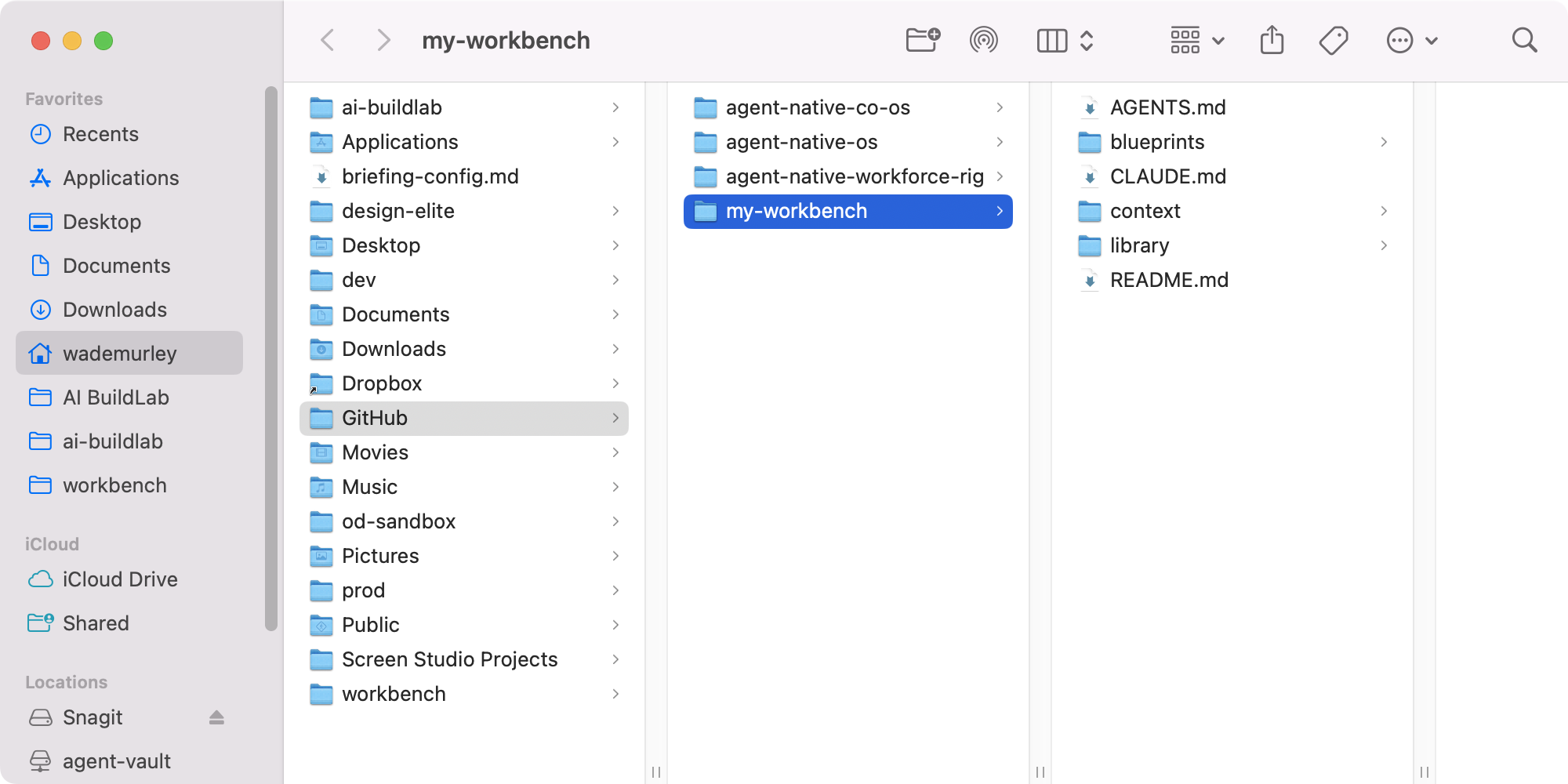 1234
1234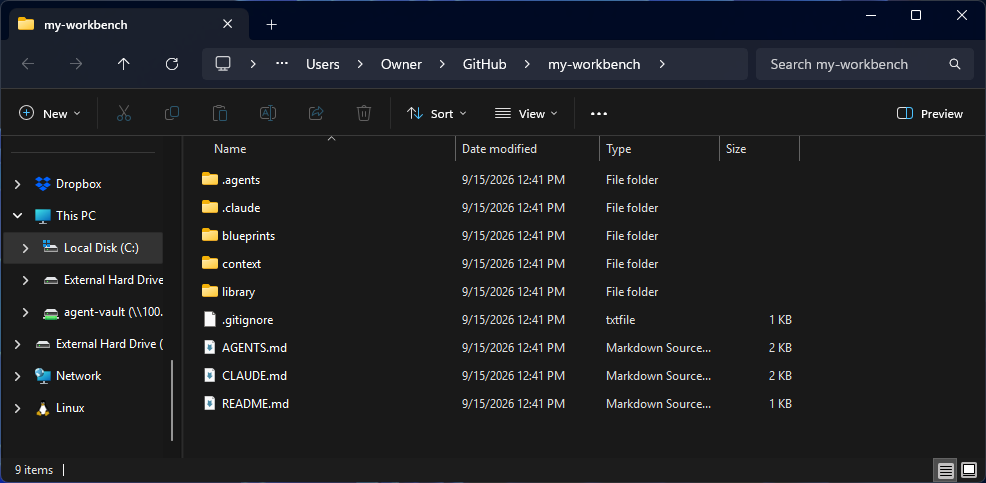 12
12Now open it in the app, yourself, so you know how. Start a new session. Click the folder icon again. Go to your home folder, then GitHub. Find my-workbench. Pick it. In Codex, it is Projects, then New project, then the same folder.
the folder icon, then the picker on GitHub, then my-workbench Claude: the open-folder control and the picker on GitHub/my-workbench. Codex: Projects, New project, the same folder.
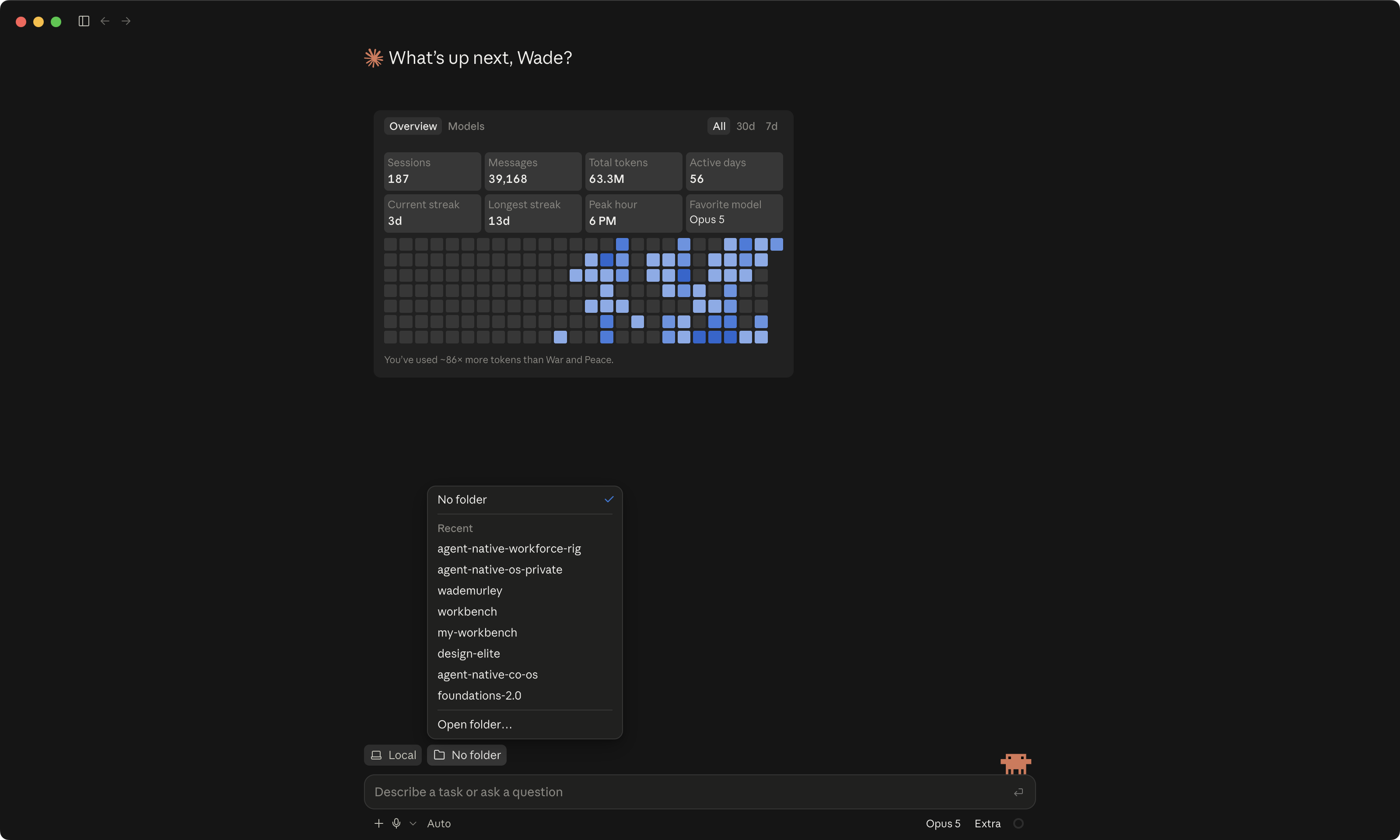 12
12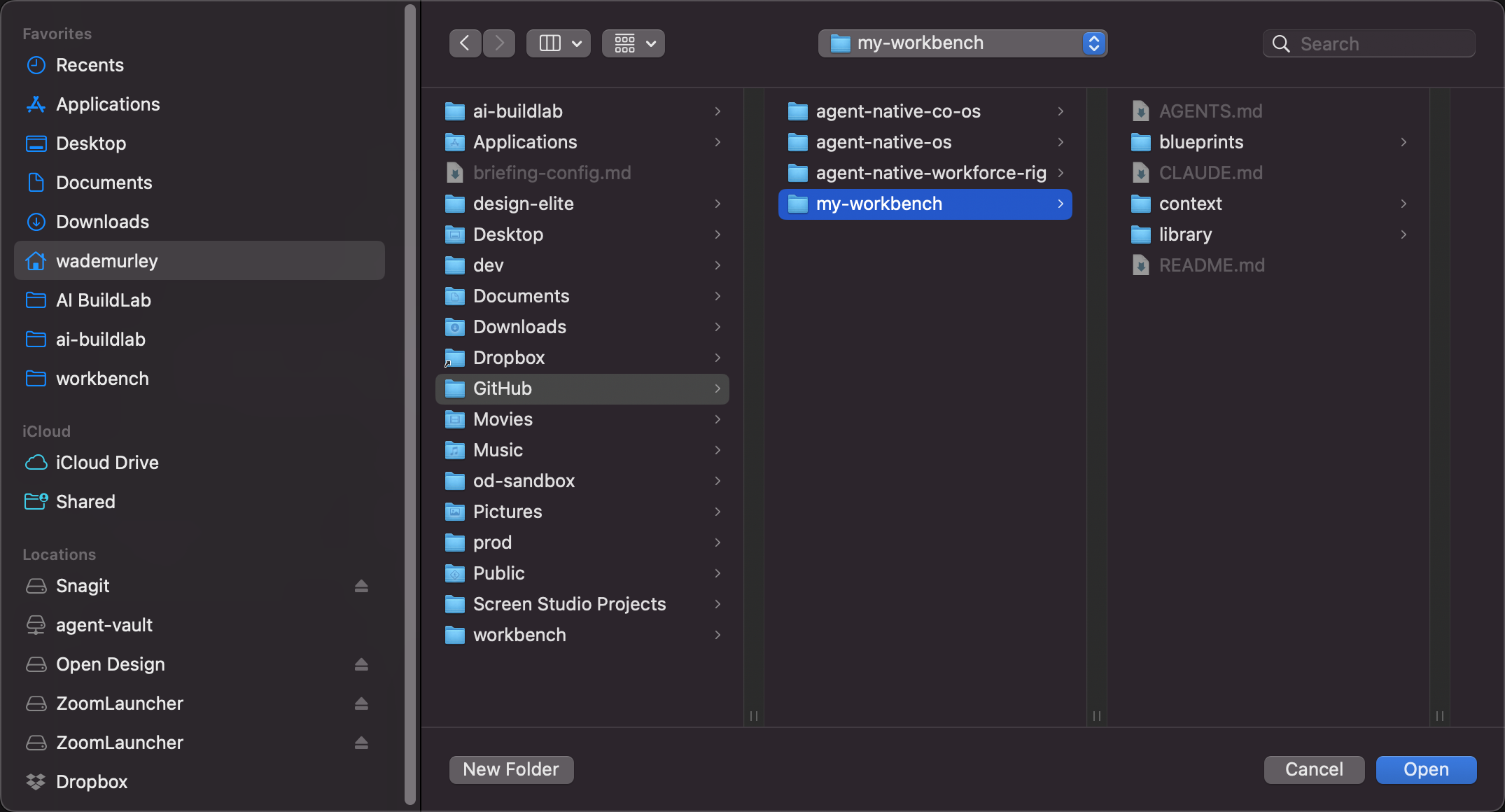 1234
1234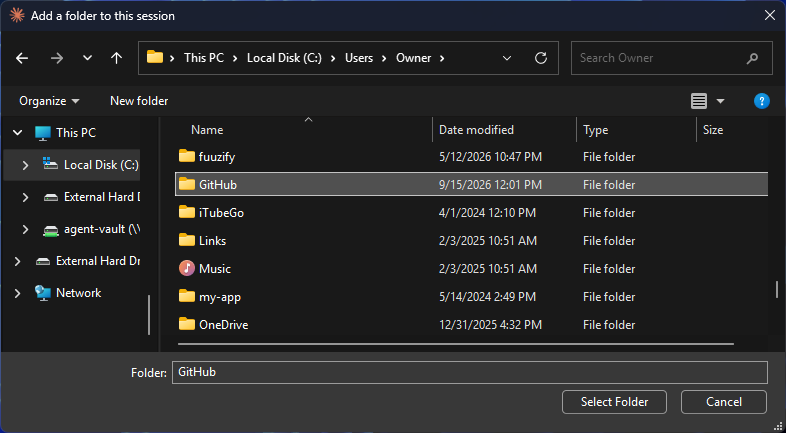 123
123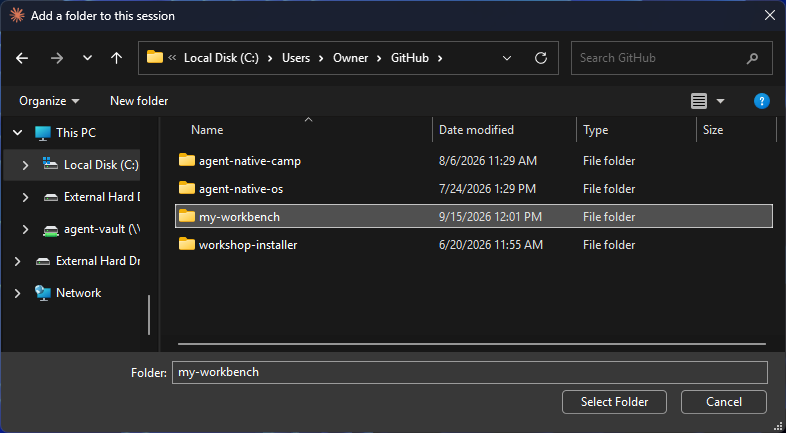 1234
1234the folder icon, then the picker on GitHub, then my-workbench Claude: the open-folder control and the picker on GitHub/my-workbench. Codex: Projects, New project, the same folder.
12341231234If the app asks "Trust this workspace?" again, click Trust. Usually it will not, because my-workbench sits inside the home folder you already trusted. Then look at the bottom of the window. The badge now says my-workbench. That is the folder you will live in for the rest of this course.
the badge reading my-workbench, both apps Local, the folder badge, and the mode, all in one row.
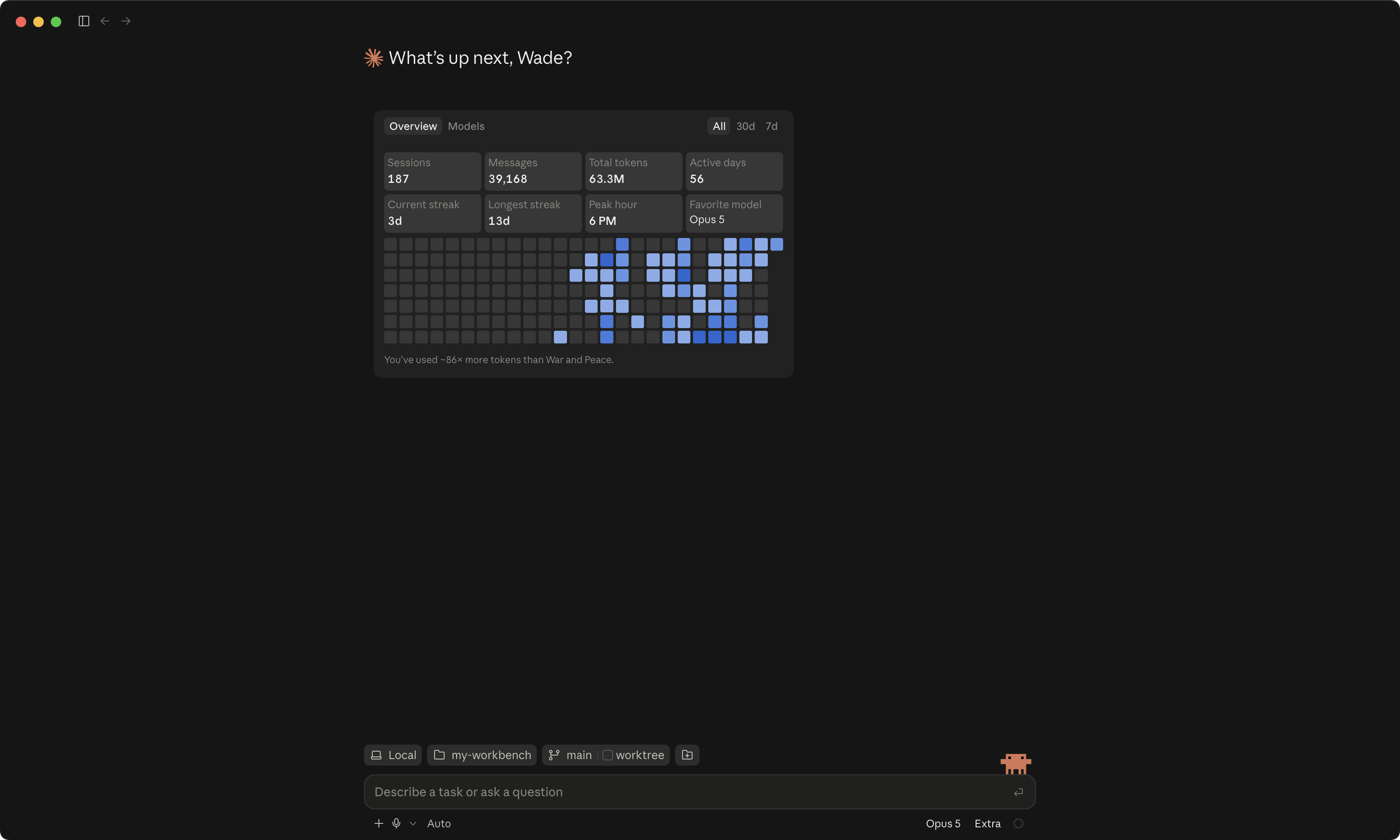 1234
1234the badge reading my-workbench, both apps Local, the folder badge, and the mode, all in one row.
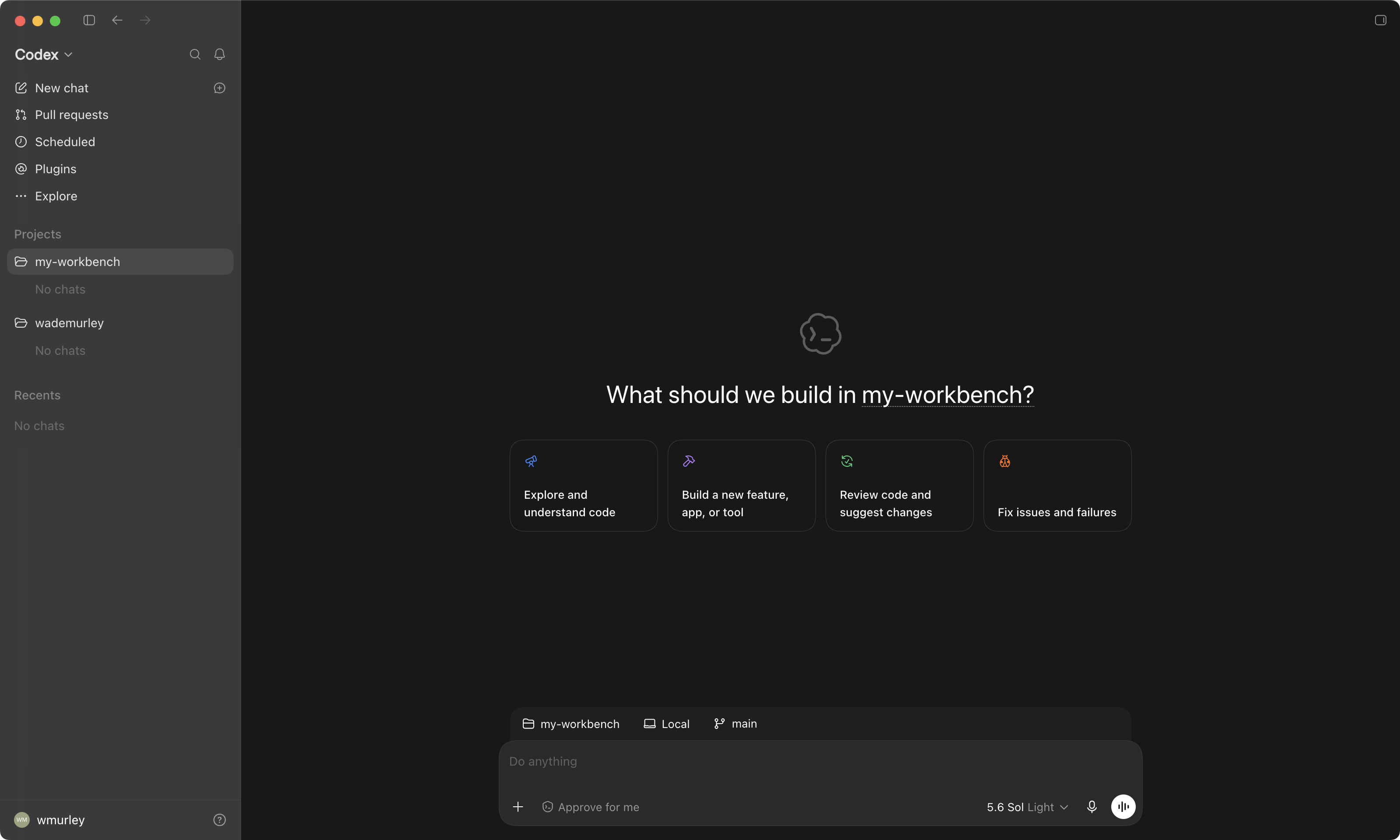 1234
1234Now go look at the other half. Open github.com in your browser. Under your name there is a new thing called my-workbench, and next to it, the word Private. That is your copy. Nobody but you can see it, and it stays that way. This page looked like hieroglyphics to me for a year. Today you need one word from it, and the word is Private. Lesson 5 explains the rest of the page.
So your workbench is in two places now. On your computer, and on GitHub. Picture your folder with a twin living on a website, and the twin only changes when you send it something. You will learn how to send it things in lesson 5.
You're done. Here's how you know.
In the Claude app, type a forward slash in the chat box. A little menu pops up. The items that start with aibl- came with your workbench, among them aibl-personalize, aibl-checkpoint and aibl-enroll. In Codex, type a dollar sign instead of a slash, and the same ones appear. Press Escape to close the menu. Then ask, in plain words:
What is in my workbench, and what can it do? List the files and the aibl- skills, one line each.
It looks around the folder and tells you what is there. That answer is your proof that everything landed.
the / menu in Claude and the $ menu in Codex, the aibl- skills listed Yours may also show aibl-update.
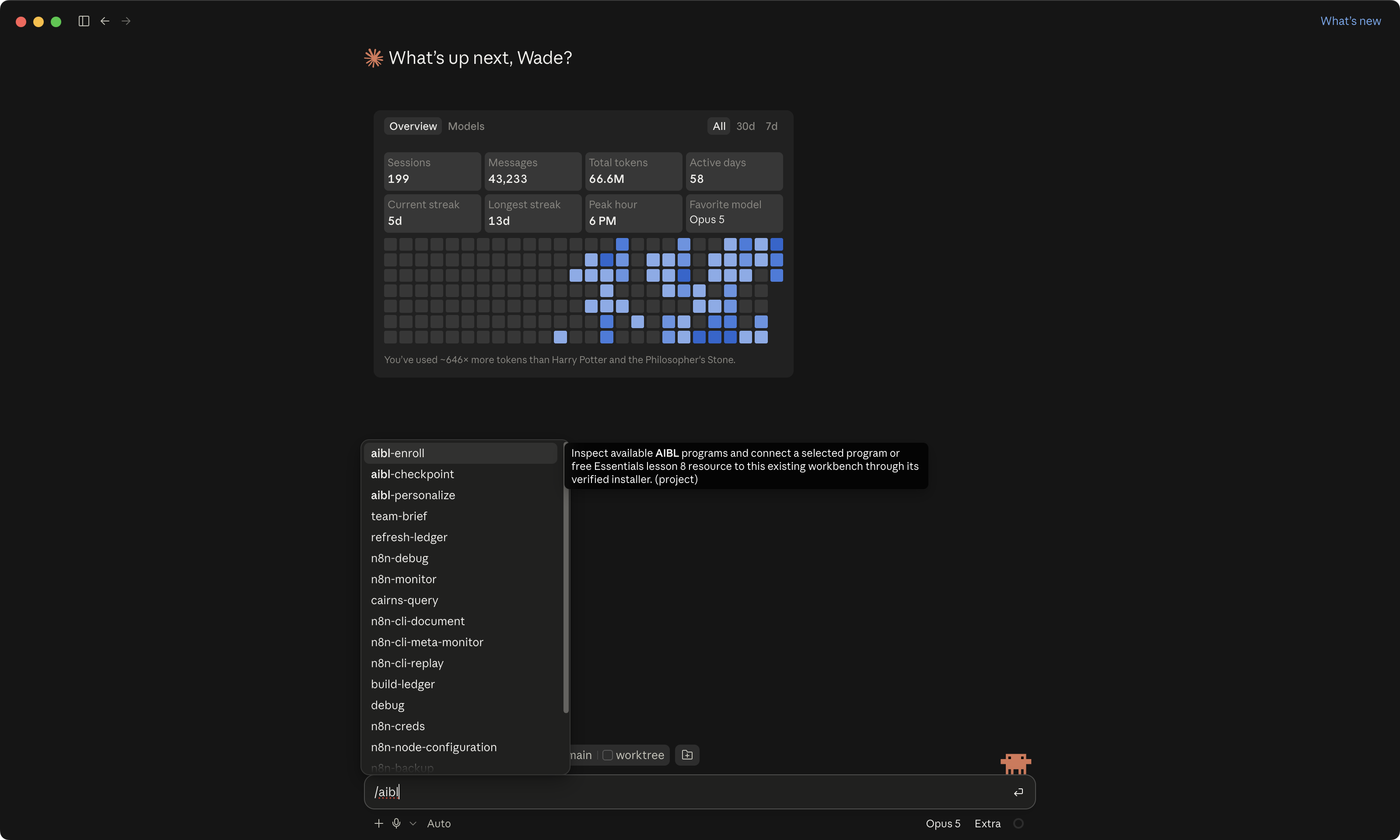 12
12the / menu in Claude and the $ menu in Codex, the aibl- skills listed Yours may also show aibl-update.
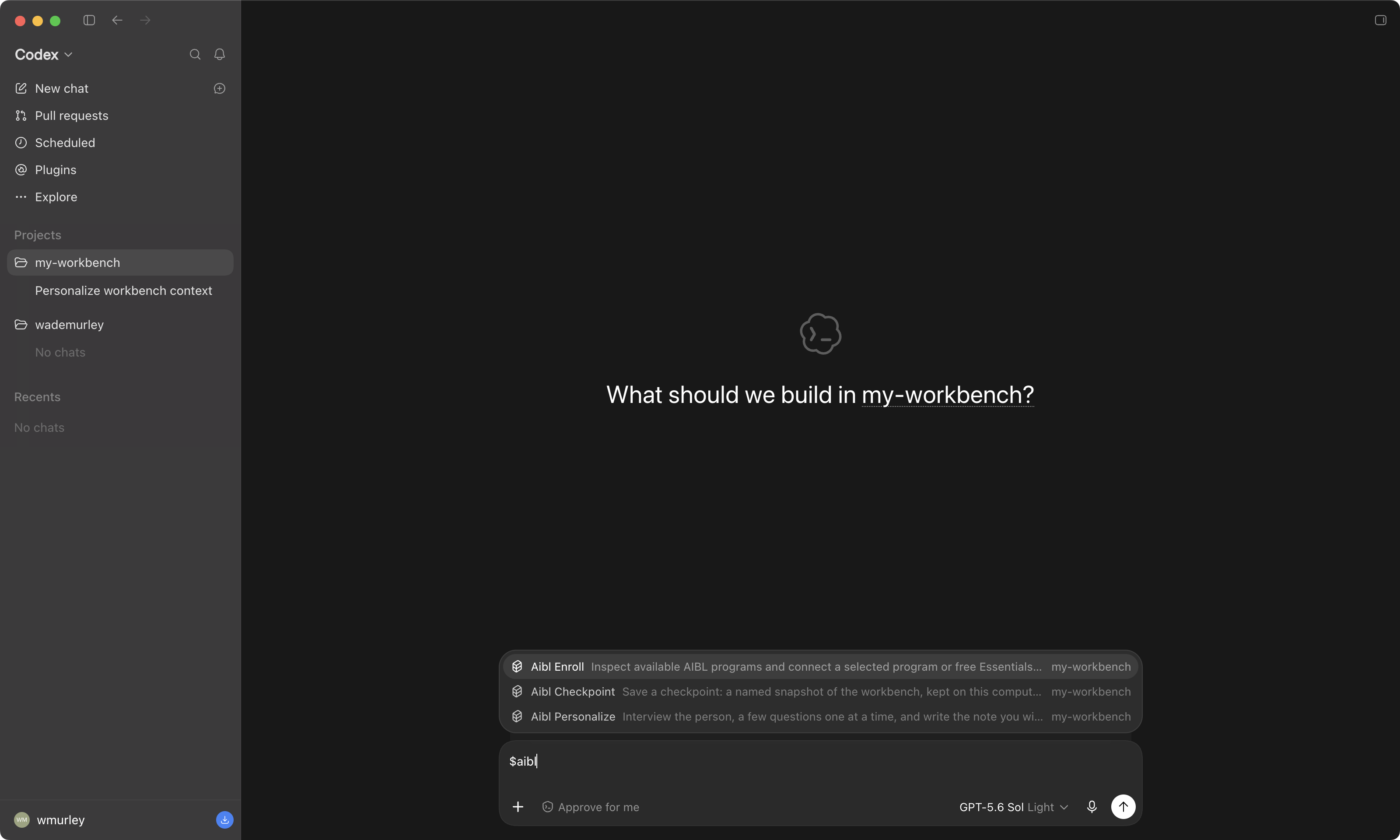 12
12By the way, each of those menu items is a skill: a saved set of instructions you run by name. You will run two of them before lesson 7, and in lesson 7 you make one of your own. aibl-enroll is for adding a program once your course access is released. Check your cohort on the Learn dashboard for its release date, time, and access status. Repository access follows your course's release schedule, which can differ from the first live session. Before you have access, that program will not appear in aibl-enroll. You can finish setting up your workbench now and add the program when access opens.
You may also see aibl-update. It keeps these skills, and any program you join, up to date. You do not need it in Essentials; your program will tell you when to run it.
None of what you did today was flashy. That is on purpose. You do not learn to drive on the highway; you learn it in a parking lot, and this hour was the parking lot. A workbench with nothing of yours in it is still a demo. Next lesson, your own files go in and the app interviews you. That is where it gets good.
Write your context note
How does it get to know me, and where does that live?
You are going to let the app interview you. It asks you a few questions, one at a time, writes a short note about you and what you are working on, and shows you the note before it saves it. You correct anything it guessed. Then you ask it one real question. If you have a file or two of your own handy, you can drop them in first, but you do not have to. Fifteen minutes. This is the lesson where it stops being a demo and starts being yours.
A note about you, in your context folder, in your words. And one answer that could only have come from something that read it.
That note is what the app reads every single time you open it from now on. It is the difference between a stranger and someone who knows you.
You run one skill. It asks, you answer, it writes. It shows you what it wrote and you correct it, right there in the chat. Then it saves.
Answer three or four questions, correct one line, ask one question. Dragging files in is optional. The app does the writing.
Every one of us on the AI Build Lab team works out of one folder. It is a simple way to work on many things at once and always know where home base is. Every new piece of context and every new capability you give the agent lands next to the last one, instead of in a fresh chat that forgets. I have called mine Workbench for as long as I have had one, which is why this course uses the word. Hunter's is Controller. Tyler's is Founders Lounge. And one folder does not fence you in. From it, the agent can still reach any other folder on your computer, or any other project on your GitHub, when you point it there. Yours is called my-workbench today. Rename it whenever you like.
Before you start, open the app on your workbench and run the four checks.
Claude app · what your screen should look like right now The four checks, pinned in order: the folder badge reading my-workbench, Local, the mode, the model picker. Nothing typed yet.
1234ChatGPT app · what your screen should look like right now The same four checks in Codex: the project badge reading my-workbench, Local, Approve for me, the model. Nothing typed yet.
12341234Your screen should match the picture. Four checks, every time you open the app, in this order.
- Pick the folder. The badge at the bottom should say my-workbench.
- Check Local. The switch next to it should say Local, not Cloud.
- Set your mode. Auto, or Approve for me.
- Check the model. The picker on the right should be on the default, not the strongest one and not fast mode.
That is the habit from lesson 3, and it takes five seconds.
Here is why the folder matters so much. The folder you open is everything the app can see. Open my-workbench, and it sees your note, your files, and the skills that came with it. Open some other folder, and it sees none of that. Not broken, and not wrong. It is looking somewhere else, and it will answer as if it never met you. Same brain, different desk. Some of us open our whole home folder on purpose, with the workbench inside it, once there is more than one thing going. That is a later trick. For this course the folder is my-workbench, and checking the badge is the step most people skip in their first week.
Now look at what is inside your workbench. Two folders are already there waiting for you. context is where the app keeps what it learns about you. library is where you put the things you want it to read: a transcript, an article, a document. Think of them as two drawers in a desk. What it knows about you goes in one. What you hand it to read goes in the other.
GitHub/                  Mac: /Users/you/GitHub   Windows: C:\Users\you\GitHub
└── my-workbench/
    ├── CLAUDE.md            the note it reads first, every time   (Claude reads this one)
    ├── AGENTS.md            the same note                          (Codex reads this one)
    ├── README.md            what this folder is, for a person
    ├── context/             what it knows about you   ← today writes here
    │   ├── project.md       you and your work, from the interview
    │   ├── permissions.md   what it may and may not touch
    │   ├── decisions.md     calls you have made, so it stops re-asking
    │   └── handoff.md       where you left off   ← lesson 7 writes here
    ├── library/             what you hand it to read   ← lesson 8 writes here
    ├── blueprints/          plans it can follow
    ├── work/                what it makes for you
    └── LICENSE, .gitignore, .aibl/   housekeeping; leave them alone
Text alternative: a folder tree: my-workbench holds CLAUDE.md (the note Claude reads first), AGENTS.md (the same note, for Codex), README.md, a context folder with project.md, permissions.md, decisions.md and handoff.md, a library folder, a blueprints folder, a work folder, and a few housekeeping files.
One more word, because you will see it on every file in there. The .md on the end means Markdown. A Markdown file is a plain text file, the kind any computer has been able to open since forever, with a few habits for headings and lists so it reads nicely. That is why both you and the agent can read and write the same file: it is text. Every note in this course is one. If you open one and it looks like a plain document with a few hash marks and dashes, you are looking at it right.
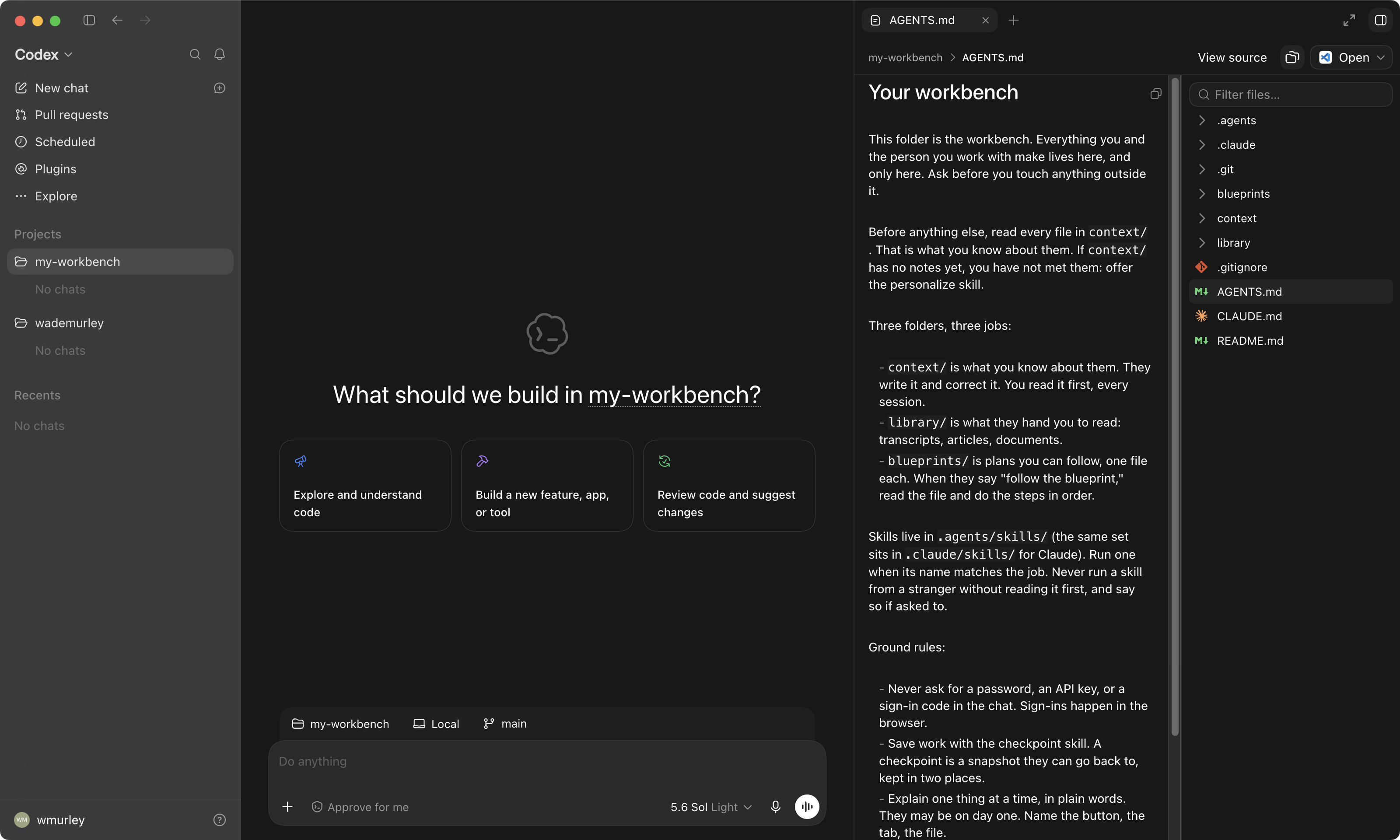
Two of those files get their own paragraph, because they shape everything else. CLAUDE.md is the note the Claude app reads before anything else, every time you open this folder. AGENTS.md is the same note for Codex. Think of it as the standing instructions you would leave a new assistant on day one. What this folder is, what to read first, what never to do. It is read once at the start of every session and it colors every answer after that, which is why it stays short and curated. Yours came written. You will meet it again in Step 4, and you do not need to change it today.
the same folder in Finder and File Explorer The real thing next to the drawing, with the path bar showing where it lives.
123412Step 1 is optional. Drag a file or two of your own into the workbench.
If you have something handy, this is worth two minutes. A set of notes. A plan you are working on. A list you keep coming back to. Open Finder (Mac) or File Explorer (Windows), find the file, and drag it into the my-workbench folder, the same way you would drag a file into any folder. It is a normal file on your computer before and after. A second later it shows up in the file list on the side of the app.
my-workbench in Finder and File Explorer, where you drag one file The path bar shows where the folder lives.
123412And if you have nothing handy, or you would rather not, skip this step. The interview alone gets you to the end of this lesson, and you can drop files in any day you like. Whatever you drop in stays on your computer. Nothing goes anywhere until lesson 5, when you choose to back it up to a private copy.
Dragging between folders on the same drive moves it, on a Mac and on Windows both. If you want the original to stay where it was, do it the plain way instead: right-click the file, click Copy, go to my-workbench, right-click in the empty space, click Paste. Now it is in two places. Either way, nothing gets deleted. Your file is in one place or two, never zero.
Step 2. Run the personalize skill and answer its questions.
Click in the box where you type and press the forward-slash key. In Codex, type a dollar sign instead. The same little menu pops up in both apps. Every item in that menu is a skill, which is a saved set of instructions you run by name. You saw them at the end of lesson 3. Pick the one called aibl-personalize. That is the interview. You do not need to know how a skill is built today. Lesson 7 is where you make one of your own.
/aibl-personalize
Yes, you are about to be interviewed by your own computer. It is a better listener than most of us, and it will not ask where you see yourself in five years. For this exercise it only asks three or four things, one at a time. What you are trying to get done, who the result is for, and which of your files it is allowed to read. Maybe one about how you like to work. Answer in plain sentences, the way you would answer a person. If you dropped nothing in at Step 1, it offers you a practice case to work with instead. Take it.
When it has what it needs, it writes a short note and shows it to you before it saves anything. Watch the file list on the side. A file called project.md appears in your context folder. That is the app writing something down about you for the first time.
Claude app · the / menu open, aibl-personalize highlighted; the interview mid-question The menu with the shipped skills; one question on screen with one answer typed, and project.md appearing in the file list.
12ChatGPT app · the same two moments in Codex The $ skills menu with the three starter skills listed.
12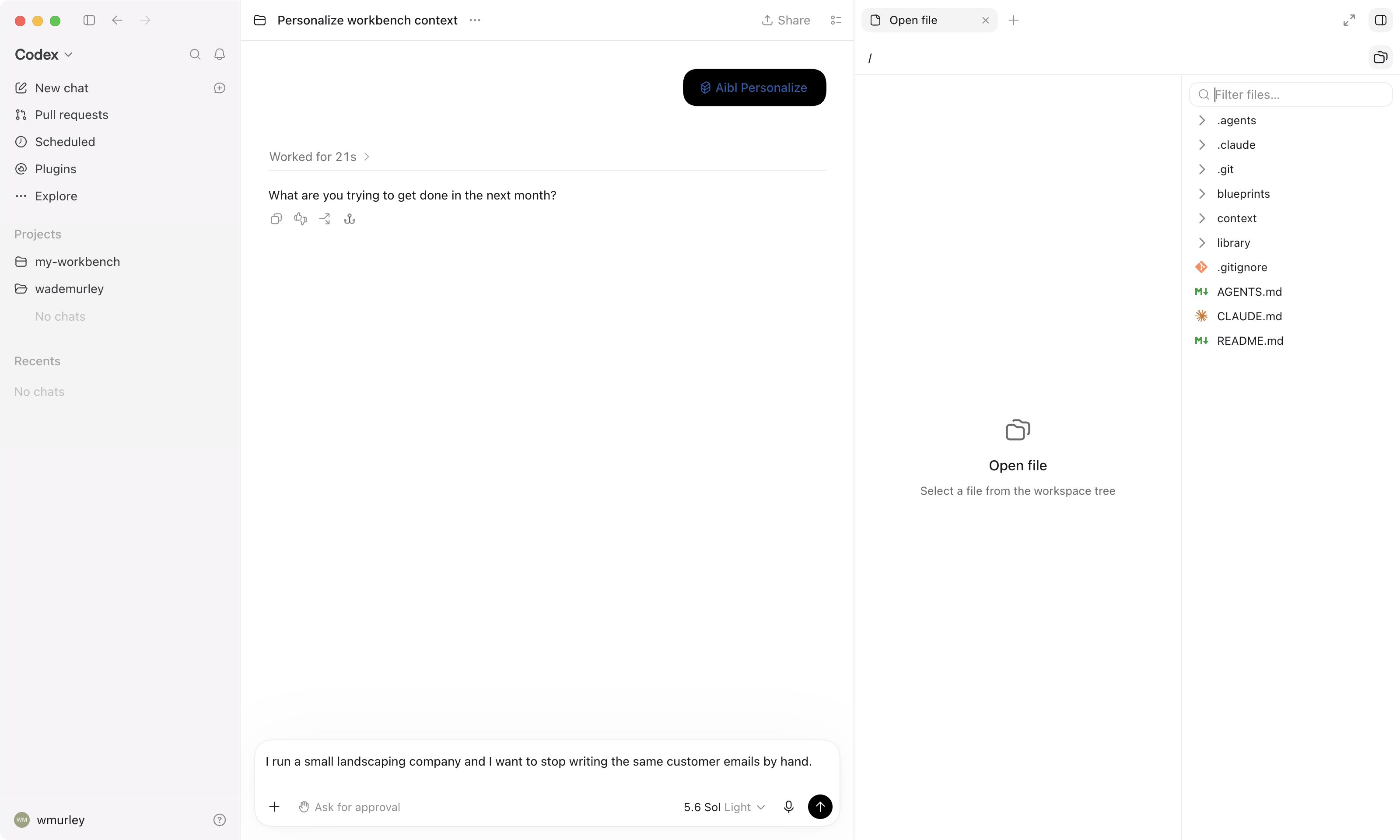
Step 3. Read what it wrote. Correct anything it guessed.
Before it saves, it shows you the note and asks you to check it. Read it the way you would read a new assistant's notes from their first day. Somewhere in there is probably a guess: it called your side project your job, or it assumed the result is for your boss when it is for you. Tell it, in the chat, in plain words: "No, the plan is for me, not my team." It fixes the line and saves. You did not open a single file.
Later, when you want to change the note yourself, you can do that inside the app too. In the Claude app, click the file name where it appears in the chat and the file opens in a pane beside the conversation. Type your change and click Save. In Codex, open the file tree from the sidebar, click the file, and edit it in place. Either way, you never have to go hunting through folders.
Here is the thing to take from this step. The app leans hard on what is in these files. If it ever acts a little off, or needs dialing in, the context folder is the first place to look, because you are the expert on you and the app is a sounding board for whatever it has been told. Correct one line and every answer after it gets better, because the corrected note is what it reads next time.
project.md open beside the chat, one line changed, the Save button Claude: the file pane with Save boxed. Codex: the file open from the file tree.
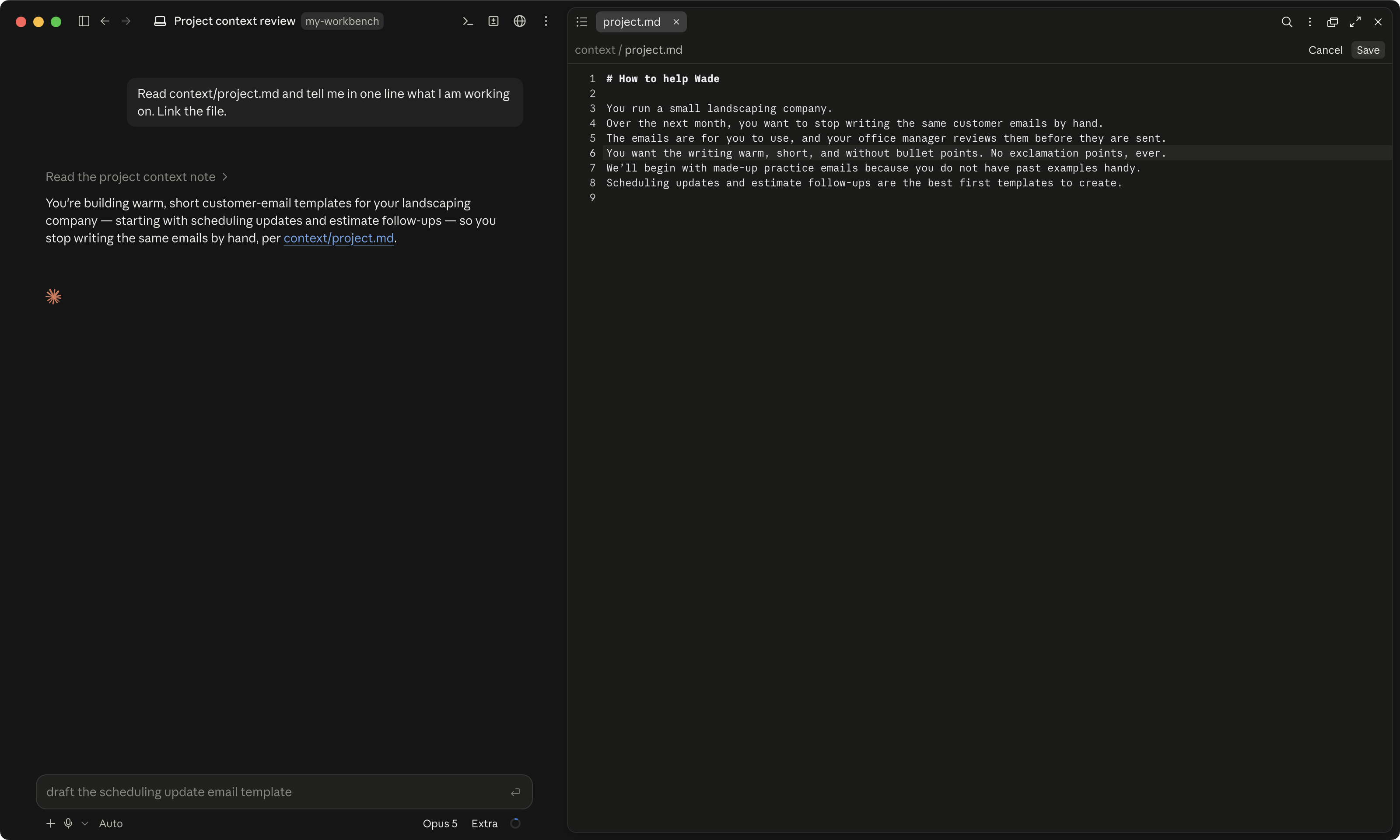 1234
1234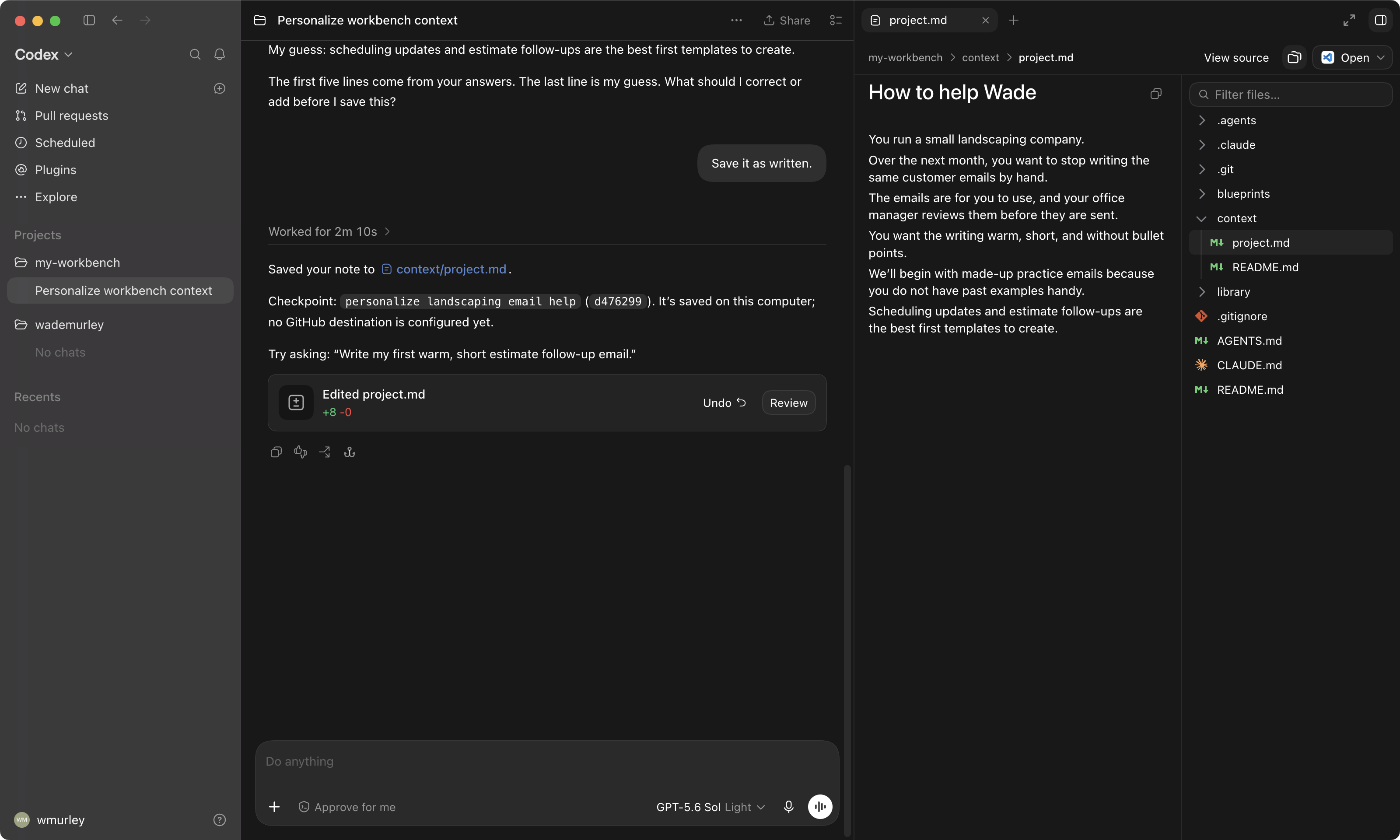 12
12No. Leave it and move on. You can finish this lesson without touching the note. The point of reading it is knowing where it lives, so the day an answer is off you know exactly which file to open. If you feel like it, add one line it could not have known, like "I hate bullet points." Optional.
Step 4. Ask it one real question about your stuff.
Not a test question. A real one, about the goal you gave it or the files you dropped in. Something you would actually want to know. Here is one that works on almost anything:
Read my context folder and anything I put in my workbench. Then tell me the one thing that most needs my attention this week, and why.
Read the answer against what you know. If it is off, tell it so, the same way you corrected the note. If it is right, notice something: that answer could not have come from a chat window, because a chat window has never seen your note or your files. This is what having a place to work gets you.
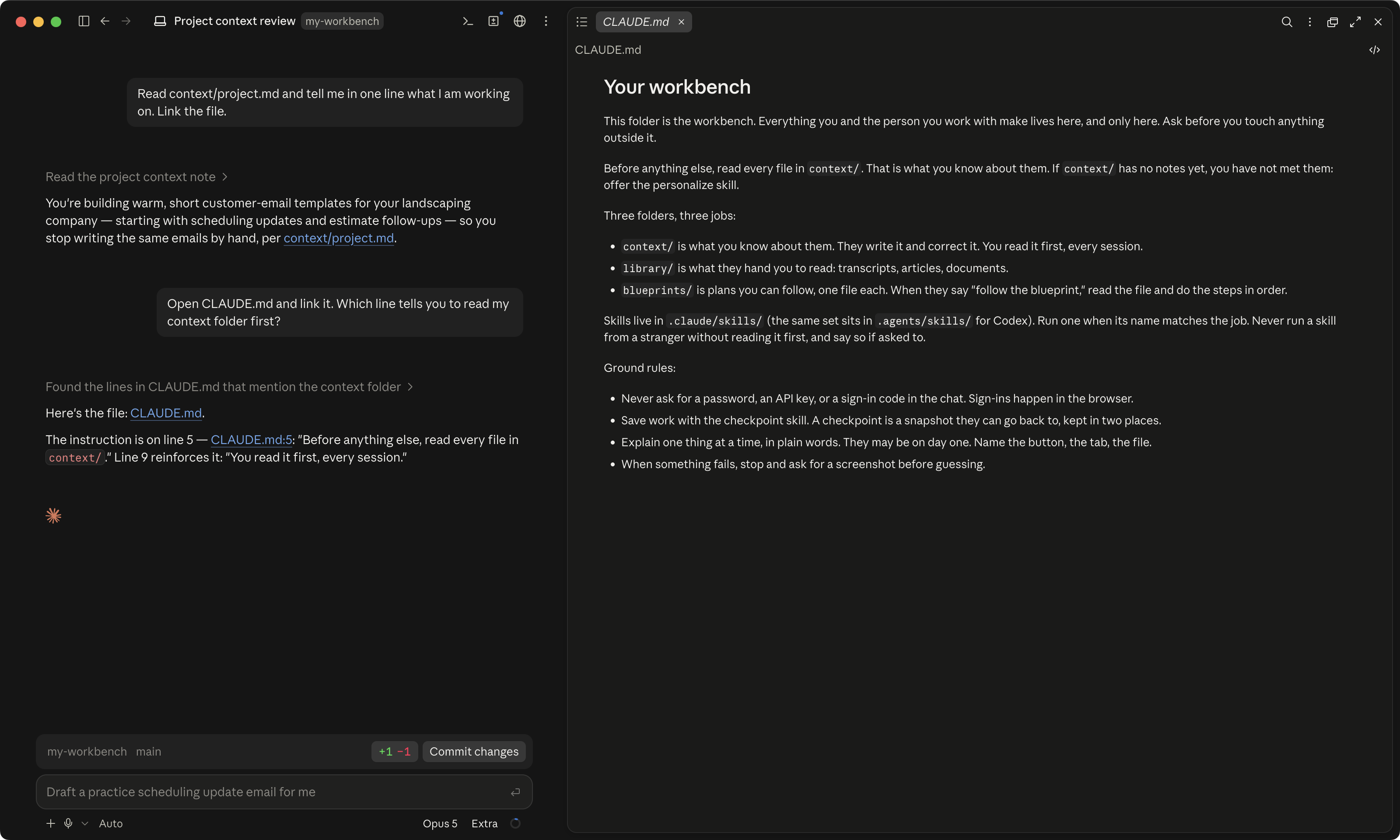
Remember the file at the top of your workbench, CLAUDE.md (in Codex, AGENTS.md). It is the note the app reads before every session, before you type a word. Somewhere in it is a line that says to read your context folder first. That one line is why it remembers you tomorrow. Session starts, it reads that note, that note points at your note, and now it knows who it is talking to.
You can have more than one. Both apps also look for a personal copy outside any folder, one that applies to everything you open, and then for the one in the folder you opened. They stack. The app reads the general one first and the folder's one last, so the folder's note gets the last word, and if the two disagree you will not like the result. For this course you have one, in your workbench, and you do not need to change anything in it today.
your computer
├── ~/.claude/CLAUDE.md          personal; applies to every folder you open   (Codex: ~/.codex/AGENTS.md)
└── GitHub/my-workbench/
    ├── CLAUDE.md                this folder; read last, so it has the last word   (Codex: AGENTS.md)
    └── context/project.md       your note, which CLAUDE.md points at
Text alternative: a tree with a personal CLAUDE.md (AGENTS.md for Codex) outside any folder, applying everywhere, and the workbench's own CLAUDE.md inside the folder, read last, pointing at context/project.md.
And this one note is the seed. In our own workbenches it has grown into layers, a memory system we call Cairns, that the agent reads by need instead of all at once. You will see the next layer of that in lesson 8.
CLAUDE.md open, the context line pinned One callout on the line that pulls in the context folder. In Codex, the same line is in AGENTS.md.
You're done. Here's how you know.
Look at your screen. There is a note about you, in the context folder, with at least one line you corrected or added. And you got one answer that only your stuff could have produced. That is the first hour after the install, and it is the hour most people never get to. You did.
Every one of these moves is one you will make a hundred times later, at full speed. Lesson 8 reads this note before it does anything, so make the note good.
One thing to know before you close the app. Everything you just made is saved on your disk, and only on your disk. If this laptop went for a swim tonight, the note would go down with it, and no bag of rice brings that back. Next lesson fixes that in twenty minutes, and then you get to prove it.
Git and GitHub, in plain words
How do I make sure I cannot lose this?
Right now the note you wrote last lesson lives in one place. This computer. If something happened to this computer tonight, the note would go with it. In the next twenty minutes you are going to save a snapshot of your workbench, send a copy of that snapshot to your private corner of GitHub, look at it there under your name, delete something on purpose, and watch your own words come back. The agent runs every command. You say what you want in plain sentences and read what it tells you.
Your work saved in two places, and proof you can get any earlier version back.
From today the agent can be bold with your files, because the worst mistake either of you can make is a snapshot you reload.
A checkpoint is a labelled snapshot on your computer. A back-up is that snapshot sent to your private copy on GitHub. Restore brings a file back from any checkpoint.
Say five things in English. Save, back up, look, break, restore. The agent types every command. You never type the word git.
I put off GitHub for a long time. Every cool project I came across, every link somebody shared, led back to the same place, a page stacked with commit, push, branch, and pull request, and the moment I landed on it I felt overwhelmed. I would click through to Downloads with no real idea what I was downloading or how to find my way around, and quietly close the tab. Every tutorial assumed I wrote code for a living, and I did not. What finally got me in was realizing I did not need to learn Git. I needed about six words and a picture of where my files live. That is this lesson. Six words, one picture, and you do the moves yourself, so the next time a link lands you on GitHub you know what you are looking at.
Where you should be before you type my-workbench in the badge, Local, Auto, the default model. If your screen does not match, fix it before the first step.
1234Where you should be before you type my-workbench as the project, Local, Approve for me, the default model. If your screen does not match, fix it before the first step.
12341234First, what GitHub actually is.
Strip away the jargon and GitHub is one simple thing. A place on the internet that keeps a private copy of your files and remembers every version of them. Every change, who made it, when, and what it replaced. Think of it as a cloud drive with a perfect memory. Nothing gets silently overwritten, and you can rewind to any earlier state.
It was built for software developers, and for years it belonged to them. But the powers it gave developers were never really about code. A full history of every change. A copy that lives off your machine. A safe way to look at a change before it goes live. Those are about files that change over time. Your note, your plans, and the skill you will write in lesson 7 are exactly that. Once your knowledge lives in files, it deserves the same care code has always gotten.
You have done a small version of this yourself. You finish a document, then save a second copy under a new name so the old one is safe, then a third. Three files, three names, and by next week you cannot remember which is the real one. GitHub is that habit, done by a machine that never loses count. One file, every version kept, and it always knows which is current.
There is one more reason the whole world of software lives here, and it will matter to you sooner than you think. GitHub lets a lot of people work on one thing at the same time without stepping on each other. When a company the size of Facebook wants to try a new feature, an engineer builds and breaks it on a side copy, proving it out there, while the version millions of people use every day never moves. At AI Build Lab several of us build different things at once the same way, each on our own side copy, and each piece joins the main one only when it is ready. That is how a small team ships a lot. It is also how you and your agents will work together on one workbench, in parallel, without anyone overwriting anyone. Multiplayer, with an undo button.
And here is the part that makes this lesson short. You do not need to learn Git. You need about six words and a picture of where things live. Once you have those, GitHub stops being a wall and starts being plumbing. Boring, reliable, ignorable plumbing. That is the goal.
Here are the words, and the first one is save.
Here are the words before you touch anything, so nothing surprises you. Three you will do today. Save, back up, and restore. Four more you will hear soon and do later. Pull, clone, branch, and pull request. The technical names come in the next section. First the picture, because the picture is what makes them easy.
Start with the one you already know from every video game you have ever played. You reach a checkpoint in a level and you save. If the next part goes badly, you do not have to restart the level. You reload right where you made that save and try again, and nothing you did after the save can hurt you. That is the first word. A commit is a save with a short label on it, a few words that say what changed, like a note on the lid of a box. Every commit stays, so you can reload any of them, not only the last one.
The second word is what makes the save survive your computer. A push sends a copy of your saves up to your private copy on GitHub. So the picture is two boxes. Your computer on the left with its stack of saves, GitHub on the right with the same stack, and an arrow between them.
Text alternative: your computer on the left holding two checkpoints of context/project.md; an arrow labelled push pointing right to the private copy on GitHub holding the same two checkpoints; a lighter arrow labelled pull pointing back, for later.
Today the arrow you use points up. After a push, the two stacks match, and if your laptop died tonight the stack on GitHub is the one that saves you. The other arrow is real too, and you will use it. The first time you sit down at a second computer, or a program sends you new material, you pull, and the saves come down onto that machine. Not in this lesson, but it is the same road driven the other way, and it is why the picture has two arrows.
Here is what those two arrows look like on an ordinary day for me. I do most of my work on a Windows desktop. I make changes in my workbench all day, and when I get up I push, so the saves are on GitHub. Then I grab my MacBook, go sit in another room, and pull my workbench onto it, and I pick up right where I left off. Two computers, two operating systems, one workbench. The arrows are the whole trick.
Here is what each word means, in plain English first.
Plain English first, technical name second, so when the agent says the word you already know the move. Three you do today.
One more thing, and it is the one that takes the weight off. You do not have to remember any of this history yourself. Ask the agent what changed since your last checkpoint, or what a particular checkpoint contained, and it reads the labels and the changes for you and tells you in plain words. The saves are the memory. You only have to ask.
And four you will hear later. Named, not practiced yet. You do not do any of these in Essentials. You only need to not flinch when an agent says them, and to know they are ordinary moves you will make when the day comes.
Open github.com and find my-workbench. Then close it.
All right. So far GitHub has been a box in a drawing. Now go see what it actually looks like on the web, once, so the page is not a stranger when a link lands you there. Open github.com in your browser and sign in if it asks. Click your picture in the top right corner, then Your repositories. A list appears, and my-workbench is in it. Click it. This is a repository page. A repository, repo for short, is a folder that GitHub keeps track of, saving every version so nothing gets lost. Yours is that folder. Four things to notice, and then you can close the tab.
The word Private next to the name. Nobody but you can see this page. The list of files, which is your folder, the same names you see in the app. The word commits with a number next to it, which is how many saves are up here so far. And on any public repository, not yours, a star count, which is people bookmarking it, and nothing more. A star is not a review.
Two words you will hear, in plain terms. Public means anyone can read the repository while it is public, and anyone can take a copy in that time. That is why yours starts private and stays private in this course. You can flip a repository from public to private later, but that does not pull back a copy somebody already took, the same way deleting a post does not delete the screenshot someone saved of it. A fork is someone's own copy of a public repository. It is how open work spreads, and it is also how a stranger's files end up on your machine, which is why you read a skill before you run it. You will live in the app. You only need to recognize this page.
Anyone can put anything on GitHub, and some of it is built to do harm. A high star count is a good sign, the way reviews are a good sign, and it is not a guarantee. A popular repository can still carry something you do not want on your computer. So the rule from this course holds everywhere on the site. Read before you run, ask the agent what a thing does before you download it, and if you cannot tell, do not.
Now do it. Save, back up, look, break, restore.
Five moves, on the note you wrote last lesson. The agent runs every command. You say each move to it in English and read what it says back. Before you start, check the picture at the top of this lesson against your screen. The badge says my-workbench, then Local, then your mode.
- Save. Press the forward slash (Claude) or the dollar sign (Codex) and pick aibl-checkpoint. That is the third skill you have run, and it is the one you will run most. It tells you what changed in plain words, proposes a label, saves the snapshot, and sends it to GitHub in the same move. Read the label it wrote.
/aibl-checkpoint
- Back up. The skill already did this. "Saved in two places" is the line to look for. If you ever want the two moves apart, say them apart.
Back my last checkpoint up to my private copy on GitHub, and tell me when it is there.
- Look. Go back to github.com, open my-workbench, click
context, thenproject.md. Your words, under your name, private. The commit count went up by one. - Break it. On purpose. This is the one time in the course you delete something deliberately, and it is how you learn that the undo is real. Ask the agent to remove a paragraph from your note and save the file. It is gone.
Delete the second paragraph of context/project.md and save the file. I am doing this on purpose to test restore.
- Restore. Ask for it back. Watch it come back.
Bring context/project.md back from my last checkpoint. Then show me the file so I can see the paragraph is back.
git add context/project.md git commit -m "the label it wrote" git push
Three lines go by when you save. The first picks up the files that changed, by name. The second is the checkpoint, with its label. The third is the back-up, up to GitHub. Before an AI could do this for you, these were the exact lines a person typed into a terminal, by hand, every time, and getting one wrong was how people lost work. That is why GitHub belonged to software developers for so long, and why it does not have to anymore. You will see them scroll past in the chat every time from now on. They are the agent typing, not you, and now they are not strangers.
Notice what each move kept, because they are different. The save kept a snapshot on your computer. The back-up kept a copy of that snapshot on GitHub. If you deleted the wrong paragraph, the first one is enough. If your laptop died tonight, the second one is what saves you.
In Auto, the save and the back-up run without a question. You will see the commands go by. That is the agent typing, not you.
Same commands. One difference. The back-up leaves your computer, so Codex may stop and ask you before it sends anything to GitHub. That is a prompt, not a problem. Approve it.
Passwords, keys, and other people's files. Private means nobody else can see your copy. It does not make it a safe place for a password, and it does not make a client's document yours to store. The checkpoint skill leaves out anything that looks like a secret and tells you why. If it would embarrass you or somebody else to see it on a website, it does not go in the workbench. Lesson 6 explains keys.
Then the undo only reaches back to the last checkpoint you did save. That is the whole reason for the habit you build in lesson 7, which is to end every session with a checkpoint. Until then, one rule keeps you safe. Before the agent does anything big to your files, say "checkpoint first."
You will rarely type any of these words yourself. Say "save my work" and it makes a checkpoint. Say "back this up" and it pushes. Say "undo the last thing you did" and it restores. The agent maps what you said to the right move, and when it is not certain, it asks you first.
And when any of this feels confusing, the expert is sitting right there in the chat box. Ask. "Is there anything on GitHub I should run right now, and is it safe?" The agent checks the state of your workbench and walks you through it in plain language. Stuck on anything else on your screen? Take a screenshot, paste it into the chat, and ask what it is, whether it is safe, and what to click. You are never stuck on your own.
You're done. Here's how you know.
Look at your screen. The file is whole again, and github.com shows the same checkpoints your computer has. You broke your own words and they came back. From now on the agent can be bold with your files, because the worst-case mistake is ten minutes of rewinding. That is not a small thing. It is the difference between a tool you are careful around and a tool you can lean on.
By lesson 8 the checkpoint is a reflex you do not think about. So far the agent can only see your folder. Next lesson, one connection to the outside shows you what it is really for.
Connect one service
How does it get to my calendar, my email, my notes, and what can it do once it is there?
So far the app can see one thing. Your folder. This lesson you let it see one more thing you actually use, your calendar, your email, or your notes. In the Claude app that is called a connector. In Codex it is called a plugin. Underneath both is the same plumbing, called an MCP, which is a standard way for the app to reach a service you already use. You turn one on, you sign in on that service's own page, and then you ask the app what it can see about you. You check the answer against the real thing. And before you close the app you find the off switch, so you know where it is. Twelve minutes. Because the point is the connection, we are only going to do one.
One outside service connected, one answer about you that came from it, and the off switch found.
Until now the app could only see your folder. This is how it reaches your calendar, your email, your notes. One service at a time, behind your own login.
You turn one connection on and sign in on the service's own page. From then on the app can read that service when you ask. Anything that changes or sends still asks you first.
Pick one service, sign in, ask one question, check the answer, find Disconnect. The app does the reading.
Where you should be before you type my-workbench in the badge, Local, Auto, the default model. If your screen does not match, fix it before the first step.
1234Where you should be before you type my-workbench as the project, Local, Approve for me, the default model. If your screen does not match, fix it before the first step.
12341234First, the room your agent lives in.
Think of your agent as an extremely capable operator working at one desk with one computer. Out of the box it can read and write the files in your workbench, run commands, think, and glance out the window at the open web. What it cannot do is walk into the rooms where your real work lives. It cannot open your inbox, check your calendar, or read your notes app. Those rooms are locked, and the keys are yours.
A connection is how it gets in. Each one you turn on gives the agent one more room. One for your calendar, one for your email, one for your notes. Turning one on works the same way every time. What it reaches is different.
Text alternative: your agent on the left, an arrow to a connection, an arrow to the service behind it labelled with your calendar, email, and notes.
You will see three words for this one idea, depending on where you are reading. MCP is the engineering word. It stands for Model Context Protocol, and it is what the plumbing is actually called. Connector is the friendlier word the Claude app uses. Plugin is what the ChatGPT app calls it. Same thing. When a teammate says "I added the Gmail connector," they turned on an MCP. Any of the three words is correct, and you will hear all of them.
Borrow a connection when one exists. Build a tool when it does not.
A connector is a packaged connection somebody else built. Toggle it on, sign in, done. That is what you do today. As you get more familiar and more advanced, there is a second way in, and you will hear its name long before you need it. A CLI is a small tool built for exactly your job, usually by your agent, that the agent runs through the terminal. We will not build one in Essentials. But CLIs are a nifty thing to know about, because on top of one you can write skills of your own that do more, and more personally, than what a connector offers out of the box. Borrow a connector when one exists and fits. Build a tool when it does not. Today is a borrow day.
Two honest catches ride along with the convenience of a connector. It sees one account at a time, so two Gmails means you connect one. And every connector you turn on takes a slice of the context window from lesson 2 before you type a word. One or two is nothing. A stack of chatty ones quietly spends the room your real work needs.
| MCPs (connectors, plugins) | CLIs (your own tools) | |
|---|---|---|
| Setup | Toggle on in seconds | An afternoon, with your agent |
| Accounts | One at a time | As many as you route |
| Context cost | Every session, before you type | Only the command and its answer |
| Skills on top | What the maker exposed | Anything you can describe, shaped to you |
| Today | This one. | A later program |
Connect one thing, and sign in on the service's own page.
Before you click, ask yourself what this connection will let it see. Reading your calendar means it can see every event. Reading your email means it can see every message you have ever received. That is the point, and it is also the risk. So you connect deliberately, one service at a time, and only the ones you actually use.
Pick one. Calendar, email, notes, whatever you look at every day. In the Claude app, click the plus icon beside the box where you type and pick Connectors. In the ChatGPT app, open the Plugins tab. What you see there is a directory the app's maker keeps. The connections in it come from the service's own company or are reviewed by the app's maker before they are listed, so turning one on is not like downloading a stranger's file. Pick the service. A browser tab opens on the service's own sign-in page. Sign in there, the same way you sign in to it any other day. Then come back to the app. The service shows as connected.
Claude app · the plus icon, the connectors list, one connected Plus icon, the connector list, one selected, the browser sign-in.
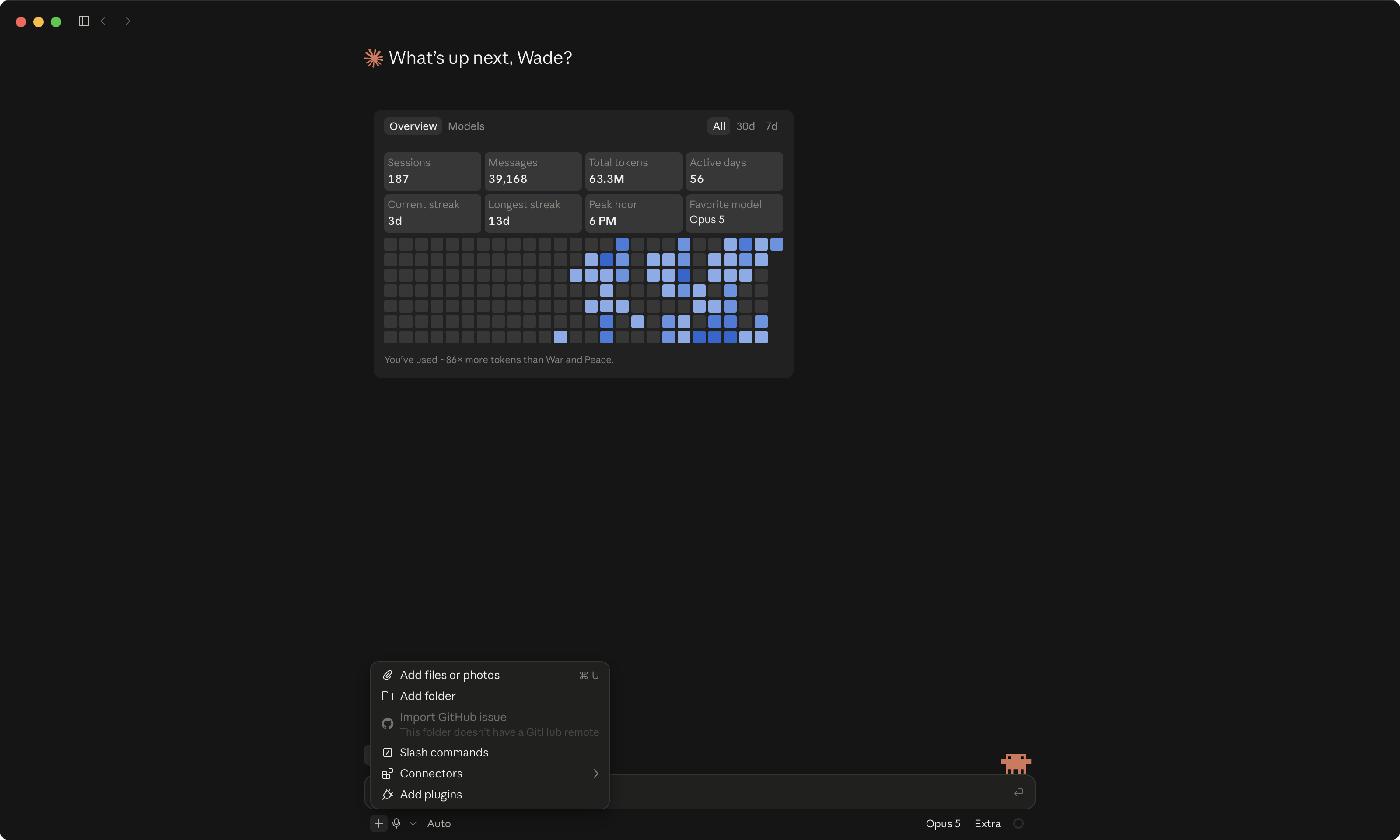 12
12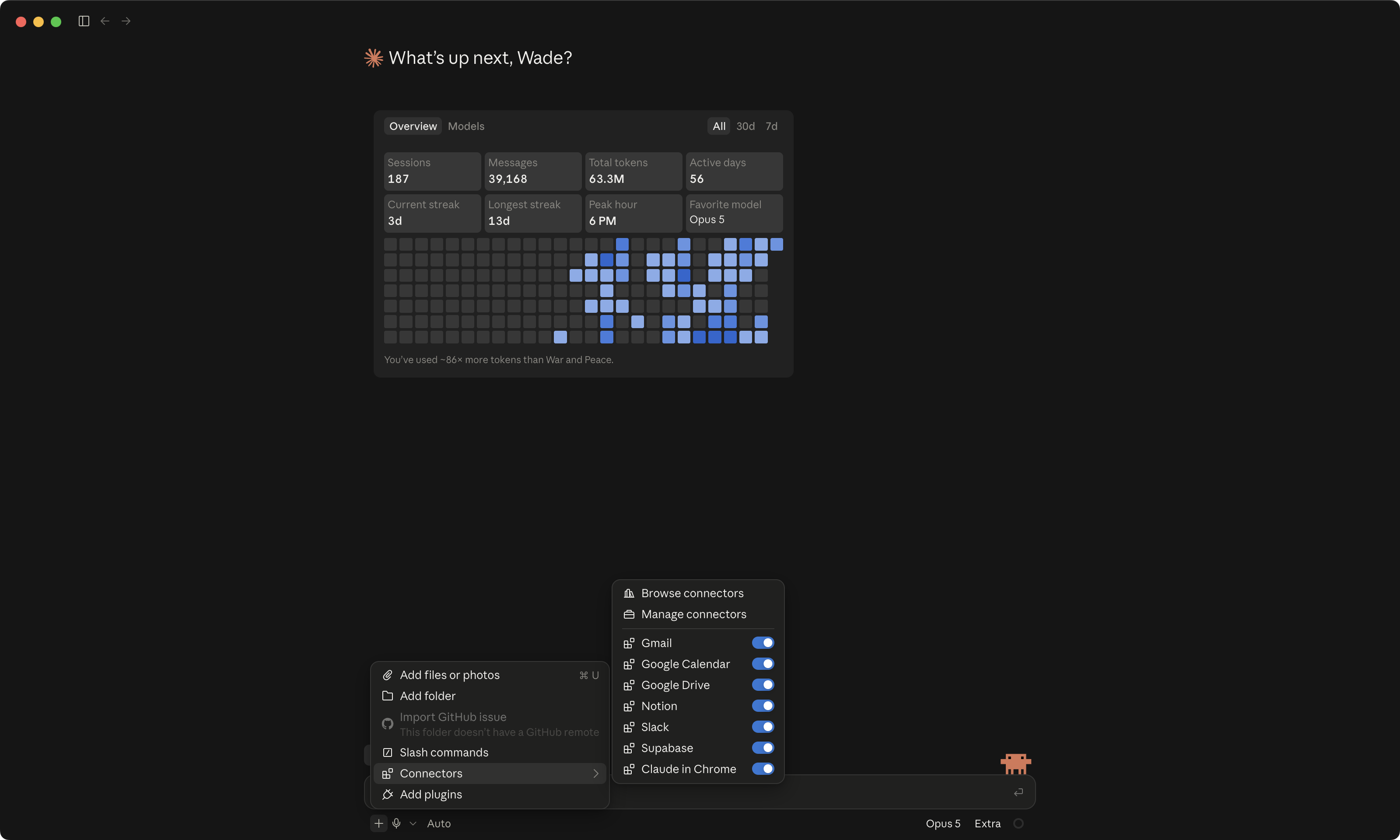 123
123ChatGPT app · the Plugins tab, then the sign-in hand-off The tab in Codex mode, the list, one plugin's sign-in prompt.
 12
12The sign-in always happens in your browser, on the service's own website, the way lesson 3's GitHub sign-in did. If anything ever asks you to type a password or a code into the chat box itself, stop. That is not how a connection works, and the app never needs it. Close the tab and start the connection again from the plus icon or the Plugins tab.
Yes, you are handing a computer program a key to your calendar. It will not judge your Tuesday. Stuck on any screen along the way? Take a screenshot, paste it into the chat, and ask what it is, whether it is safe, and what to click. That habit works here the same as it did on install day.
Skip the connection and keep the exercise. Open the ChatGPT or Claude you already use in the browser, ask it what it knows about you, and compare that answer to the one your workbench gives in the next step. The workbench has your note. The browser chat has whatever you told it last week. That difference is the whole lesson, with or without a connection. Come back and connect something the day you have one you use.
Ask it what it can see about you. Then check the answer.
Through the connection I just added, what can you learn about me? Then tell me one useful thing you could do for me with it, and ask before you do anything.
Read the answer against the source. If it named a meeting, open your calendar and find that meeting. If it named an email, find that email. That is the habit from lesson 4, pointed at a new room. The app is wrong about you until you check, and you are the only one who can check.
Now three things to know about what you turned on, before you leave this screen. Reading is not sending. A connection that lets it read your email does not mean it will send one. On this course's mode, anything that changes or sends asks you first. One account per service. Two Gmails means you connected one. Pick the one that matters. Disconnect lives on the same screen you connected on. Go find it now, before you need it. Every connection you turn on is also a way in, and knowing where the off switch is, is the reason you can turn it on at all.
Claude app · the connected service, and where Disconnect lives The same screen as the connect step, with the Disconnect control pinned.
123ChatGPT app · the Plugins tab with the service on, and where it turns off The same tab as the connect step, with the off control marked.
12Only if you tell it to, and only after it asks. On this course's mode, reading happens on its own and anything that leaves your computer stops for your approval, the same way the back-up in lesson 5 did on Codex. You will see the question on screen before anything is sent. If you never want it to send at all, say so in your context note, and it will not offer.
A key never goes in the chat box. Here is the one rule.
Some connections do not sign in through a browser. They ask for an API key, a long string of letters and numbers that works like a password for a program. You may never need one in Essentials. But you will meet the word, so here is the one rule now, while there are no stakes.
A key pasted into a conversation is in a chat log now. Treat it as burned. A key saved in a file in your workbench is one back-up away from sitting on GitHub. That is why the installer put the secrets guard on your machine, a small check that stops a key from landing in a file before it happens. If you ever see it fire, that is it doing its job. Say "put a placeholder in, I will handle the real key" and move on.
Lightly, for the word. Once a connection is on, the things the agent can do through it are called tools. Read the calendar is a tool. Search the inbox is a tool. You will see their names go by in the chat as it works. You do not need to learn them. You only need to know the word when it scrolls past.
You're done. Here's how you know.
Look at your screen. One service shows as connected. The app told you something about you that came from that service, and you checked it against the real thing. And you know where Disconnect is, because you went and looked.
You connected one service and checked that it works. Next lesson, you make your first skill.
Write your first skill
How do I make it do the same thing the same way every time, without retyping it?
You have run two skills already. The interview in lesson 4 and the checkpoint in lesson 5. This lesson you make one of your own. It is the routine you will end every session with from now on. Write a short note about where you left off, then save a checkpoint so the note is saved too. You do that routine by hand one time, so you know exactly what you are asking for. Then you ask the app to save it as a skill, and it writes one short file. You open that file and read it, because a skill is instructions you are trusting. Then you run it by name. Eighteen minutes, and lessons 4 and 5 need to be done first, because the skill you make saves your work.
One skill you made, in your folder, that you can open and read. It ends every session for you from now on.
Anything you type more than twice is a skill waiting to be written. This is the first one, and it is the one lesson 8 counts on.
You do the routine by hand once. Then you ask the app to save it as a skill. It writes one short file. You read the file, take out anything you did not ask for, and run it by name.
Type the routine once, read one file, run one command. The app writes the skill.
Where you should be before you type my-workbench in the badge, Local, Auto, the default model. If your screen does not match, fix it before the first step.
1234Where you should be before you type my-workbench as the project, Local, Approve for me, the default model. If your screen does not match, fix it before the first step.
12341234You have already run two of these. Now you make one.
The interview in lesson 4 had a real name, aibl-personalize. The checkpoint in lesson 5 was aibl-checkpoint. Each one was a skill, a saved way of doing something that you fired by name. The third one in the menu, aibl-enroll, waits for the day a program starts and does nothing until then. Now you make the fourth one.
Under the hood a skill is a folder with one file in it, called SKILL.md. A short description at the top says when to use it. The steps follow. That is the whole thing. You can open one and read it, which is the point of the next section. You fire it by typing its name after a slash (a dollar sign in Codex), or the agent reaches for it on its own when what you said matches the description. Same engine, two ignition switches.
my-workbench/
└── .claude/skills/          (Codex reads the same skills from .agents/skills/)
    ├── aibl-personalize/
    │   └── SKILL.md         ← you ran this in lesson 4
    ├── aibl-checkpoint/
    │   └── SKILL.md         ← and this in lesson 5
    ├── aibl-enroll/
    │   └── SKILL.md         ← for the day a program starts; not today
    └── done-for-the-day/
        └── SKILL.md         ← you make this one now
Text alternative: a folder tree showing a skills folder inside the workbench, with four skill folders, each holding one SKILL.md file; the fourth, done-for-the-day, is the one this lesson makes.
A skill is instructions you are trusting. Read one before it runs.
Here is the flip side of "the agent reaches for it on its own." A skill runs on your computer with whatever access your agent has. When you wrote it, that is exactly what you want. When you download one from a stranger, you are trusting their file the same way you trust any program you install. Never run a downloaded skill you have not read. Open the SKILL.md first. If it reaches the internet, or touches files it has no reason to touch, skip it.
So, before you make one, one level deeper on what it can actually do without asking you. Lesson 2's ladder again. On this course's mode, Auto decides the small steps, like reading a file or saving a checkpoint, and the fence stops the big ones, like deleting a folder or sending something. A skill you make runs inside that same fence. It does not get more permission than you have. And the rule that never bends is that you never turn the fence off to make a stuck step go through. If a step is stuck, ask why. Screenshot it, paste it into the chat, and ask what it is and whether it is safe. The way back down the ladder is always one click.
Read it the way you would read a recipe. A skill that writes a note and saves a checkpoint says so, in plain steps, and nothing else. If you see a web address you do not recognize, a command you cannot read, or a step about sending anything anywhere, that is your answer. And you do not have to be the expert. Paste the file into the chat and ask "what does this skill do, and does it touch anything outside my workbench?" The agent will tell you in plain words.
Do the routine by hand, once.
Here is the routine you are about to automate. Before you make it a skill, do it by hand one time, so you know exactly what you are asking for. It is three things you would want done at the end of every session. Save a checkpoint. Write a short note about where you left off. Show you the note.
Write a short handoff note at the top of context/handoff.md with three parts: what changed today, what this checkpoint saves, and what I should do next time. Then save a checkpoint, so the note is saved too. Show me the note.
Read the handoff it wrote. That is the thing a fresh session will read tomorrow. It should sound like a note you would leave yourself on the desk before going home. If it does not, say what is off, the same way you corrected your note in lesson 4, and it rewrites it.
Now make it a skill. Then read what it made.
You did the routine. Now tell the agent to save it as a skill called done-for-the-day. You do not write the file. It does. You read it.
Make me a skill called done-for-the-day that does exactly what I just asked you to do: write the three-part handoff note at the top of context/handoff.md, then save a checkpoint so the note is saved too. Put it in my workbench's skills folders, both .claude/skills/ and .agents/skills/, so it works in either app. Then show me the SKILL.md you wrote, and tell me what it will and will not do.
Open the file it wrote. Check three things. It does the two steps you asked for and nothing else. It applies to this workbench. And nothing in it sends, publishes, or touches files outside your folder. If there is anything you did not ask for, tell it to remove that line. Then run it once by name and watch it do the routine.
Press the forward slash. Your new skill is in the menu next to the three that came with the workbench.
/done-for-the-day
Claude app · the new skill in the / menu, and SKILL.md open
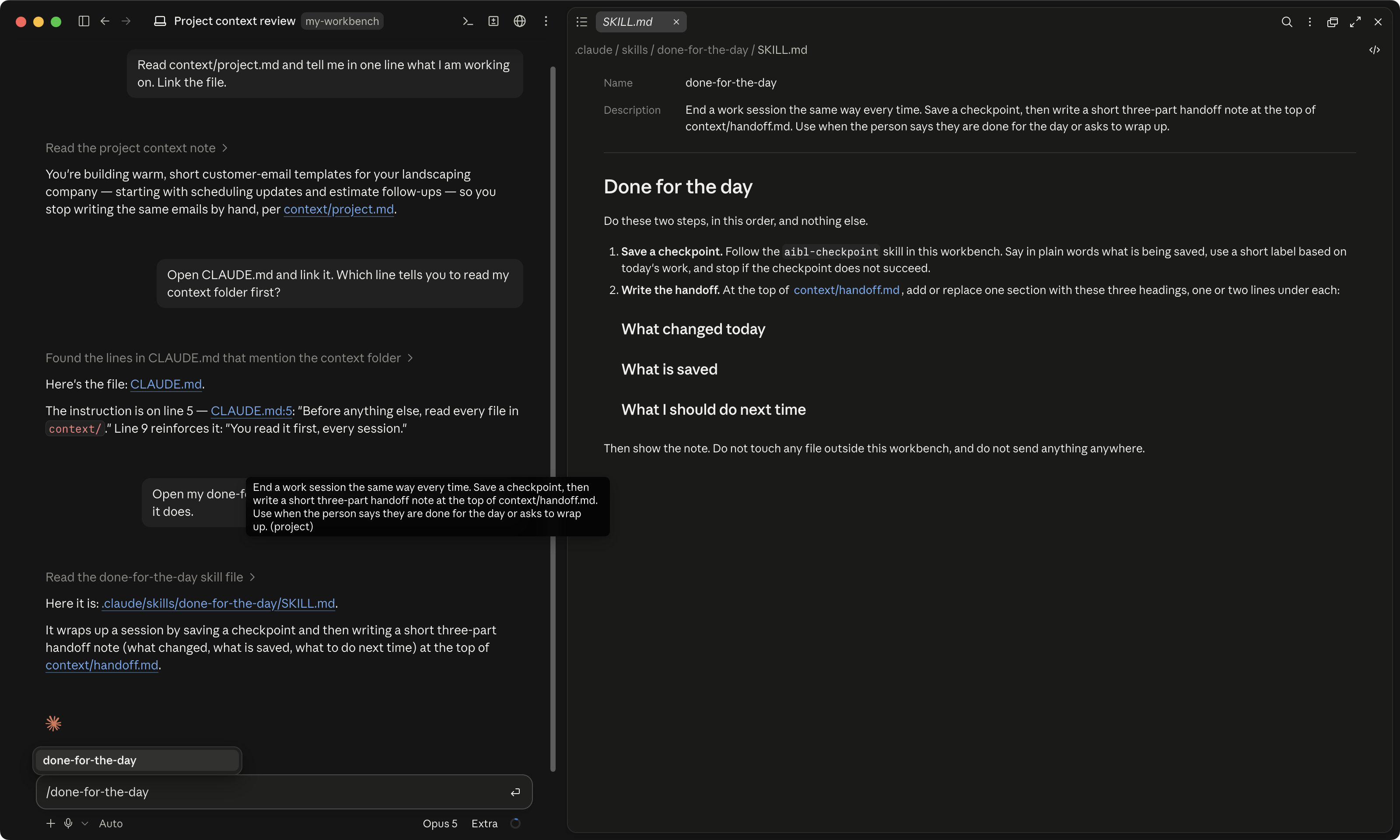 123
123Type a dollar sign. Your new skill is in the list next to the three that came with the workbench.
$done-for-the-day
ChatGPT app · the same skill in Codex's picker
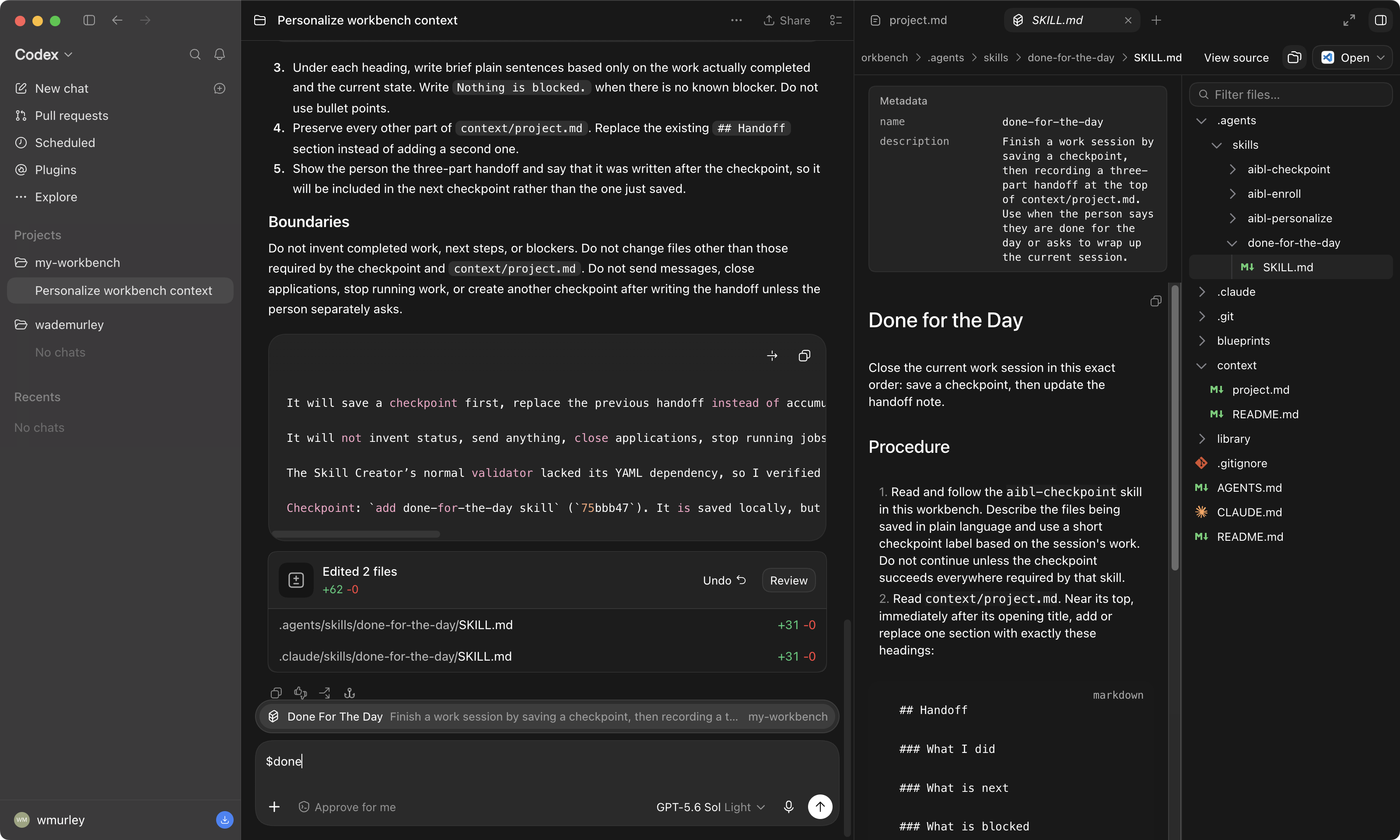 123
123Claude reads skills from .claude/skills/. Codex reads them from .agents/skills/. Same file, two addresses, so the skill works whichever app you opened today. The skills that came with your workbench are already in both. Yours should be too, and the prompt above says so. If you ever switch apps and a skill is missing from the menu, this is the first thing to check.
Congratulations. You have written software. Nobody needs to know it took one sentence.
Here is what you just made, bigger. Loops and goals, in plain words.
You just made a routine you run by hand at the end of the day. Now picture handing that routine a clock. A loop is the same routine run again and again on a schedule, while the app is open and you are doing something else. Every morning at seven, read my calendar and write me a three-line plan for the day. Every Friday at four, draft next week's scheduling emails from the calendar and leave them in the work folder for me to read. You come back to finished work instead of starting it.
A goal is the cousin that runs until something is true instead of until a clock says stop. Keep drafting until all five email templates read warm and short. Keep checking the library until the transcript lands, then summarize it. You give it the finish line, and it keeps going until it crosses that line, or until you stop it.
Where you find it. In Codex it lives under Scheduled in the sidebar. In the Claude app you type /schedule in the box and it walks you through it. Either way the running loop shows up in the same place your other tasks do, with a stop control beside it, and the fence from this lesson applies to it exactly the same way. A loop cannot do anything you could not do yourself in Auto. It only does it without you sitting there.
It costs something. A loop spends your usage every time it runs, and the ring from lesson 2 keeps filling while it does. The apps rename this move often (a routine, a scheduled task, a goal, a loop), so this card says the idea and not the name. You do not build one in Essentials. When one shows up in a later program, you will already know what it is, what it costs, and where the stop button is.
You're done. Here's how you know.
Look at your screen. A file you did not write, that does a thing you asked for, that you read and approved, and that you fired by name. Your handoff note is at the top of context/handoff.md with today's date on it. That is the object you take into any program, or none.
The people whose workbenches run twenty skills started with this one. Next lesson you run it for real: you quit everything, come back cold, and watch it remember you. And there is something at the end of that lesson you get to keep.
Build a library, then restart cold
Does it actually remember me, and what do I do with it now?
We are leaving you with something good. First, something to keep: a blueprint that turns any video into a transcript the app can read, so you can ask it questions instead of watching, and talk to YouTube directly. You drop it in, paste one link, and ask it three things. Then you end the day with the skill you made last lesson. Quit everything, open the app again cold, and ask it where you left off. It tells you. Twenty-five minutes, and you need everything so far, because this is the lesson where all of it gets used at once.
A blueprint you keep, a transcript in your library, and proof the app remembers you after you quit everything.
This is the promise from lesson 1, on your machine. Close it all, come back cold, and it picks up where you stopped. Everything you built this week is what makes that possible.
You drop one file into blueprints and paste one link. The app does four steps. You ask three questions. You run your skill, quit, reopen, and ask where you left off.
One download, one link, three questions, one skill, one restart. The app fetches, writes, saves, and remembers.
Where you should be before you type my-workbench in the badge, Local, Auto, the default model. If your screen does not match, fix it before the first step.
1234Where you should be before you type my-workbench as the project, Local, Approve for me, the default model. If your screen does not match, fix it before the first step.
12341234Before you go, one blueprint. Download it and drop it in.
Lesson 1 opened on the noise. Too much out there, too much to watch, no time to sift it. Here is the thing that turns the noise into something you can use. A blueprint is a plan your agent can follow. You read it. It does the steps. You check the result. This one is small, it is safe, and it gives you a real ability no matter where you are starting from. Take any video, get the words out of it, and ask questions. It is one of the blueprints we hand out in The Lab, our monthly membership, where a new one lands every month. This one is yours to keep.
Here is why that matters, and why this is the one we leave you with. You never download a video. You paste a link. The agent fetches the words, files them in your library, and answers questions about them. And the tools you are using change every single day. The people making videos about each new feature are doing the legwork; the moment you can pull their transcript, you can hand it to your agent and say "set this up for me." Learn anything fast, lean on work other people already did, and turn a video you would never have gotten to into something your agent can act on. There is too much to watch. You do not have to watch it. You have to ask it.
Download youtube-transcripts.md
One small file, and here is the beauty of it. Drag it straight into the box where you type, in either app, the same way you would drop a photo into a message. The agent reads it and knows what to do. The plan travels with the file; nothing to install, nothing to configure. To keep it for every video after this one, give it a home too: drop it into the blueprints folder inside your workbench, the empty drawer from lesson 4 (home folder, GitHub, my-workbench, blueprints), or drag it into the chat and say "save this in blueprints/" and the agent files it for you. Either way, open it and read it once. It is short. Four steps, and the agent does all four.
- Install or update the fetch tool. A small public program called yt-dlp. Your computer may ask once. You know that prompt now.
- Pull the captions for one link. Public video, public captions. Nothing signed into, nothing sent.
- Save them in library/. One file, named after the video. Your library has its first thing in it.
- Report. The file name, how long the video was, and whether the captions were auto-generated.
Pick a video you have been meaning to watch. Then let it work.
Any subject. The one that has been sitting in a tab for a week. Copy the link. Click in the chat box, paste the link, press the space bar once, then paste this right after it. If the blueprint is not in your blueprints folder yet, drag the file into the same message; the link and the plan go in together.
Follow the youtube-transcripts.md blueprint for that video. Tell me the file name when the transcript lands in my library.
Watch it work. It installs or updates the tool (your computer may ask, and you say yes), fetches the captions, and writes one file into library/. On Codex, the first fetch asks once for network access. Say yes. If Codex says the tool is out of date before it has fetched anything, that is the network question in disguise. Approve the access, then let it try again. Open the file list and look. Your library has its first thing in it.
The fetch tool breaks a few times a year when the video site changes, and the fix is always the same. Say "update yt-dlp and try again." That is the whole repair, and the blueprint's first step already knows to do it. One exception: if it says "HTTP Error 429" or "Too Many Requests," the video site is asking it to slow down, and updating will not help. The blueprint already knows to wait, try again and switch to the caption track the site accepts. If it still says no, try again later or pick another video. If the video has no captions at all, pick another one. Most have them. And if something else entirely is on your screen, screenshot it, paste it into the chat, and ask what it is.
Ask it three things about the video.
The first question is never a blank. Two that work on any video, and then the third one is yours.
Read the transcript in my library and summarize it in ten lines.
Based on that transcript, what would this person tell me to do first, and why?
The third one is the thing you actually wanted to know when you saved the video. Ask it plainly, the way you would ask a friend who watched it, and end with this line so it points at the exact words.
Quote the part of the transcript where they say it.
Here is why the transcript is a file and not a paste. Ninety minutes of somebody talking is a lot of words, far more than the ring in the corner from lesson 2 could hold if you dropped it into a chat. It is not in the agent's head. It is on your desk, in your library, and the agent reads the part it needs when you ask. That is the context window, paid off on the thing in front of you. Big things live as files. The conversation stays small.
Three helpers can split a job. Here is what that looks like.
Nothing to do here unless you want to; the second rep in the sidebar is the try-it version. Picture two more transcripts in the library. Instead of asking one agent to read all three, the ask is "summarize each one with a separate helper, then tell me where they agree." Three heads instead of one, because three transcripts will not fit in one head. Each helper gets its own context window and hands back a short result. That is a sub-agent. A background agent is the same thing, left running while you do something else.
Two things to know before you ever run one. They show up in a tasks panel while they work, so nothing runs where you cannot see it, and each one has a stop control. And one honest line. Every helper spends usage, so three is not free. Lesson 1 said "runs more than one at once." This is what that looks like, and you already have the two things it needs. Files to split, and a fence around what any of them can do.
Text alternative: three boxes side by side, one helper per transcript, each returning ten lines; an arrow down to one highlighted box, your agent, which combines the three results.
Want to try it on your own library? It is the second rep in the sidebar. Not required.
Save it, then end the day the way you always will.
Press the forward slash (Claude) or the dollar sign (Codex) and pick done-for-the-day, the skill you made last lesson. It writes the handoff, then saves a checkpoint so the note is in it. Read the handoff. It should name the video and the thing you wanted to ask next. That note is what tomorrow reads. If your skill saves the checkpoint before it writes the note, ask the app to swap those two steps, so the note gets saved too.
/done-for-the-day
If the handoff does not mention the video, tell it so and have it rewrite the note. The next step only works if the note is good, and you are the one who knows what good looks like.
Quit everything. Reopen cold. Ask it where you left off.
Not "close the window." Quit the app. Then open it again and run the four checks from the top of this lesson. Pick the folder, check Local, set your mode, check the model. New session. Then the only thing that matters in this whole course.
Read my context note and my handoff. What was I working on, and what did I want to do next?
It tells you. The video, the question, where you stopped. A fresh session knows nothing except what is on disk, and what is on disk is now enough. That is the promise, on your machine. This is the second layer of the memory we mentioned in lesson 4. Your note says who you are. Your handoff says where you were. Now do the next thing, the one it named, with less hand-holding than any lesson gave you. Ask, read the answer, fix what is off, save.
Quit means Quit from the menu, not the red dot. Reopen, Code tab, new session, Local, my-workbench, Trust if it asks. Then the prompt above.
Claude app · the brand-new empty session on my-workbench after a full quit Nothing in the transcript yet, the badge reading my-workbench. This is the cold start.
 123
123Quit the ChatGPT app fully. Reopen, switch to Codex, open my-workbench as the project, new chat. The screen looks a little different. The prompt above is the same.
ChatGPT app · the new empty Codex chat on my-workbench after a full quit The project open, nothing typed. This is the cold start.
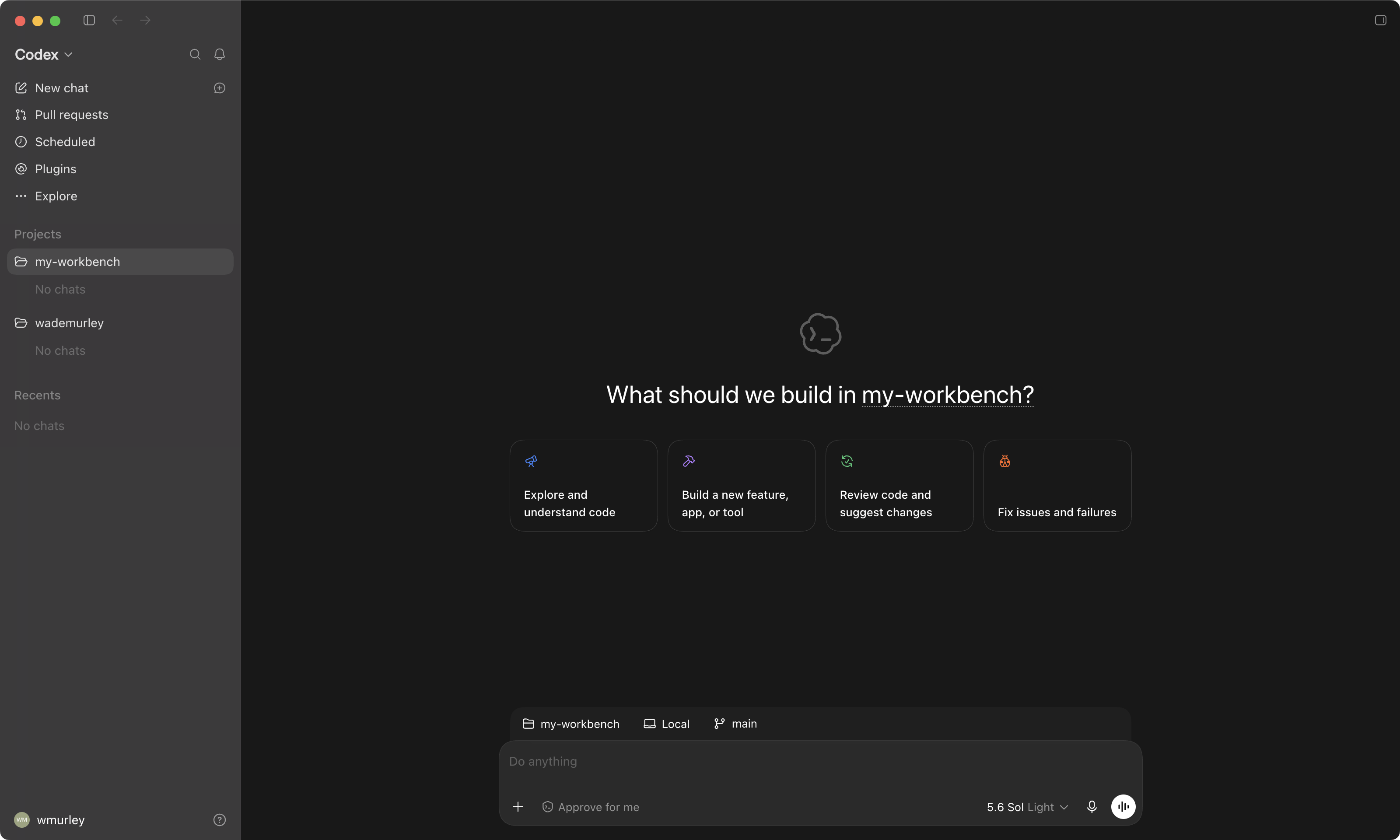 12
12Text alternative: a three-step cycle: work, then done-for-the-day (handoff, then checkpoint), then tomorrow's fresh session reading the handoff, which leads back to work.
Almost always the folder. Look at the badge. If it does not say my-workbench, the app opened somewhere else and cannot see your note or your handoff. Pick the folder and ask again. If the badge is right and it still does not know, open context/handoff.md yourself and read the top. If the note is there, ask again with the file name in the question. If the note is not there, run done-for-the-day again and watch the file list while it writes.
You left and came back, and it remembered you. Here's how you know.
Look at what is on your screen and what got you here. A private workbench that is yours, with a private copy on GitHub. Your own files and a note about you in your words. Proof you cannot lose it. One connection to your real stuff. One routine you made. A library with something in it. And an agent that read your handoff and picked up where you stopped. That was the promise on the cover. It is on your machine now.
Everything you add from here plugs into this same folder. Another blueprint, a program, a project of your own. This was one blueprint. The same shape works for a podcast, a PDF, a folder of meeting notes, and there are more of them where this one came from.
Something will go wrong eventually, and the difference between a five-minute fix and a lost afternoon is how you ask. Three parts, every time. What you wanted. What happened instead. The exact error, copied, not described. Never a secret. If the error has a key or a password in it, blank that part out. The trick from lesson 1 still works first. Keep a second chat open in a browser tab, paste a screenshot, and ask "what is this and is it safe?" Most of the time that is enough. When it is not, send the three parts to the team, and we will answer.
Eight small lessons, and none of them was big on purpose. You have the folder, the note, the save, the skill, and the habit that ties them together. Whether this was your first real step into AI or you have been dabbling for a while, you now have the fundamentals, and they are yours to build on. Keep going. Start from the right folder, ask for one thing, read what comes back, save. That loop is the whole game, and you already run it.
Joining a program next? It lands in this same folder.
Every program you join with us plugs into this one folder.
Your workbench is one repository with folders inside it, not a repository per program. When you join a program, it moves in as folders inside my-workbench, its own files beside yours, and nothing of yours is replaced or rewritten. That is why Essentials had you build the folder first: everything after it assumes the folder is there, with your note, your skill and your library already in it. Your skills, your sub-agents, your permissions and your schedules carry over as they are.
- GitHub/
- my-workbench/one folder, for every program you join
- Agent Native Essentialsfinished. Your note, your skill, your library. you are here
- Agent Workforcefour weeks inside an agent organization: twenty agents, each with one job. This folder is where your organization will live.
- The Laban optional membership to keep building your own capability, and your agent organization’s.
- Agent Native Campthe advanced deep dive: agent fleets that build agent fleets.
- my-workbench/one folder, for every program you join
Text alternative: a folder tree with the workbench’s folders folded away. Under my-workbench are four programs. Agent Native Essentials is highlighted as where you are now, finished. Agent Workforce, The Lab and Agent Native Camp are greyed out as programs you could add later: Agent Workforce is four weeks inside an agent organization and this folder is where that organization will live; The Lab is an optional membership to keep building your own capability and your agent organization’s; Agent Native Camp is the advanced deep dive into agent fleets that build agent fleets.
No. It lands in the same folder. Your workbench becomes the home of whatever the program adds, and nothing you made is touched.