Set up Langfuse
How will I know what my organization did?
- Source
- Current Internal package, pages/anw-l13b.html (Internal b518c35b; src/hunter-week2/SOURCE.md). Original handoff: Internal PR #125.
- Copy
- Exact Internal source package, vendored without editing its lesson or prompt bytes.
- Prompts
- Prompts are rendered from the current vendored Internal package named in Source. Historical publication: student 50ab8c5c from Internal 0e2885b5; that receipt does not qualify later Outlook changes.
- Checked in the app
- Historical baseline QA: bounded integrated checks passed for fresh preparation, upgrade, supported-model native routing and tracing. This receipt does not qualify later Outlook changes. Ordinary-student and Windows qualification remain unverified.
- Open to students
- Yes.
- Other view
- one part at a time (Wade chose one part at a time; one scroll is kept to compare)
About this module
Your agents already know how to write, research and check. They don't know your work yet.
This module gives them a small, permitted selection from the process you chose in Module 1. You will set up the record first, collect your selection, review what Sallee proposes to keep, and see the organized evidence ready for Cipher.
Keep the same process throughout. You are preparing evidence for Cipher to map in Module 3.
Before your organization starts processing your source material, you switch on the record.
Langfuse is a tool that keeps a log of the work your agents do, in your own account. Each time you send a request in your prepared workbench, Langfuse saves one entry for it, called a trace. A trace shows:
- what you asked;
- each step the agents took to answer, such as a file they opened or a search they ran, and what that step gave back;
- the answer you got, and which model wrote it.
Langfuse can do a lot more with that record. It can show how long each step took and how many tokens a job used, work out what that cost on each model, and hold scores and dashboards so you can compare runs over time. In Week 4, Evy reads a job's records and writes its grades back to your project as scores, after you allow it. You don't need to set that up this week, but it's worth a look around your account once traces start arriving.
Because a step can include what an agent read, a trace can hold pieces of the emails or documents it worked with. That's why you approve what gets recorded before anything is switched on. Anything that looks like a password or key is blanked out before it's saved, but that's a safety net, not a reason to paste secrets into your work.
Email addresses and phone numbers are recorded as written, unless you choose otherwise. If your agents will read other people's mail or contact lists, you can ask Gigawatt to mask them in your traces. Each one is then saved as a placeholder such as [EMAIL-1], so a trace still shows when two messages went to the same person, without the address itself. Masking doesn't catch names or street addresses, and your AI provider still sees what your agents read; it keeps contact details out of the copy in Langfuse. You can turn it on now or any time later, and a course update keeps your choice.
Why we use it: an agent's reply tells you what it says it did. The trace shows what it actually did. When a job goes wrong, you can see which step went off, where it stopped and what it was looking at. When a job goes well, you can see how it got there. That's the start of governance: knowing what your agents did instead of guessing.
- For your own business: you find where your agents slip and fix the right thing, instead of going on a feeling.
- For a client: you can show them what their agents did and prove the work holds up, with records rather than promises.
Today you connect your own account and check that a harmless test trace arrives.
Your own project with a test trace that has been sent and read back.
It only records from the moment it's connected and working. In Week 4 you'll run evaluations, called evals: a repeatable way to check how well your agents do their jobs, so you can improve them with evidence. Evals need real records to work from. Connecting Langfuse now means every job you run in Weeks 2 and 3 gets recorded, so by Week 4 you'll have your own data to check and improve your system with. So you connect it before your first filing, and check an actual trace before relying on it.
You create your account, sign in, and create the Langfuse project yourself, with Gigawatt telling you what to click. You paste your keys privately into a blank file in your workbench, which Gigawatt creates with your yes. Then Gigawatt sets up tracing and shows you the verified result.
You own the account and the keys. You decide whether what gets recorded is acceptable, and you give the one yes that starts setup.
Who does what during setup.PASS requires the read-back, not just saved settings.
On a small screen, swipe sideways to see the whole diagram.
Before you start
Use your prepared workbench. Have an email address you can use for your Langfuse account. If your work belongs to an employer or client, check that the proposed recording is permitted before connecting it.
Gigawatt guides you through this lesson one step at a time and handles the technical setup. If you get stuck on what a step means, you can ask The Professor.
The first setup downloads Langfuse’s Python package into a folder in your home folder (.claude/observability), so you need an internet connection.
If setup can’t be finished: you can still carry on with the week. Have The Professor note “no recording set up” in your course progress note, tell your course support, and go on to Lesson 2. Nothing later this week depends on the recording, and later lessons point back to this lesson if you want to try again.
Claude Code or Codex: follow all five parts in the app you use. The steps are the same in both. Codex adds one small step at the end: when you open Codex again after setup, it asks you to trust the new recorder once, and you say yes. Setup covers the app you run it in. If you use both apps in this workbench, ask Gigawatt to run setup once in each.
If you use Windows: tracing hasn’t been tested on Windows yet, and setup may stop with an error there. You can still create your Langfuse account and project in Part 2. If setup stops, don’t keep retrying it; take the route above, note “no recording set up”, and carry on with the week.
Start or resume this lesson
Use the native aibl-gigawatt agent to start Week 2 Module 2 Lesson 1. Read course/workforce/week2/prompts/anw-l13b.txt and course/workforce/week2/lessons/anw-l13b.md. Explain what will be recorded and answer my questions. Ask for my yes only once, right before setup. Never ask for a key in chat, and never open my .env file. If the named agent is unavailable, pause and ask Gigawatt to check the installation.
Understand what will be recorded
Langfuse is a tool for you to inspect the work. Connecting it does not give your organization new facts about your process. Cairns holds reviewed knowledge; Langfuse records activity. Gigawatt reads back a test to check that recording works, but that doesn't file anything into Cairns. Langfuse doesn't record every app you use, or anything from before setup.
Cairns holds reviewed knowledge in your workbench.Langfuse records activity in your own account, and Evy adds grades there in Week 4.
On a small screen, swipe sideways to see the whole diagram.
Before setup, ask Gigawatt to explain what the prepared recording will send, where it will go, and how to stop recording. The explanation should cover your requests, the agents' responses, and any source or tool content the record includes. Langfuse's recording guide lists what a Claude Code recording can capture.
Here is a fictional example. If an agent reads a client-kickoff message while preparing a source card, the recording may contain that message's content as well as the agent's answer. Permission to work with the message must cover that use too.
Do this now: explain your decision
In your own words, say what material you are comfortable recording and what must stay out. Ask about any part you can’t explain yet. You don’t say yes here. Gigawatt asks for your yes once, in Part 3, right before it sets anything up.
Sign in and create the project with Gigawatt guiding you
Ask your session to open Langfuse in the in-app browser where supported, or open it in your ordinary browser. Create your own account, or sign in if you already have one. You handle the login yourself. Your record is yours, not pooled with anybody else's.
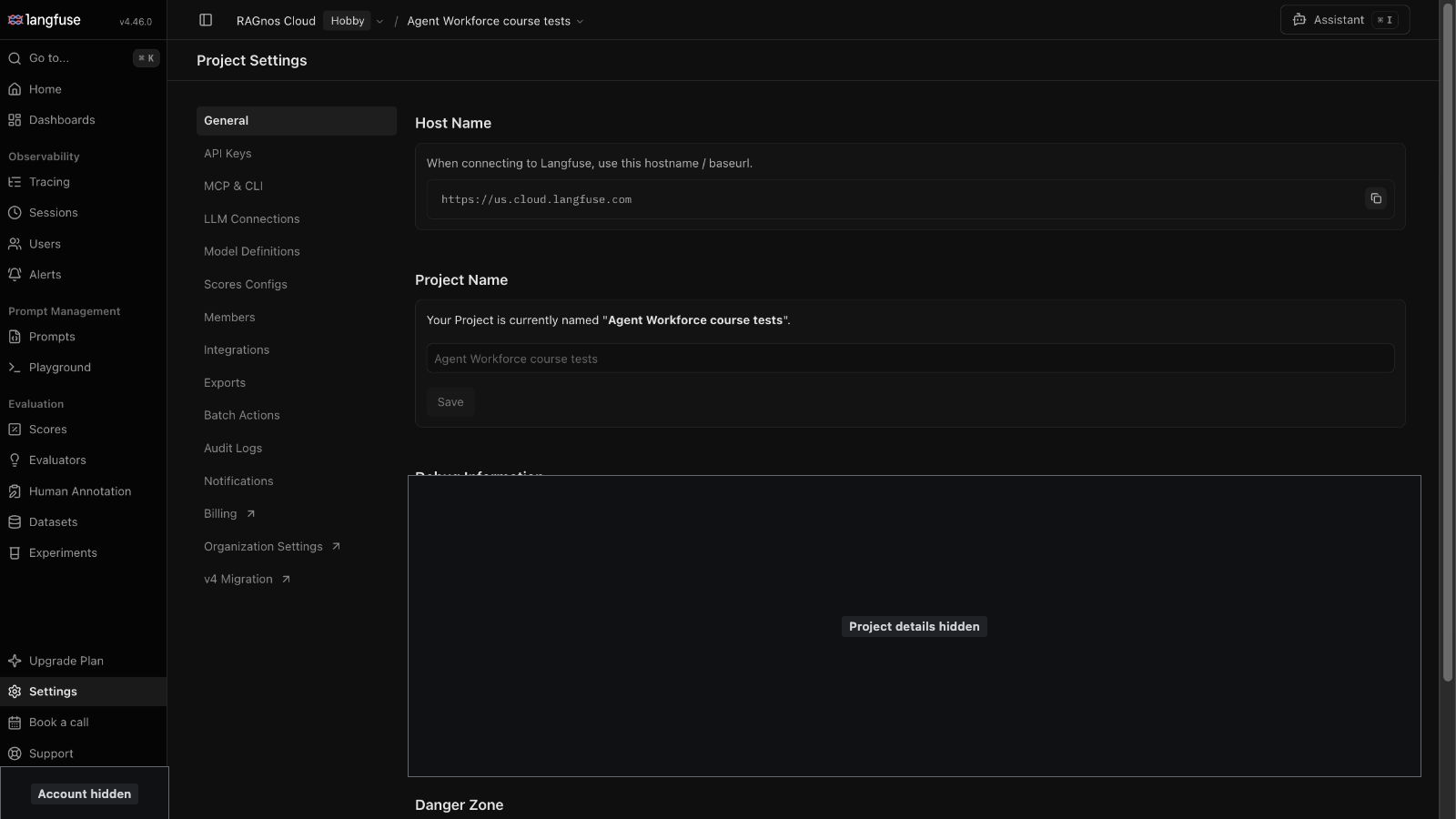
In Langfuse, “organization” just means your account’s top-level group, not your team of agents. You create the organization and a project yourself, and Gigawatt guides you click by click. It can’t see or control your browser, so it asks what’s on your screen, and it helps you check whether you already have a course project before you make a new one. Tell Gigawatt which region fits your work’s requirements, and pick a project name you’ll recognize. The region sets your project’s web address, which comes along with your key in the next step, so you won’t have to type it.
Project settings in the course test project.The host name is the service address for your region. It matches the LANGFUSE_BASE_URL line that comes with your new key.
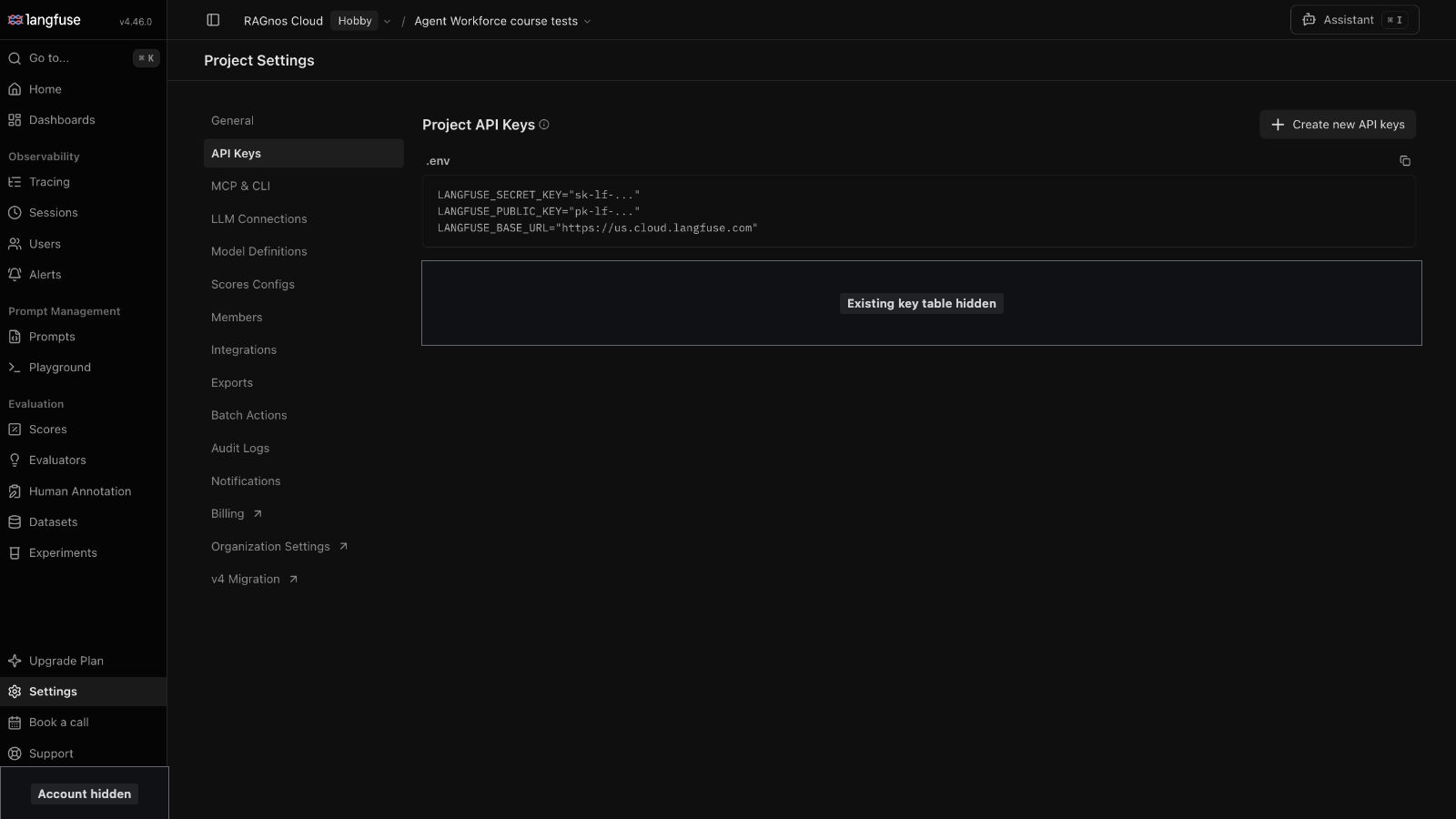
The project must exist before its keys can be created. Gigawatt tells you where the API-key settings are. You create and copy the keys yourself, and no agent is working in your browser while the secret values are on screen. An API key is a credential that lets the prepared workbench connect to that project. Langfuse provides a public key and a secret key. Use these Langfuse project keys, not a key from your AI model provider. Langfuse's credentials guidance shows where these belong.
The API Keys page.Its .env block shows placeholders only; copying it does not give you working keys.
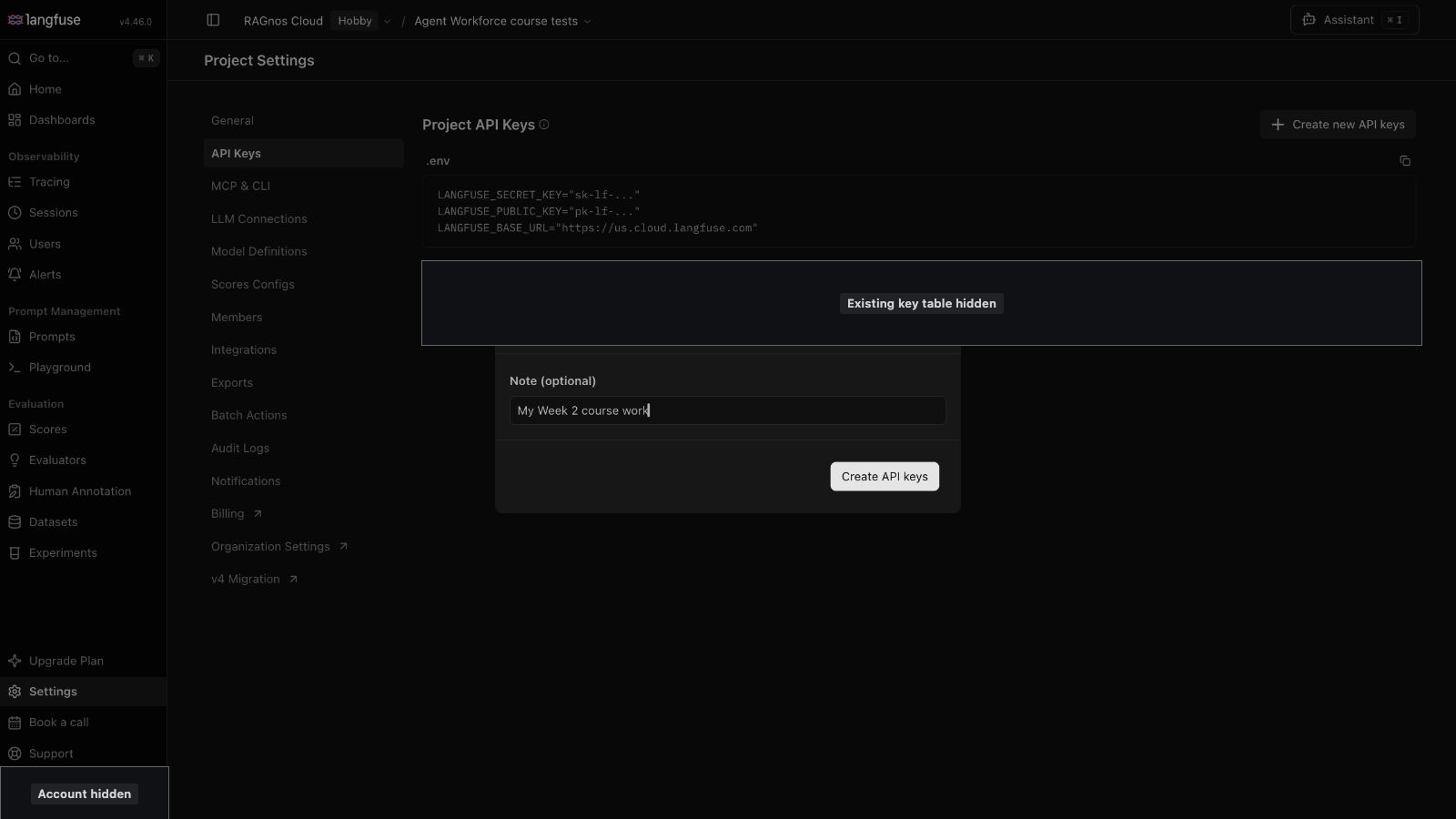
Creating a key pair.The new values appear once. You copy the three lines into the .env file in your workbench while browser control is paused.
These keys go in a file called .env, in the top folder of your workbench. A new workbench doesn’t have this file yet. Gigawatt checks for it and, with your yes, creates a blank one that holds only a few comment lines explaining what it’s for. There are no keys in it yet.
Why a file, and not the chat? Anything you type into a chat can be saved, shown again or shared. This file stays on your computer. Your workbench tells Git to ignore it, so it’s never saved into your workbench’s history or sent anywhere with your other files. Tracing reads the keys straight from this file, so no agent ever needs to see them.
Before you copy any key, Gigawatt checks that the file is there and that Git ignores it. It checks this from the outside, without opening the file. Gigawatt never reads or edits what’s in your .env, and it never changes one that’s already there.
Do this now: place the keys privately
Ask Gigawatt to open .env in a text editor for you. It starts the editor, TextEdit on a Mac or Notepad on Windows, and never reads what’s inside. Gigawatt also gives you the file’s full path, so you can open it in any text editor you like. If you look for it in Finder, you won’t see it at first, because names that start with a dot are hidden. Press Cmd+Shift+. in the Finder window to show them.
When you create your key in Langfuse, it shows you three lines that start with LANGFUSE_SECRET_KEY, LANGFUSE_PUBLIC_KEY and LANGFUSE_BASE_URL. The last one is your region’s service address, such as https://us.cloud.langfuse.com. Copy all three lines exactly as Langfuse shows them, paste them into .env below the comment lines, and save the file. The block on the API Keys page shows placeholders like sk-lf-..., so make sure you copy the lines that came with your new key. Then tell Gigawatt you’ve saved it, without sharing what’s in it.
Keys never go into chat, screenshots, or lesson notes. Gigawatt only tells you whether the keys are in place, never what they are. If a line is missing, or the file still has example values, setup stops and tells you in plain words what to fix. Once the keys are in place, Gigawatt asks Langfuse which project they belong to and shows you only that project’s name. Check that it’s the project you just made for this course before you say yes to tracing, because a key copied from somewhere else can belong to a different project.
Langfuse shows your secret key only once. If you want a spare copy, keep it in your password manager, not in a note or a document. If you lose it, you can always make a new key in Langfuse and paste the new lines into .env.
Let Gigawatt set up and test the connection
Gigawatt shows what it will switch on in this workbench and what will be recorded. This is the one yes that starts setup, so read it and ask about anything unclear first. Once you say yes, Gigawatt does the setup and the test for you. When both are done, the setup asks you to restart your agent app, Claude Code or Codex. Do that after you’ve looked at the test trace in Part 4, so recording is switched on for your next session. When Codex opens again, it asks whether to trust the new recorder (a “hook”). Say yes once; until you do, Codex doesn’t run it and nothing is recorded.
The test is a synthetic test trace, which means it’s made up and harmless, with no work or client information in it. It asks the recorder to hide a made-up value that looks like a secret key, so the trace should show that value shortened with stars, like sk-p*** followed by its last four characters. That shows you two things at once: recording works, and anything that looks like a key is hidden before it is saved.
Gigawatt sets up recording using the keys in your .env file, without ever showing them. One part of that setup lives outside your workbench: a small recorder is added to your own Claude Code or Codex settings on this computer, after a backup copy of those settings is saved. The recorder only records sessions in this workbench and stays idle everywhere else. It can record one workbench at a time, and you can ask Gigawatt to turn it off whenever you like. Gigawatt uses the course’s setup tools, not browser clicks, to switch on recording, send the test, and then ask Langfuse for the test trace back. You don’t change any settings in Langfuse yourself. Read the result. It ends with the word PASS when the test trace was found in your project and read back.
“Keys found,” “configuration saved,” and “test sent” are good signs along the way, but none of them means recording works. Only the read-back does.
Do this now: check the evidence
Compare the test you ran with the trace Gigawatt read back. Gigawatt shows you three lines from the result: the test request it sent, and the request and response it read back from Langfuse. The read-back lines should match the test request. That match is how you know the trace in your project came from this test and not from something older. Is it the right project and the right test? If no trace was read back, keep setup marked incomplete.
Open the record once
Gigawatt gives the verified test-trace link back to your session, which opens it in the in-app browser where supported. If Langfuse asks you to sign in again, do that yourself, then let Gigawatt continue. If the in-app browser is unavailable, use your ordinary browser. Check the project and look for the request and response you recognize.
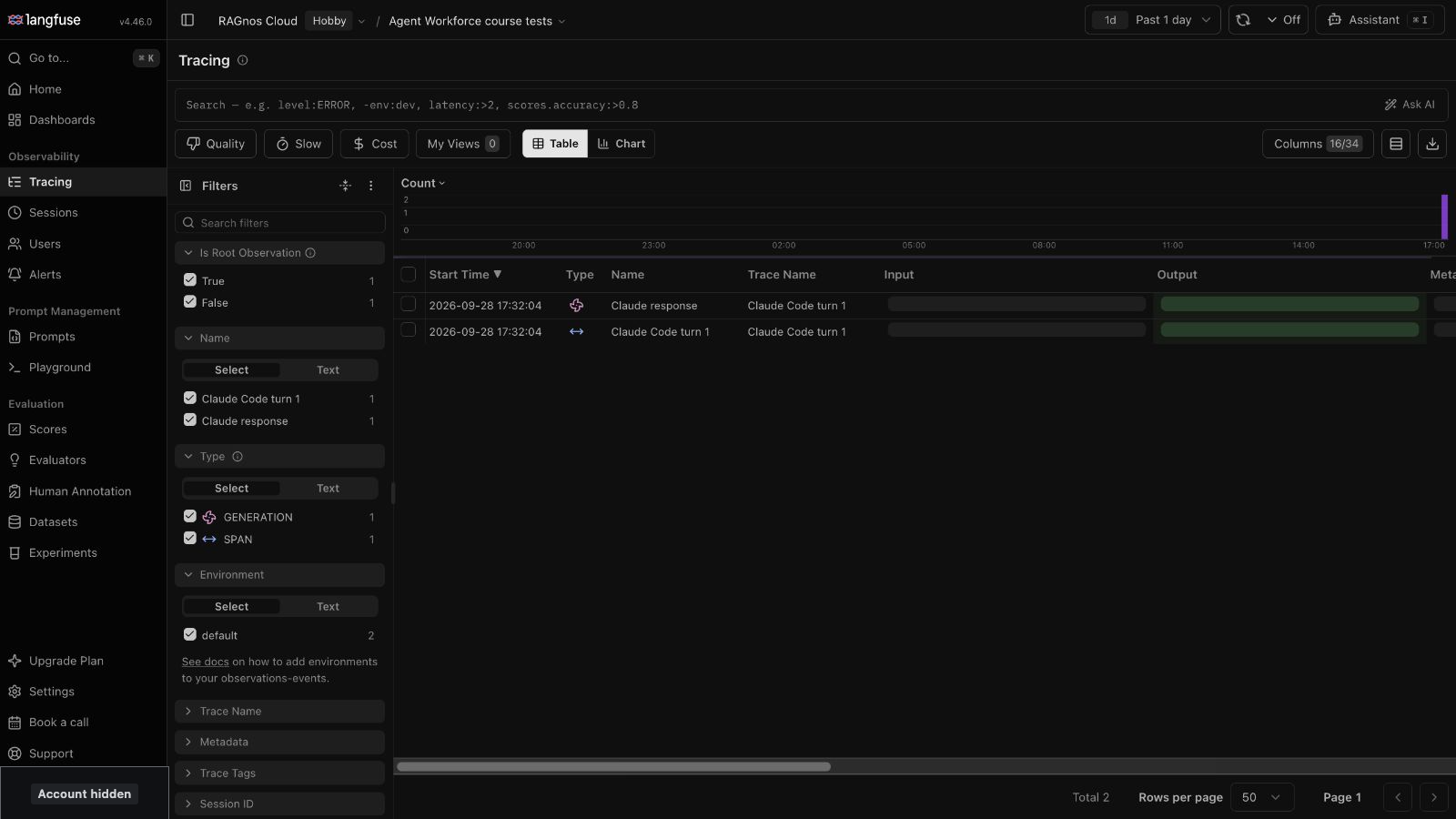
The Tracing list after a test.Each job you run appears here as a trace.
A verified synthetic test trace from the course’s own test project.The User line is the request and the Assistant line is the response. Your own test uses different words: look for the made-up key-like value shown shortened with stars.
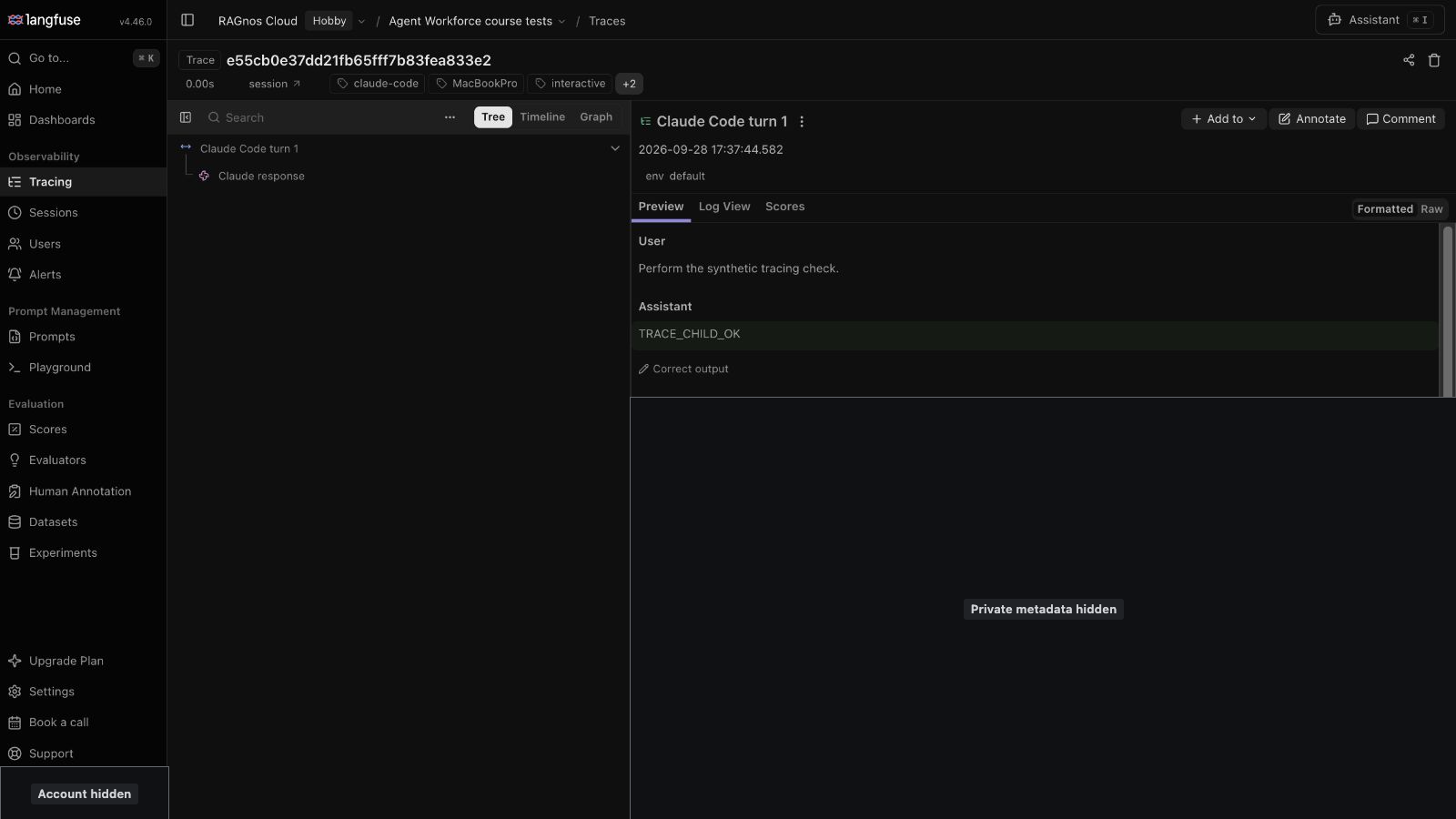
The pictures show the older name. Your trace is named “claude-turn”, and its turn number is in the trace’s details. In Codex, the entries are named “codex-turn” and “Codex response”, and a helper agent’s trace is “codex-subagent-turn”.
You already know everything in this test. You watched it happen. That's the point: you're learning what an entry looks like on a job you understand completely.
Have Gigawatt point out how this entry connects to the request you just made and the response you received. During the later collection or SOP job, find that job's entry yourself: open the Tracing list in your Langfuse project and pick the entry that started when you ran the job. Gigawatt only reads back the test trace. It can’t look through your other traces, so your real job records stay between you and your own Langfuse account. Finding the entry yourself lets you connect the record to the work you are doing. This is a quick look, not a graded exercise. You don’t need to set up scoring, evaluations, datasets or dashboards now. Evy adds the grades in Week 4.
If you want to keep a separate copy of the evidence, you can make a manual export and keep it with your permitted work records.
If you get stuck
| What you notice | What to do |
|---|---|
| Setup reports settings found but no trace. | Ask Gigawatt to check the connection and read-back result. Leave setup incomplete until the test is verified. |
| The trace is in the wrong project or does not match the test. | Ask Gigawatt to check the service region and project-key assignment without exposing the keys. |
| Something asks you to paste a key into chat. | Stop. Use the private file editor step. If a secret was exposed, follow the account owner's process to replace it. |
| The recording scope is not permitted for your work. | Do not enable it for that material. Ask your course support or IT contact about an approved route. |
| The account is ready but technical setup fails. | Keep the project and the error message (it never contains your keys). Ask Gigawatt for the next step instead of running setup again and again. If it still fails, or you’re on Windows, have The Professor note “no recording set up” and go on to Lesson 2. |
A smaller step: Create your account and sign in, then have The Professor note where you stopped. You can prepare your source list in Lesson 2 while setup is being sorted out. Try to finish the test before Lesson 3 collects your material, because Langfuse only records from the moment it works.
What you’ll keep
Your project, the setup result, a reference to the actual test trace, and your recording decision. Keep your keys out of that record.
If you pause, have The Professor write the question you are still trying to answer and the next unfinished step into your course progress note at work/course/staff/progress.md. The Professor shows you the note first and saves it only after you say yes, so read it before you approve it.
Before you finish
Check what you actually saw:
- I can say what the prepared workbench records, where it goes, and why I connected it before filing.
- My own project is connected, and I put the keys in place myself.
- Gigawatt read back the test trace, and I found the matching request and response in the browser.
- I restarted my agent app after setup (and in Codex, trusted the recorder when it asked), or The Professor noted “no recording set up” because setup couldn't be finished.
A failed or unverified test isn’t a success to fill in later. “No recording set up” is an honest place to continue from.
Words you now own
- The record: activity saved in your Langfuse project.
- A trace: an entry showing the recorded work.
- An API key: a credential connecting the workbench to your project.
- Read-back: finding the actual saved trace to verify recording.
Next: Lesson 2, choose the source material for your process.